



If you open a Vimeo link, press play, nothing happens, Vimeo isn’t working properly in Google Chrome, and you’re not alone. The page loads, the interface appears, but the video itself refuses to cooperate. Sometimes it’s a black screen and sometimes it buffers endlessly. In other cases, Chrome throws an error and moves on.
The issue pops up often enough to have a short list of usual suspects. The good news is that in most cases, the fix takes just a few minutes.
Below, we’ll look at why Vimeo videos may fail in Chrome and what you can do to get playback working again.
What “Vimeo Not Working” Actually Looks Like
Before jumping into fixes, it helps to identify the problem. Vimeo playback issues in Chrome usually fall into one of these categories:
- The video never loads and stays on a black or gray screen
- The player loads, but the video buffers forever
- An error message appears (“This video can’t be played” or similar)
- Sound works, but the picture doesn’t
- Vimeo works in another browser, but not in Chrome
Each of these points to a slightly different cause.
Why Vimeo Stops Working in Chrome
Chrome is updated frequently, and so is Vimeo’s player. Most playback issues come from friction between browser settings, extensions, or local data that hasn’t aged well.
Common causes include an outdated Chrome version, broken cache files, extensions interfering with video scripts, or Chrome settings that quietly block autoplay, JavaScript, or media playback. Network tools such as VPNs and proxies also make regular appearances in Vimeo troubleshooting stories.
How to Fix the Vimeo Not Working in Chrome Issues
Try These Quick Fixes First
Start with the basics. They sound obvious, but they solve more problems than you’d expect: reload the page and make sure your internet connection is stable. Then restart Chrome.
If that doesn’t help, restart your computer. Temporary system glitches can affect Chrome’s media playback without leaving any clear trace.
If the problem persists, move on to more targeted fixes.
Update Google Chrome
Running an outdated browser is a common reason Vimeo videos fail to load.
To check your version, click the three-dot menu in Chrome, go to Help → About Google Chrome, and let Chrome look for updates. If an update is available, install it and restart the browser.
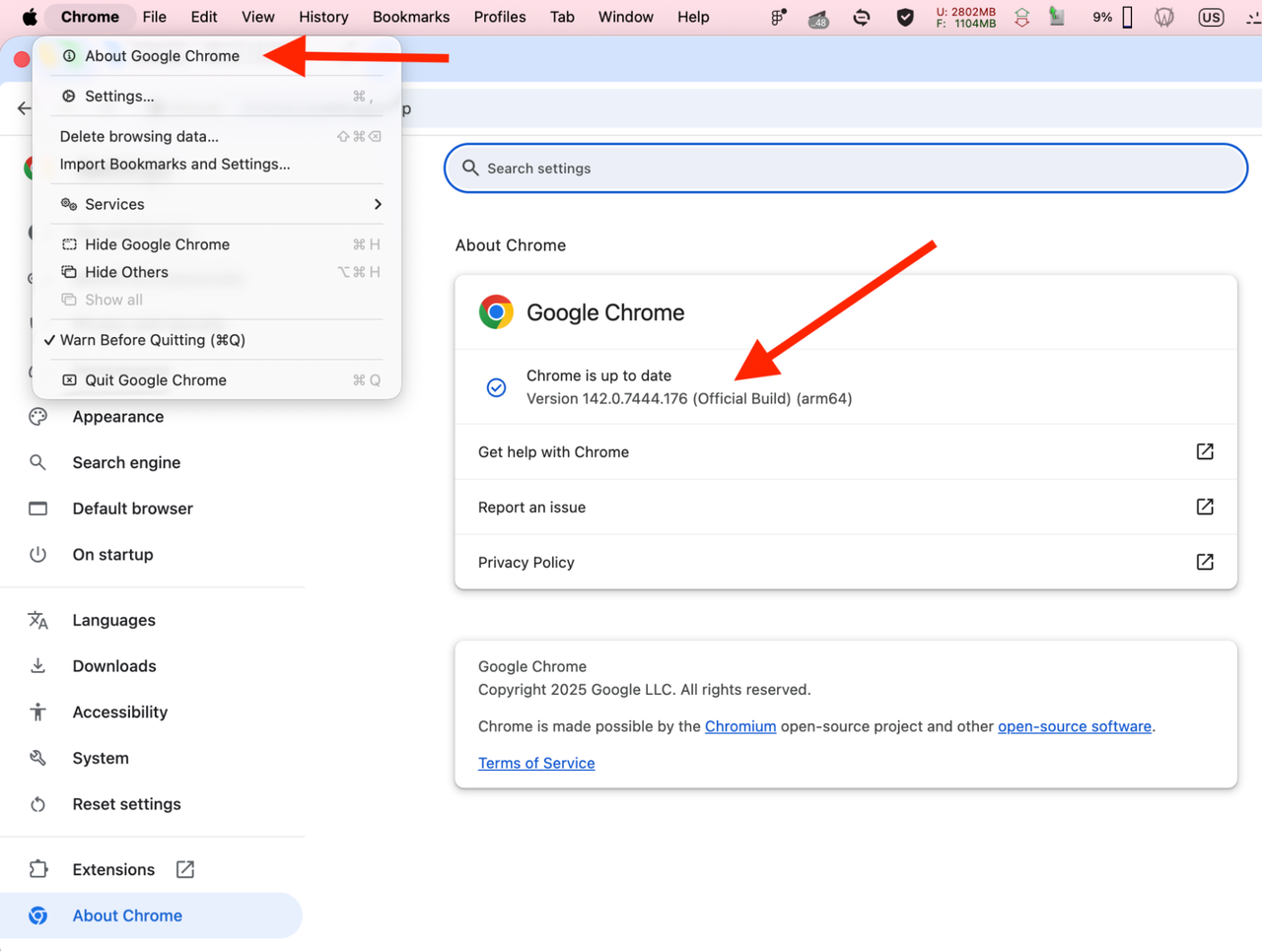
Vimeo relies on modern browser features for video playback. Older Chrome builds may lack fixes required for codecs, security policies, or media handling.
Clear Cache and Cookies
Corrupted or outdated cached files can block video playback, even if everything else works fine.
In Chrome, go to Settings → Privacy and security → Clear browsing data. Choose Cookies and other site data and Cached images and files, then clear them.
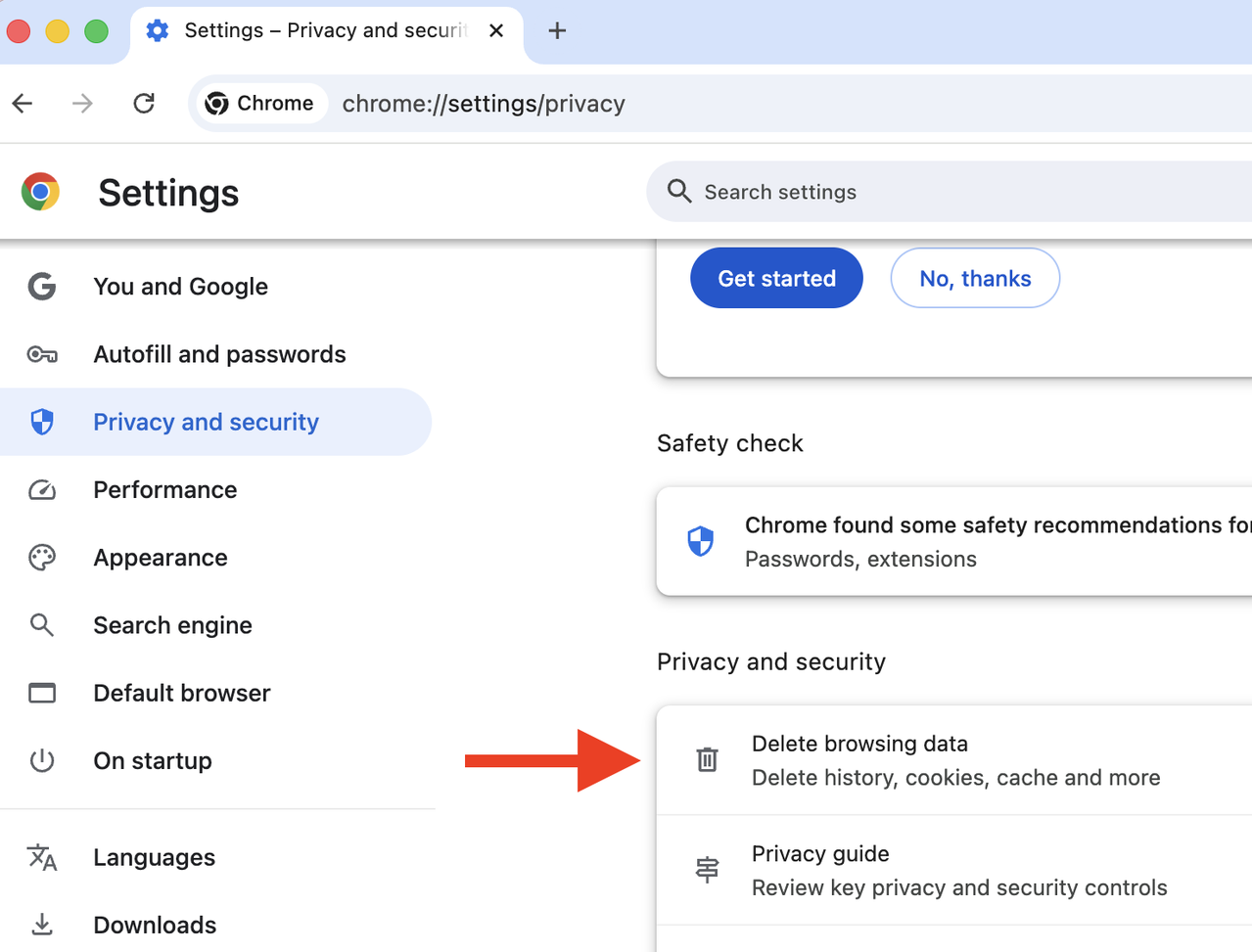
This step signs you out of most websites, but it often resolves Vimeo playback errors that seem to come out of nowhere.
Disable Extensions That Interfere with Vimeo
Extensions are a frequent source of trouble. Ad blockers, privacy tools, script blockers, and some antivirus extensions can prevent Vimeo’s player from loading properly.
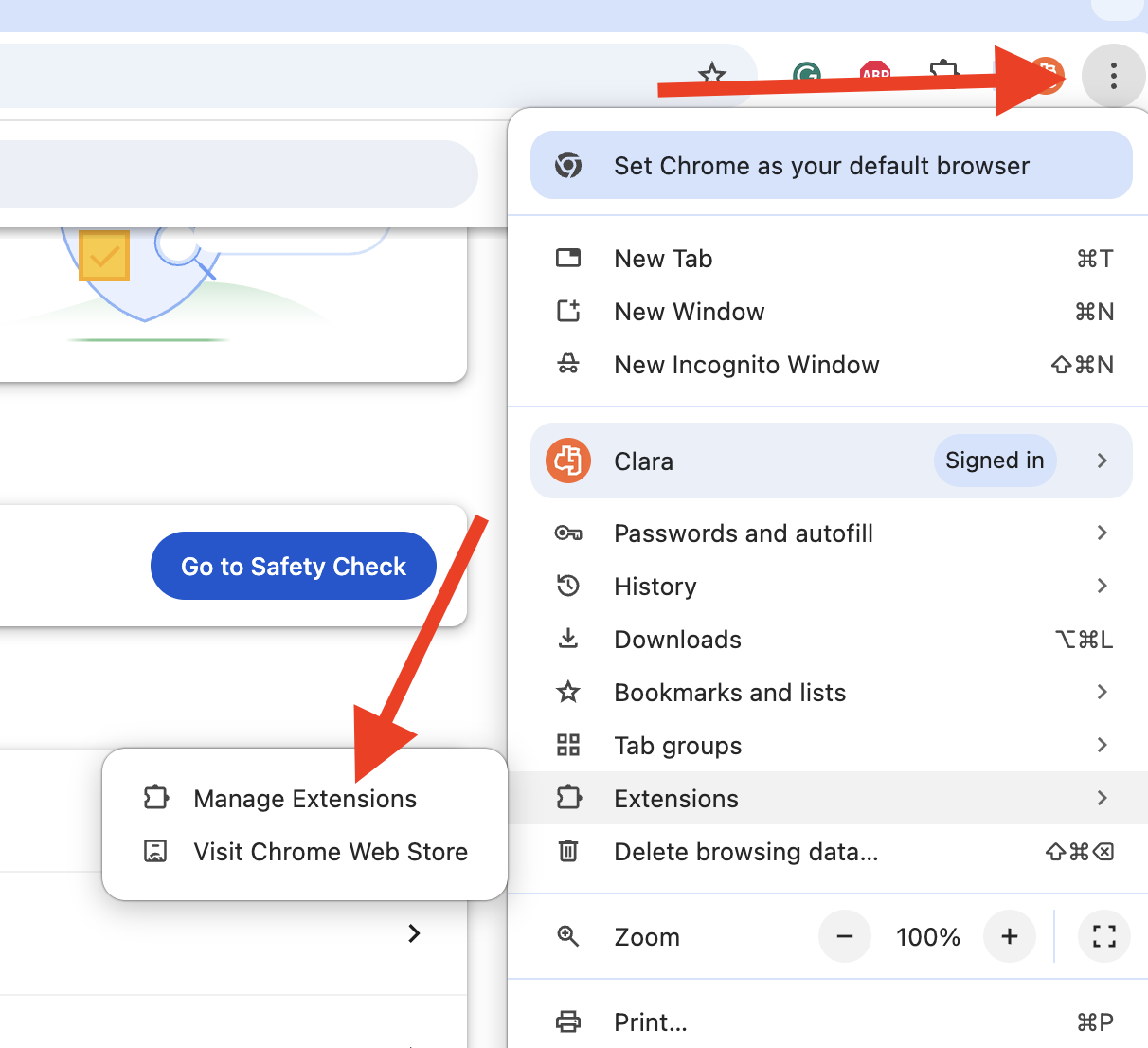
Open chrome://extensions/ and temporarily disable all extensions. Then reload the Vimeo video. If it starts playing, re-enable extensions one by one until you find the one causing the problem.
Ad blockers are a common culprit, especially if they block tracking scripts used by Vimeo’s player.
Check Hardware Acceleration Settings
Hardware acceleration shifts some video processing tasks from Chrome to your computer’s GPU. On some systems, this helps. On others, it causes playback issues.
To check the setting, go to Settings → System and toggle Use hardware acceleration when available. Restart Chrome and test Vimeo again.
If disabling it fixes the problem, leave it off. There’s no downside for most everyday browsing.
Review Chrome’s Site Settings for Vimeo
Chrome allows per-site permissions, and sometimes they get changed accidentally.
While on Vimeo, click the lock icon in the address bar and review site settings. Make sure JavaScript is allowed, sound isn’t blocked, and pop-ups aren’t restricted. Autoplay settings may also affect how videos start.
If anything looks off, reset the permissions for Vimeo and reload the page.
Turn Off VPNs and Proxies
Vimeo may block or limit access from certain IP addresses, especially those associated with shared VPN services.
If you’re using a VPN or proxy, disable it temporarily and try loading the video again. Many “Vimeo not working” cases end right there.
Try Incognito Mode
Opening Vimeo in an Incognito window is a quick diagnostic move.
Incognito mode disables extensions and uses fresh site data. If Vimeo works there, the problem likely comes from an extension, cached data, or a Chrome setting rather than the video itself.
Check the Network and System
If none of the above helps, the issue may sit outside Chrome.
Unstable internet connections can struggle with high-quality Vimeo streams. Public, work, or school networks sometimes restrict video platforms entirely. Firewalls can also block media requests without showing a clear error.
Updating your operating system can help too. System-level media components affect how browsers handle video playback.
Start by opening a few other websites in a new browser tab. If they take a long time to load or don’t load at all, the problem may have nothing to do with Vimeo or Chrome.
Restarting your router is a quick way to rule out network hiccups. This resets the connection and often clears temporary errors that affect streaming.
If you’re on Windows, you can also clear your DNS cache, which helps when your system struggles to resolve website addresses correctly.
To do this:
- Press Win + R to open the Run dialog.
- Type cmd, then press Ctrl + Shift + Enter to launch the Command Prompt with administrator rights.
- Enter the following command and press Enter: ipconfig /flushdns
- When the process completes, you’ll see a confirmation message indicating that the DNS cache has been flushed.
Once that’s done, reopen Chrome and try loading the video again.
When Vimeo Still Won’t Play
If Vimeo continues to fail in Chrome, try opening the same video in another browser to confirm it’s not an issue with the video or its privacy settings. You can also open the video in a new tab or check whether the uploader restricted playback to certain domains.
As a last resort, Vimeo support can confirm whether the video itself has platform-level issues.
How to Download Vimeo Videos & Watch Them Offline
Sometimes the issue isn’t Chrome at all, it’s the connection. If your internet is unstable or restricted, streaming can be unreliable.
In such cases, downloading Vimeo videos for offline viewing removes the browser from the equation entirely. Desktop tools allow videos to be saved locally and watched without buffering, extensions, or connection drops. This approach is often used for tutorials, lectures, and long-form content that needs uninterrupted playback.
With 4K Video Downloader Plus, the process is straightforward and doesn’t require browser extensions or extra tools.
Below is a step-by-step explanation of how it works:
- First, open the Vimeo video you want to download.
You can copy the link directly from the browser’s address bar. If the video page doesn’t show the full URL, click the Share button on the Vimeo player and copy the link from there.
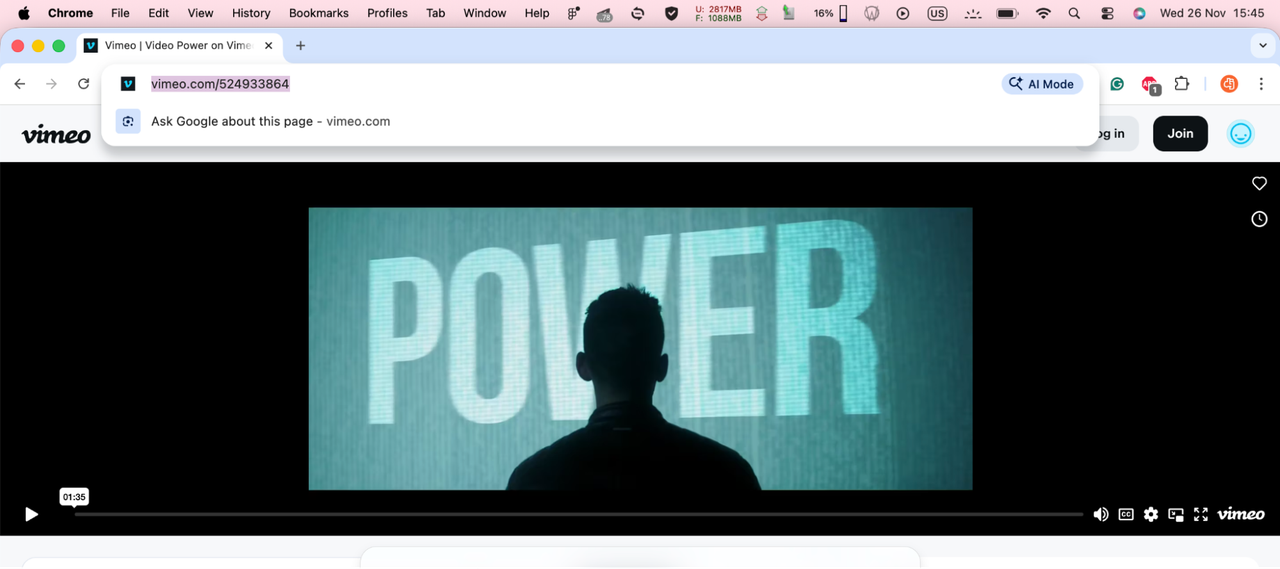
Make sure the video is accessible to you. Password-protected or private videos can only be downloaded if you have legitimate access to them.
- Launch 4K Video Downloader Plus on your computer.
If you haven’t installed it yet, download it from the official 4K Download website and complete the installation. The app is available for Windows, macOS, and Linux.
Once open, you’ll see a clean interface with just a few main controls.
- Click the Paste Link button in the top-left corner of the app.
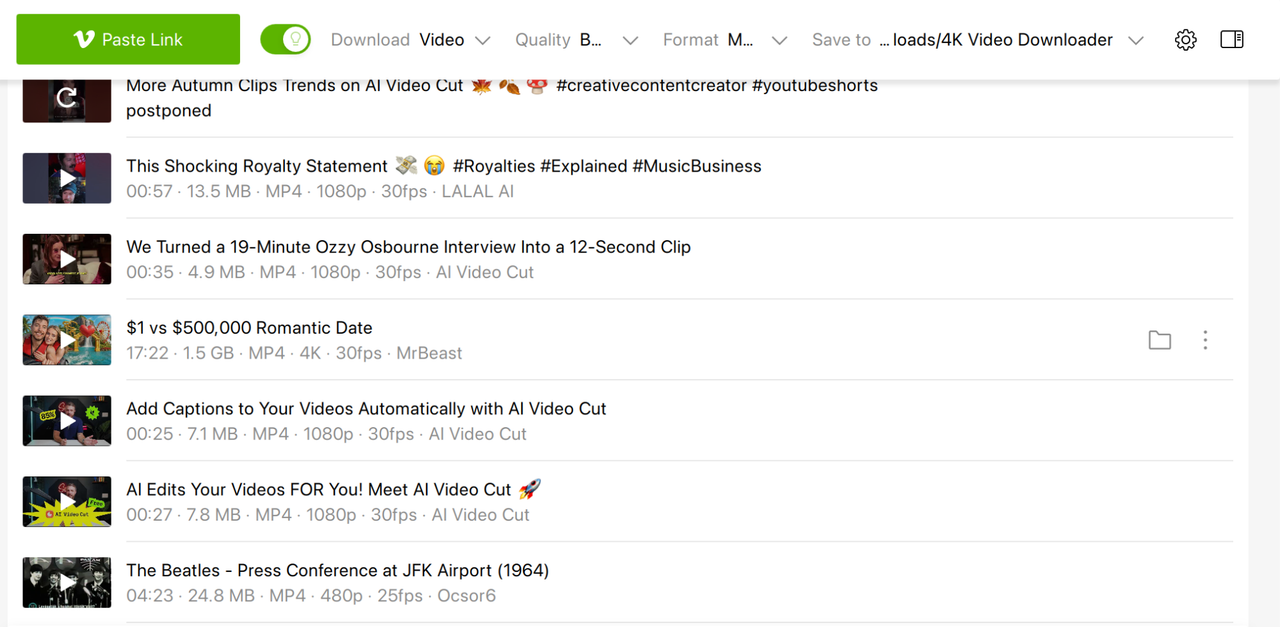
4K Video Downloader Plus will automatically analyze the link. You don’t need to paste it into a separate input field, the app detects the link from your clipboard.
Depending on the video length and your connection, analysis usually takes a few seconds.
- After the link is processed, the app will display available download options.
You can select:
- Video quality (for example, 1080p or 4K, if available)
- Video format
- Output folder on your computer
If the video offers multiple tracks or resolutions, they’ll appear here. Choose the option that fits your needs, then confirm the download.
If you have the Smart Mode on, the download will start automatically.
- Click Download and wait for the process to finish.
Progress is shown inside the app, so you can see when the video is ready. Once completed, the file is saved locally and can be watched without an internet connection.
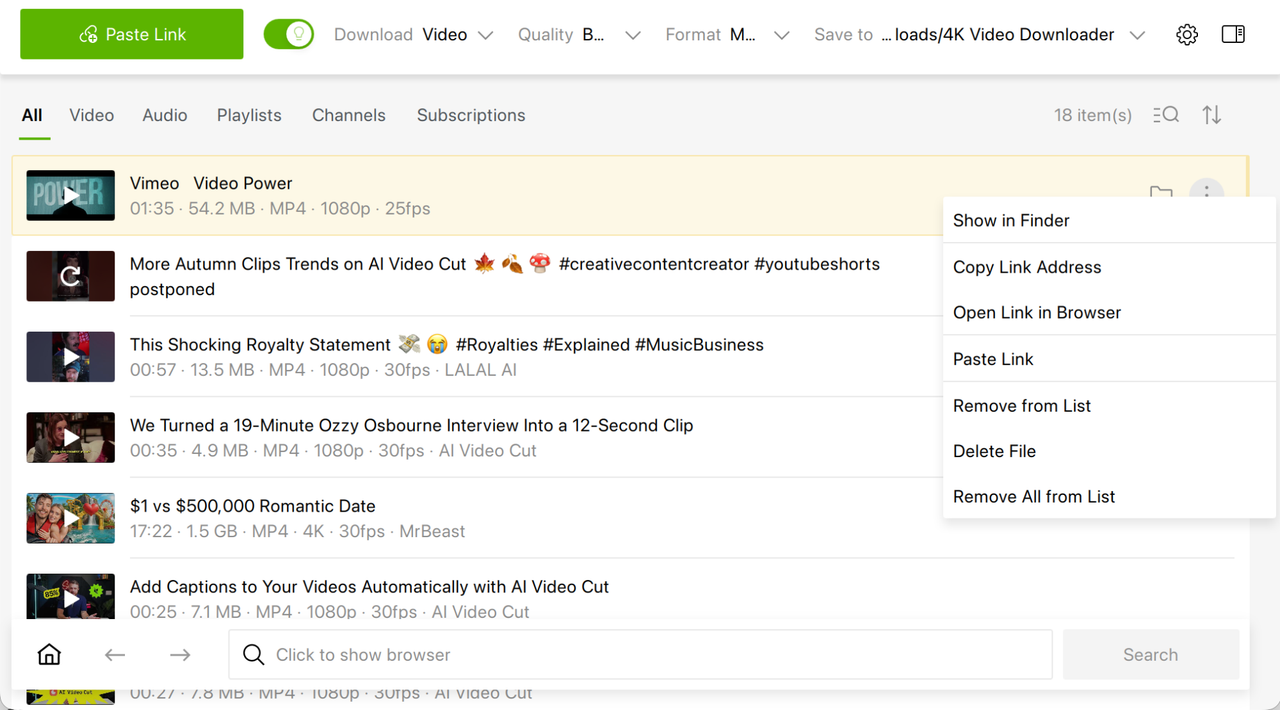
This approach is particularly useful for long videos, interviews, lectures, or tutorials where buffering interruptions become an issue.
Optional: Download More Than One Video
If you need several videos, repeat the same steps with additional Vimeo links. 4K Video Downloader Plus supports multiple downloads, which helps when collecting content for offline reference. Besides, with the app, you can download private Vimeo videos too.
Just make sure you respect Vimeo’s terms and the video creator’s rights when downloading content.
FAQ
Why does Vimeo work in Firefox but not in Chrome?
Browsers handle video playback differently. Chrome extensions, cached data, or hardware acceleration may block Vimeo, while Firefox bypasses those issues.
Does clearing cookies delete my Vimeo account?
Clearing cookies signs you out, but it doesn’t delete your account or saved videos.
Can ad blockers break Vimeo playback?
Yes. Some ad blockers block scripts required for Vimeo’s player to load properly.
Is Vimeo down when it doesn’t load?
Occasionally, but most playback problems are local. If Vimeo works for others, the issue is usually with browser settings or extensions.
Do private Vimeo videos cause playback errors?
They can. Private or password-protected videos may show errors if the link is incomplete or access permissions changed.
Final Thoughts
When Vimeo stops working in Chrome, the cause is usually something small and fixable. Updating the browser, clearing cache, or disabling one extension is often enough. Start simple, work through the steps, and the player usually comes back to life without much effort.
And if streaming keeps failing, there’s always the option to download and stream video offline.
 SHARE ON TWITTER


Thanks for feedback
Your comments will appear here shortly. Please spread the word about us in social networks.