



Have you ever downloaded a video, only to find it far lower in quality than you expected? Maybe a video you hoped to watch in crisp 1080p or 4K shows up in 360p or 480p instead. This isn’t a bug; it’s often how the video platform delivers content combined with the settings in your downloader. Understanding why this happens and how to take control of video resolution can save both time and frustration.
With 4K Video Downloader Plus, you can easily choose the quality you want and get the most out of your downloads.
Why Videos Sometimes Aren’t Downloaded in the Desired Quality
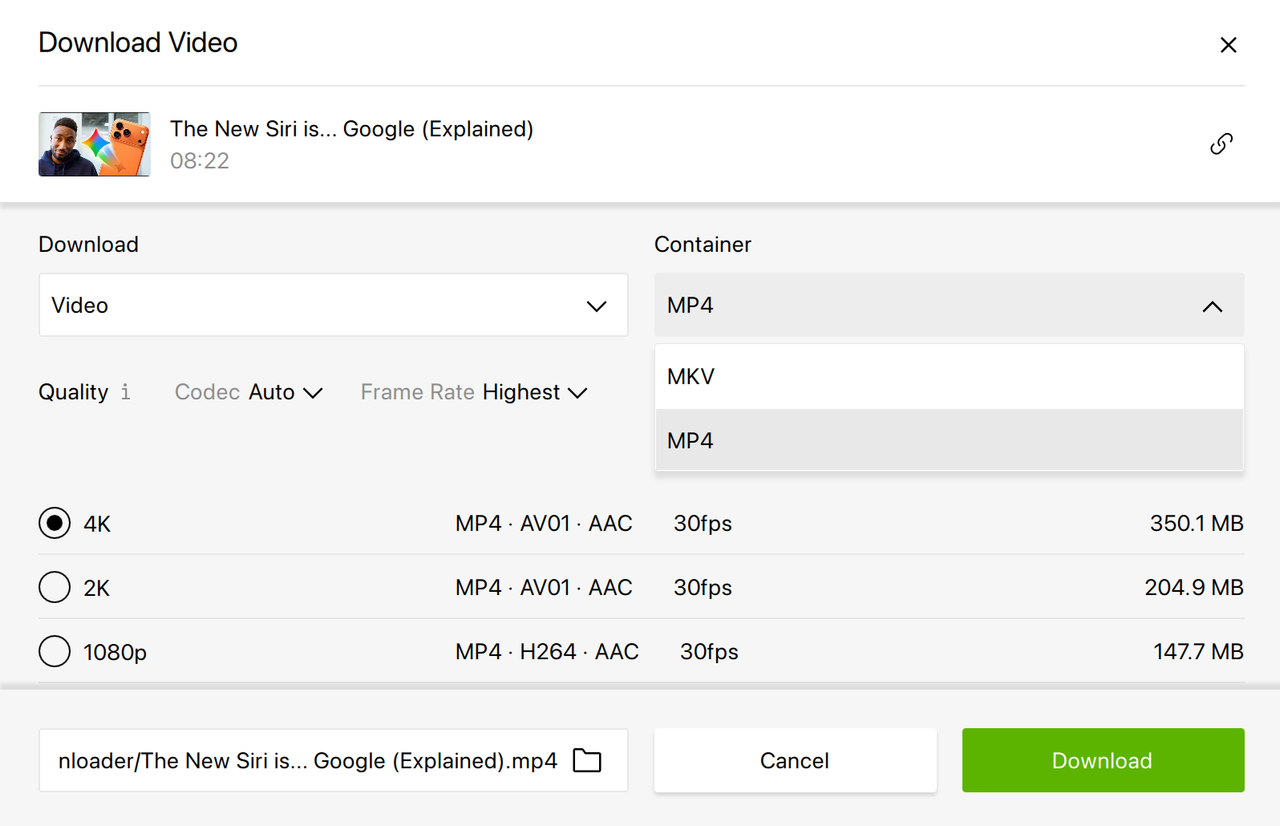
Not every video is available in every resolution. Some uploads exist only in 480p or 720p. More than that, some resolutions might be simply unavailable for MP4 or MKV videos. As such, higher quality might be accessible when downloading a video only in MKV but unavailable for MP4 downloads.
How to Manually Choose the Resolution in 4K Video Downloader Plus
4K Video Downloader Plus offers Smart Mode, which streamlines the download process by automatically applying your last-used settings. While convenient, this can prevent you from choosing a specific resolution for a particular video.
Disabling Smart Mode allows manual selection for each download.
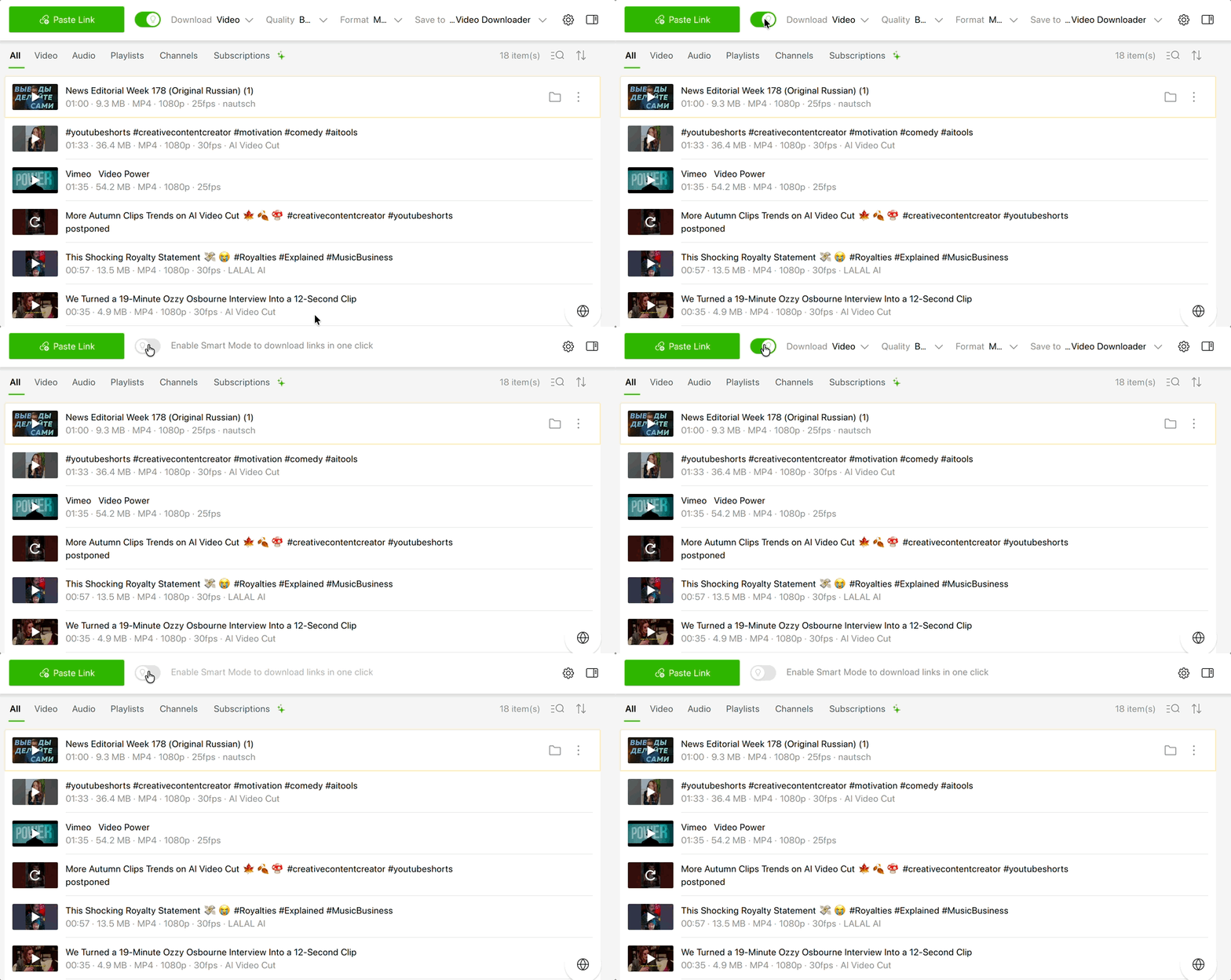
When opening 4K Video Downloader Plus:
- Copy a video link and insert it in the app by clicking Paste Link.
- Pick the format. MP4 is widely compatible, while MKV preserves higher resolutions more reliably.
- In the next window that opens, choose the desired resolution, such as 1080p, 2K, or 4K.
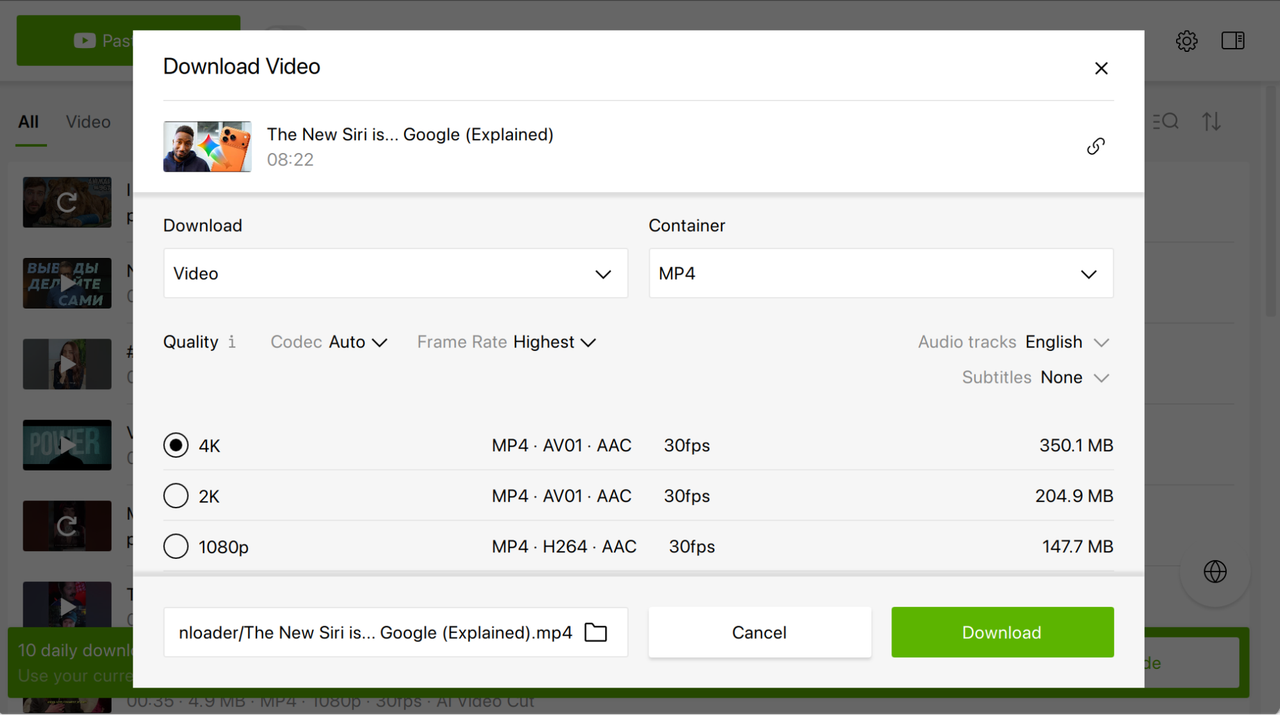
4. Tap Download.
Tip: If the video is still downloaded in a lower quality, try switching the container.
Smart Mode: How to Automatically Download a Video in the Best Possible Quality
In Smart Mode, you’re also free to select the best video resolution possible. Here’s how:
- Make sure Smart Mode is on by toggling on the switcher with the bulb icon.
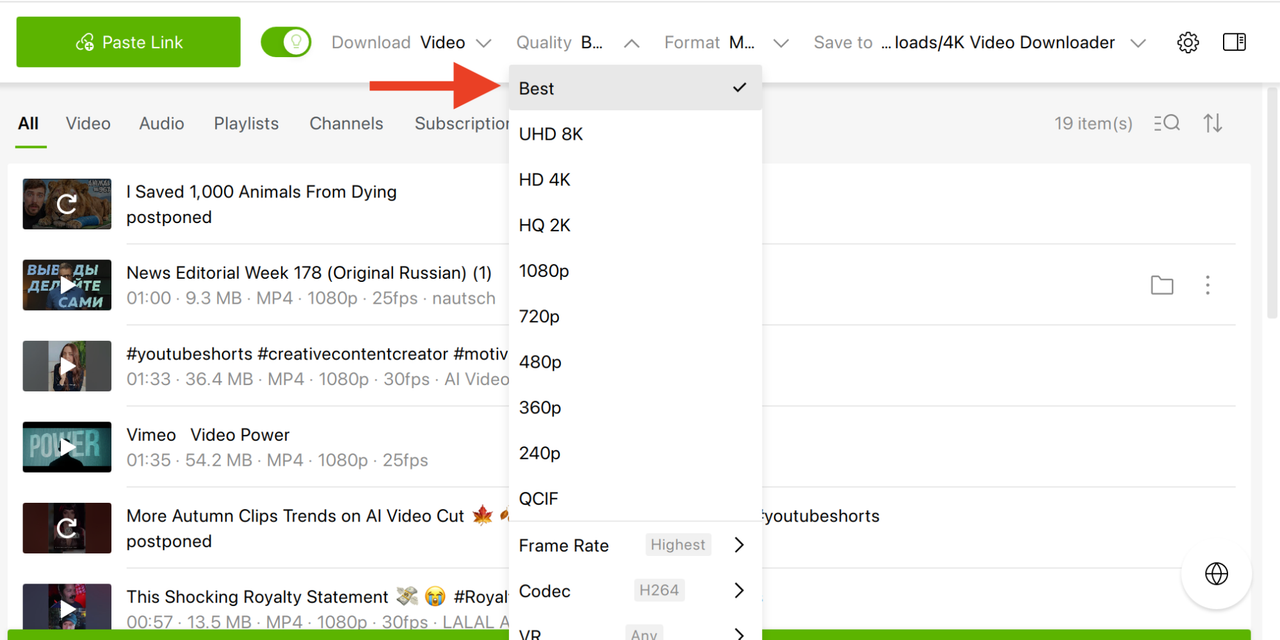
- In the Quality tab, select Best. Thus, you’ll ensure that 4K Video Downloader Plus will indeed select the best possible quality for a particular video, which is helpful if you’re not sure in which resolution it was uploaded.
- If you’re downloading a YouTube video, select MKV in the Format tab. By choosing this container, you ensure that the video will be saved in the highest quality available.
- Windows: video MP4, audio MP3
- MacOS: video MP4, audio M4A
- Linux: video MKV, audio OGG
- iOS: video MP4, audio M4A
- Android: video MP4, audio MP3
- Copy the link of the video you’d like to download and paste it by clicking Paste Link to save the video on your device.
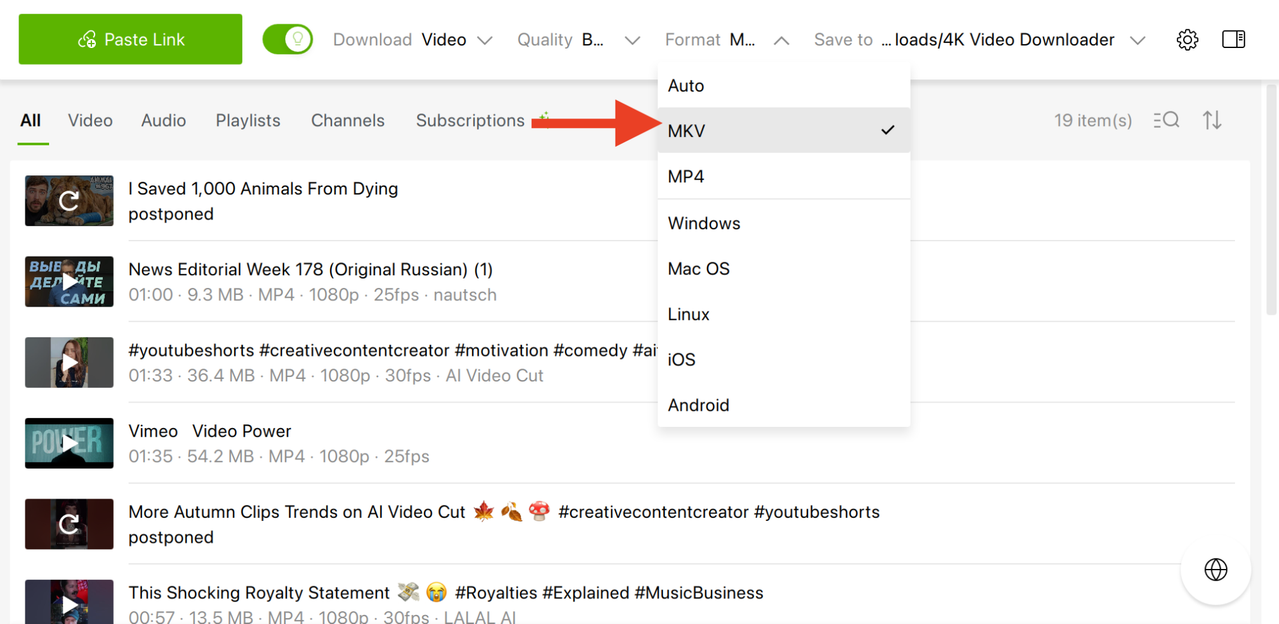
The MP4 and MKV options allow you to explicitly specify which container will be used for downloading the video (if you choose MP4, the downloaded video will also be in MP4).
Alternatively, you can choose the option for your operating system, which will select a format more likely to play correctly on standard players for that system.
Currently, the following containers are typically chosen:
Note, however, that in this case, the audio option will not be applied when downloading the video. For instance, if you select Windows as the Format option, the downloaded video will be in MP4, but the audio track may use any container, including MP3.
Smart Mode will remember the chosen settings and apply them automatically to your next downloads.
Additional Tips
- If the resolution you want isn’t available, check the original upload on the platform: sometimes, the content isn’t uploaded in the desired quality in the first place.
- Ensure that you are logged in to your YouTube account through the application, as this can sometimes resolve resolution restrictions. And vice versa: if you’re already logged in, try logging out of YouTube via 4K Video Downloader Plus—it can help.
- Make sure you use the latest versions of 4K Video Downloader Plus and 4K YouTube to MP3 because if lower quality download issues are on our end, the new versions ensure they are fixed.
- If you want to download a Bilibili video in quality higher than 480p, all you have to do is to log in to your Bilibili account right in 4K Video Downloader Plus, and high-quality downloads (720p and 1080p) will be unlocked.
FAQ
Can I always download 4K videos from YouTube?
Only if the original video was uploaded in 4K. If it exists only in 720p or 480p, that’s the highest quality you can download.
Why does Smart Mode sometimes choose lower resolution?
Smart Mode applies your last-used settings automatically. If the previous download was lower quality, Smart Mode may repeat those settings.
Why can’t I download audio in 320 kbps from YouTube Music with 4K Video Downloader Plus?
If you’re downloading audio from YouTube Music and are a Premium subscriber, the highest bitrate available is 256 kbps, which you can download as long as:
- you have a Pro license for 4K Video Downloader Plus/4K YouTube to MP3;
- you are logged in with your YouTube Premium account in 4K Video Downloader Plus/4K YouTube to MP3;
- you try to download files from YouTube Music.
We covered this in more detail in this article, so please make sure you take a look.
 SHARE ON TWITTER


Thanks for feedback
Your comments will appear here shortly. Please spread the word about us in social networks.