



Watching YouTube videos offline is already a common practice, but when subtitles are involved, the task becomes less straightforward. The practical purpose of having subtitles in a video can be different: learning a new language, researching lectures, or just a preference to watch videos with captions for accessibility, but saving both the video and its subtitles can be tricky. YouTube itself doesn’t offer a simple way to download subtitles alongside videos, and online tools often have limitations. Desktop applications, or more specifically, YouTube video downloaders, make this process much smoother.
One such tool is 4K Video Downloader Plus, available for Mac, Windows, and Ubuntu. It allows users not only to save videos but to download subtitles in multiple languages, either embedded in the video or as separate files.
In this article, we’ll show you a simple and quick way to download YouTube videos along with subtitles in different languages.
Everything You Should Know About YouTube Subtitles
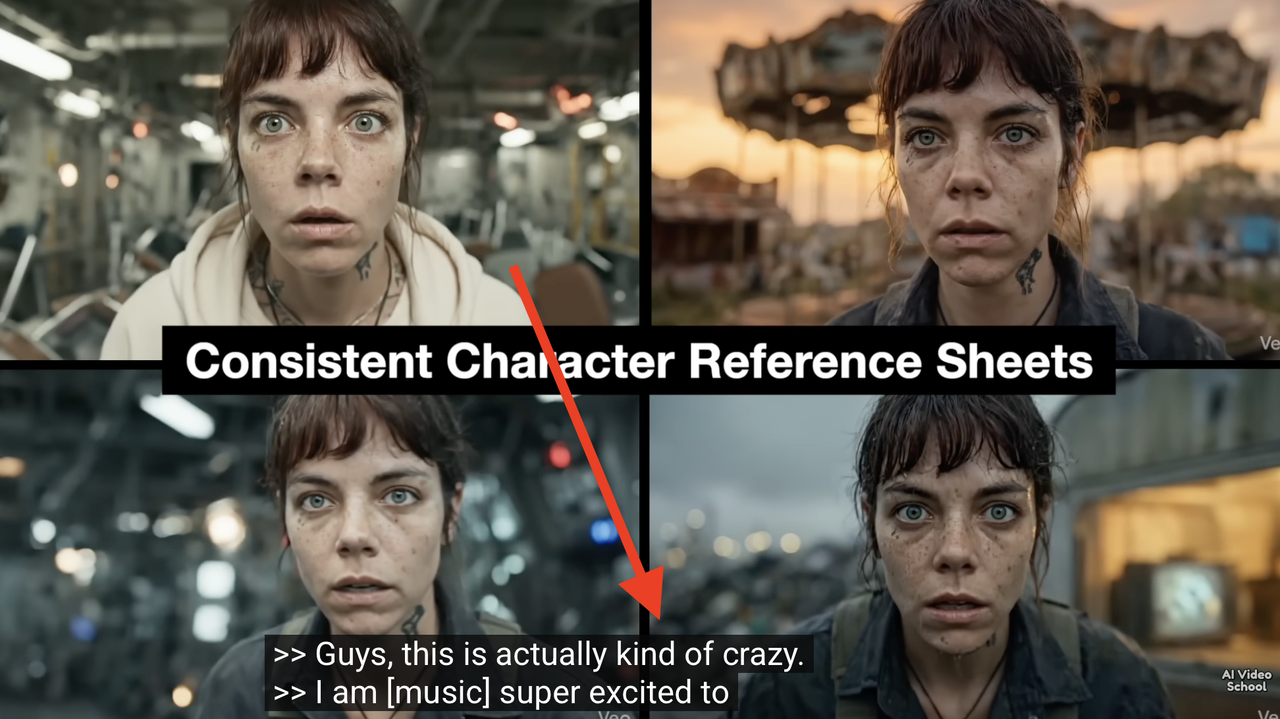
Before downloading, it helps to know what types of subtitles exist on YouTube. YouTube subtitles, also called closed captions (CC), transcribe spoken audio into text synced with videos to boost accessibility and reach. They come in automatic AI-generated, manual uploads, and translated versions across many languages.
Auto-generated captions, which are created automatically by YouTube’s algorithms, are usually available in the video’s original language and may contain errors, especially with names, technical terms, or accents. Such subtitles work in over 100 languages but have 80-85% accuracy on average for clear English audio, dropping with accents or noise.
Other videos include creator-uploaded subtitles, which are manually created and tend to be more accurate. Many creators provide subtitles in multiple languages, either uploaded themselves or auto-translated by YouTube.
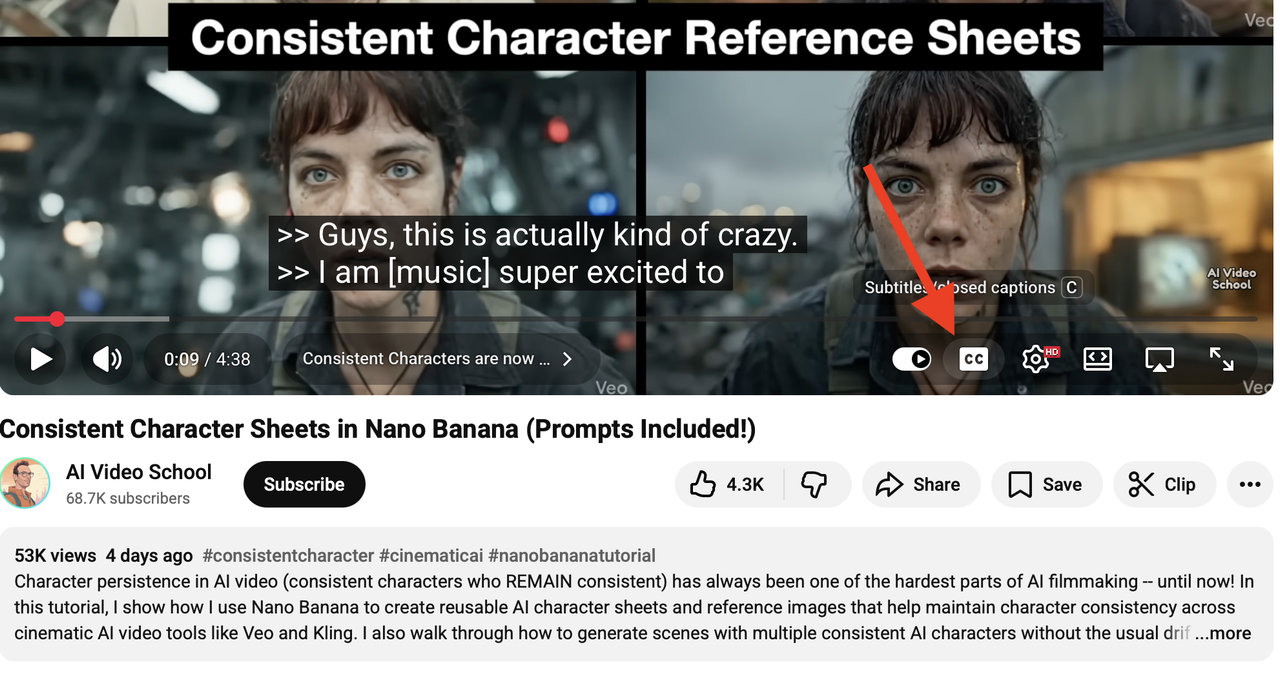
Creators add subtitles via YouTube Studio: they upload .srt/.sbv files, use auto-sync, or type manually during upload or post-upload. Existing videos get edited auto-captions or new tracks. Viewers toggle CC via the player icon and customize font, size, color, and background in settings.
How to Save YouTube Subtitles: Daunting Manual Method
While YouTube allows users to view and copy transcripts, this method is slow and impractical for longer videos. Some online tools claim to download subtitles directly, but they often fail when the video has multiple languages, playlists, or private access restrictions.
Additionally, they usually don’t provide the option to embed subtitles directly into the video file.
However, desktop software like 4K Video Downloader Plus can download both videos with embedded subtitles along with .srt files consisting of only subtitles.
How to Download YouTube Subtitles on Windows & Mac with 4K Video Downloader Plus
4K Video Downloader Plus can detect and download all types of subtitles that are available for a YouTube video. There are several types you might encounter:
- Author-uploaded subtitles. These are subtitles that the video creator has added themselves. They usually offer the highest quality and accuracy.
- Auto-generated subtitles. YouTube can automatically transcribe speech in a video and generate subtitles. In the app, these appear as “language name – transcribed” (for example, “English – transcribed”).
- Auto-translated subtitles. If a video doesn’t have subtitles in your preferred language, 4K Video Downloader Plus can request an automatic translation using YouTube’s own translation service. In the app, these appear as “language name– auto-translated.”.
Note: Auto-translated subtitles are only available for the most popular languages and only if there are no higher-quality subtitles (like author-uploaded or auto-generated) for that language.
Now that you know it, here’s a step-by-step guide on how to download subtitles from YouTube, both on Windows and macOS.
How to Download Embedded YouTube Subtitles
If you want subtitles built directly into your video file (so you don’t need a separate .srt file), follow this steps:
- Launch 4K Video Downloader Plus.
- In the menu bar, click Tools -> Preferences -> Advanced.
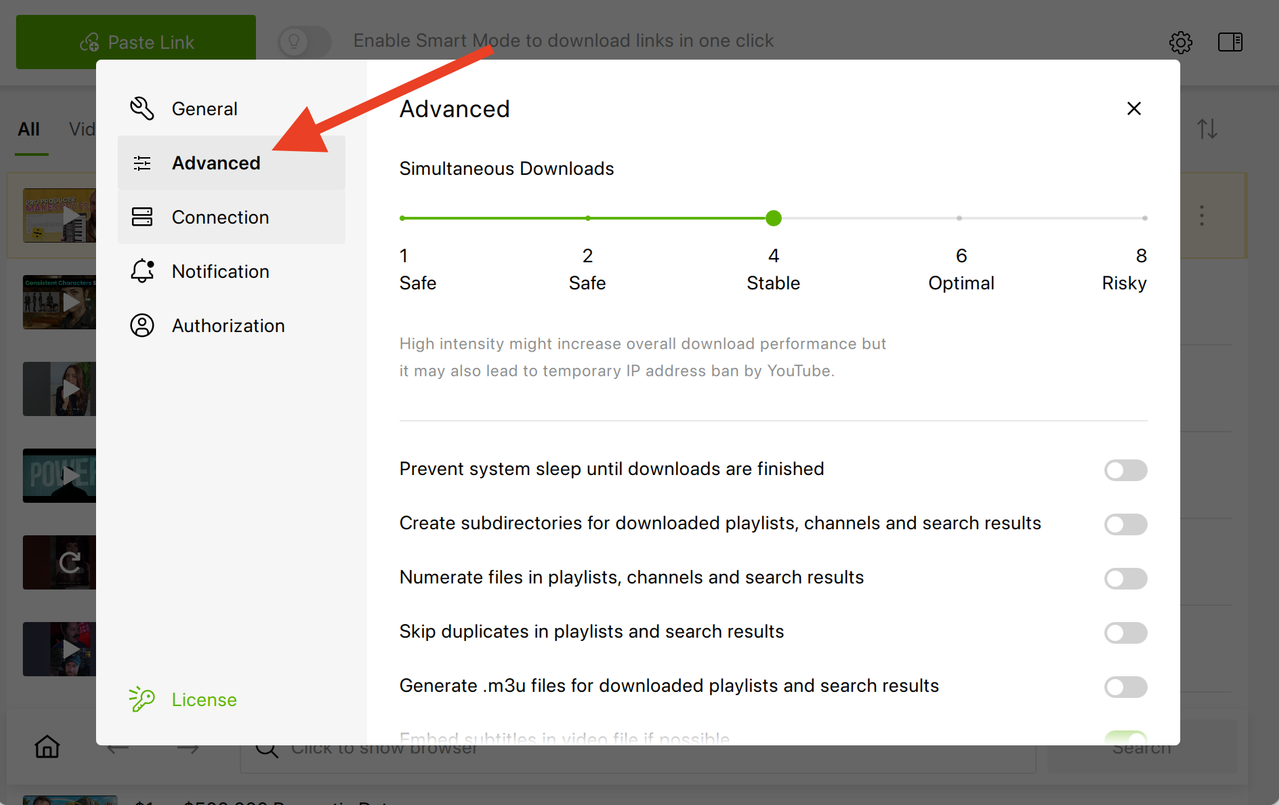
- Enable the option: Embed subtitles in video file if possible.
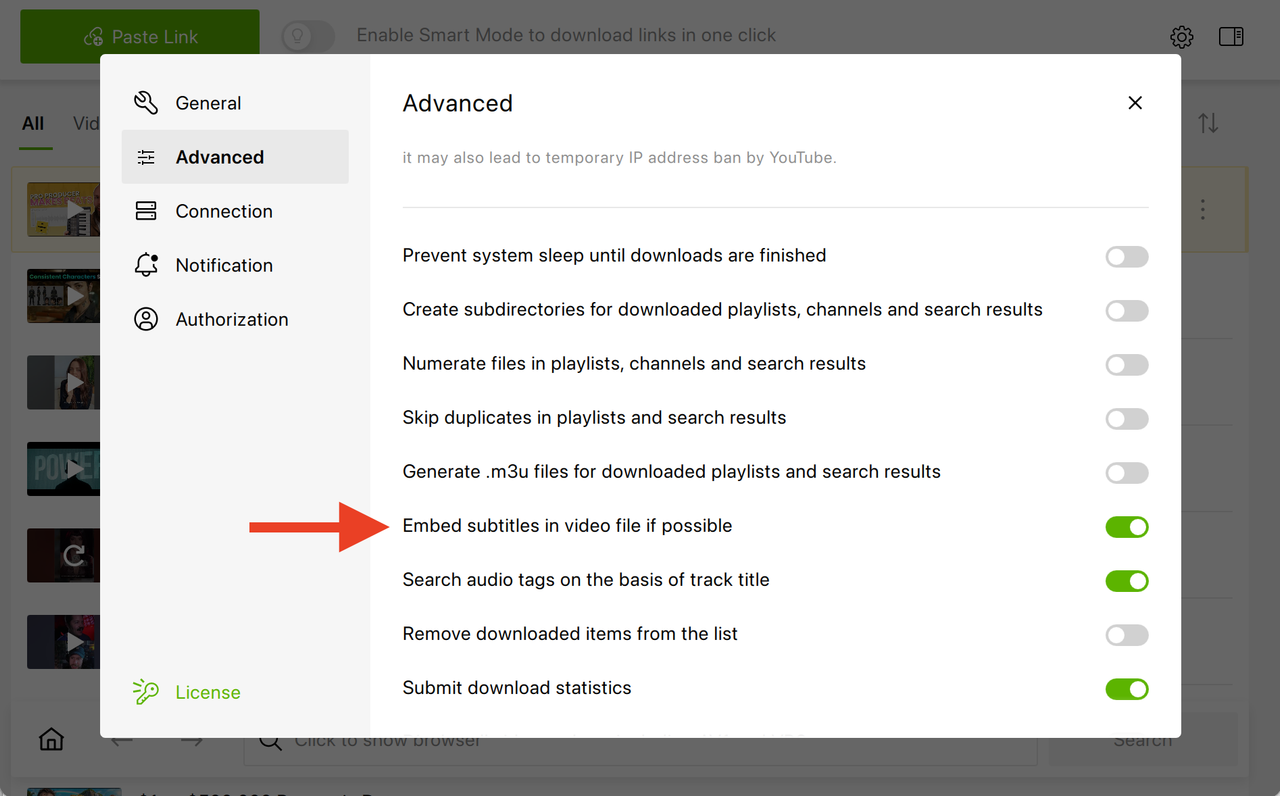
- If Smart Mode is on, disable it.
- Copy the link of a video with subtitles (CC) and paste it into the app.
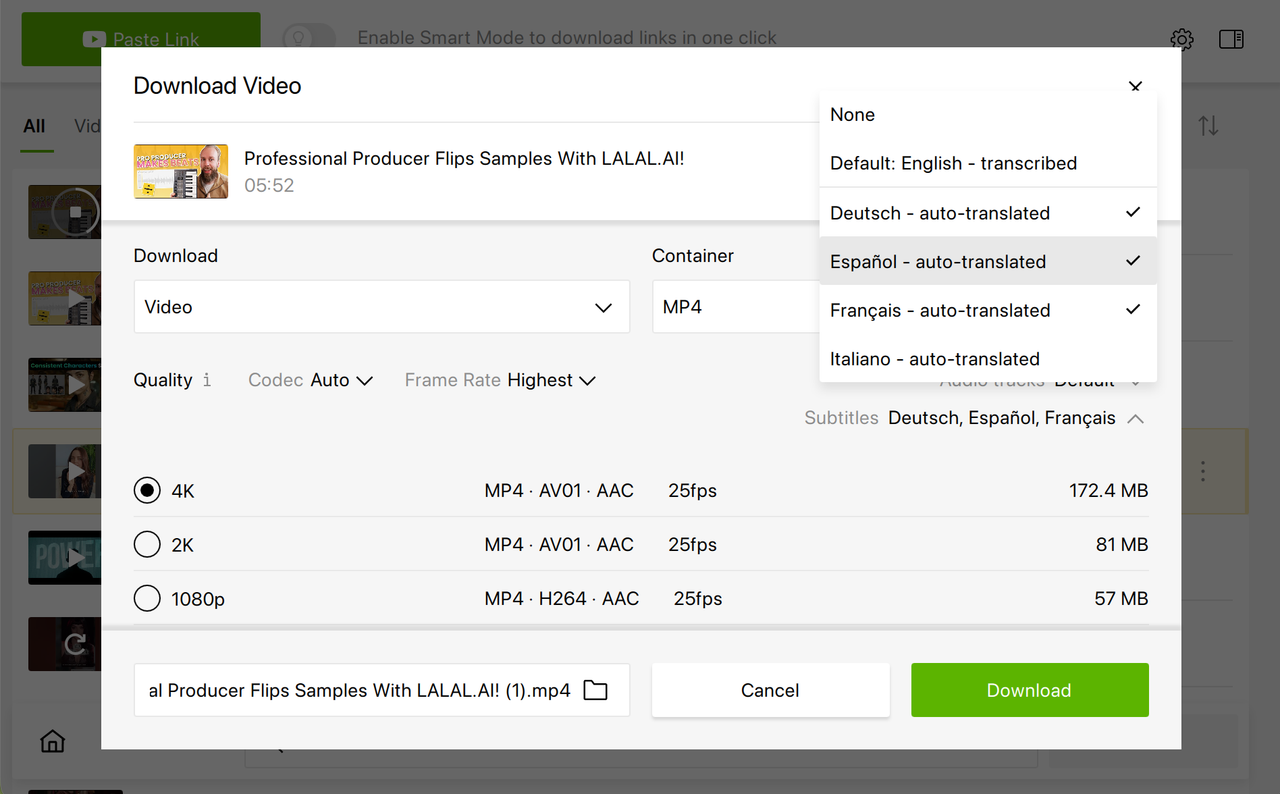
- In the download window, toggle the Subtitles section and pick one or multiple languages from the list.
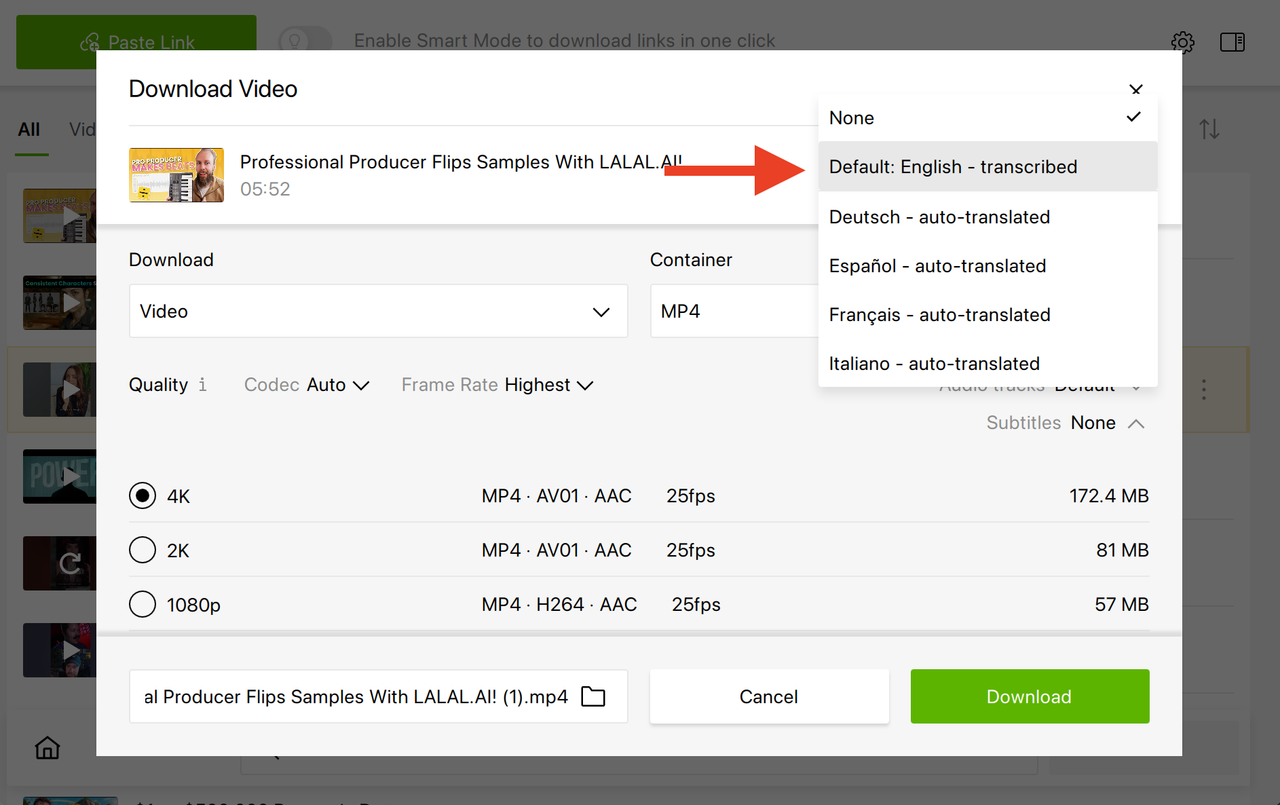
- Adjust other settings if needed, then click the Download button.
- Open the video with VLC Media Player or Media Player Classic. Use the Subtitle menu to enable or switch subtitles.
How to Download YouTube Subtitles as a Separate File on Windows & macOS
If you prefer to have subtitles as a separate .srt file, follow these steps:
- Launch 4K Video Downloader Plus.
- Go to Tools -> Preferences -> Advanced to make sure Embed subtitles in video file if possible is turned off.
- Copy the link of a video with subtitles (CC) and paste it into the app.
- In the download window, select your preferred subtitle language.
- Adjust other settings if needed, then click the Download button. The app will save the subtitles as a separate .srt file alongside your video.
- Open both the video and the .srt file in VLC Media Player or Media Player Classic to view subtitles. In VLC, you can add the subtitle file via the Subtitle menu.
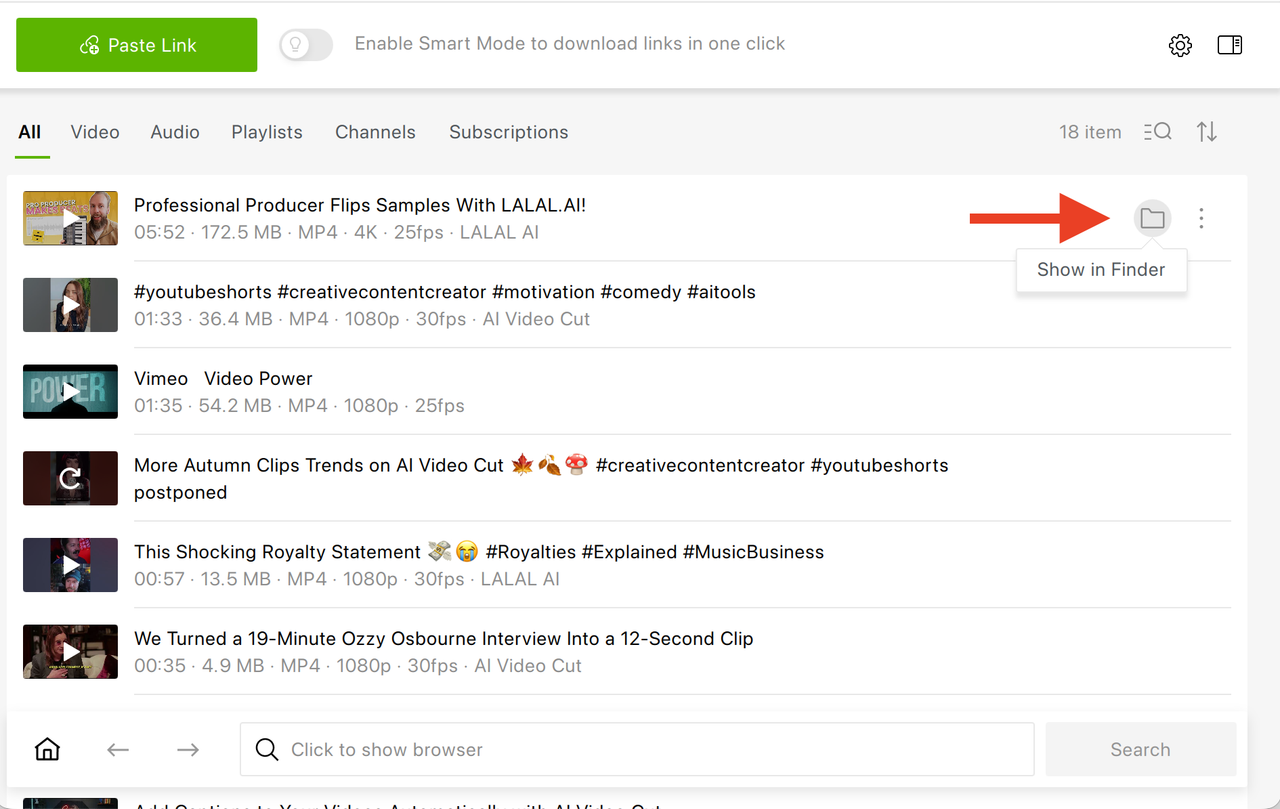
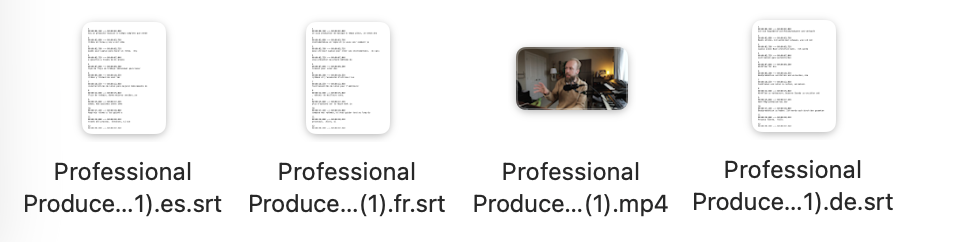
If you want to locate the .srt files, click on the folder icon next to the video within 4K Video Downloader Plus, and the folder with the clip and an .srt file will open.
Using Smart Mode:
- Open YouTube, find the video you want, and copy the URL from the browser.
- Launch the app and find the Video tab -> Subtitles -> choose the desired language or Default.
- Optional: Select the desired format and quality. If you’re downloading a video not for the first time, you already have all the desired download settings automatically applied by Smart Mode.
- Click Paste Link. The software will analyze the video and start automatically downloading it.
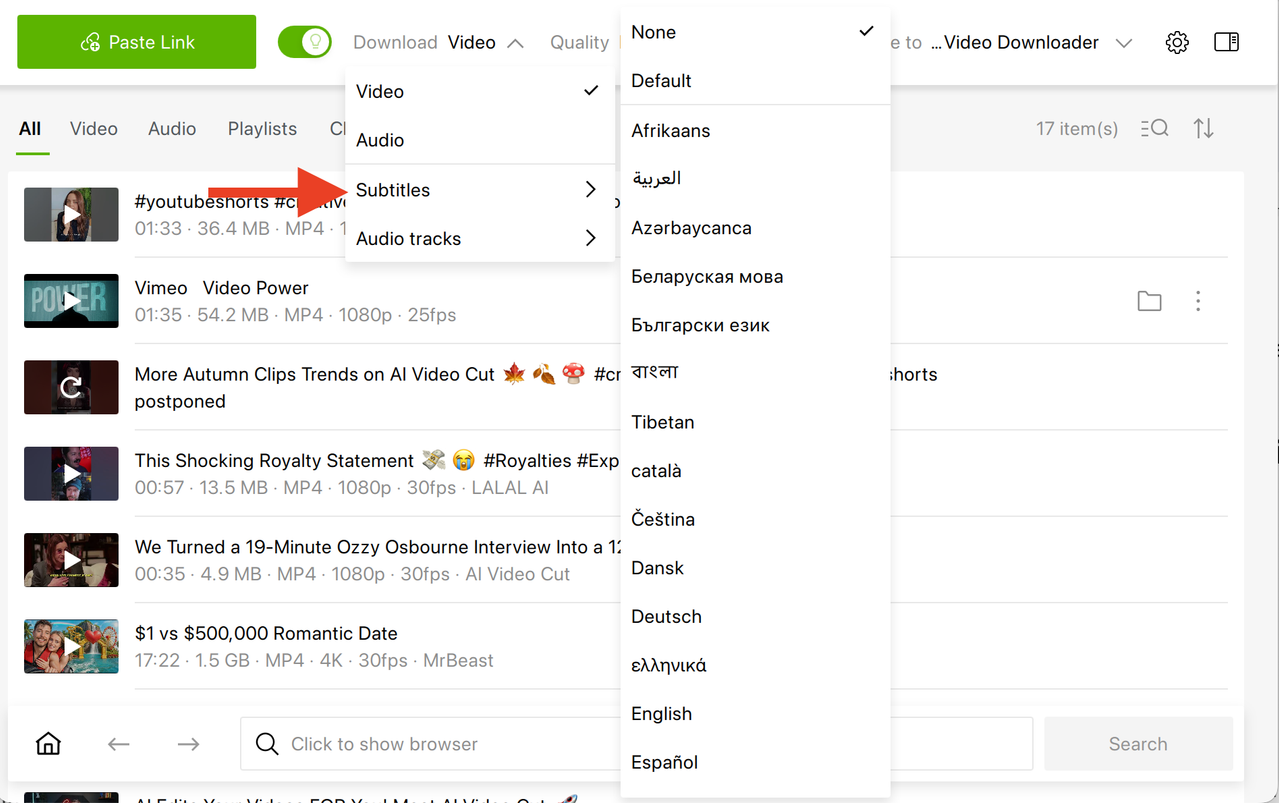
Once the video is downloaded, open both the video and the .srt file in VLC Media Player or Media Player Classic to view subtitles. In VLC, you can add the subtitle file via the Subtitle menu.
Multiple Subtitle Languages Selection
Some videos provide captions in several languages. 4K Video Downloader Plus can download more than one track at a time. For instance, a TED Talk might be available in English, Spanish, and German. Users can select all available languages, and the software will download a video with all subtitles you’ve chosen.
Troubleshooting: Why Subtitles Might Not Download or Appear
Here are possible reasons:
- Unsupported languages: 4K Video Downloader Plus covers most commonly used subtitle languages, but some rare or regional languages, like Tibetan, may not be available.
- Subtitle page issues: The app relies on YouTube’s subtitle pages to download captions. Subtitles may fail to download if:
- The subtitle page is unavailable, for example due to an HTTP error.
- The page exists but contains no actual subtitle data, which can occur with certain auto-generated or auto-translated captions.
- YouTube limitations: If a video doesn’t have subtitles in a particular language, the app cannot generate or download them.
Here’s what you can do to make sure everything goes just as you planned:
- Check subtitle availability: After pasting a video link into the app (make sure Smart Mode is turned off), look at the list of available subtitles in the download window. If a video doesn’t have captions on YouTube, the app cannot create them.
- Try a different language: If your preferred language isn’t listed, see if other languages are available. Some videos only offer subtitles in specific languages.
- Use a compatible media player: For the best viewing experience, open downloaded videos and subtitle files in VLC Media Player or Media Player Classic. Many default players, like Windows Media Player, often have trouble displaying subtitles correctly.
Now that you know how to download YouTube subtitles, you can enjoy watching your favorite videos, single ones or as part of a YouTube playlist or channel, offline with closed captions in any available language. In 4K Video Downloader Plus, you can select subtitles from 50 languages; just make sure you use the latest version of the app and ensure the selected video does have the subs in the language you need.
 SHARE ON TWITTER


Thanks for feedback
Your comments will appear here shortly. Please spread the word about us in social networks.