



Downloading a YouTube video is simple. Downloading it together with accurate, usable subtitles is not, because YouTube gives viewers no built-in way to save captions alongside a video file. People look for subtitles for very different reasons: some are learning a language, some are reviewing a lecture, some simply prefer reading along, and some cannot watch with sound at all. Whatever the reason, the video and the captions usually need to end up in the same place, in a format a media player can actually read.
4K Video Downloader Plus, available for Mac, Windows, and Ubuntu, solves this by letting users save YouTube videos with subtitles embedded directly in the file or exported as separate .srt files, in whichever language the video offers. This guide walks through both methods, explains how YouTube's different subtitle types behave, and includes current data on caption accuracy and why subtitles have become such a common way of watching video.
What Kinds of Subtitles Exist on YouTube
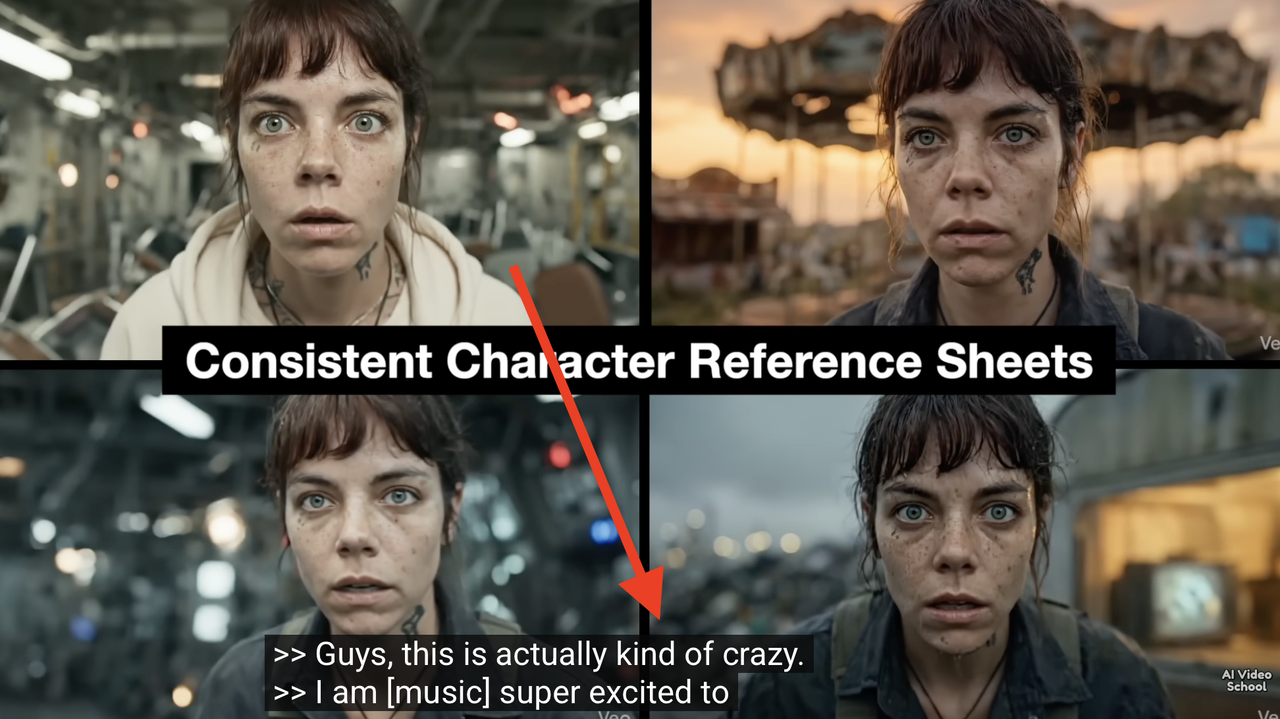
Not all YouTube subtitles are created the same way, and the method matters for both accuracy and download quality. Three separate creation methods result in captions that can look similar on screen but differ enormously in reliability.
Auto-generated captions come from YouTube's own speech recognition system, working directly from a video's audio track. According to guidance published by the University of Connecticut's IT accessibility office, automatically generated captions are typically only 70 to 85 percent accurate, well short of the 99 percent accuracy that industry standards call for in professional captioning. That gap tends to widen with strong accents, overlapping speakers, background noise, or specialized vocabulary such as technical terms and proper names.
Creator-uploaded captions are written or reviewed by a human, either the video's creator or someone working on their behalf, and are generally far more reliable than anything a machine produces on its own. Many creators also add translated versions in several languages, sometimes typed manually and sometimes generated by machine translation starting from the human-made original.
Auto-translated captions are a further step removed: YouTube's translation engine takes an existing caption track, whether human-written or auto-generated, and renders it into another language automatically. This option only appears for widely spoken languages, and only when no higher-quality caption already exists in that language.
Why Subtitles Matter More Than They Used To
Subtitle use has shifted from a niche accessibility feature into a mainstream viewing habit, and recent research helps explain why. A 2024 eye-tracking study published in PLOS One, led by researchers at the University of Warsaw, examined the now-widespread practice of watching subtitled video with the sound turned off entirely. The study found that removing sound measurably increases how closely viewers rely on and process the on-screen text, changing gaze patterns, comprehension, and even how immersive or enjoyable the experience feels.
Subtitles also carry a documented benefit for language learning. A meta-analysis published in the Journal of Languages and Language Teaching in January 2024, which pooled results from 87 separate studies, found a statistically significant positive effect of subtitled video on listening, speaking, and vocabulary skills, with the strongest measured effect on speaking ability. That kind of aggregate evidence is one reason language learners routinely seek out foreign-language content with subtitles rather than watching unsupported audio alone.
Not every aspect of captioning is improving, though. A 2025 review published in Frontiers in Computer Science pointed to research showing that only about 4 percent of sampled YouTube videos included captions for non-speech information, meaning sounds such as laughter, music cues, or a door slamming, and that this share has actually been declining as creators lean more heavily on automatic speech-only transcription. For viewers who are Deaf or hard of hearing, that gap can mean missing meaningful context that spoken-word captions alone do not capture.
Comparing YouTube's Subtitle Types
| Subtitle type | How it's created | Typical accuracy | When it's available |
|---|---|---|---|
| Creator-uploaded | Written or reviewed by a person | Highest, closest to professional standards | Whenever a creator has added one |
| Auto-generated | YouTube's speech recognition, working from the audio track | Roughly 70–85%, per University of Connecticut accessibility guidance | Automatically, for supported languages, once processing finishes |
| Auto-translated | Machine translation applied to an existing caption track | Varies, inherits errors from the source track plus translation drift | Only for popular languages, and only absent a better track |
How to Save YouTube Subtitles: Best Methods
Method #1. Download YouTube Subtitles Manually
YouTube does let a viewer open and copy a transcript from the player interface, but this approach turns tedious fast. It is impractical for anything longer than a few minutes, offers no way to sync text to the video file, and provides no support for multiple languages at once. A number of online tools promise direct subtitle downloads, yet they routinely fail on playlists, multi-language videos, or anything behind a login or region restriction, and almost none of them can embed subtitles into the video file itself.
Desktop software avoids these limits. 4K Video Downloader Plus downloads the video and the subtitles together, either merged into one file or saved as a companion .srt.
Method #2. Download YouTube Subtitles on Windows & Mac with 4K Video Downloader Plus
4K Video Downloader Plus can detect and download all types of subtitles that are available for a YouTube video. There are several types you might encounter:
- Author-uploaded subtitles. These are subtitles that the video creator has added themselves. They usually offer the highest quality and accuracy.
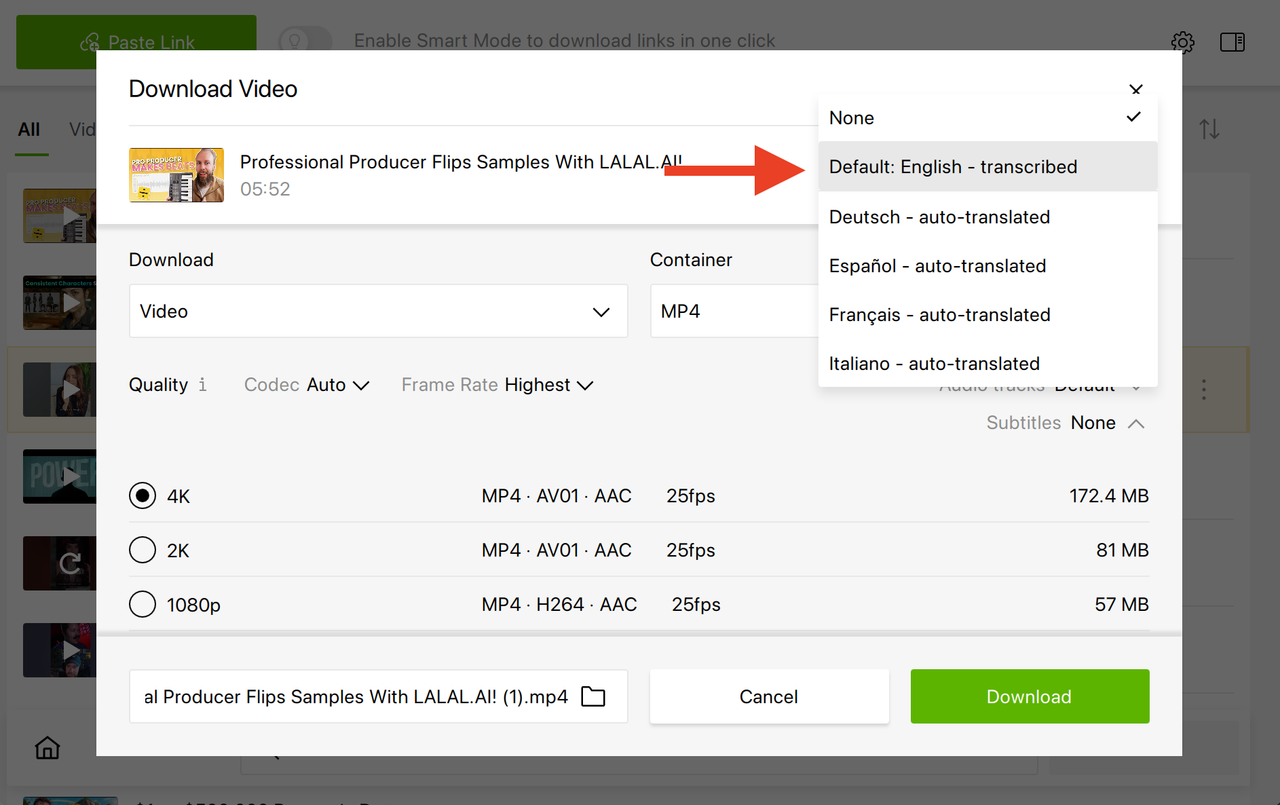
- Auto-generated subtitles. YouTube can automatically transcribe speech in a video and generate subtitles. In the app, these appear as “language name – transcribed” (for example, “English – transcribed”).
- Auto-translated subtitles. If a video doesn’t have subtitles in your preferred language, 4K Video Downloader Plus can request an automatic translation using YouTube’s own translation service. In the app, these appear as “language name– auto-translated.”.
Note: Auto-translated subtitles are only available for the most popular languages and only if there are no higher-quality subtitles (like author-uploaded or auto-generated) for that language.
Now that you know it, here’s a step-by-step guide on how to download subtitles from YouTube, both on Windows and macOS.
How to Download Embedded YouTube Subtitles
If you want subtitles built directly into your video file (so you don’t need a separate .srt file), follow this steps:
- Launch 4K Video Downloader Plus.
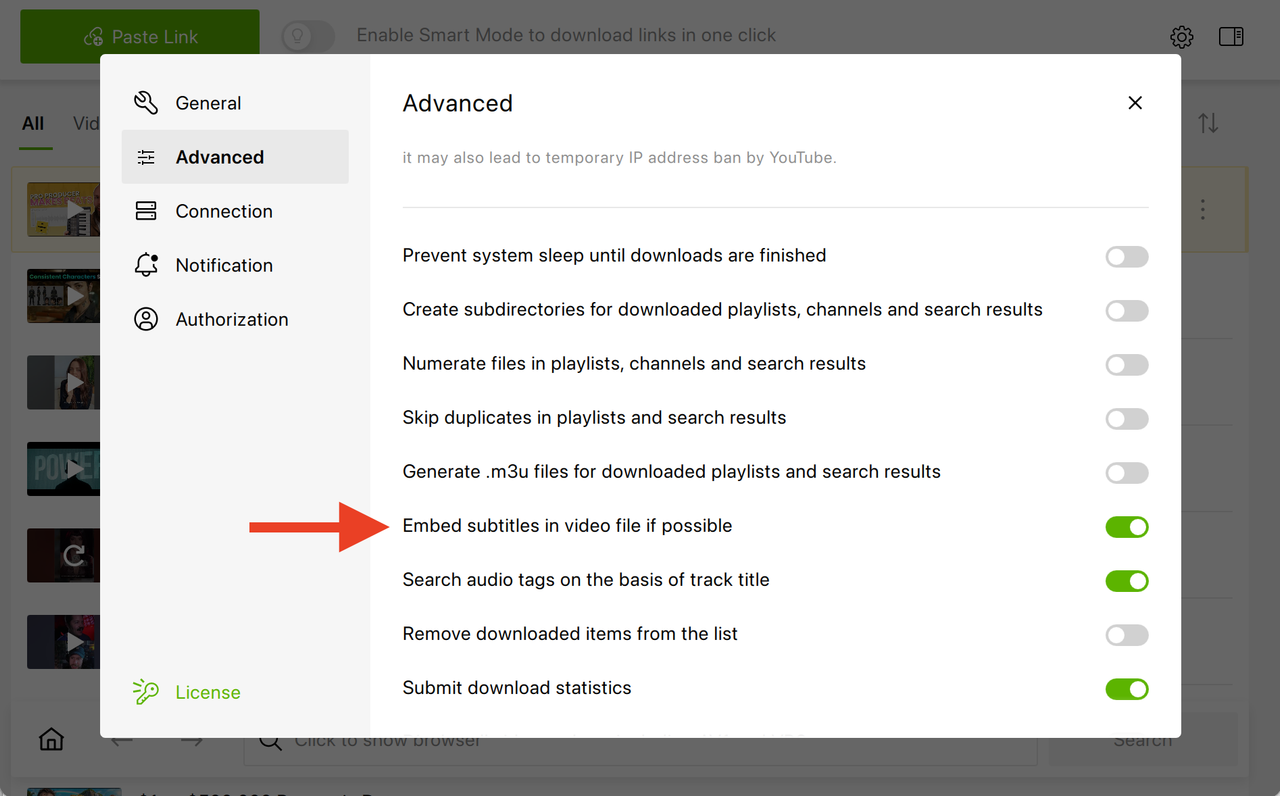
- In the menu bar, click Tools -> Preferences -> Advanced.
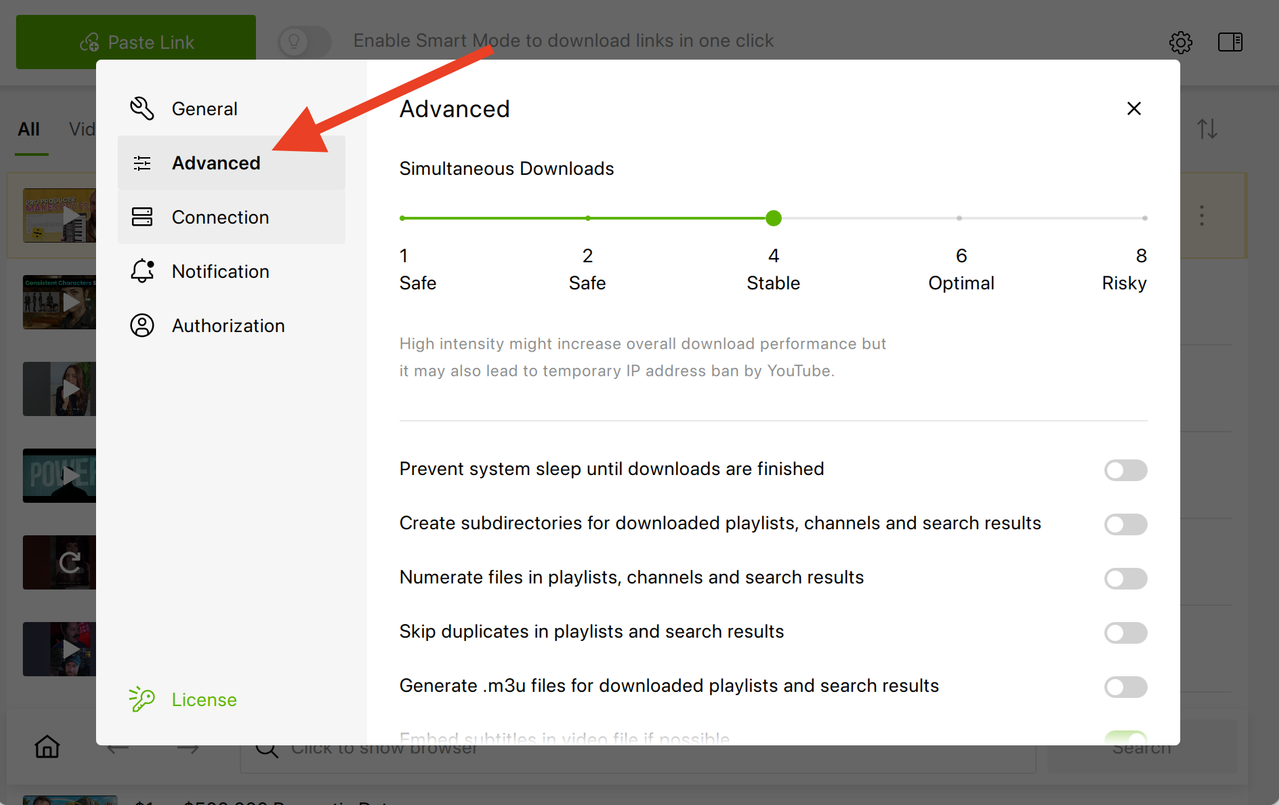
- Enable the option: Embed subtitles in video file if possible.
- If Smart Mode is on, disable it.
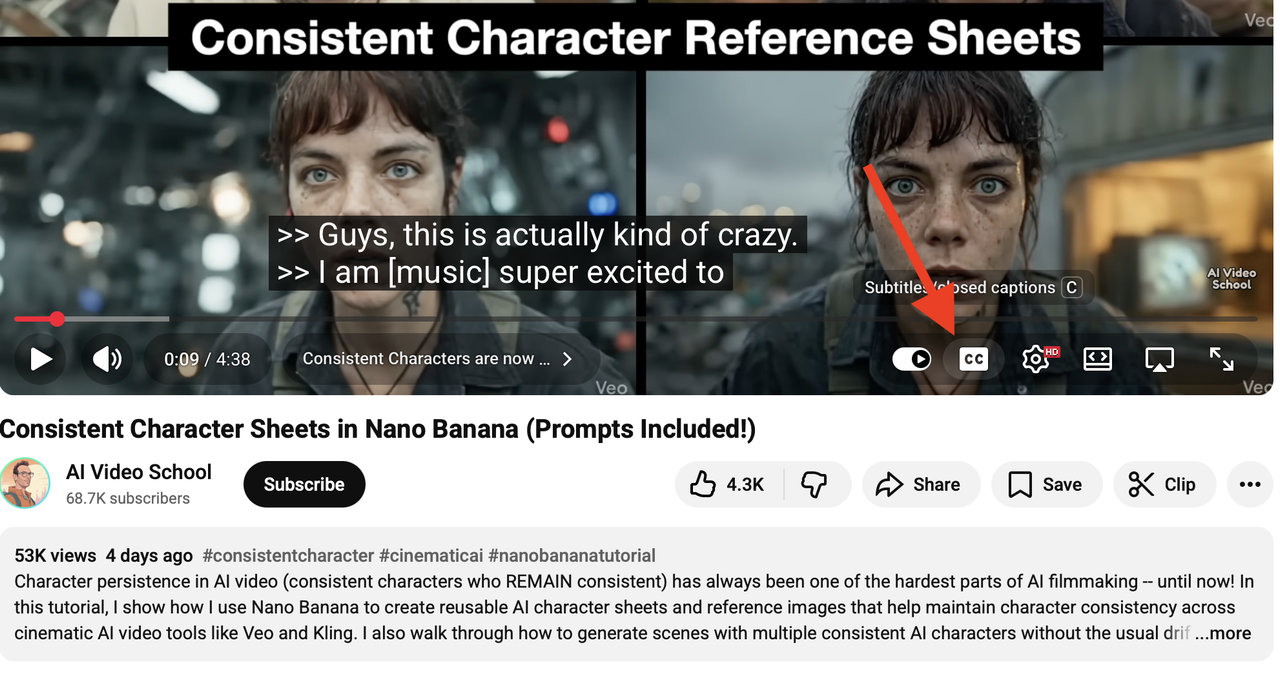
- Copy the link of a video with subtitles (CC) and paste it into the app.
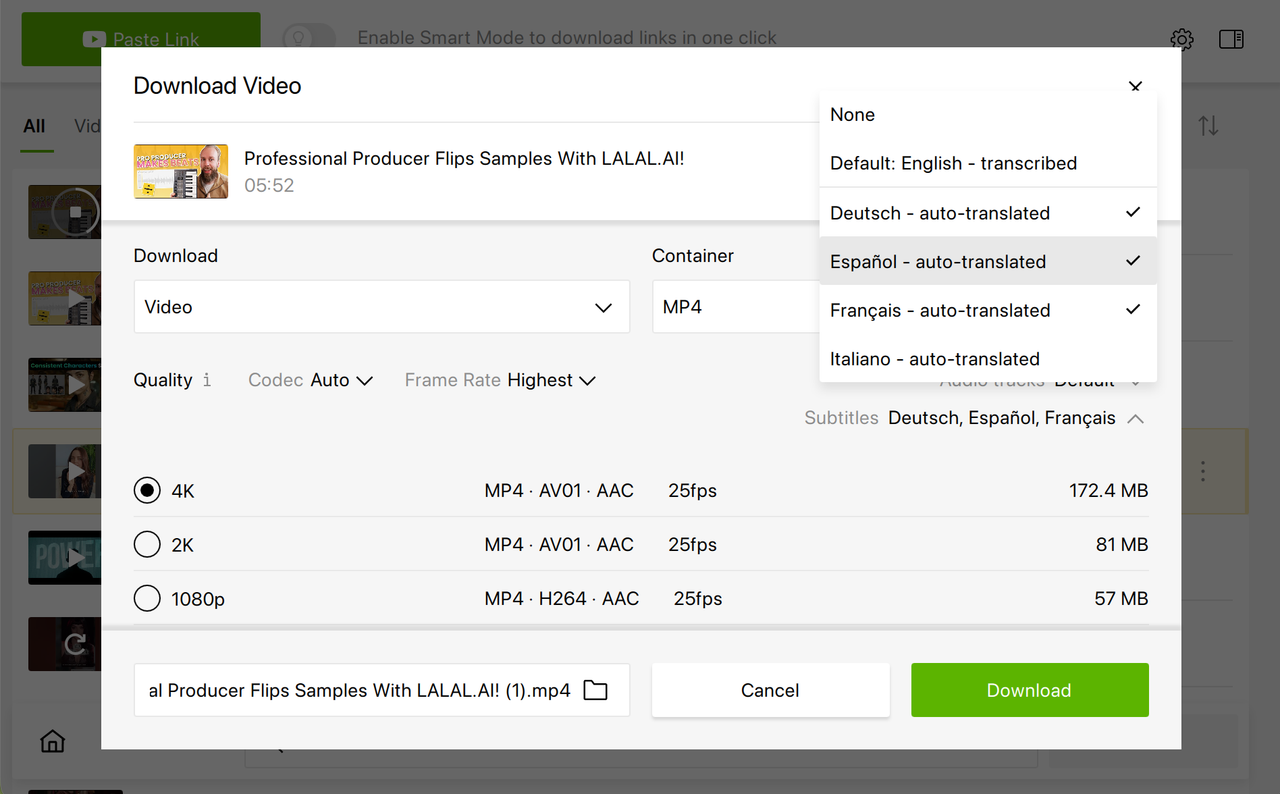
- In the download window, toggle the Subtitles section and pick one or multiple languages from the list.
- Adjust other settings if needed, then click the Download button.
- Open the video with VLC Media Player or Media Player Classic. Use the Subtitle menu to enable or switch subtitles.
How to Download YouTube Subtitles as a Separate File on Windows & macOS
If you prefer to have subtitles as a separate .srt file, follow these steps:
- Launch 4K Video Downloader Plus.
- Go to Tools -> Preferences -> Advanced to make sure Embed subtitles in video file if possible is turned off.
- Copy the link of a video with subtitles (CC) and paste it into the app.
- In the download window, select your preferred subtitle language.
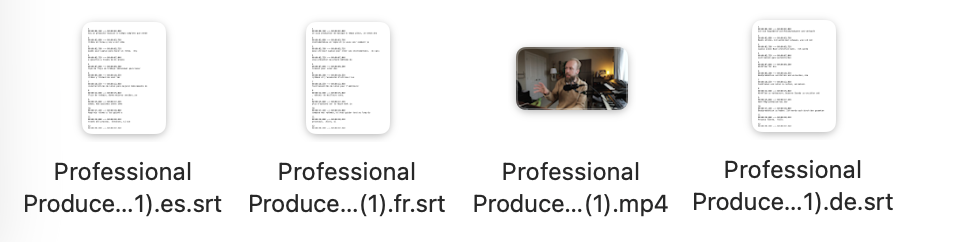
- Adjust other settings if needed, then click the Download button. The app will save the subtitles as a separate .srt file alongside your video.
- Open both the video and the .srt file in VLC Media Player or Media Player Classic to view subtitles. In VLC, you can add the subtitle file via the Subtitle menu.
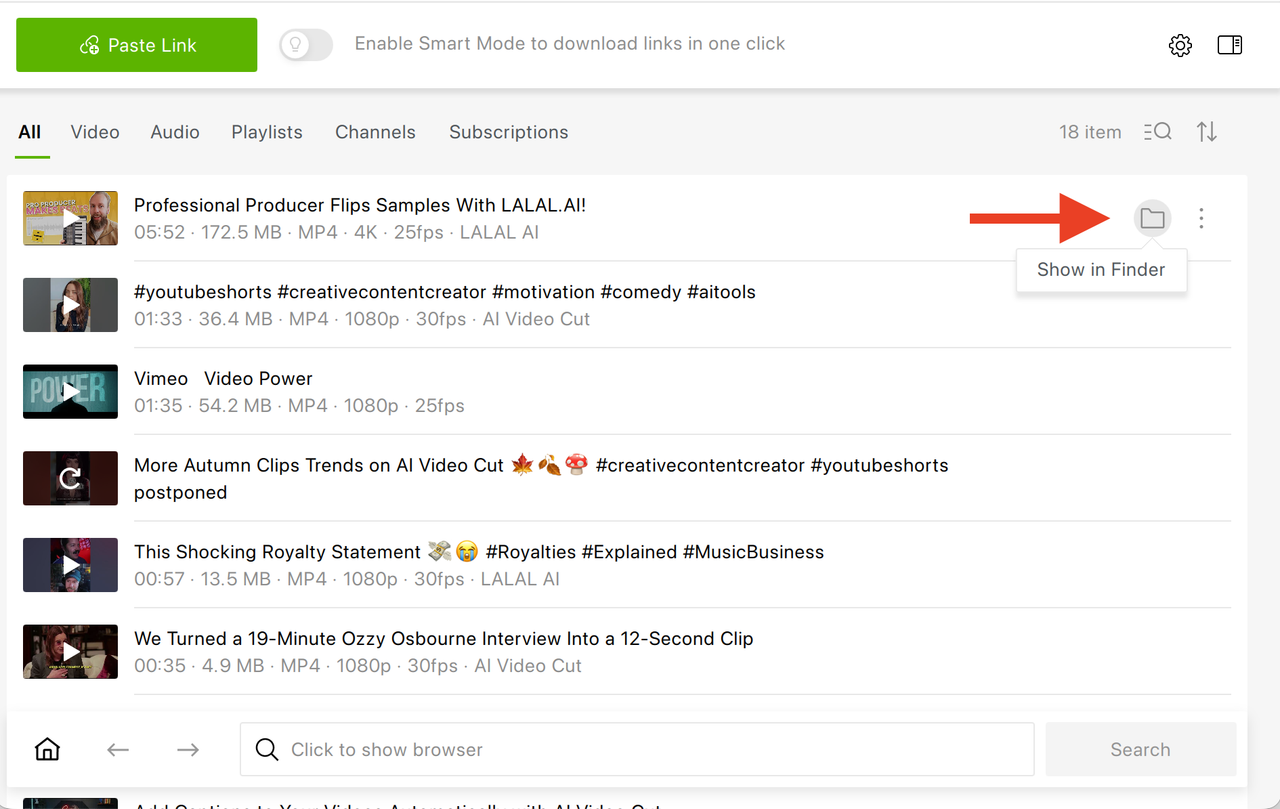
If you want to locate the .srt files, click on the folder icon next to the video within 4K Video Downloader Plus, and the folder with the clip and an .srt file will open.
Using Smart Mode:
- Open YouTube, find the video you want, and copy the URL from the browser.
- Launch the app and find the Video tab -> Subtitles -> choose the desired language or Default.
- Optional: Select the desired format and quality. If you’re downloading a video not for the first time, you already have all the desired download settings automatically applied by Smart Mode.
- Click Paste Link. The software will analyze the video and start automatically downloading it.
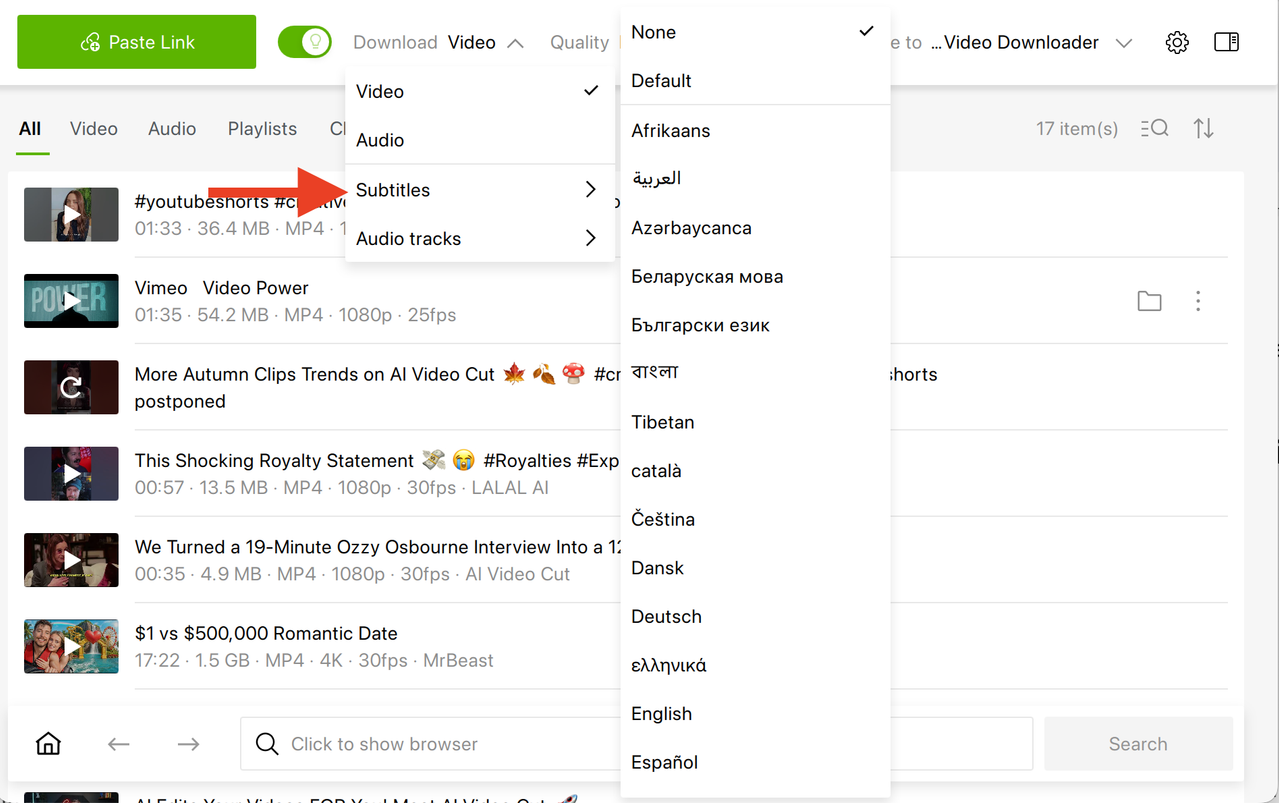
Once the video is downloaded, open both the video and the .srt file in VLC Media Player or Media Player Classic to view subtitles. In VLC, you can add the subtitle file via the Subtitle menu.
Multiple Subtitle Languages Selection
Some videos provide captions in several languages. 4K Video Downloader Plus can download more than one track at a time. For instance, a TED Talk might be available in English, Spanish, and German. Users can select all available languages, and the software will download a video with all subtitles you’ve chosen.
Other Ways to Download YouTube Subtitles
A dedicated downloader app isn't the only route to a subtitle file. Several other tools exist, and each suits a different level of technical comfort.
Command-Line Tools: yt-dlp
Command-line users often reach for yt-dlp, a free, open source program maintained on GitHub as a continuation of the older youtube-dl project. Its --write-subs flag pulls creator-uploaded tracks, --write-auto-sub pulls YouTube's speech-recognition captions instead, and --sub-lang narrows either one down to a specific language. Adding --convert-subs srt turns whatever format YouTube serves into a standard .srt, while --skip-download saves just the subtitle file without touching the video.
Online Converter Websites
Online converter sites, DownSub and Savesubs among the more visible examples, let someone paste a link into a browser and pull a subtitle file with no software installed at all. That convenience comes with real trade-offs. These sites extract text only, with no way to download the video itself or embed captions into it, and independent user reviews have flagged malware concerns and heavy ad load on at least some of these services over the years. They also run into the same walls the fully manual method does, faltering on playlists, multi-language videos, and anything gated behind a login or a regional restriction.
Browser Extensions
Browser extensions take a similar approach but skip the extra browser tab, adding a subtitle-download button directly on the YouTube page itself. A few, distributed through the Chrome Web Store, are open source and explicitly document that no data is collected or transmitted, with everything processed locally, which is worth confirming before installing anything that runs on video pages. Like the converter sites, extensions typically hand over subtitle text only, leaving the video download to whatever other tool is on hand.
Developer Libraries
For anyone building their own tooling, Python libraries such as youtube-transcript-api pull a transcript directly through code, with no API key and no need to download the full video. This fits automated pipelines, research projects, or any workflow that needs subtitle text at scale, though it assumes some programming background and produces text, not a playable video file.
| Method | Downloads the video too | Embeds subtitles | Handles playlists | Best suited for |
|---|---|---|---|---|
| 4K Video Downloader Plus | Yes | Yes | Yes | Everyday users who want a finished video and subtitles together |
| YouTube's built-in transcript panel | No | No | No | A single quick copy of the text, nothing more |
| yt-dlp | Yes* | Not built in | Yes | Technical users scripting downloads from a terminal |
| Online converter sites | No | No | Limited | Fast, one-off text pulls, with some tolerance for ads and risk |
| Browser extensions | No | No | No | One-click subtitle grabs while already browsing |
| Developer libraries (youtube-transcript-api and similar) | No | No | Yes, via code | Automated or large-scale transcript extraction |
*Embedding the subtitle into the video needs an extra ffmpeg step.
Troubleshooting: Why Subtitles Sometimes Fail to Download
A handful of underlying causes explain nearly every subtitle download failure.
- Unsupported languages: 4K Video Downloader Plus covers most commonly used subtitle languages, but some rare or regional languages, like Tibetan, may not be available.
- Subtitle page issues: The app relies on YouTube’s subtitle pages to download captions. Subtitles may fail to download if:
- The subtitle page is unavailable, for example due to an HTTP error.
- The page exists but contains no actual subtitle data, which can occur with certain auto-generated or auto-translated captions.
- YouTube limitations: If a video doesn’t have subtitles in a particular language, the app cannot generate or download them.
Here’s what you can do to make sure everything goes just as you planned:
- Check subtitle availability: After pasting a video link into the app (make sure Smart Mode is turned off), look at the list of available subtitles in the download window. If a video doesn’t have captions on YouTube, the app cannot create them.
- Try a different language: If your preferred language isn’t listed, see if other languages are available. Some videos only offer subtitles in specific languages.
- Use a compatible media player: For the best viewing experience, open downloaded videos and subtitle files in VLC Media Player or Media Player Classic. Many default players, like Windows Media Player, often have trouble displaying subtitles correctly.
Now that you know how to download YouTube subtitles, you can enjoy watching your favorite videos, single ones or as part of a YouTube playlist or channel, offline with closed captions in any available language. In 4K Video Downloader Plus, you can select subtitles from 50 languages; just make sure you use the latest version of the app and ensure the selected video does have the subs in the language you need.
Frequently Asked Questions
Can 4K Video Downloader Plus download YouTube subtitles in a language other than the video's original audio?
Yes. It can pull creator-uploaded translations where they exist, and auto-translated tracks for widely spoken languages when no higher-quality option is available. Subtitle support in the app spans more than 50 languages in .srt format.
Do embedded subtitles work the same way as a separate .srt file?
They display the same text, but embedded subtitles live inside the video file itself, while a separate .srt is a companion file that needs to sit in the same folder as the video and be loaded by the player. Embedding is more convenient for simple playback; a separate file is easier to edit or reuse later.
Why are auto-generated YouTube captions sometimes full of errors?
They're produced by automatic speech recognition, and even the most advanced ASR engines available in 2024 still fell short of the 99 percent accuracy that professional captioning requires, according to 3Play Media's benchmark testing. Accents, background noise, and specialized terminology are the most common failure points.
Is it better to download creator-uploaded subtitles instead of auto-generated ones?
Where both exist, yes. Creator-uploaded captions have been written or checked by a person and consistently outperform machine-generated text in accuracy, since auto-generated tracks fall well short of professional accuracy standards.
What should I do if a video shows a CC icon but subtitles won't download?
Paste the link with Smart Mode off and check the subtitle list the app displays. If the language you want isn't listed, the video likely lacks that track entirely. If the list looks right but the download still fails, the subtitle page on YouTube's side may be temporarily unavailable or empty, which occasionally happens with auto-generated or auto-translated captions.
Which media player displays downloaded subtitles most reliably?
VLC Media Player and Media Player Classic both handle embedded and separate subtitle files consistently. Some built-in players, including Windows Media Player, are prone to display issues with subtitle files and are best avoided for this purpose.
What is the difference between using yt-dlp and 4K Video Downloader Plus for subtitles?
yt-dlp is a free command-line tool that can save subtitle files but doesn't embed them into the video automatically, requiring a separate ffmpeg step. 4K Video Downloader Plus embeds subtitles directly through its interface, with no terminal commands or additional software needed.
Are online subtitle downloader websites like DownSub safe to use?
They can pull subtitle text without installing anything, but independent user reviews have flagged malware concerns and heavy advertising on some of these sites. They also cannot download the video itself or embed subtitles into it, and tend to struggle with playlists or region-restricted content.
Published Jan. 28, 2026
 SHARE ON TWITTER


Thanks for feedback
Your comments will appear here shortly. Please spread the word about us in social networks.