



"Is there a way to save a YouTube live stream after it ends?” — that’s one of the most common questions from viewers who missed a broadcast or want to keep a replay permanently. The short answer: yes, but you need to act before the replay disappears.
YouTube automatically saves live streams under 12 hours long as videos on demand (VODs) on the creator's channel once the broadcast ends, but replays can vanish without warning for at least four documented reasons. With 4K Video Downloader Plus, you can save a replay in a couple of clicks: just copy the URL of the finished stream, paste it into the app, and the file will be downloaded to your computer in the quality you choose, up to 8K (if available).
Why save a YouTube live stream?
YouTube Live is the world's largest live streaming platform by watch time. Viewers consumed approximately 36.4 billion hours of live content across all streaming platforms in 2025. Out of this total, YouTube holds a dominant market share of over 47% of all hours watched. Specifically for gaming-related live broadcasts, viewers spent 8.8 billion hours watching streams on YouTube Gaming in 2025, which represents a 12% increase from the previous year.
With such a huge volume of content uploaded daily, a meaningful share of it exists only in temporary replay form: concerts, sports events, gaming sessions, webinars, news coverage, product launches. Once the creator deletes the VOD or YouTube removes it, the content is gone. Downloading the replay is the only reliable way to keep it.
What happens to a YouTube live stream when it ends?
When YouTube automatically saves live streams as videos once the broadcast ends, you don't have to flip a setting or remember to export anything.
That sounds reassuring, but there are at least four reasons a replay can vanish without warning:
| Reason | Details |
|---|---|
| Stream over 12 hours | YouTube's auto-archive only captures broadcasts under 12 hours. Marathon streams and subathons may not be saved at all. |
| Creator deleted or privatized the replay | The channel owner can remove or restrict the VOD at any time after broadcast. |
| Content ID match | YouTube's Content ID scans archived streams. Licensed background music can cause sections to be muted or the entire video to be blocked in certain regions. |
| Members-only transition | YouTube rolled out the ability for creators to transition public live streams to members-only. Non-members lose access to the replay as well as the in-progress broadcast. |
The bottom line is that even when a replay exists, it's controlled entirely by the creator and YouTube's automated systems. Downloading the stream to your own device is the only way to guarantee you keep it.
How long does YouTube take to process a live stream replay?
After a stream ends, YouTube converts the raw broadcast into a standard VOD format. During this window, the file structure may not yet be stable enough for external tools to access, even if the video plays normally in a browser:
- 1080p streams under 2 hours: typically ready for download within 15–30 minutes
- 4K streams or broadcasts over 4 hours: processing can take up to 12 hours
- Streams over 12 hours: may never be fully archived by YouTube
How to Save a YouTube Live Stream with 4K Video Downloader Plus
4K Video Downloader Plus is a desktop app for Windows, macOS, Ubuntu, and Android that downloads video and audio from YouTube and other platforms in up to 8K quality. It's the most reliable option for saving live stream replays because it handles long files, high resolutions, as well as private or login-protected content, all in a clean, ad-free interface.
What 4K Video Downloader Plus supports
| Feature | Details |
|---|---|
| Resolution | Up to 8K UHD |
| Output formats (video) | MP4, MKV |
| Output formats (audio) | MP3, M4A, OGG |
| Private / login-protected streams | Yes, via in-app account login |
| Subtitles | SRT format, 50+ languages |
| Playlist / channel download | Yes, entire channels and playlists in one go |
| Smart Mode | Applies preferred settings automatically to all downloads |
| Platforms | Windows 11, macOS 12+, Ubuntu 22.04+ (GNOME only), Android |
Step-by-step: how to download a YouTube live stream replay
-
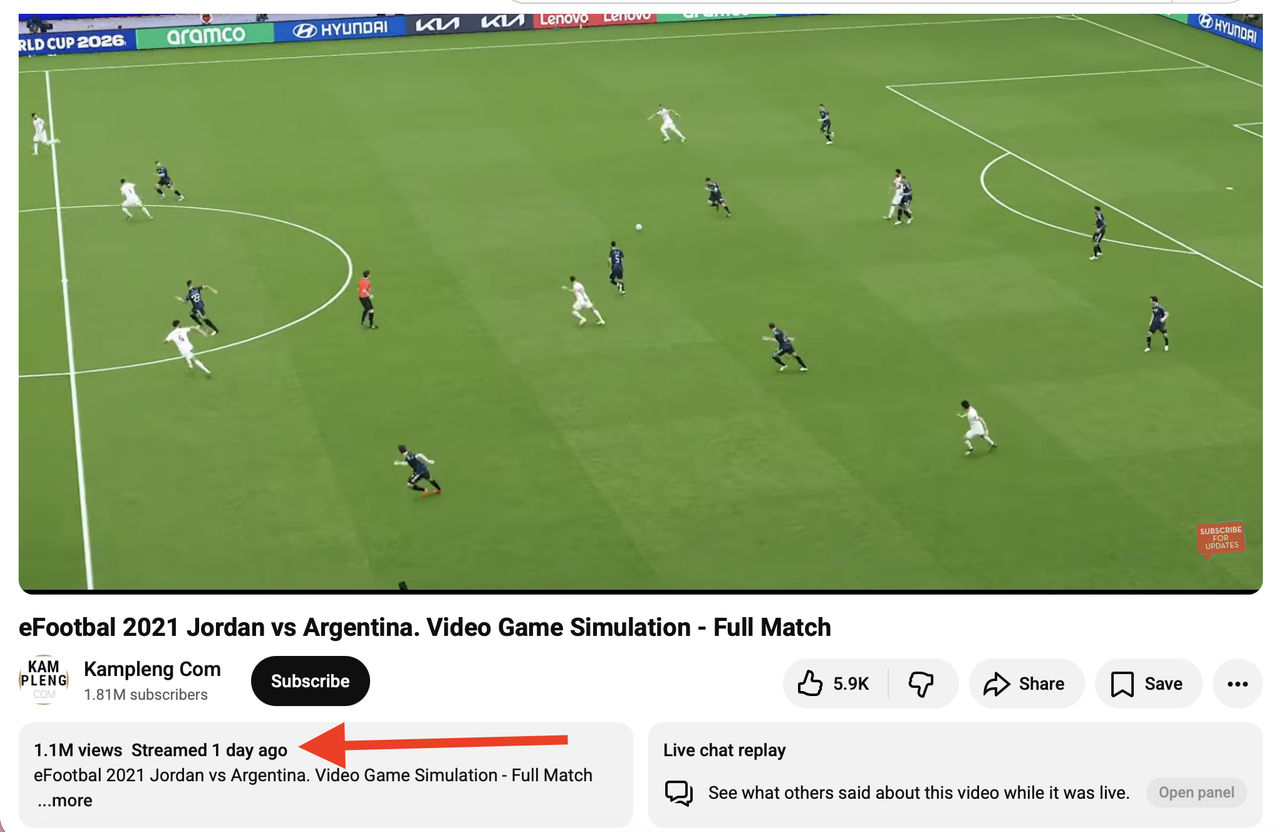
Wait for processing. Give YouTube at least 30 minutes after the stream ends before attempting to download. For streams over 4 hours, wait longer.
-
Copy the stream URL. Open the replay on YouTube and copy the URL from your browser's address bar.
-
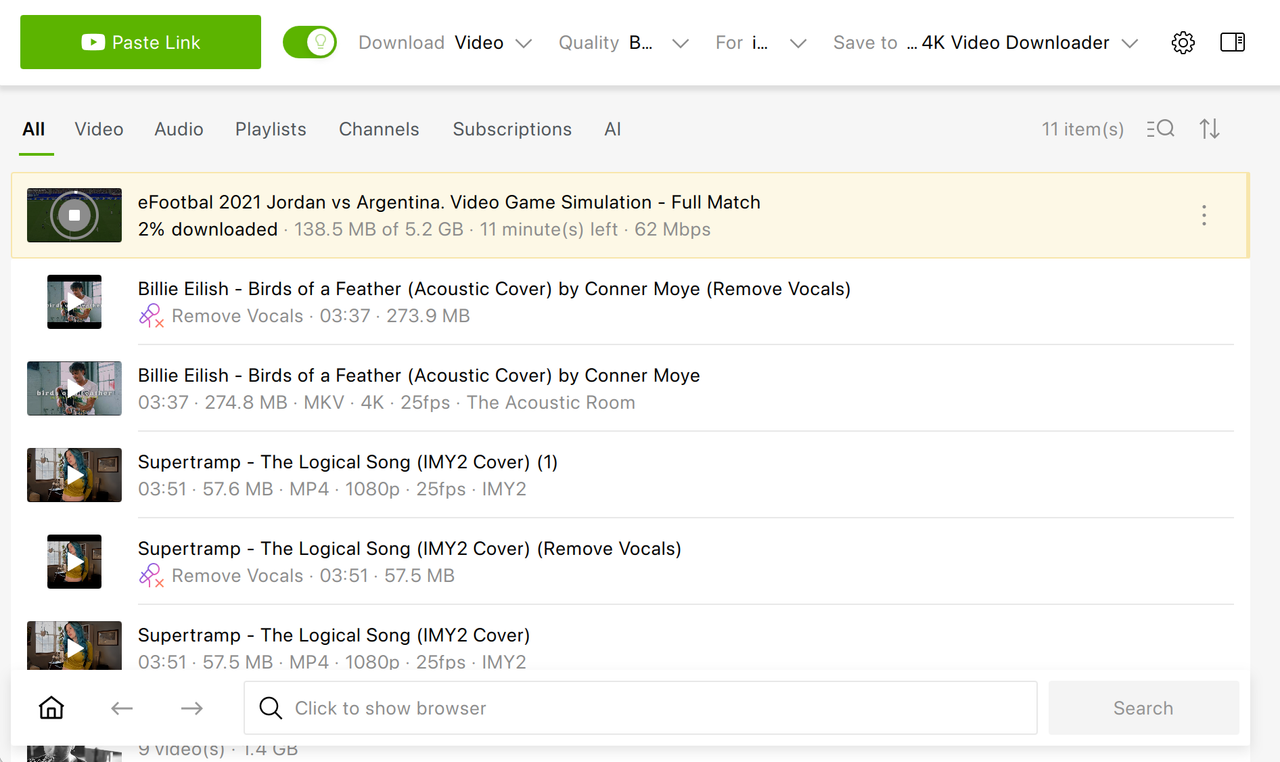
Open 4K Video Downloader Plus. Launch the app on your computer and click the green Paste Link button in the top left corner.
-
Choose your settings. If Smart Mode is off, select your preferred format (MP4 or MKV), resolution (up to 8K), and output folder. For long streams, MKV is recommended. If Smart Mode is on, your selected settings will apply automatically, and the downloading will start right away.
-
Click Download. The app will begin downloading. Progress is tracked individually for each file.
-
Find your file. Once complete, click the file in the download list to open or locate it on your device.
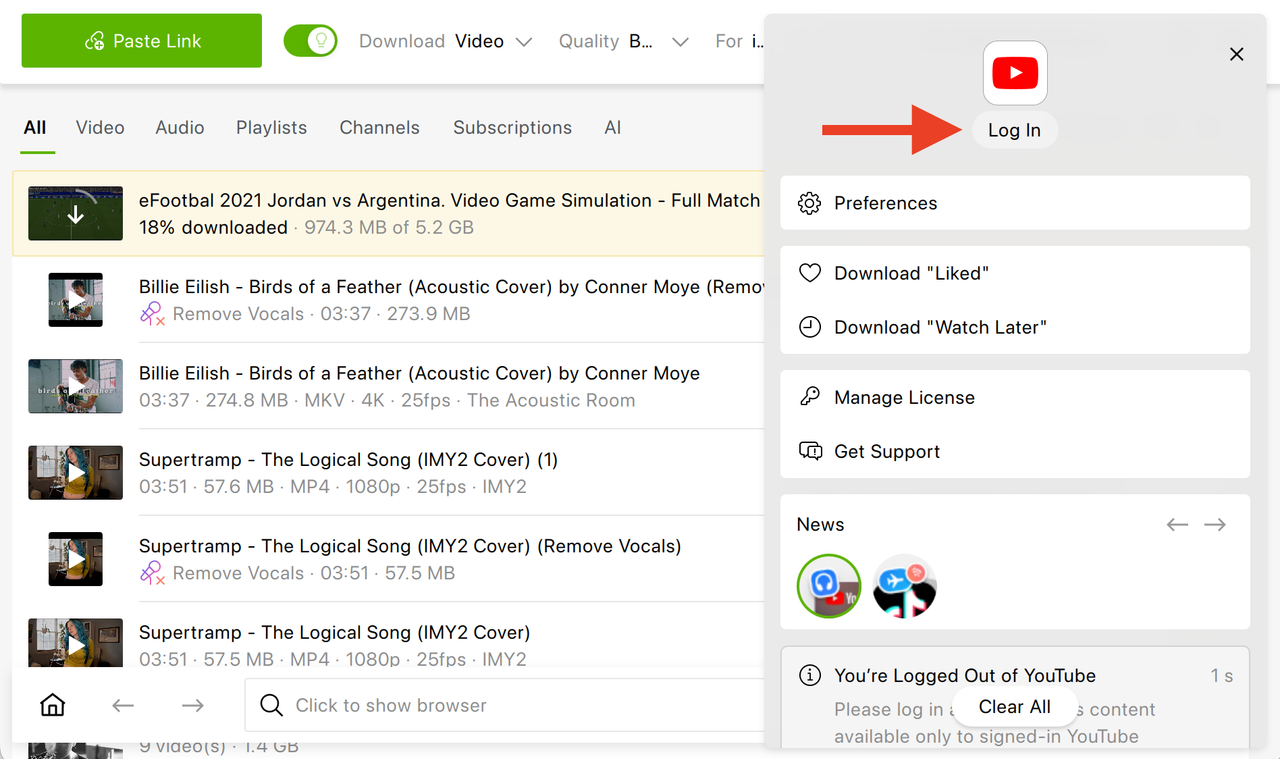
For private or members-only replays: 4K Video Downloader Plus can download private videos and playlists, but you must have the necessary access rights and log in to your account within the app. Once authenticated, you can download any private videos or playlists you have access to, the same way as public content.
Alternative Methods
yt-dlp: Command Line, Free & Open Source
yt-dlp is an actively maintained open-source command-line tool derived from youtube-dl. It's the most powerful free option for technical users comfortable with a terminal. It supports virtually any quality YouTube offers and handles long files well. The tradeoff is that it requires manual setup, has no graphical interface, and needs periodic updates to keep pace with YouTube's backend changes.
Basic command to download a YouTube live replay:
yt-dlp https://www.youtube.com/watch?v=VIDEO_IDDownload in best available quality:
yt-dlp -f bestvideo+bestaudio https://www.youtube.com/watch?v=VIDEO_IDDownload with subtitles:
yt-dlp --write-sub --sub-lang en https://www.youtube.com/watch?v=VIDEO_IDBrowser-Based Online Tools: Limited Use
Free online converters can handle short, standard-resolution replays without any installation. However, they have significant limitations for live stream content specifically:
- Most cap downloads at 720p or 1080p
- Long files (2+ hours) frequently fail or time out mid-download
- No support for private or members-only replays
- Ad-heavy interfaces with misleading download buttons
- No batch or playlist support
Online tools are acceptable for a quick grab of a short, public replay in standard definition. For anything longer, higher quality, or requiring login access, a desktop tool is the better choice.
Tools compared
| Tool | Best for | Max quality | Private VODs | Long files | Cost |
|---|---|---|---|---|---|
| 4K Video Downloader Plus | Most users; reliability + quality | 8K | ✔ | ✔ | Free tier; paid plans available |
| yt-dlp | Technical users; maximum control | 8K | ✔ | ✔ | Free |
| Online tools | Quick, short, public replays | 1080p (typical) | ✖ | ✖ | Free |
Common Issues You May Face While Downloading a YouTube Live Stream VOD & Fixes
"Video Unavailable" error
The stream may still be processing, or the creator has deleted the replay. Wait 30–60 minutes and try again. If the error persists, the content may no longer be publicly accessible.
Download starts but file is incomplete
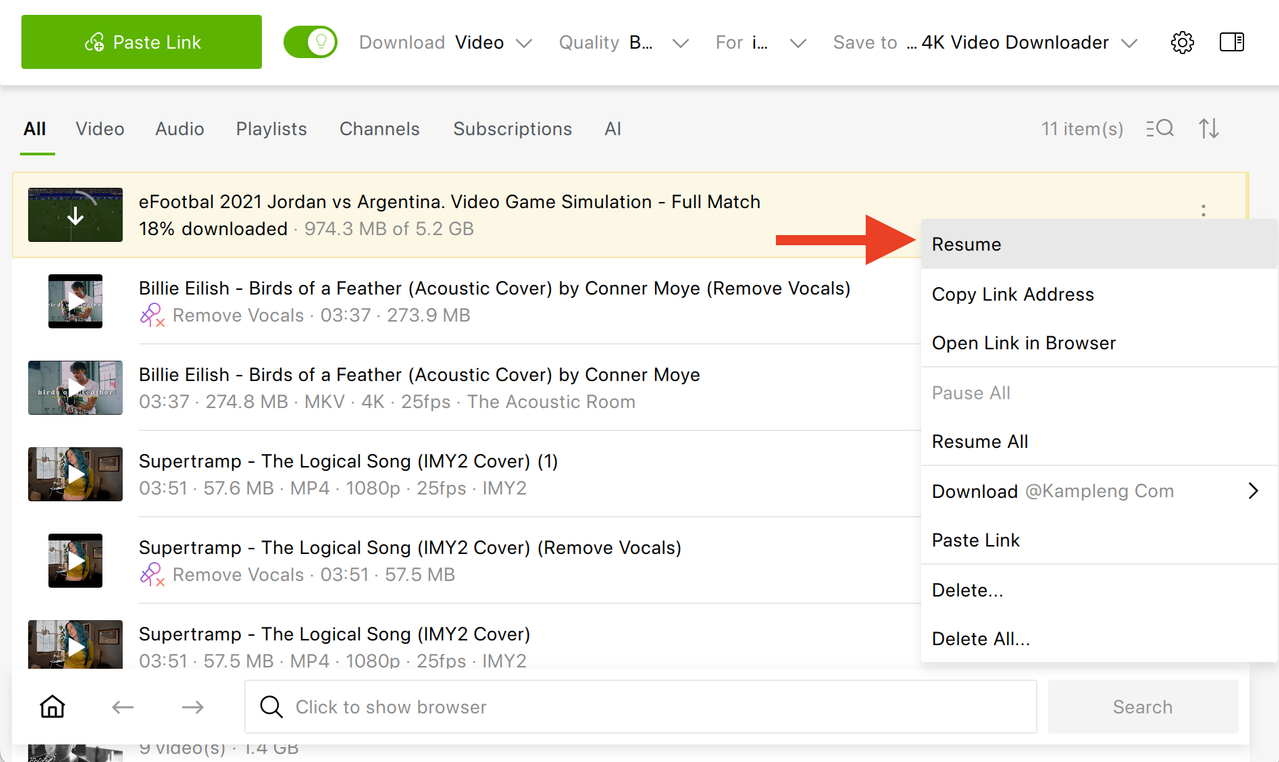
This often happens with very long streams. Use 4K Video Downloader Plus as it supports resuming interrupted downloads.
4K or 8K only available in MKV, not MP4
YouTube serves high-resolution videos above 1080p primarily using VP9 and AV1 codecs, which are standardized for MKV or WebM, and 4K Video Downloader Plus downloads what YouTube provides. Some videos are available in both MP4 and MKV; others only in MKV.
Audio is muted in the replay
This is a Content ID issue on YouTube's end, not a download problem. The muting happens before you download: the VOD itself is already muted in the affected sections. There is no workaround from the downloader side.
A Note on Personal Use
Downloading YouTube live streams for personal, offline archiving is how most people use these tools: catching up on a stream you missed, saving a concert, downloading a sports event you weren’t able to attend, or keeping a copy of a webinar for later reference. Re-uploading someone else's stream to your own channel or using it commercially is a separate matter and falls under copyright and YouTube's Terms of Service. Respect the creator's work.
How to Save a YouTube Live Stream After It Ends: FAQ
Can I download a YouTube live stream while it's still broadcasting?
Most desktop download tools, including 4K Video Downloader Plus, are designed to download completed VODs rather than in-progress streams. For active streams, screen recording is typically the only option. Wait until the broadcast ends and the replay is processed before downloading.
How long does YouTube keep live stream replays?
There is no fixed expiry date for replays, but YouTube does not guarantee they stay up. The creator can delete the replay at any time. If you want to keep a stream, download it.
What happens if the stream was longer than 12 hours?
YouTube's auto-archive only works for streams under 12 hours. Longer streams, including marathon events and 24-hour charity streams, may not be captured at all. If the replay does exist despite being over 12 hours, download it promptly.
Can I download a members-only stream replay?
Yes, if you are an active channel member. Log in to your account within 4K Video Downloader Plus. Once authenticated, you can download any private videos or playlists you have access to.
Why is the stream replay taking a long time to download?
Live stream replays are large files. A 4-hour stream at 1080p can easily exceed 10 GB and even burn between 12 GB and 25 GB of data. Download speed depends on your internet connection and the file size, this is normal for long-form content.
Does 4K Video Downloader Plus work on Mac and Linux?
Yes. It's compatible with Windows 11, macOS 12 or newer, and Linux Ubuntu 22.04 64-bit (GNOME only) or newer. An Android app is also available.
Is yt-dlp safe to use?
yt-dlp is a widely used, open-source tool with a public codebase. Download it only from the official GitHub repository to avoid unofficial versions.
Published June 29, 2026
 SHARE ON TWITTER


Thanks for feedback
Your comments will appear here shortly. Please spread the word about us in social networks.