



An MP4 file contains a video track, one or more audio tracks, and sometimes subtitles. Converting an MP4 to MP3 means extracting the audio track and re-encoding it to MP3, a format compatible with a wide range of devices, from car stereos to old MP3 players.
You don’t need paid software to do this. Every major platform offers a free method, and you will find step-by-step instructions below for Windows, macOS, Ubuntu and other Linux distributions, iPhones and Android devices, as well as online converters.
Tip: If your MP4 file originally came from YouTube, Vimeo, SoundCloud, or another similar site, you can download the audio file directly as an MP3 using 4K Video Downloader Plus so that you can skip the manual conversion step altogether.
Ways to Get MP3 at a Glance
| Tool | Platform | Price | Output | Best for |
|---|---|---|---|---|
| 4K Video Downloader Plus | Windows, macOS, Ubuntu | Free; Subscription: from $15/year One-time: from $25 |
MP3, M4A, OGG | Getting MP3 from an online video link |
| VLC Media Player | Windows, macOS, Linux | Free | MP3 | Quick one-off conversions |
| Audacity | Windows, macOS, Linux | Free | MP3 | Trimming or cleaning up audio first |
| iMovie | macOS | Free | MP3 | Mac users who want no extra installs |
| SoundConverter | Linux with GNOME (for example, Ubuntu, Fedora) | Free | MP3 | A simple GUI on GNOME desktops |
| CloudConvert | Any browser | Free: 10 conversion credits/day, files up to 1 GB Packages: from $17 Subscriptions: from $9/month |
MP3 | Occasional conversions on any device |
| FreeConvert | Any browser | Free: 20 conversion minutes/day, no account Plans: from $10.83/month |
MP3 | Occasional conversions for shorter videos on any device |
Prices and limits checked on October 26, 2026. “Linux” means any distribution, Ubuntu included; Ubuntu is named separately only where support or steps are specific to it.
Skip the Manual Conversion Step with 4K Video Downloader Plus
If you need to convert media from YouTube rather than a file stored on your computer, you can skip the separate download step. 4K Video Downloader Plus lets you save content from supported platforms directly in your preferred format.
4K Video Downloader Plus isn’t a file converter per se, so you can’t drop a local MP4 into it. What it does is save media from a link in the format you choose. Pick MP3 (or M4A or OGG) before downloading, and you get an audio file right away. It works with YouTube, Vimeo, SoundCloud, TikTok, Facebook, Dailymotion, Twitch, Bilibili, and other sites, and runs on Windows 11, macOS 12 and newer, and Ubuntu 22.04 64-bit (GNOME only) and newer.
Download Audio in MP3 with Smart Mode
Smart Mode remembers your preferences and applies them to every link you paste, so you set MP3 once and never see the settings window again. This is a faster option for saving whole playlists or channels as audio.
Click the Smart Mode icon (the light bulb) in the app’s toolbar if it’s not activated.
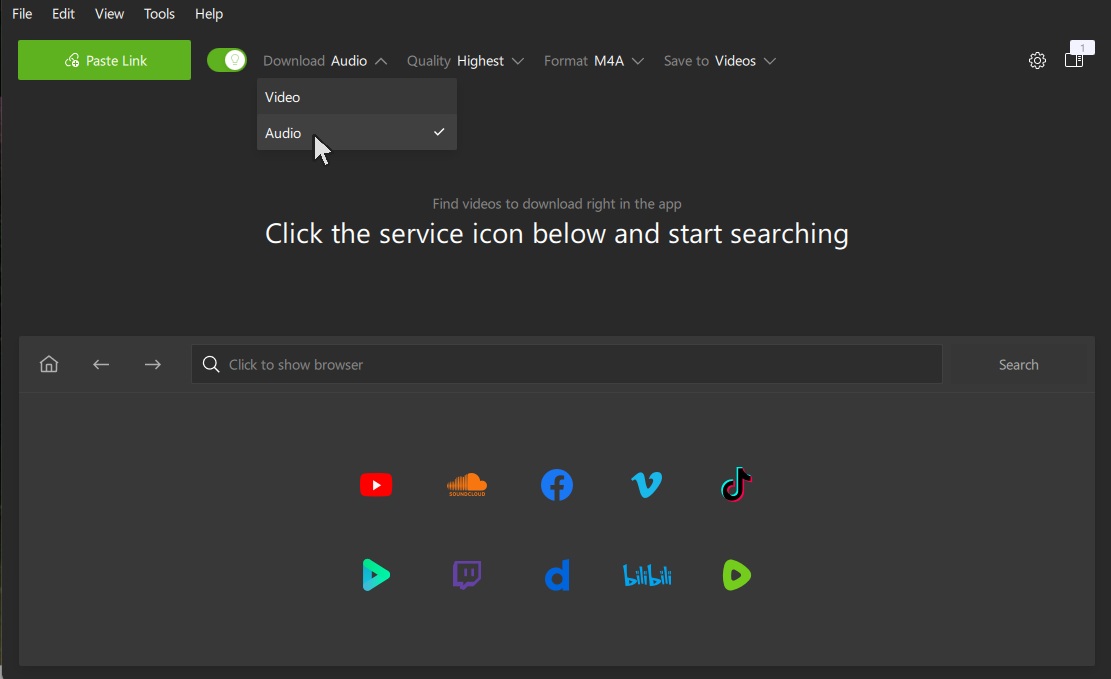
Set the content type in the Download tab to Audio.
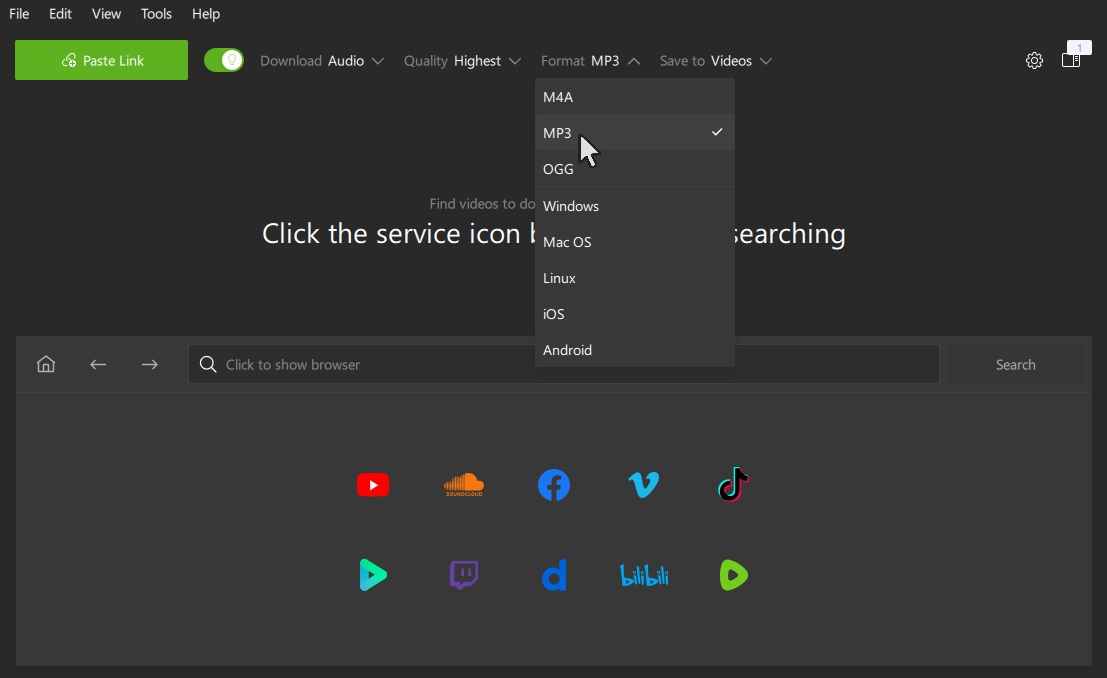
Change the format to MP3 and choose the quality, bitrate, and output folder.
Copy any link and click Paste Link. The app starts downloading the MP3 immediately.
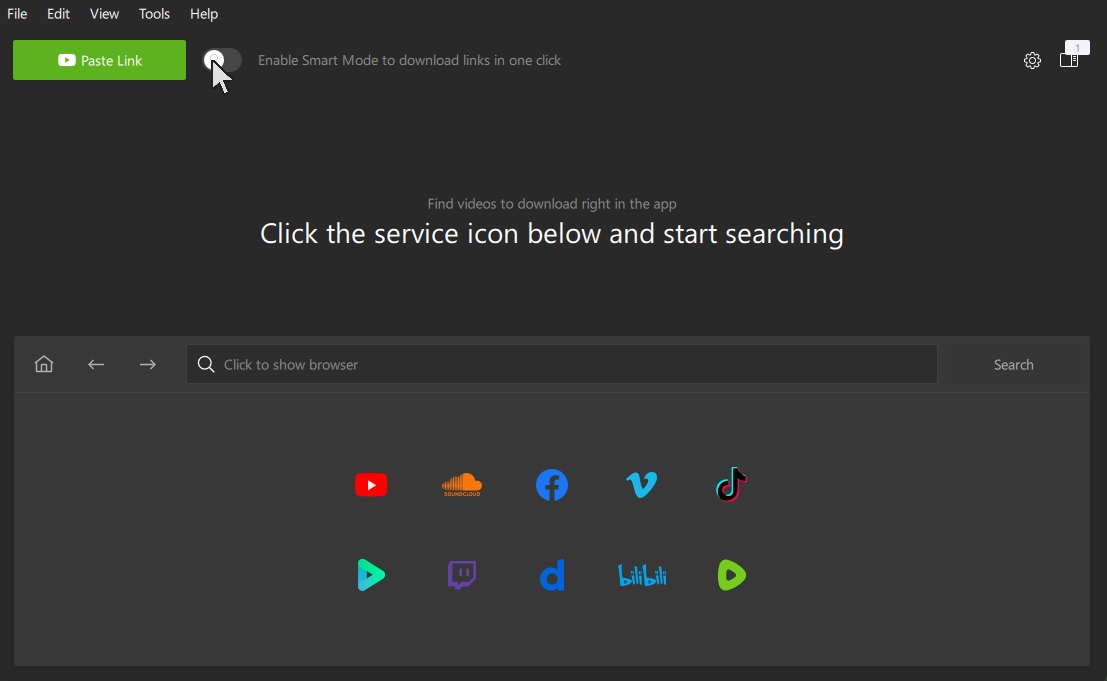
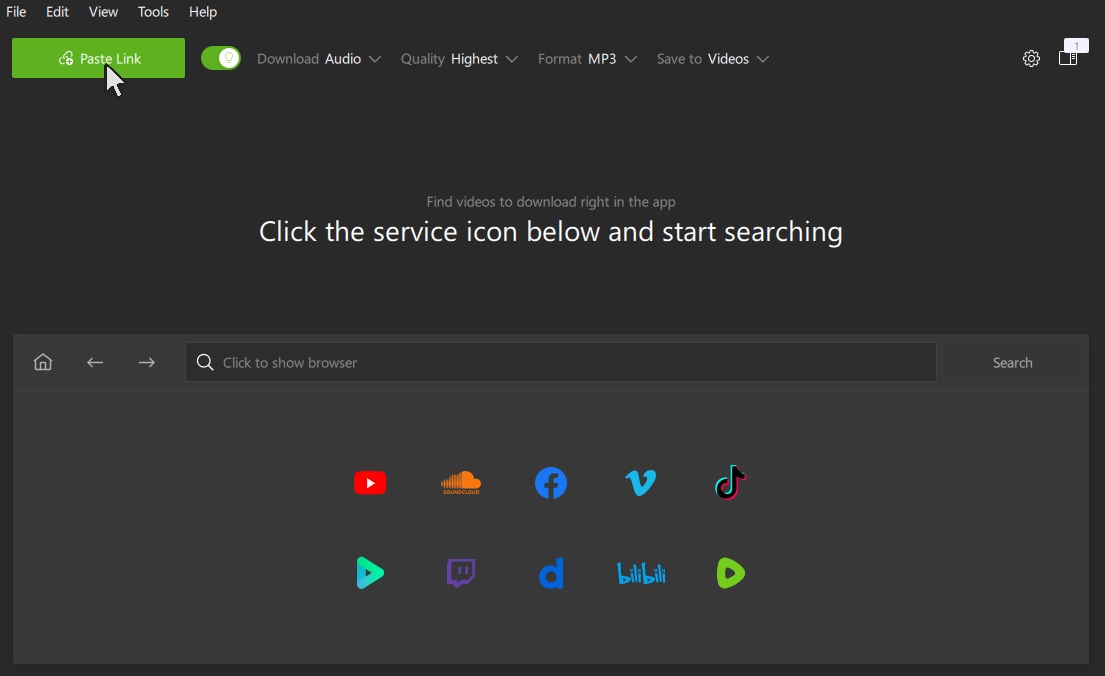
You can also use Manual Mode, which asks for your settings every time; this is handy when you need different formats for different links. To do so, turn Smart Mode off, copy and paste the new link, and manually choose the download settings.
There’s also a dedicated 4K YouTube to MP3 tool that downloads and converts YouTube videos to MP3 format, skipping all the extra steps. For more details, see our guides on how to download a YouTube playlist in MP3, download SoundCloud songs as MP3, and get higher-quality YouTube audio.
How to Convert MP4 to MP3 on Windows
Windows has no built-in MP4-to-MP3 converter, but two free apps handle it well: VLC for speed and Audacity for control.
Convert MP4 to MP3 with VLC
VLC Media Player is best known as a video player, but it also includes a converter in the Media menu.
Download VLC Media Player and install it.
Open VLC and go to Media > Convert / Save (or press Ctrl + R).
Click Add and select your MP4 file.
Click Convert / Save.
In the Profile drop-down, choose Audio - MP3. To change the bitrate, click the wrench icon next to the profile, open the Audio codec tab, and set it to 192 or 320 kbps.
Click Browse next to Destination file, and pick a folder.
Type a file name ending in .mp3.
Click Start. The player’s progress bar shows how far along the conversion is.
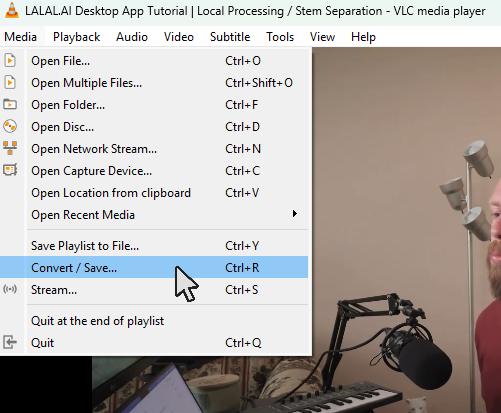
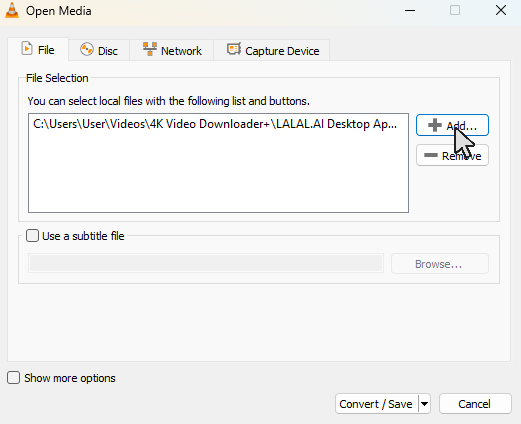
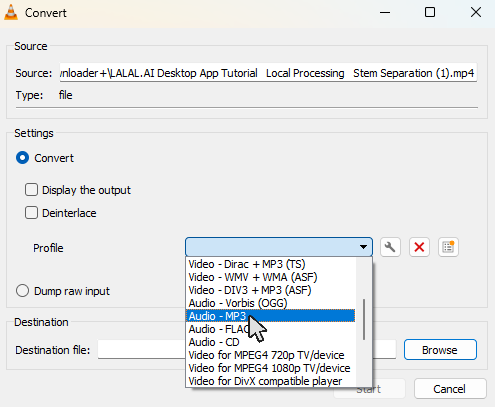
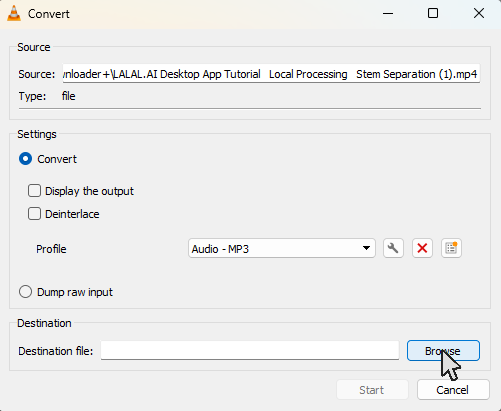

VLC uses the same menu path on Linux, so these steps work on Ubuntu, Linux Mint, Fedora, and other distributions.
Convert MP4 to MP3 with Audacity
Audacity is a free audio editor. Use it when you want to clean up your recordings before saving them.
Download Audacity and install it.
Go to File > Open and select the MP4. If Audacity says it can’t open the file, install the free FFmpeg library using Audacity’s official guide, then restart the app.
Edit the audio if needed: select a region with the mouse and press Delete to cut it.
Go to File > Export Audio.
Select Export to computer.
Set Format to MP3 Files, choose a quality preset, and pick a folder.
Click Export.
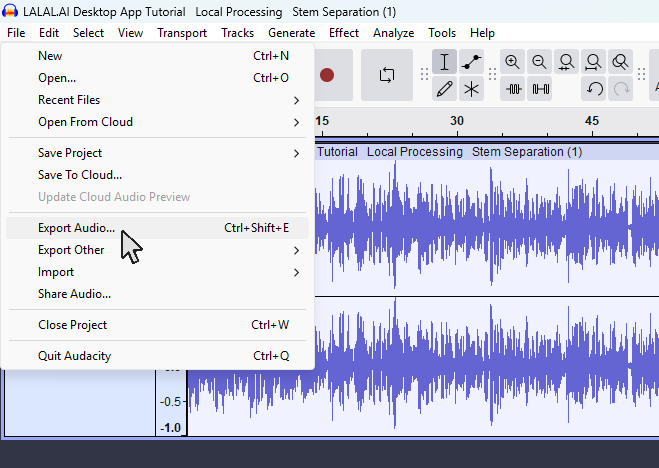
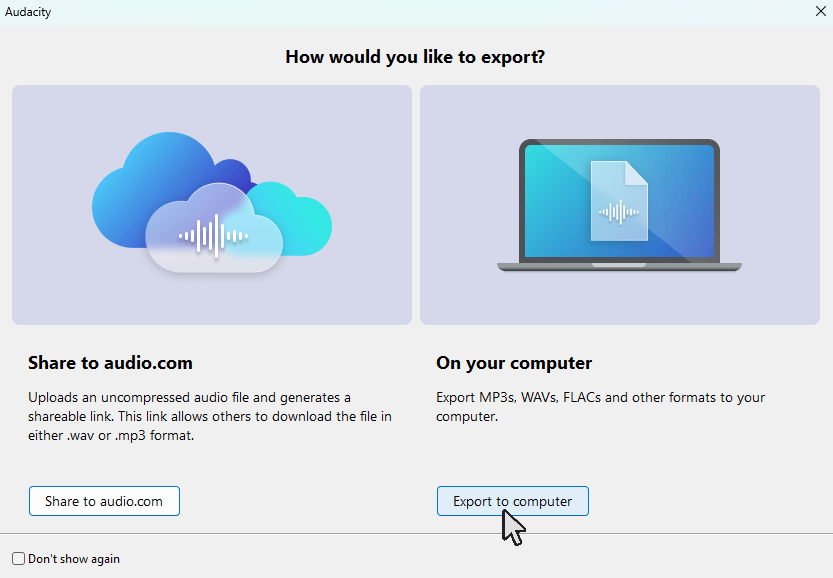
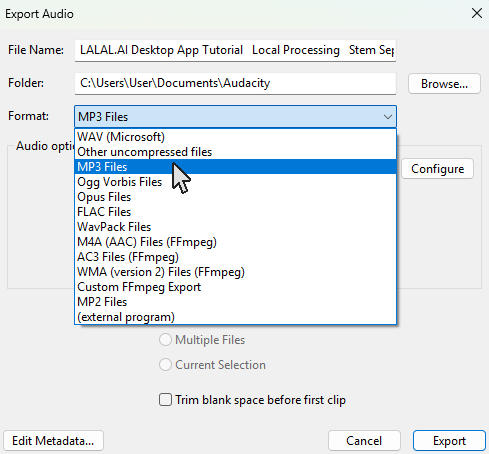
Audacity works the same way on macOS and Linux.
How to Convert MP4 to MP3 on macOS
On a Mac, the free iMovie app exports MP3 directly. If you’d rather not open a video editor, VLC does the same job in a few clicks.
Convert MP4 to MP3 with iMovie
Open iMovie (it’s free in the App Store if you’ve removed it).
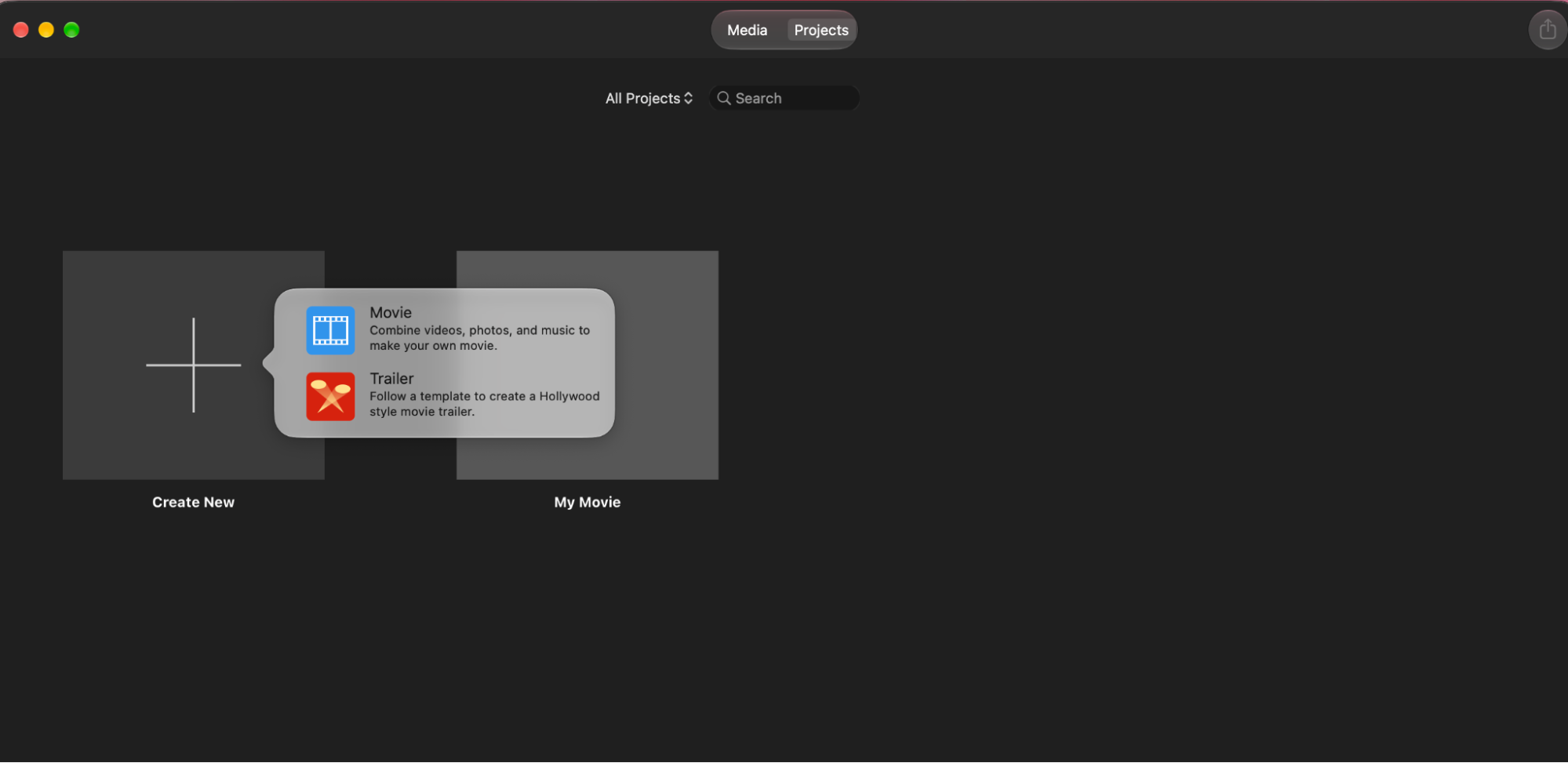
Click Create New and select Movie to start a new project.
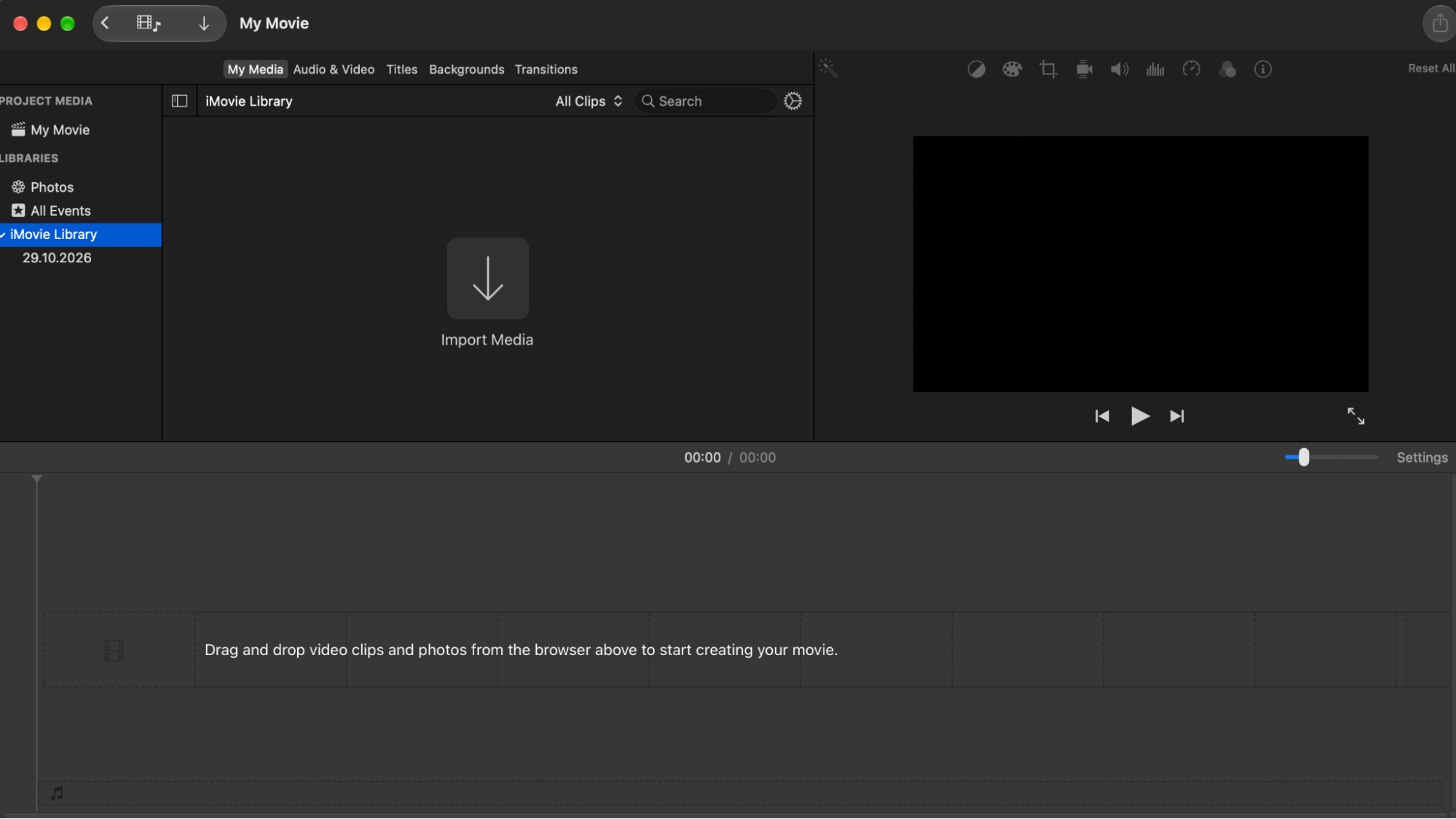
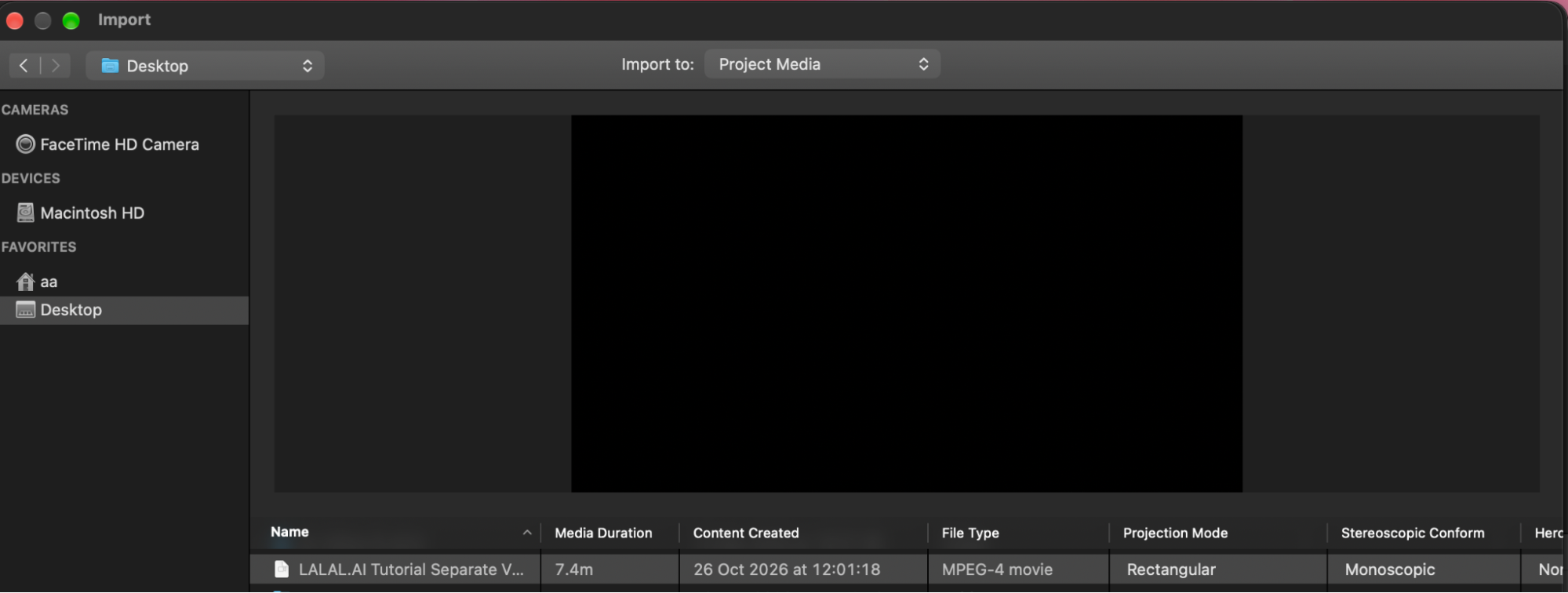
Import your MP4 file by clicking Import Media. You can also drag the file straight from Finder into the media area.
Select the clip you want to add and click Import Selected.
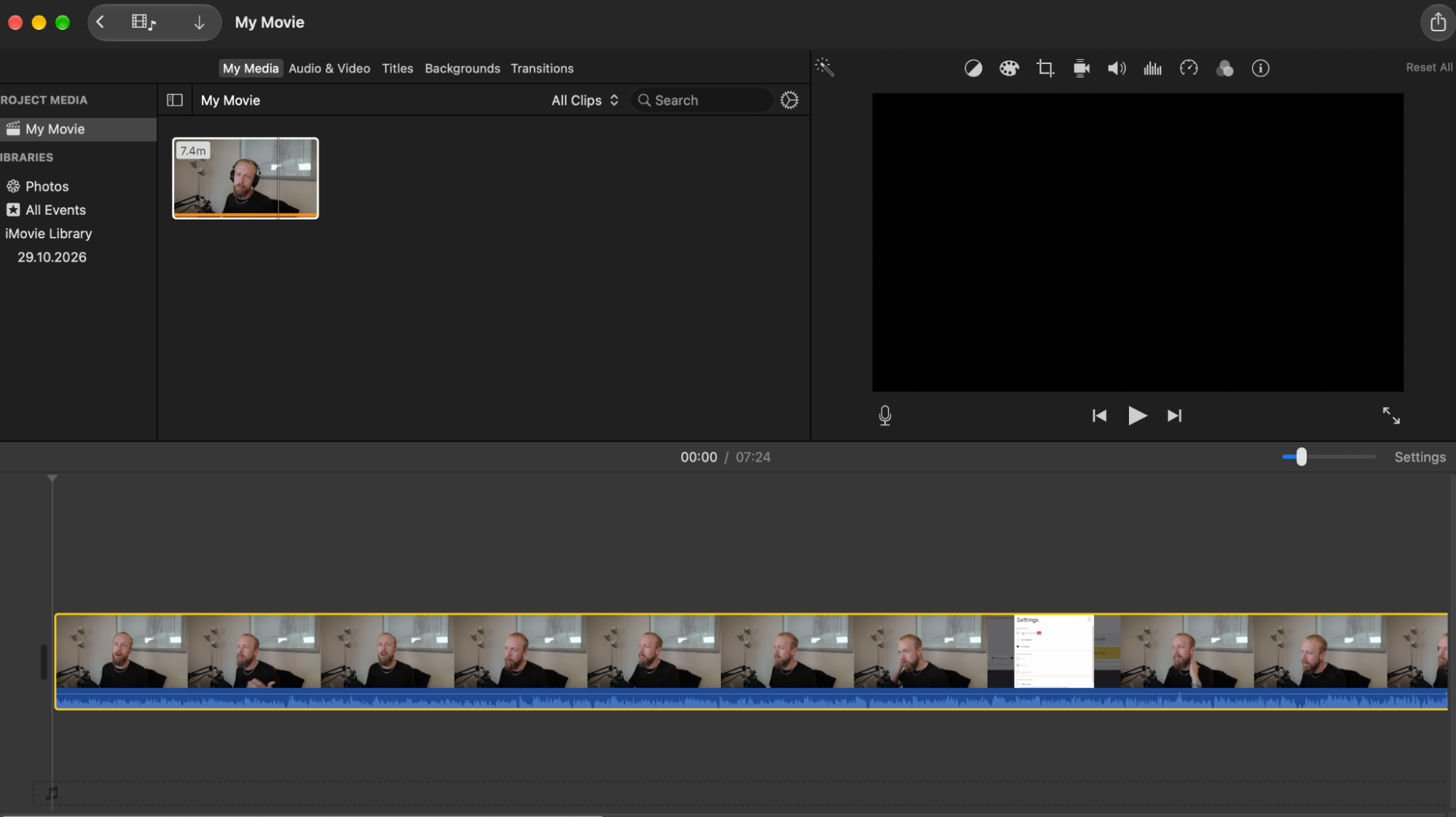
Drag the imported clip down into the timeline. If you only want part of the audio, trim the clip’s edges here before exporting.
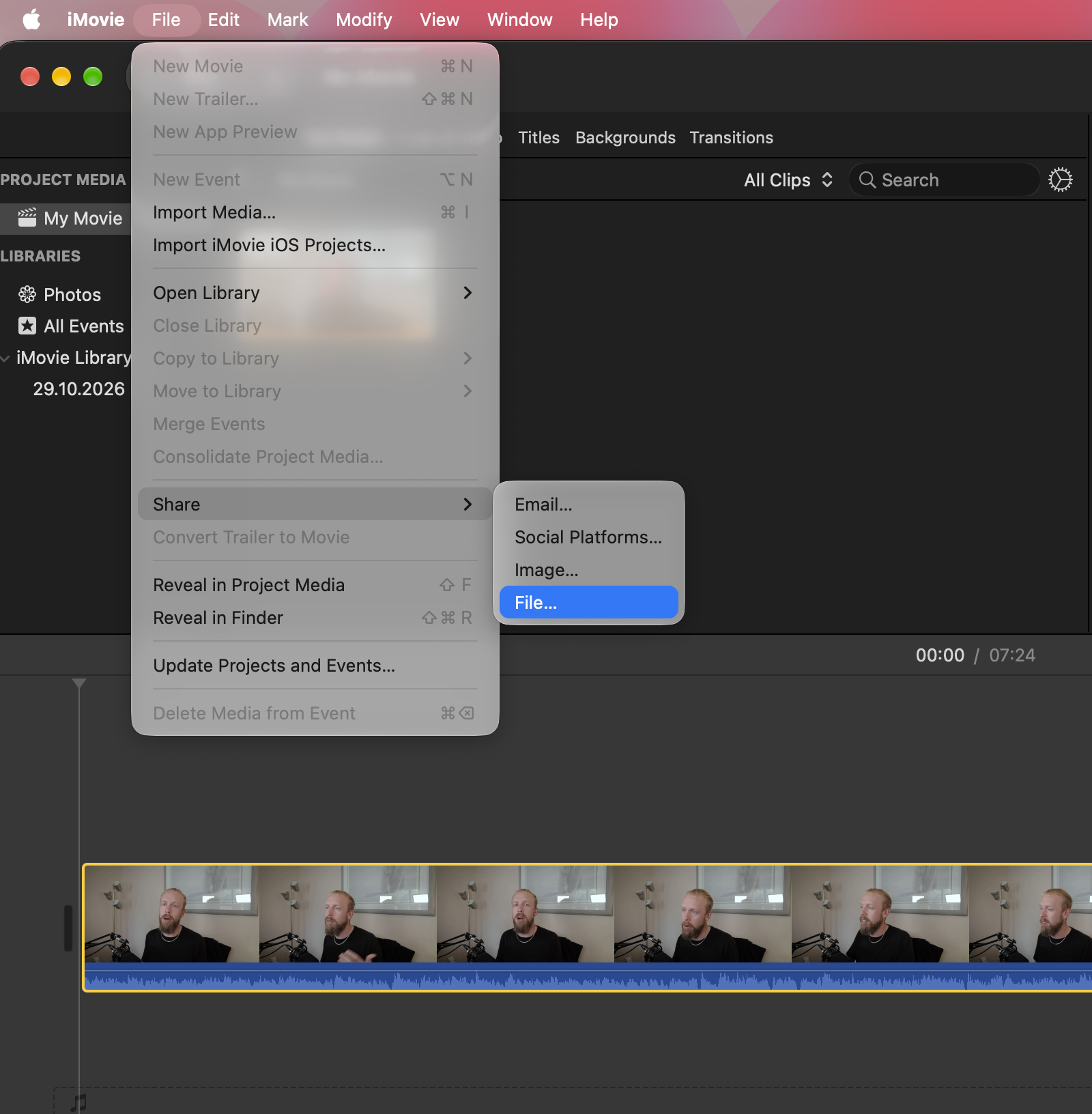
Choose File > Share > File, or click the Share button in the top-right corner and select Export File.
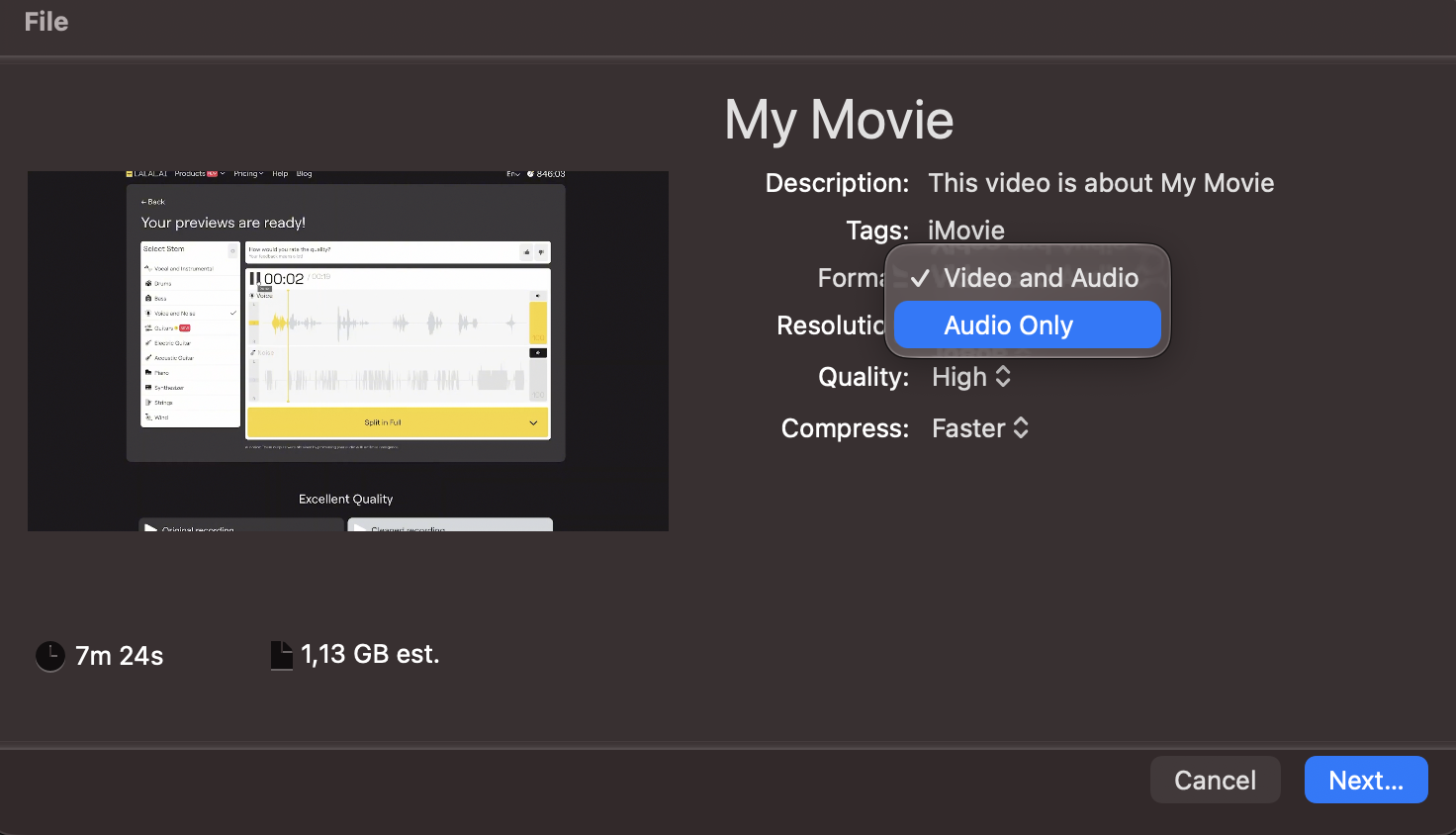
Head over to Format and select Audio Only.
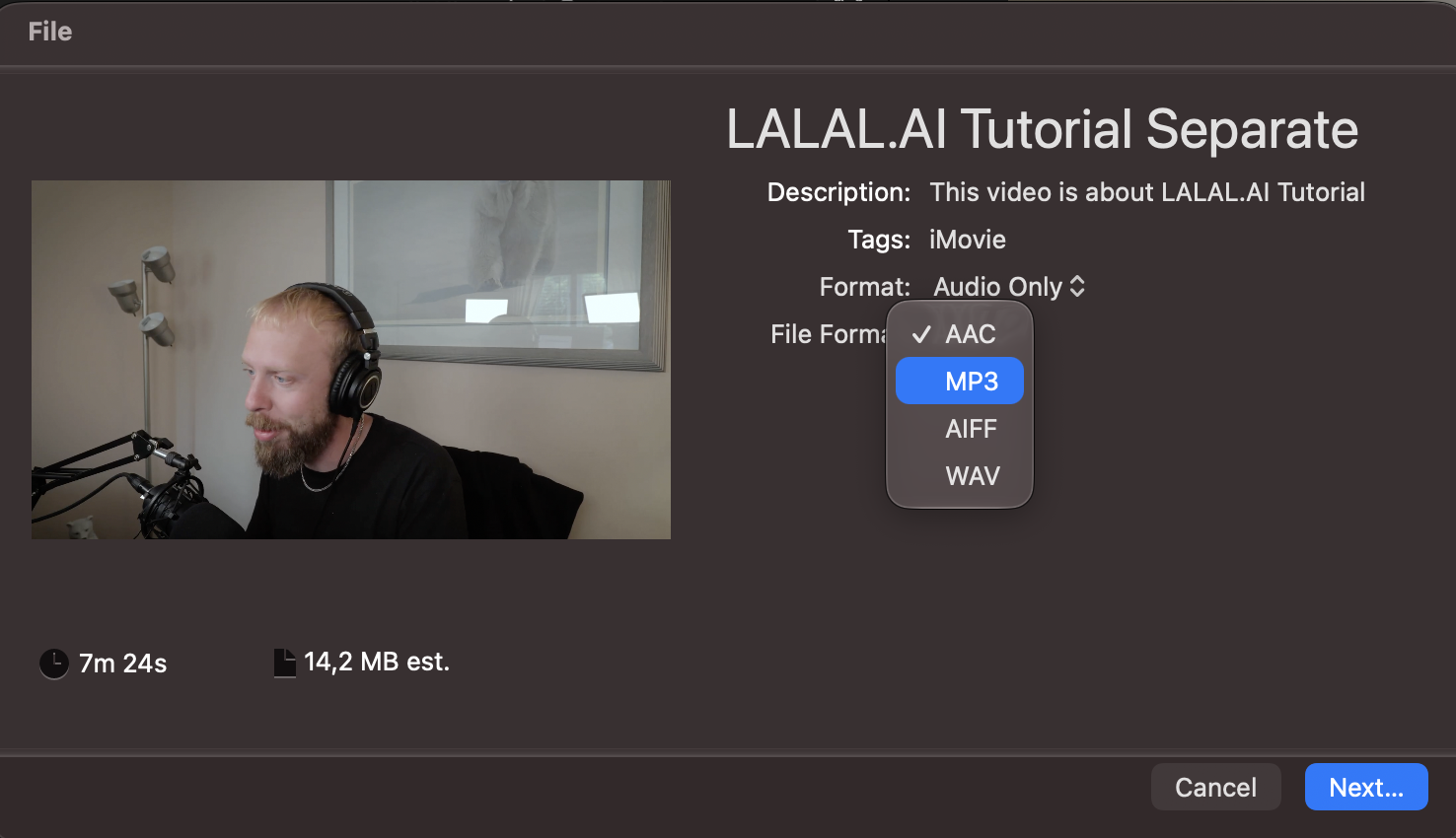
Choose MP3. iMovie can also export your audio as AAC, AIFF, and WAV.
Click Next, give the file a name, choose where to save it, and click Save. iMovie will export the audio track as an MP3 file.
Convert MP4 to MP3 with VLC on macOS
On macOS, VLC’s converter sits in a different menu than on Windows.
Download VLC Media Player and install it.
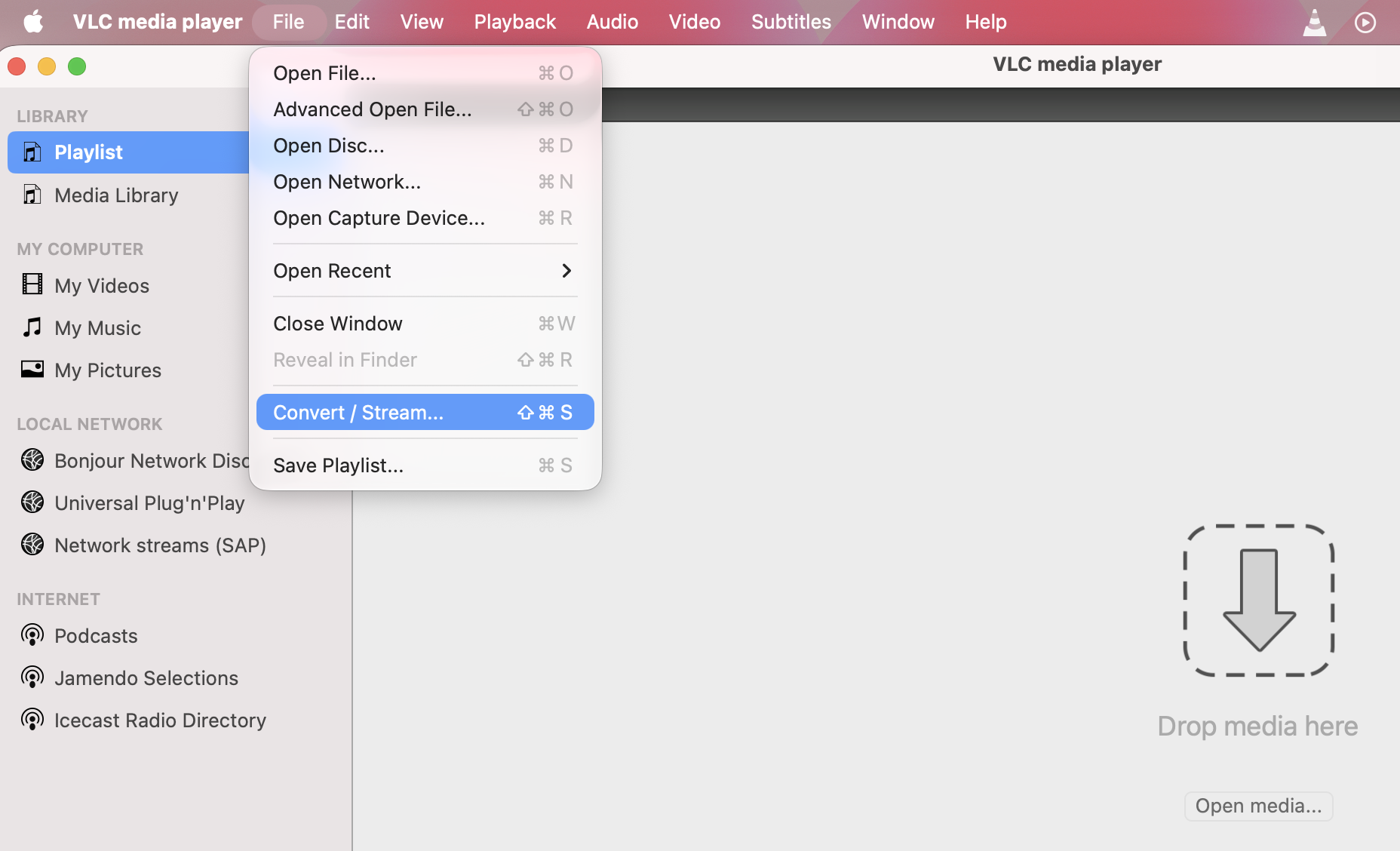
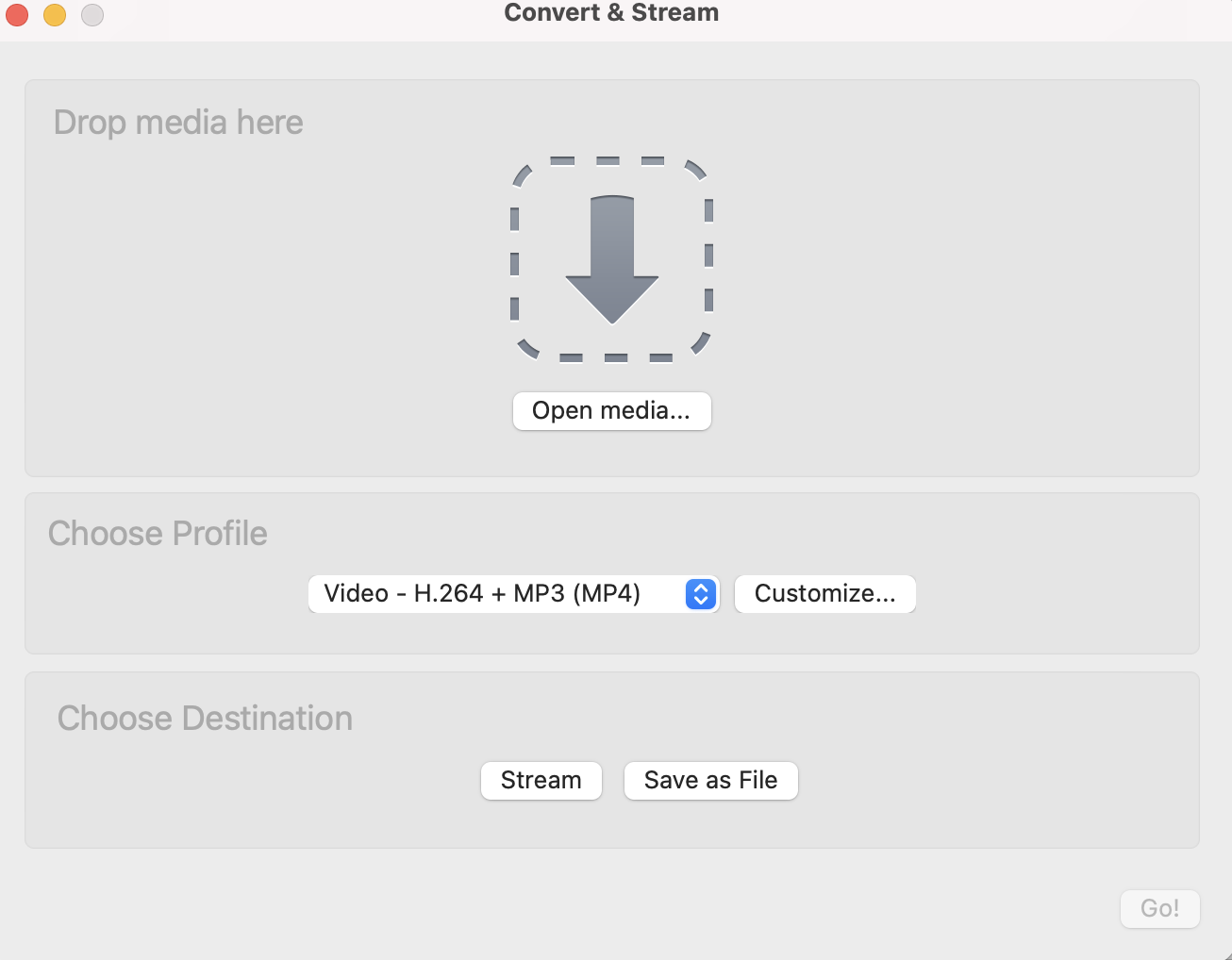
Go to File > Convert / Stream.
Click Open media and select your MP4.
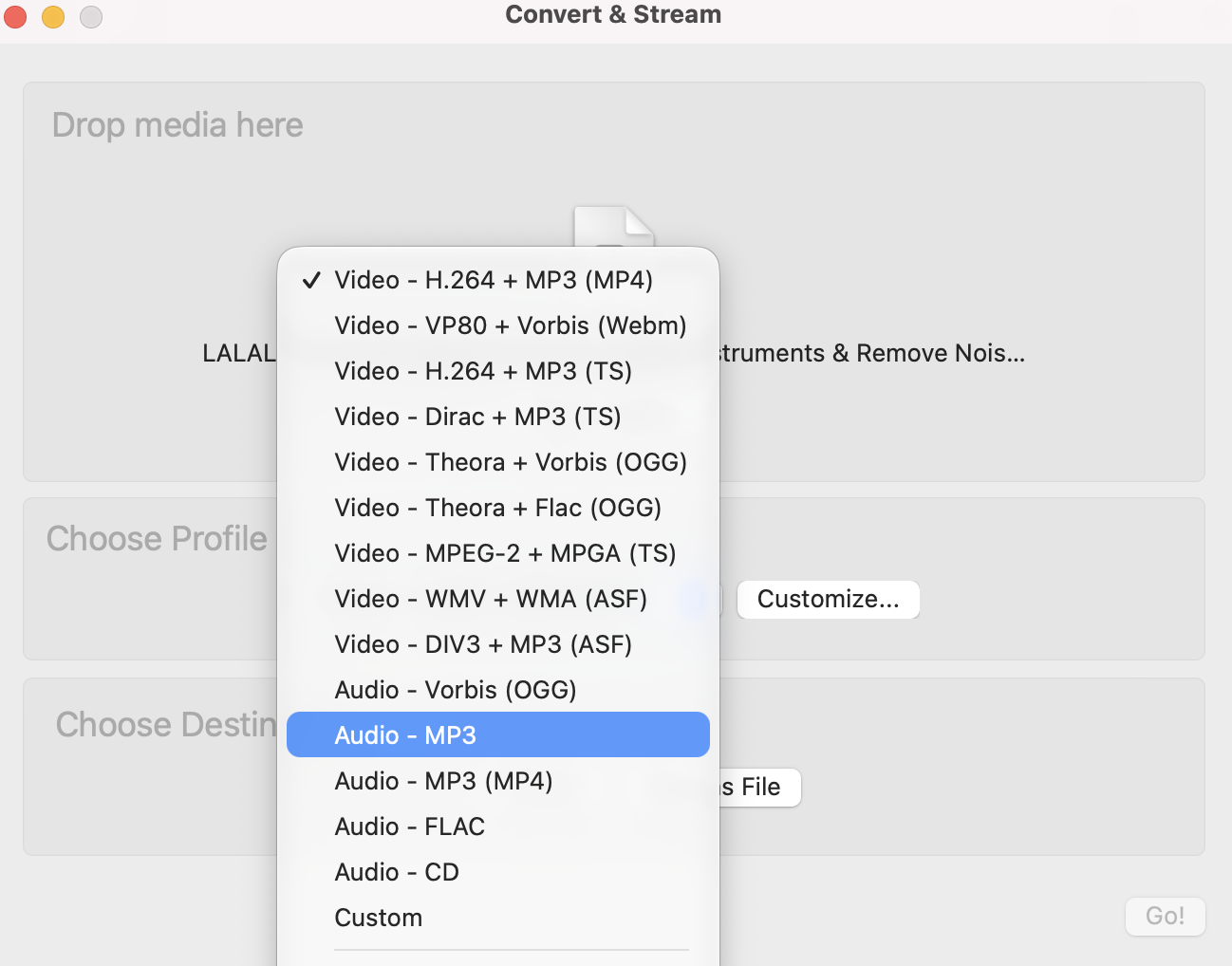
Under Choose Profile, select Audio - MP3.
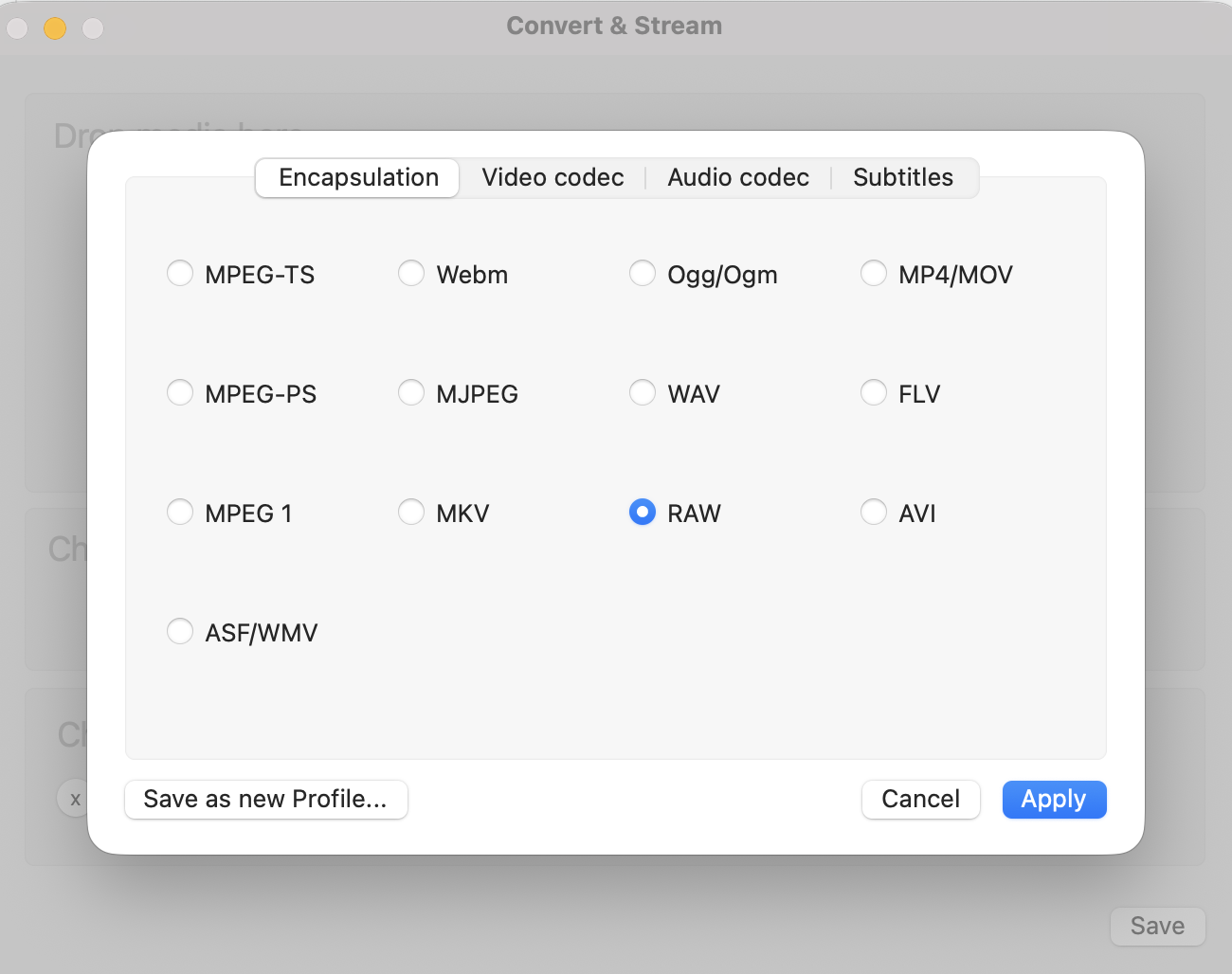
Go to Customize > Encapsulation and select RAW. Hit Apply.
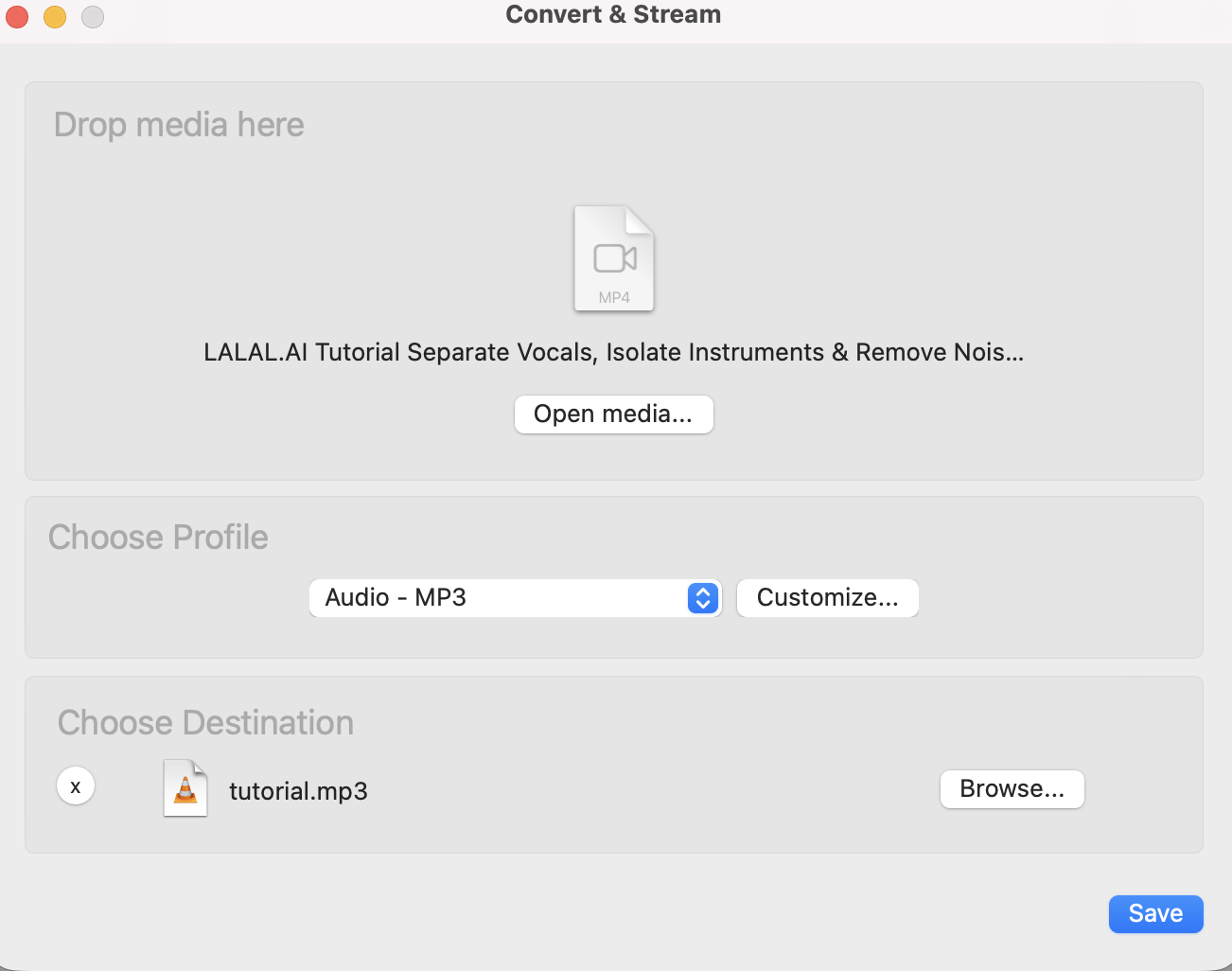
Click Save as File, then Browse to set the name and location. Include .mp3 in the file’s name.
Click Save to start the conversion.
Then, play your MP3 as you normally would.
How to Convert MP4 to MP3 on Linux
Ubuntu is one of the most popular Linux distributions, alongside Linux Mint, Fedora, and Arch. SoundConverter, VLC, and Audacity run on all of them, and the conversion steps are identical everywhere. The only thing that changes from one distribution to another is mostly the install command and, on some distributions, an extra codecs package.
| Distribution | Install SoundConverter | Install VLC | Install Audacity |
|---|---|---|---|
| Ubuntu, Linux Mint | sudo apt install soundconverter | sudo apt install vlc | sudo apt install audacity |
| Fedora | sudo dnf install soundconverter | sudo dnf install vlc | sudo dnf install audacity |
| Arch, Manjaro | sudo pacman -S soundconverter | sudo pacman -S vlc | sudo pacman -S audacity |
Note: On Fedora, enable the RPM Fusion repositories first.
Convert MP4 to MP3 with SoundConverter
SoundConverter is a lightweight GUI converter built for GNOME, the default desktop on Ubuntu and Fedora, though it runs on other desktops, too. Install the app with the commands from this table depending on your distribution. The instructions below use Ubuntu’s commands:
Install it from the terminal with sudo apt install soundconverter, or find it in the Ubuntu App Center. On other distributions, use the command from the table above or install it from Flathub.
Open SoundConverter and click Add File to select your MP4.
Open Preferences, set Format to MP3, and choose the quality and output folder. If MP3 isn’t offered on Ubuntu, install the ubuntu-restricted-extras package (on other distributions, it’s the multimedia codecs package) and restart the app.
Click Convert.
Convert MP4 to MP3 with VLC or Audacity on Linux
Both apps look and work the same on Linux as on Windows.
Install VLC or Audacity with the command for your distribution from the table above.
For VLC, open Media > Convert / Save, add the MP4, choose the Audio - MP3 profile, set a destination ending in .mp3, and click Start.
For Audacity, open the MP4 with File > Open, then use File > Export Audio and choose MP3 Files.
The full step-by-step instructions, including bitrate settings, are in the Windows section above.
How to Convert MP4 to MP3 on Mobile
Phones make file conversion a bit complicated: iOS has a built-in tool, but it saves M4A instead of MP3, and Android has none. A browser-based converter covers both.
Convert MP4 to MP3 on iPhone
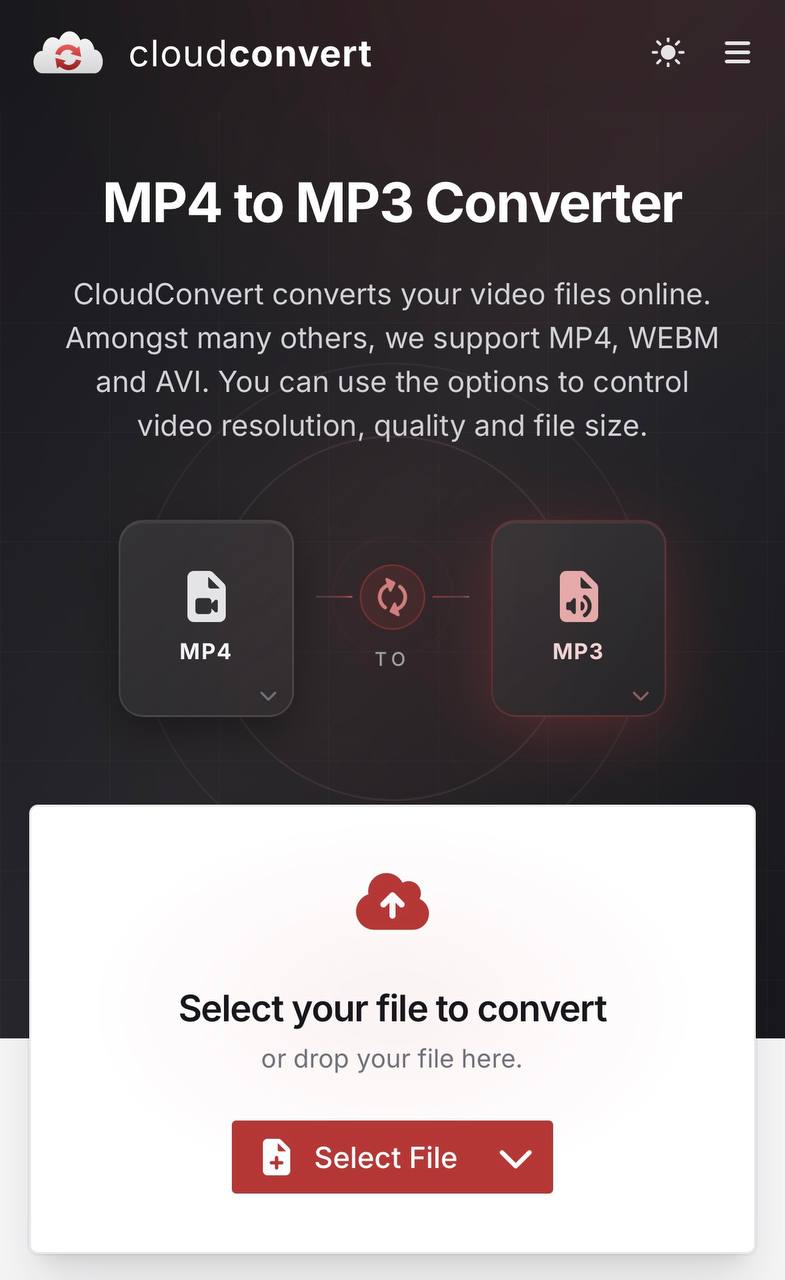
The iPhone has no built-in way to save audio as MP3, so the simplest option is an online converter in Safari. It works with videos from your Photo Library or the Files app, and you don’t need to install anything.
Open CloudConvert’s MP4 to MP3 page in Safari.
Tap Select File and pick the video from Photo Library or Files.
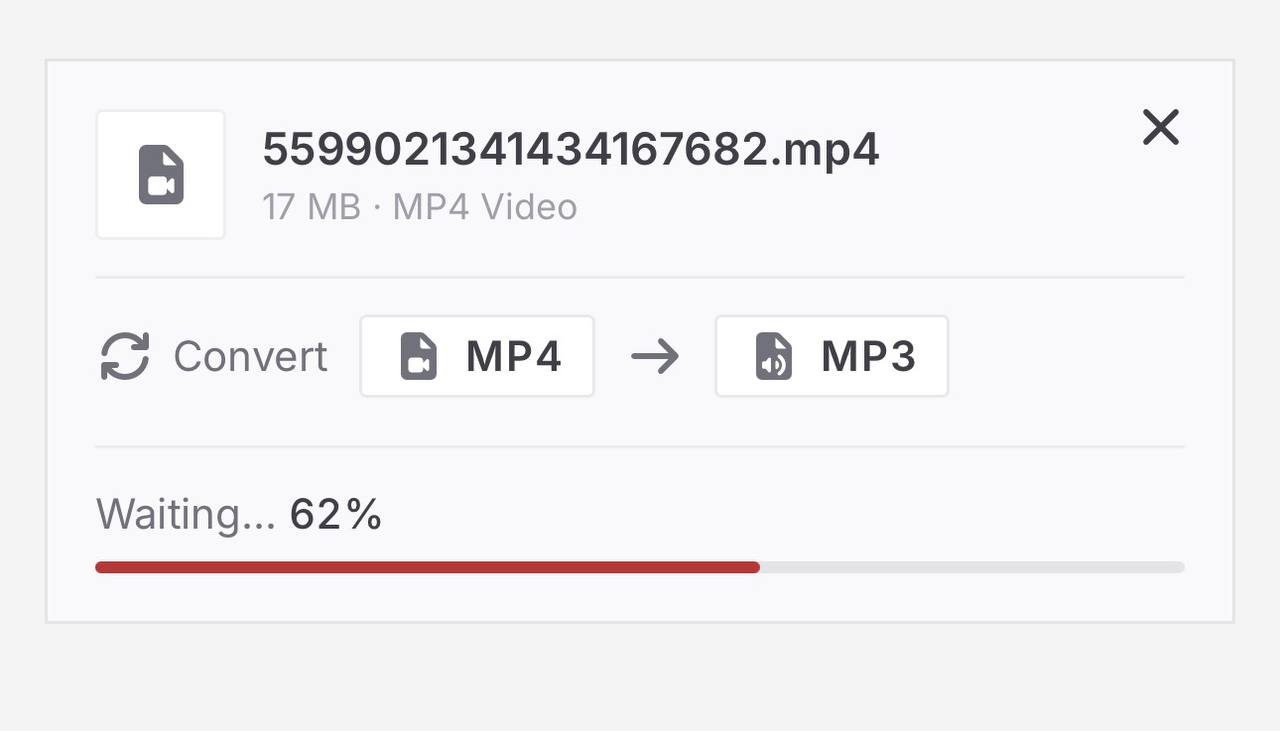
Tap Convert and wait for processing to finish.
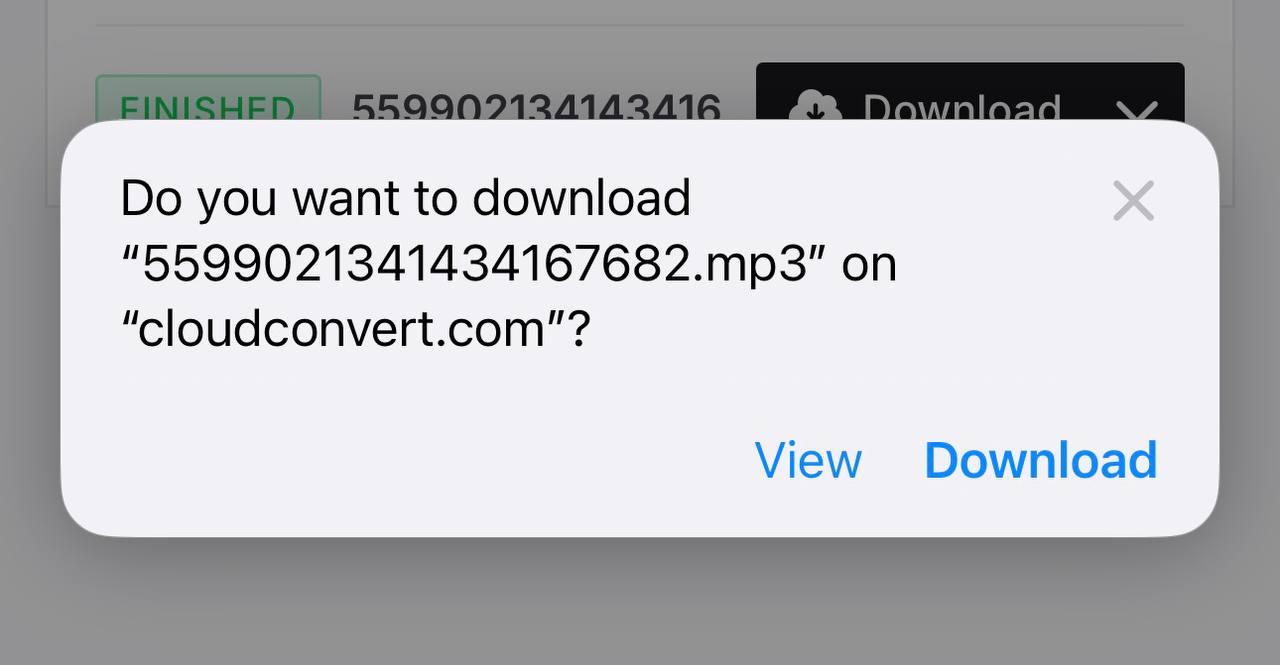
Tap Download. The MP3 appears in Files > Downloads.
Convert MP4 to MP3 on Android
The browser method works just as well on Android and needs no app.
Open CloudConvert’s MP4 to MP3 page in Chrome.
Tap Select File and pick the video from Photo Gallery or File Manager.
Tap Convert and wait for processing to finish.
Tap Download when the conversion completes. The file goes to your Downloads folder.
How to Convert MP4 to MP3 in a Browser
Online converters work on any device with a browser, including Chromebooks and work laptops where you can’t install software. The downside is that you have to upload your file to someone else’s server, so be careful with private recordings.
The process is the same on every service: open the MP4-to-MP3 page, upload the file, click convert, and download the result. What differs is the free allowance.
CloudConvert gives free users 10 conversion credits per day, files up to 1 GB, and up to 5 minutes of processing per file. Before converting, click the wrench icon to set the audio bitrate.
FreeConvert gives 20 conversion minutes per day with no account, capped at 5 minutes per file. Most short clips take under a minute, so that’s about 20 files a day.
Long videos are where online tools fall short: uploading a 1 GB file takes time, and the per-file processing caps can cut off long conversions. For anything over an hour, a desktop app is faster.
Frequently Asked Questions
How do I convert MP4 to MP3 without losing quality?
Strictly speaking, you can’t. Most MP4 files already contain compressed AAC audio, and re-encoding it to MP3 adds a second round of lossy compression. You can keep the loss inaudible for most listeners by exporting at 320 kbps, the MP3 maximum. In 4K Video Downloader Plus, you can select Quality > Highest, but most highest-quality audio streams are typically capped around 128 kbps to 160 kbps (or up to 256 kbps for YouTube Music Premium in AAC). Upconverting to 320 kbps MP3 increases the file size, but it doesn’t add missing sound frequencies or improve true audio fidelity.
Why did my iPhone save the audio as M4A instead of MP3?
The iPhone does have a built-in way to pull audio out of a video: the Shortcuts app and its Encode Media action with the Audio Only option turned on. However, Shortcuts saves audio only as M4A (AAC), and there’s no MP3 option. Renaming the file to .mp3 won’t help, because the audio inside stays AAC. For an actual MP3 file, convert the video in Safari with CloudConvert or FreeConvert.
Can I convert only part of an MP4 to MP3?
Yes, and Audacity is the easiest tool for it. Open the MP4, drag across the waveform to select the part you want (the selection’s start and end times appear at the bottom of the window so you can type exact values), then go to File > Export Audio, set Export Range to Current selection, and save as MP3. This is also handy for audio you downloaded with 4K Video Downloader Plus: grab the full track, then cut out just the song or quote you need.
Can I convert several MP4 files to MP3 at once?
Yes. On Linux, SoundConverter has an Add Folder button: point it at a folder of videos, and it converts every file in one run with the same settings.
On Windows, macOS, or mobile, CloudConvert and FreeConvert also accept several files in one upload, but each file counts toward the free limit.
If the videos are online, use 4K Video Downloader Plus. Make sure Smart Mode is set to Audio and MP3, then paste the link to a YouTube playlist or channel, and every track is saved as MP3 in one go.
Is it legal to convert MP4 to MP3?
It depends on your file. Converting your own recordings or files you have rights to is fine. Extracting audio from copyrighted videos you downloaded is an area that depends on your country’s laws and the platform’s terms of service; personal, non-commercial use is generally tolerated, while redistribution is not. Read our tips on how to avoid legal problems when downloading.
Is it safe to upload videos to online converters?
For everyday clips, reputable services are reasonably safe. CloudConvert is ISO 27001 certified and removes uploaded files once the conversion is done, 24 hours after upload at the latest. You can also remove a file yourself right after downloading the MP3. FreeConvert also deletes uploads automatically. Still, your video is hosted on someone else’s server for a while, so for private recordings, convert offline with VLC, Audacity, iMovie, or SoundConverter instead.
Published Oct. 30, 2026
 SHARE ON TWITTER


Thanks for feedback
Your comments will appear here shortly. Please spread the word about us in social networks.