Comunidad

Recibe actualizaciones sobre los productos

Cómo transferir archivos de audio y video a memoria USB

Oksana
por Oksana
en 25.09.2024

To transfer video or audio files to a USB flash drive, copy downloaded media from your computer to a removable USB device. You can then play it on offline hardware (such as TVs, car stereos, set-top boxes, or portable media players) without an internet connection. Good to know: The USB devices market is estimated at USD 47.25 billion in 2026. Demand remains strong because USB drives offer instant file transfer, cross-device compatibility, and no internet or login requirements, which cloud storage cannot match in everyday use. Source: Mordor Intelligence

How to Transfer Downloaded Audio and Video Files to a USB Flash Drive on Windows

After downloading audio or video with 4K Video Downloader Plus, you can locate and transfer the files to a USB flash drive. Here’s how:

  1. Insert the USB flash drive into your computer.
  2. Open File Explorer.
  3. Open 4K Video Downloader Plus and hover the cursor over any download file in the list.
  4. The Show in Folder button should appear. Click the button; the directory containing the downloaded data will open immediately.
  5. Select the files you want to transfer.
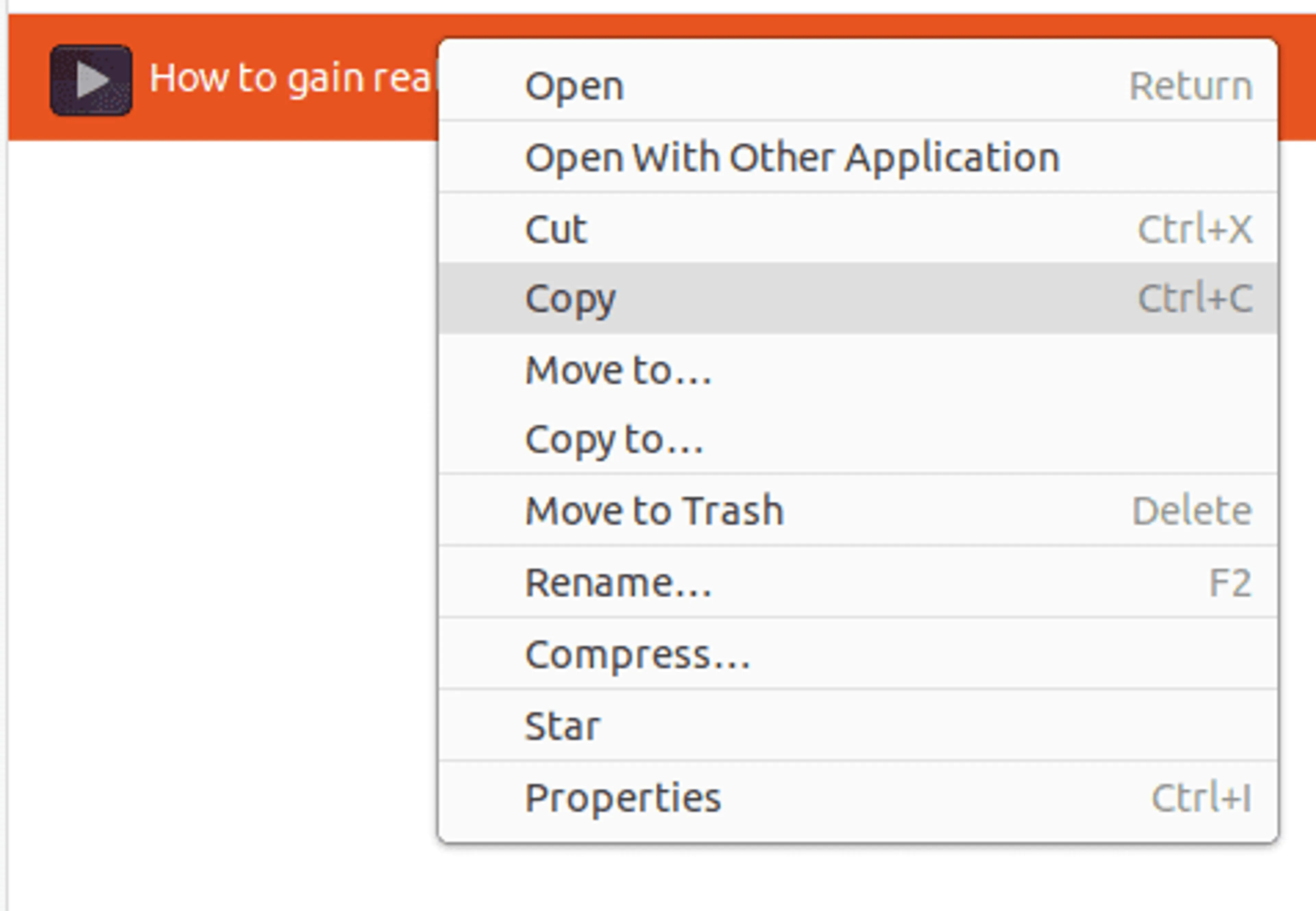
  6. Right-click and choose Copy.
  7. Open the USB flash drive folder from the sidebar.
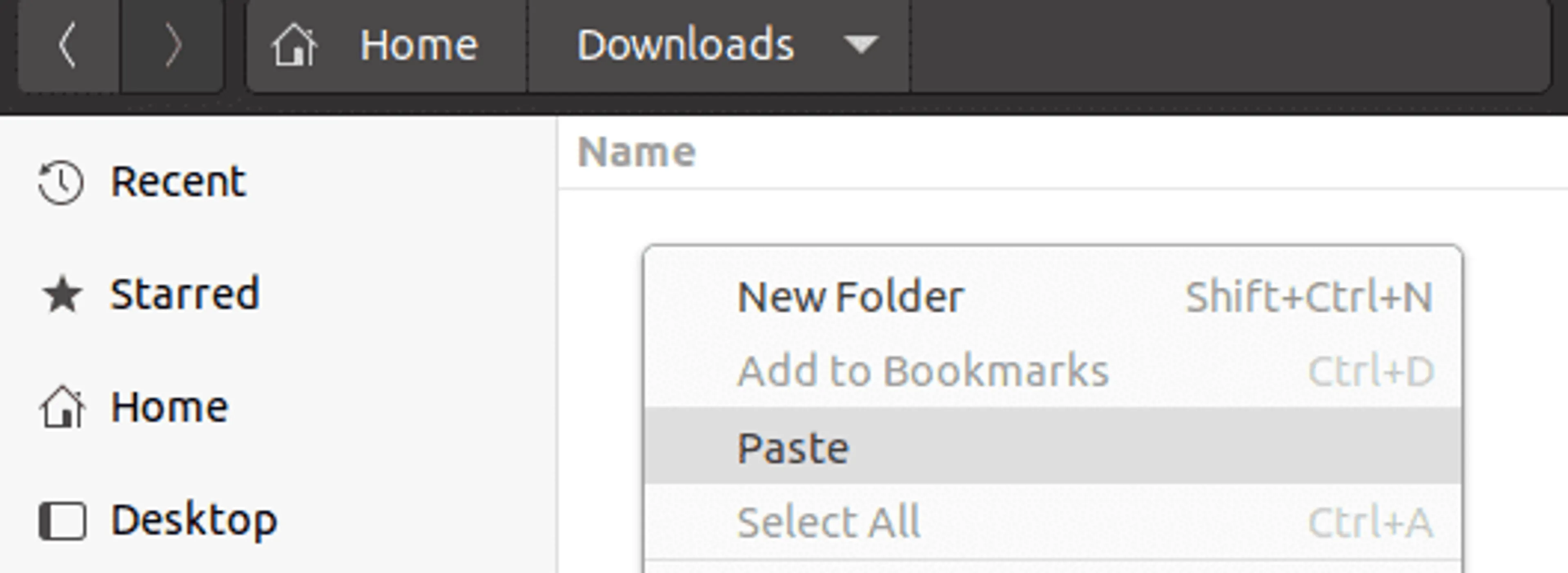
  8. Right-click inside the USB folder and select Paste.

The system copies the selected files from your computer to the USB drive. Once the transfer finishes, the files are stored on the flash drive and can be played on compatible offline devices.

How to Transfer Downloaded Audio and Video Files to a USB Flash Drive on macOS

  1. Insert the USB flash drive into your Mac.
  2. Open Finder.
  3. Open 4K Video Downloader Plus and hover the cursor over any download file in the list.
  4. The Show in Finder button should appear. Click the button; the directory containing the downloaded data will open.
  5. Select the files you want to transfer.
  6. Right-click and choose Copy.
  7. Open the USB drive from the Finder sidebar.
  8. Right-click inside the USB window and choose Paste.

MacOS moves selected files from internal storage to a USB flash drive and makes them ready for offline playback.

Why Files Won’t Copy to a Flash Drive

File is larger than 4GB (FAT32 limit)

This is the most frequent issue. Many USB drives use the FAT32 file system, which can’t store any single file larger than 4GB, even if free space is available.

Reformat the USB drive to exFAT, which supports large video files.

USB drive is full

The drive may not have enough free storage space for the file or batch of files being copied. Delete unnecessary files or use a larger-capacity USB drive.

Unsupported file format (device-side limitation)

The file may copy successfully but still fail to play on TVs, car systems, or media players if the codec is not supported (e.g., MKV, AV1, HEVC on older devices).

Convert files to widely supported formats like MP4 (H.264 video + AAC audio).

Corrupted download

Incomplete or damaged files may fail during copying or become unreadable after transfer. Re-download the file and verify playback on your computer before copying.

Drive is write-protected

Some USB drives are locked (physically or via software), which prevents any changes or file transfers.

Check for a physical lock switch or remove write protection via disk settings.

FAT32 vs. exFAT vs. NTFS

FunciónFAT32exFATNTFS
Max file size4GBNo limitNo limit
Compatibility✔ High✔ High⚠ Medium
Works on TV
Works on MacRead-only
Best forSmall filesLarge mediaWindows only

If your video file is larger than 4GB, FAT32 will block the transfer even if the USB has free space. This is a file system limit, not a storage issue. To copy large videos, the drive must be formatted as exFAT, which supports files over 4GB.

Common Mistakes When Copying Files to USB

  • Removing USB without ejecting

This interrupts the write process and can corrupt video or audio files. Always use Safely Remove Hardware (Windows) or Eject (Mac) before unplugging the drive.

  • Using unsupported formats

Some files copy successfully but won’t play on TVs or car systems (e.g., MKV or AV1 on older devices). Fix this by using widely supported formats like MP4 (H.264) or MP3.

  • Copying incomplete downloads

Partially downloaded files from 4K Video Downloader Plus may transfer but fail to open or play. Always check that the file plays correctly on your computer before copying it to USB.

  • Ignoring file system limits

FAT32 drives can’t store files larger than 4GB, even if free space is available. Reformat to exFAT to remove this restriction and allow large video transfers.

Preguntas frequentes

Can I copy videos to a flash drive?

Yes. Any downloaded file can be copied using File Explorer (Windows) or Finder (Mac). The process is a standard drag-and-drop or copy-paste operation and doesn’t change the original file.

What video/audio format has the widest device compatibility??

MP4 (H.264 video + AAC audio) for video and MP3 for audio provide the widest compatibility across TVs, car infotainment systems, game consoles, and standalone media players, especially when hardware decoding support is limited.

Why can’t I copy large files to a USB drive?

This usually happens because the USB drive is formatted as FAT32, which has a strict limit of 4GB per file. Even if the drive looks like it has enough free space, it will still block larger videos because of this built-in file system restriction.

How do I transfer files bigger than 4GB?

The USB drive needs to be formatted as exFAT. Unlike FAT32, exFAT doesn’t impose a single-file size limit, so large video files can be copied normally.

What format works best for playing files from a USB drive on a TV?

Most TVs work best with MP4 files using H.264 video and AAC audio. The combination is widely supported and reduces the chance of playback issues, especially on older or mid-range TV models.

Can I use USB for 4K videos?

Yes, but it depends on two things: the USB format and the device. The drive should be exFAT to handle large 4K files, and the TV or player must support both the resolution and the video codec used in the file.

Why is my USB slow?

Slow performance may come from using an older USB 2.0 drive, transferring very large high-bitrate files, or writing to a nearly full drive. The speed of the USB port and the drive itself also play a big role.

Do I need to format my flash drive?

You only need to format it if it is set to FAT32 and you plan to transfer large files over 4GB. In most cases, switching to exFAT is enough to remove file size limits and improve compatibility for video storage.

Can a Mac read NTFS USB drives?

Yes, macOS can open NTFS drives and copy files from them, but it can’t write to them by default. You can view or extract files, but transferring new files to the drive requires reformatting or additional software.

Conclusion

Transferring files to a USB flash drive is usually simple, but most issues don’t come from the copying itself. Instead, they happen because of hidden limits like FAT32’s 4GB file size restriction or because the file format isn’t supported by the device you’re trying to play it on. Use an exFAT-formatted USB drive to remove file size limits. Once that is in place, files downloaded with 4K Video Downloader Plus are already saved in compatible formats like MP4 and MP3, which means they don’t need conversion and can be copied directly for playback on most devices.