



If you’re sitting on hours of YouTube videos, webinars, Zoom calls, or podcast recordings and still cutting clips by hand, an AI video clipping tool can turn that raw footage into a week of short-form content in minutes. The market has matured a lot: pricing models have shifted from simple monthly minutes to more complex credit systems, and a few tools have pulled ahead by offering real control over what gets clipped instead of just handing you an algorithm's best guess.
Below is a comparison of five AI clipping tools that we tested; these are actually functioning and actively maintained as of July 2026, based on official pricing pages and independent testing. We also cover the one step almost every guide skips: getting the source video onto your machine first.
Quick Comparison: 5 Best AI Video Clipping Tools in 2026
| Tool | Best For | Free Plan | Paid Starting Price | Caption Languages | Clip Selection Method |
|---|---|---|---|---|---|
| AI Video Cut | Prompt-based, intent-driven clipping | 50 min (one-time) | $10/mo (annual) | 100+ | User-selected mode (10+ prompt types) |
| Opus Clip | Automated virality scoring | 60 min/mo | $15/mo | ~30 | AI virality score |
| Munch | Trend-matched repurposing at scale | Sample projects only | $49/mo | Multiple (varies) | Engagement + trend matching |
| Submagic | Caption styling and short-form polish | 3 videos/mo | $20/mo | 48 | AI clip extraction, caption-first |
| Vizard | Podcast and webinar clipping | 60 min/mo | ~$19/mo | 18+ | AI virality score |
Pricing verified against official vendor sources and independent reviews as of July 2026. Annual billing rates shown where applicable; monthly rates run higher on most platforms.
1. AI Video Cut: Choose the Clip Type Before the AI Touches Your Video
Starting price: Free (50 one-time processing minutes) · Paid from $10/month (billed annually)
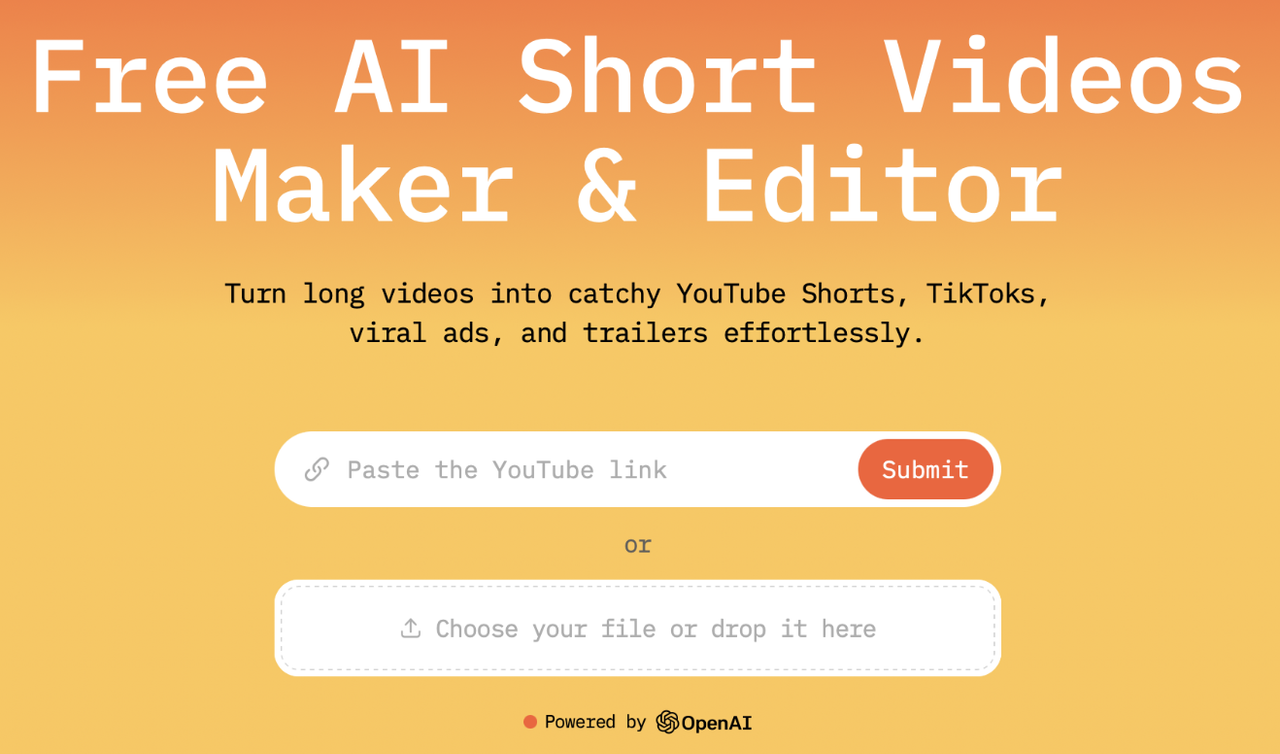
Most AI clippers work the same way: upload a video, let an algorithm decide what looks engaging, and get clips back. AI Video Cut inverts that order: before any processing happens, you pick a mode (such as Viral Clips, Show Highlights, Funny Moments, Product Review, Music Highlights, Sports Highlights, Gaming Highlights, Trailer, Memorable Phrases, and more) or write a custom prompt describing exactly what you want pulled out. The output is shaped around your intent rather than a generic engagement score. The tool does have the auto-mode too if you want to trust the algorithm the entire process. However, a strong perk of AI Video Cut is that it gives you control of what needs to be clopped and how you want to see it.
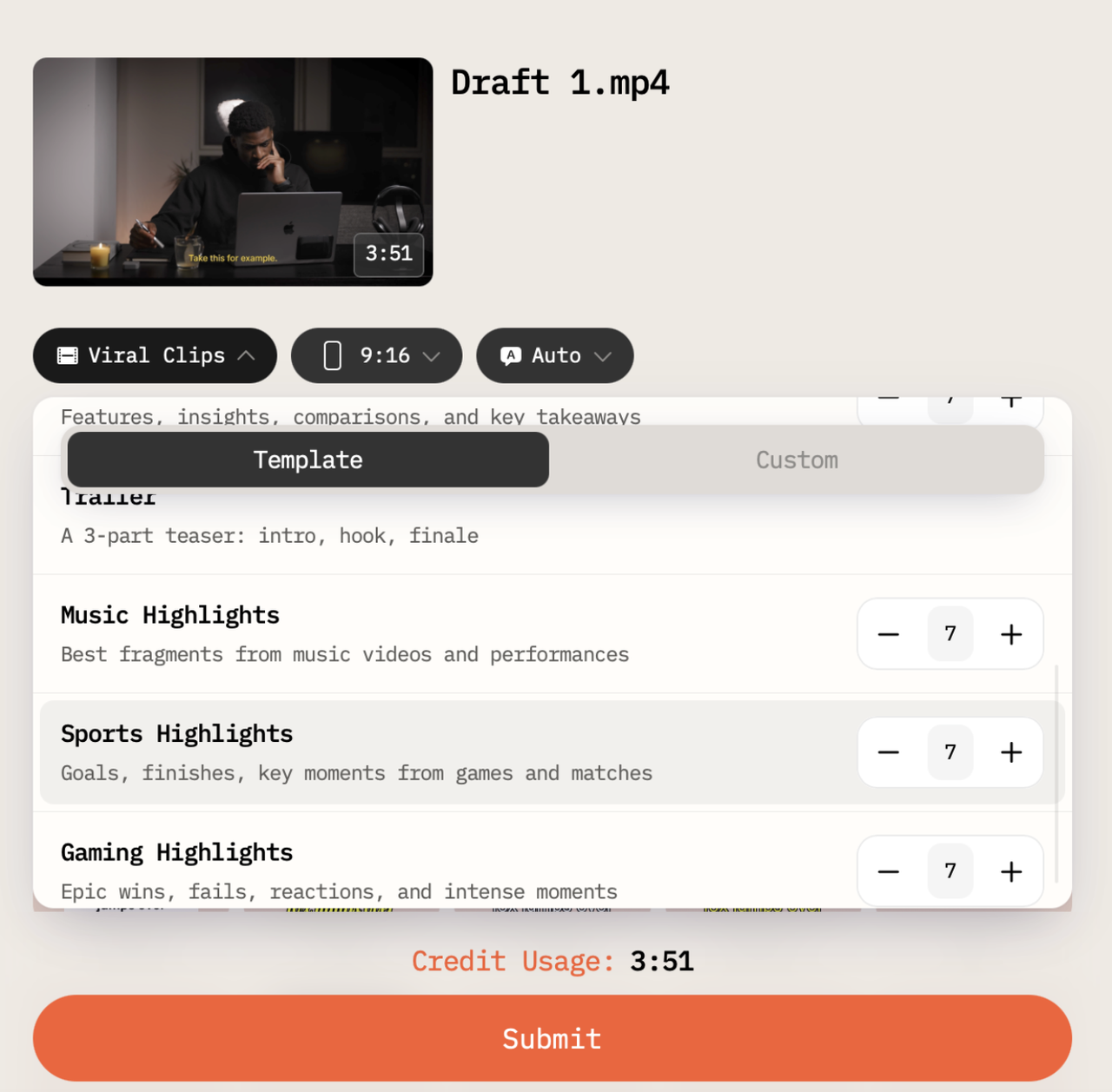
Depending on the mode, a single long-form source can generate up to 10 short clips in one pass, each aligned to the chosen output type. After clips are generated, editing happens in a dual transcript-and-timeline editor: deleting a sentence in the transcript trims the video automatically. Smart Face Detection keeps the speaker centered across 9:16, 1:1, and other aspect ratios without manual reframing, and auto-captions are available in more than 100 languages with full styling control over color, size, shadow, and placement.
| Plan | Price | Processing Minutes | Export | Storage |
|---|---|---|---|---|
| Free | $0 | 50 min (one-time) | Watermarked, all aspect ratios | 14 days |
| Starter | $10/mo (annual) | 1,800 min/year | No watermark, Full HD | 6 months |
| Pro | $12.50/mo (annual) | 3,600 min/year | No watermark, Full HD | 6 months |
Best for: creators and marketers running multi-format campaigns off one source video, where clip purpose (testimonial vs. product feature vs. highlight reel) matters as much as clip volume.
2. Opus Clip: Virality Scoring With a Hard Credit Cap
Starting price: Free (60 min/month) · Paid from $15/month
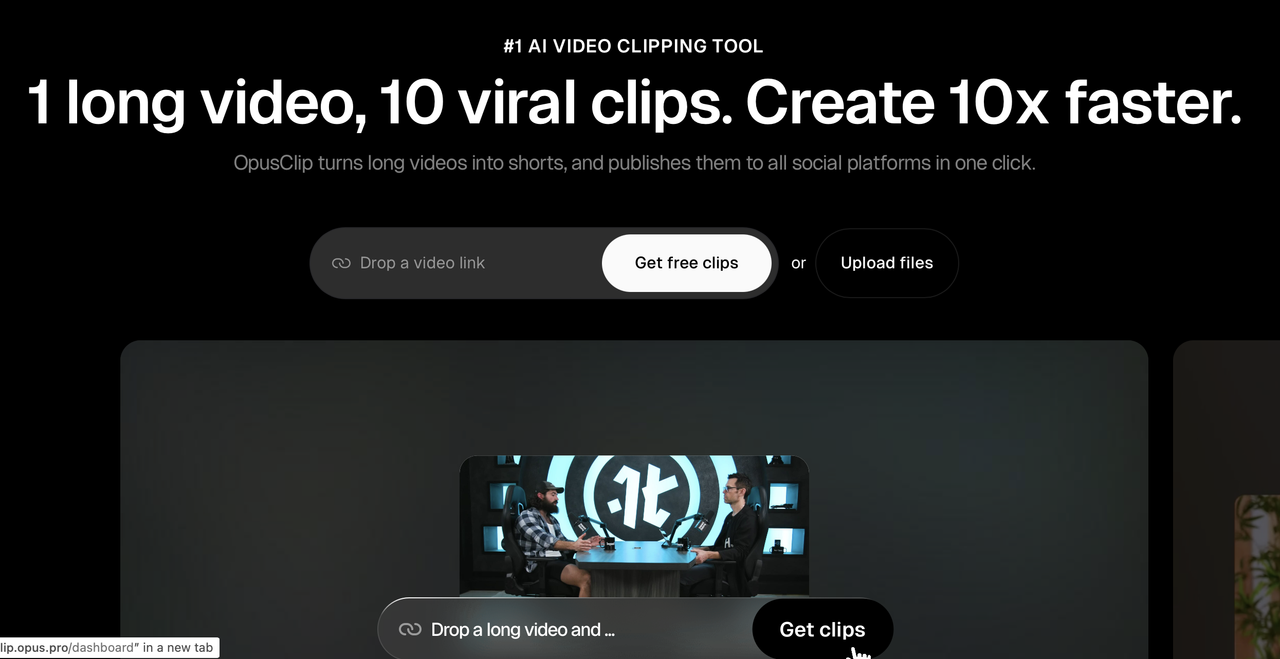
Opus Clip built its reputation on a "Viral Score" assigned to each generated clip, based on hook strength and platform-specific engagement patterns. It's a hands-off model: upload, get clips ranked by predicted performance. The free tier refreshes 60 processing minutes monthly, but exports are watermarked, locked to 9:16, and stored for only 3 days.
The credit math is the thing to watch: 1 credit equals 1 minute of source video processed, so a single 60-minute podcast episode consumes the entire free monthly allowance in one upload. The Starter plan ($15/mo) caps at 150 minutes and 720p exports; full 1080p only unlocks at Pro ($29/mo, 300 minutes).
Best for: creators comfortable with algorithmic clip selection whose monthly source video volume stays under about 5 hours.
3. Munch: Trend-Matched Repurposing for Agencies and Podcasters
Starting price: Free trial (sample projects only) · Paid from $49/month
Munch analyzes long-form video using a mix of speech pattern recognition, OCR, and NLP, then cross-references extracted moments against trending topics on social platforms before generating clips. It also assigns each clip a coherence score, an estimate of whether the moment will make sense without the surrounding context, which is useful when triaging a large batch down to a handful worth posting.
The free plan only lets you test sample projects; you cannot upload your own footage without a paid plan. Munch's tiers are priced by upload minutes rather than output clips:
| Plan | Monthly Price | Upload Minutes/Month | Best For |
|---|---|---|---|
| Pro | $49 | 200 | Individuals and small businesses |
| Elite | $116 | 500 | Power creators and small agencies |
| Ultimate | $220 | 1,000 | Media agencies and large brands |
Best for: podcasters, course creators, and agencies repurposing talking-head content at scale for clients. It performs best on speech-driven footage; highly visual or screen-recording-heavy source video confuses its selection logic more often.
4. Submagic: Caption-First Tool That Also Clips
Starting price: Free (3 videos/month, watermarked) · Paid from $20/month
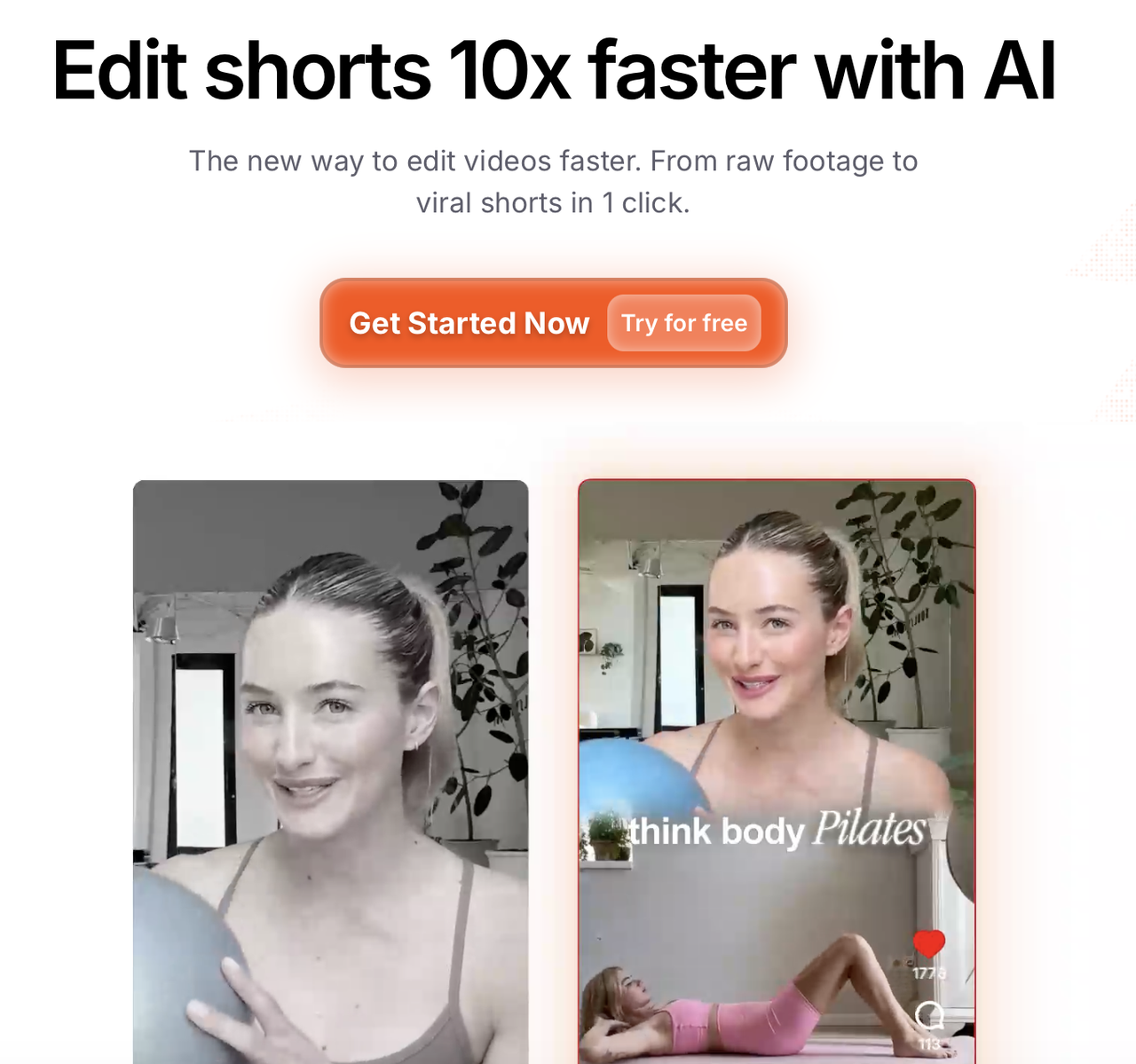
Submagic started as a caption styling tool and has since added AI clip generation, but animated captions remain its defining feature: dynamic subtitle styles built for TikTok and Reels, with emoji overlays and key-phrase highlighting. It also generates AI clips from long uploads (up to 10 per video on paid plans) and adds AI B-roll sourced from Storyblocks.
The free plan caps at 3 videos a month with a watermark, and lower-tier video-length limits make it impractical for repurposing anything longer than a few minutes. There's no direct publishing integration with YouTube, Instagram, or TikTok: you export and upload manually. Caption support covers 48 languages.
Best for: short-form creators who already edit clips manually and want polished, brand-consistent captions layered on top, rather than a full clip-selection engine.
5. Vizard: The Budget Pick for Podcasters
Starting price: Free (60 min/month) · Paid from ~$19/month
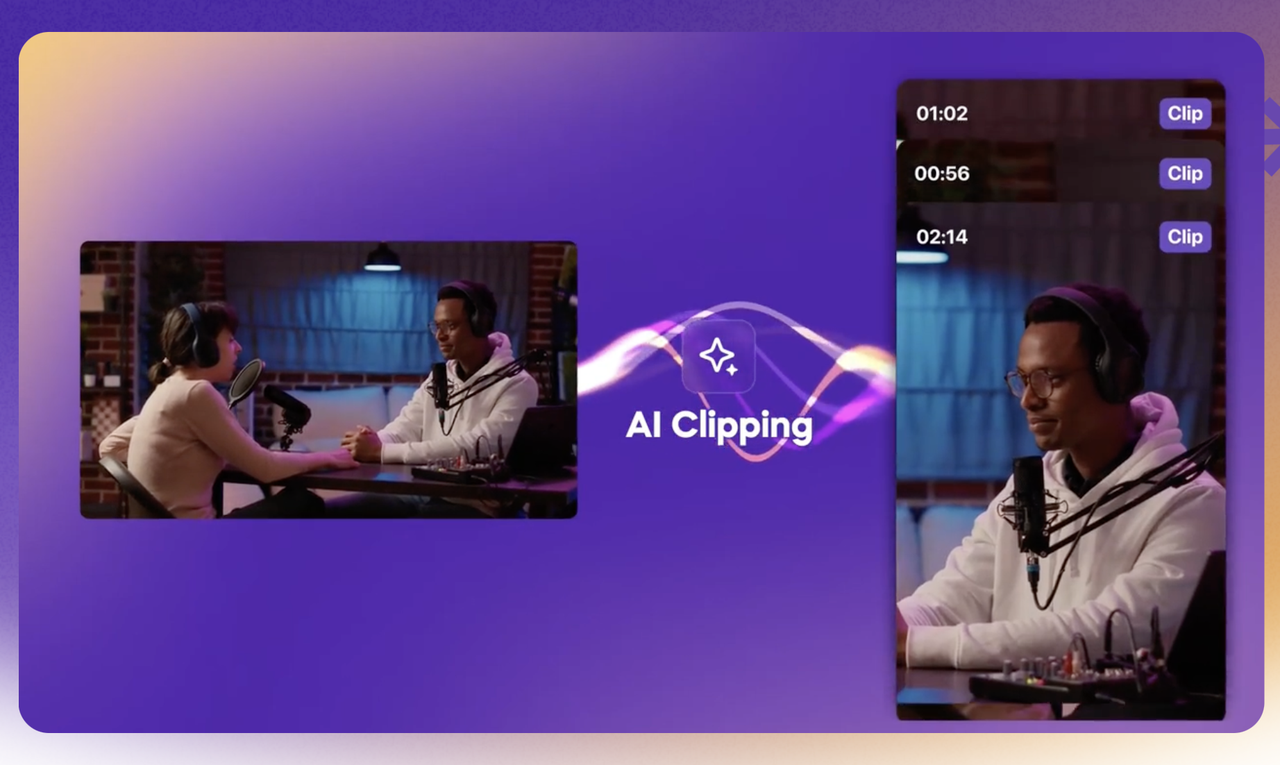
Vizard positions itself as a budget-friendly alternative to Opus Clip and performs well in that lane. Paste a YouTube, Zoom, or Google Drive link, and it transcribes, scores, and extracts vertical clips automatically, with speaker detection to keep the frame centered. Its viral score is directionally useful but, like Opus Clip's, needs manual review before publishing.
The free plan gives 60 minutes a month with a 10-minute maximum export length and a 1 GB file cap. Vizard supports 18+ transcription languages, notably fewer than AI Video Cut, Klap-style tools, or Submagic, and right-to-left scripts like Arabic require manual correction.
Best for: podcasters and interviewers publishing primarily in English or a small set of supported languages, who want an affordable, reliable clip pipeline for spoken-word content.
Feature Comparison Table
| Feature | AI Video Cut | Opus Clip | Munch | Submagic | Vizard |
|---|---|---|---|---|---|
| Clipping method | User-selected modes (10+ types) | AI virality scoring | Engagement + trend matching | AI extraction, caption-focus | AI virality scoring |
| Custom prompt input | ✔ | Limited (paid) | ✖ | ✖ | ✖ |
| Editor | Dual: transcript + timeline | Basic (paid) | Dedicated per-clip editor | Text-based trimming | ✔ |
| Smart face detection | ✔ | Limited | ✔ | ✖ | ✔ |
| Auto-caption languages | 100+ | ~30 | Multiple (varies) | 48 | 18+ |
| Aspect ratios (free) | All (9:16, 1:1, 16:9) | 9:16 only | N/A (no free upload) | Limited | 9:16 only |
| Batch clip generation | Up to 10 per prompt | ✖ | ✔ | 10 per long video | ✔ |
| Free plan type | 50 min one-time | 60 min/mo (recurring) | Sample projects only | 3 videos/mo | 60 min/mo (recurring) |
| Paid entry price | $10/mo (annual) | $15/mo | $49/mo | ~$20/mo | ~$19/mo |
Step-by-Step: How to Clip a YouTube Video to Viral TikToks, Shorts & Reels
Every AI clipping tool in this comparison technically accepts a direct link and can pull a video on its own. In practice, it's worth downloading the source file first: you get a full-quality local copy you can reuse across multiple clipping tools, edit in other software, or archive without depending on the original link staying up. Here's the full workflow:
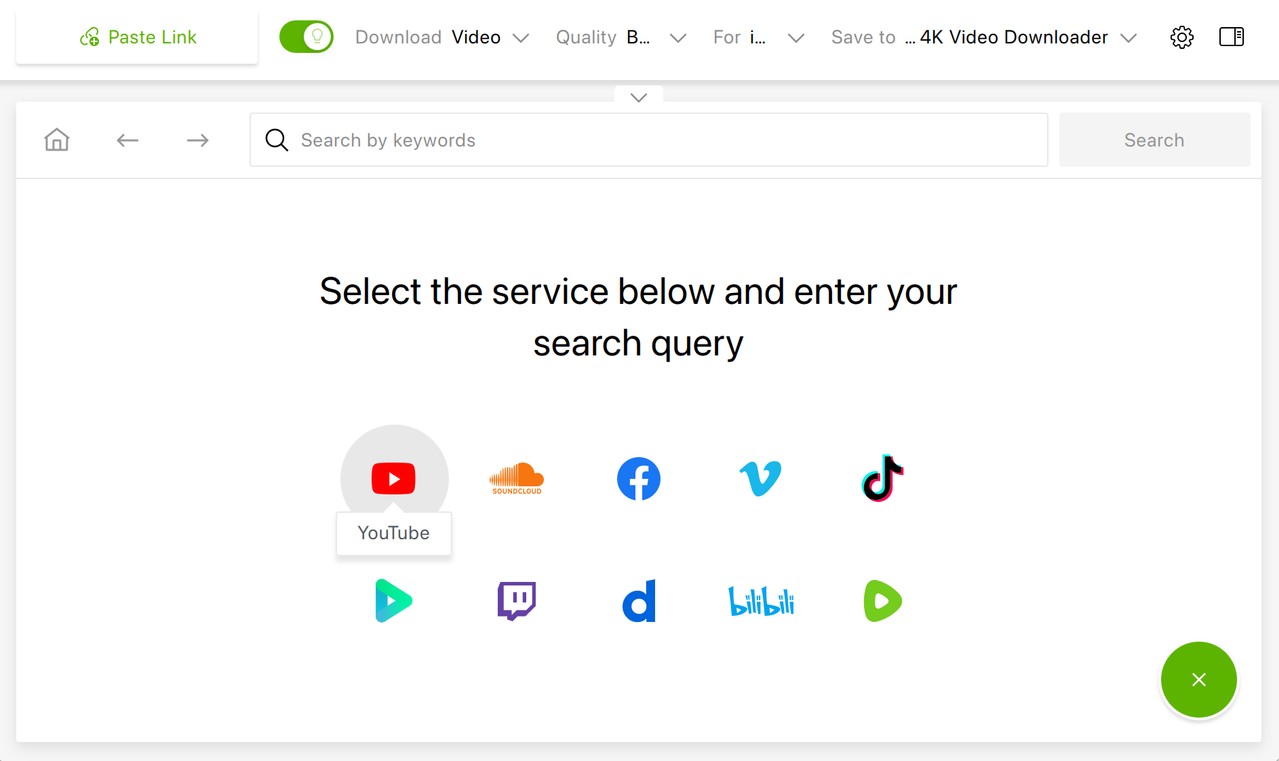
Step 1: Download the source video with 4K Video Downloader Plus
Before clipping anything, grab the original video with 4K Video Downloader Plus. Paste the YouTube link (this also works for Vimeo, TikTok, Facebook, SoundCloud, Twitch, Rumble, and more sites), choose the resolution, up to native 4K or 8K, and download the full video, playlist, or entire channel in one pass. The app also pulls subtitles in more than 50 languages alongside the video, which is useful if you plan to hand-check auto-generated captions later. Having a local, full-quality file means you are not re-downloading or re-authenticating every time you want to try a different clipping tool on the same source.
Step 2: Upload the downloaded file into your clipping tool of choice
Once the video is saved locally, upload the file directly to AI Video Cut, Opus Clip, Munch, Submagic, or Vizard (or paste the original link, if the tool supports it). Uploading a local file rather than re-pasting a link avoids issues if the source video gets taken down, made private, or region-locked after you've already started editing.
Step 3: Pick a clip mode or let the AI score segments
If you're using AI Video Cut, select the mode that matches your goal (Viral Clips, Product Review, Funny Moments, etc.) or write a custom prompt. If you're using a virality-score tool like Opus Clip or Vizard, let the AI process the full video and review the ranked output; plan on manually checking clips before publishing, since reviewers across the board note these scores are directional, not definitive.
Step 4: Review, caption, and export
Trim in the transcript or timeline editor, confirm auto-captions are accurate (especially for non-English audio or technical vocabulary), pick your aspect ratio, and export. None of the tools compared here remove watermarks on their free tiers, so factor that into which plan you choose before a public-facing publish.
FAQ
What is an AI video clipping tool?
An AI video clipping tool automatically analyzes a long-form video and extracts short segments suitable for TikTok, Instagram Reels, and YouTube Shorts, handling reframing, caption generation, and clip selection without manual editing.
Do I need to download a video before clipping it?
Most clipping tools accept a direct link and pull the video themselves. Downloading the source file first with a tool like 4K Video Downloader Plus gives you a local, full-quality copy you can reuse across multiple clipping tools, archive, or edit further without depending on the link staying live.
What's the difference between virality-score clipping and mode-based clipping?
Virality-score tools (Opus Clip, Vizard) rank AI-selected clips by predicted engagement based on signals like hook strength and pacing. Mode-based tools (AI Video Cut) let you define the intended output type before processing, so a "Product Review" prompt pulls product-relevant moments instead of generic engagement peaks.
Is there a free AI clipping tool without a watermark?
As of July 2026, none of the tools in this comparison offer watermark-free exports on their free tiers. Watermark removal requires a paid plan across AI Video Cut, Opus Clip, Submagic, Munch, and Vizard.
Can these tools handle non-English content?
Support varies significantly. AI Video Cut covers 100+ languages for auto-captioning. Submagic covers 48. Opus Clip supports roughly 30. Vizard supports 18+, with known manual-correction needs for right-to-left scripts like Arabic.
Published July 14, 2026
 SHARE ON TWITTER


Thanks for feedback
Your comments will appear here shortly. Please spread the word about us in social networks.