



YouTube no longer speaks just one language per video, and that has quietly complicated one of the internet's oldest questions: how do you actually save one of these videos to your device? Depending on what a creator has enabled, a single upload might carry an AI-generated dub, a professionally recorded second audio track, subtitles in a dozen languages, or all three at once. "Downloading a YouTube video in another language" isn't one task anymore; it's at least three, and each one needs a different approach.
This guide untangles them. We'll walk through downloading auto-dubbed audio, downloading a creator's own multi-language audio tracks, and downloading translated subtitles, using 4K Video Downloader Plus for a point-and-click workflow, and yt-dlp for anyone who prefers the command line. We'll also flag where each method breaks down, because it does, and what to try instead.
How to Download YouTube Videos in Multiple Languages: Quick Answer
To download a YouTube video with a different language track, or even multiple languages at once, open 4K Video Downloader Plus, paste the video link with Smart Mode switched off, then open the Audio tracks menu in the download window and pick the language you want, or select All Tracks to keep every language in one video or audio file, depending on the output you prefer. The same window lets you choose a subtitle language and, in the app's Advanced preferences, decide whether subtitles are burned into the video or saved as a separate .srt file. Command-line users can get a similar result with yt-dlp by specifying the language code in the format selector, though YouTube's audio-track IDs are less forgiving than a GUI dropdown.
Why "Multiple Languages" Means Three Different Things
Before touching any software, it's worth being precise about what you're actually trying to download, because YouTube itself treats these as separate systems with separate rules.
| Type | Who creates it | How it sounds or looks | How YouTube labels it |
|---|---|---|---|
| Auto-dubbed audio | Generated automatically by YouTube (Google Gemini-based text-to-speech) | Synthetic voice reading a machine translation; picture and lip movement stay in the original language | "Auto-dubbed" badge on the video |
| Multi-language audio (MLA) | According to the official YouTube Help center, these are uploaded by the creator, either self-recorded or professionally dubbed | Real human voice, often studio quality | No public badge; appears as a normal alternate audio track in the language menu |
| Subtitles / captions | Author-uploaded, auto-generated (speech-to-text), or auto-translated | Text overlay only, doesn't touch the audio | CC icon; shown in-app as "Language," "Language – transcribed," or "Language – auto-translated" |
The distinction matters because each one lives in a different part of YouTube's system, and a downloader has to ask for each one separately. A video can technically have all three at once: original audio, human-dubbed tracks, an auto-dub for languages the creator didn't cover, and subtitles in multiple languages.
Method 1: How to Download Auto-Dubbed Audio Tracks in Multiple Languages at Once
YouTube's automatic dubbing has grown quickly since it opened to smaller creators: as of September 2026, it covers 27 languages, with a subset supporting "Expressive Speech," a mode designed to preserve the original speaker's tone and pacing rather than reading in a flat monotone. Google reported that in December 2025 alone, over six million people a day watched at least ten minutes of auto-dubbed content, a sign the feature has moved well past the novelty stage.
To save two or more of these tracks alongside the video:
- Find a video carrying the "Auto-dubbed" label on YouTube and copy its URL.
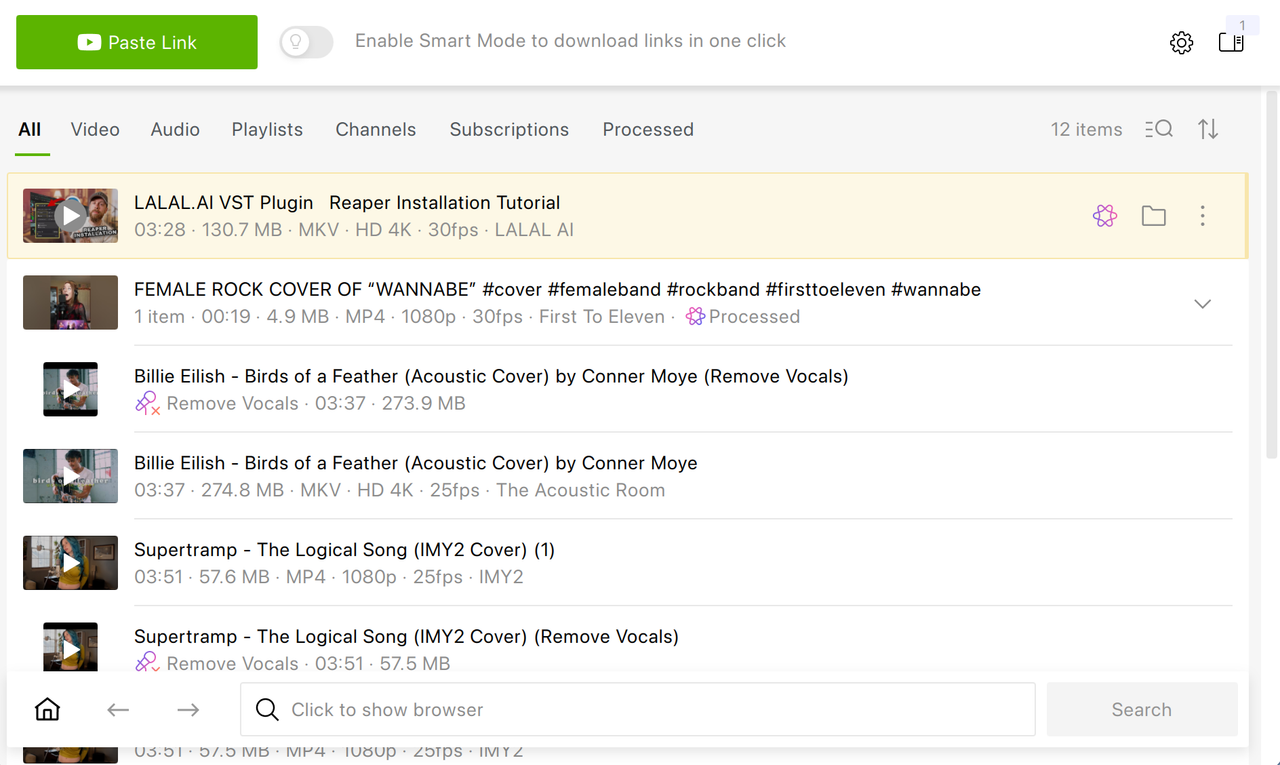
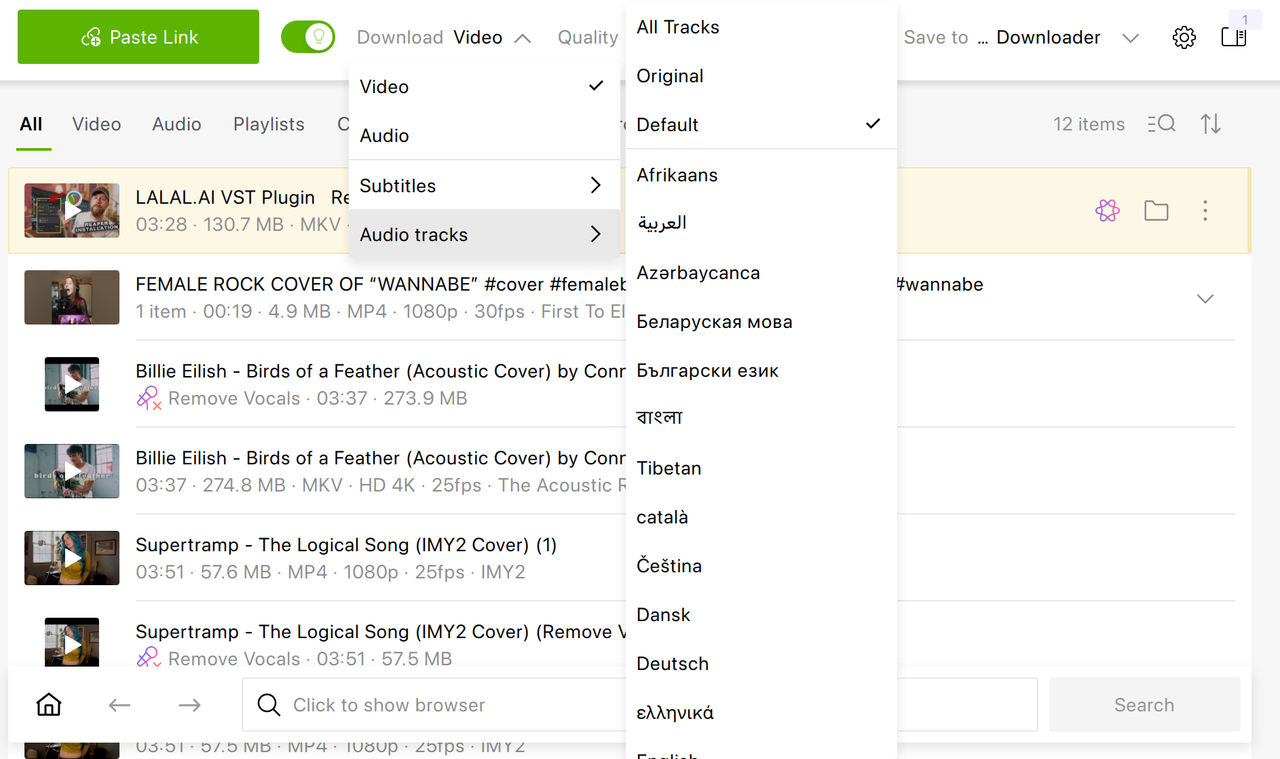
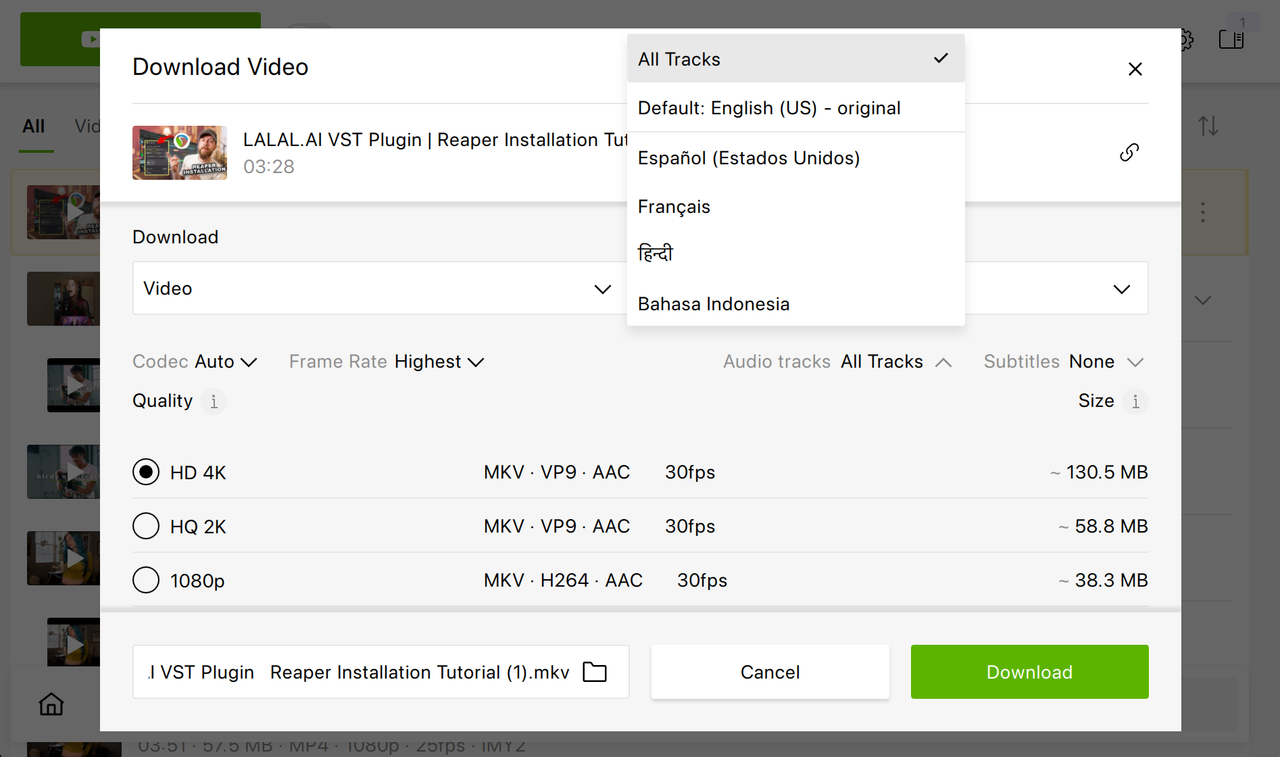
- Open 4K Video Downloader Plus and paste the link (click Paste Link if Smart Mode is off, or go to Video > Audio tracks if it's on).
- In the Audio tracks list, choose the dubbed languages you want, or select All Tracks to bundle every available language into a single file, switchable during playback. The image below depicts the Manual Download window route, not Smart Mode. If you use Smart Mode, you need to select the required audio tracks before clicking the Paste Link button.
- Set your preferred video quality and container, then click Download and play it in VLC, switching between audio tracks (Audio -> Audio track).
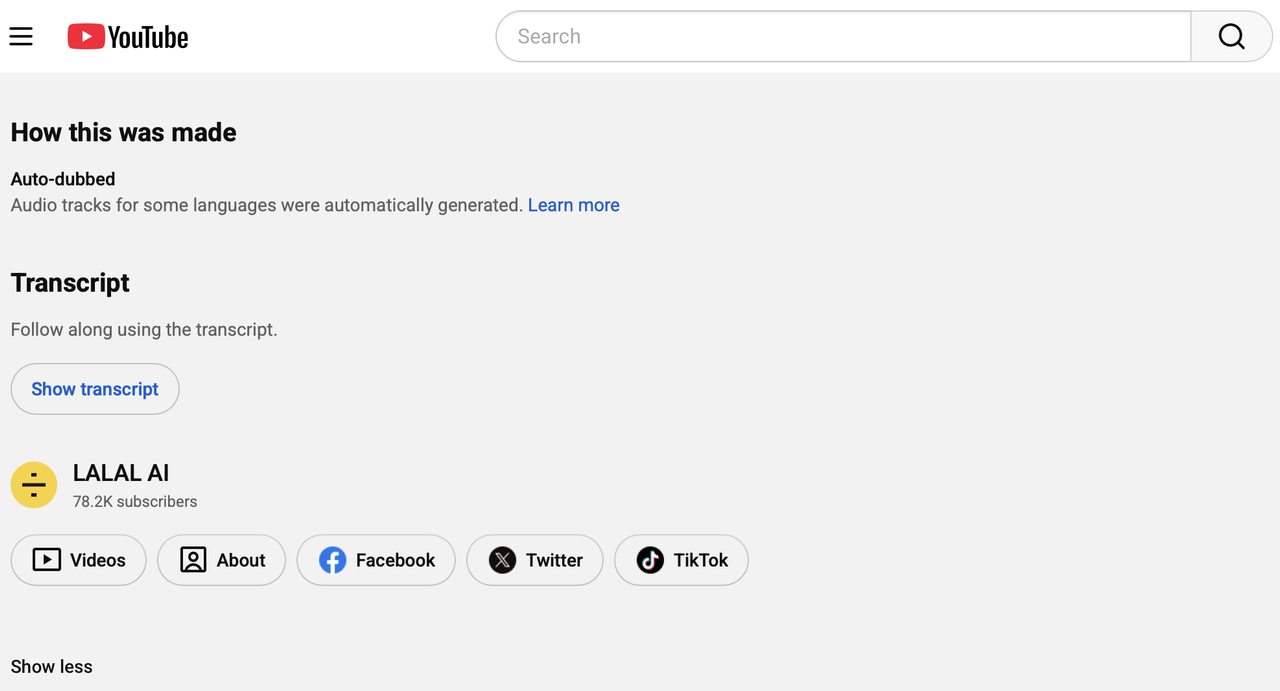
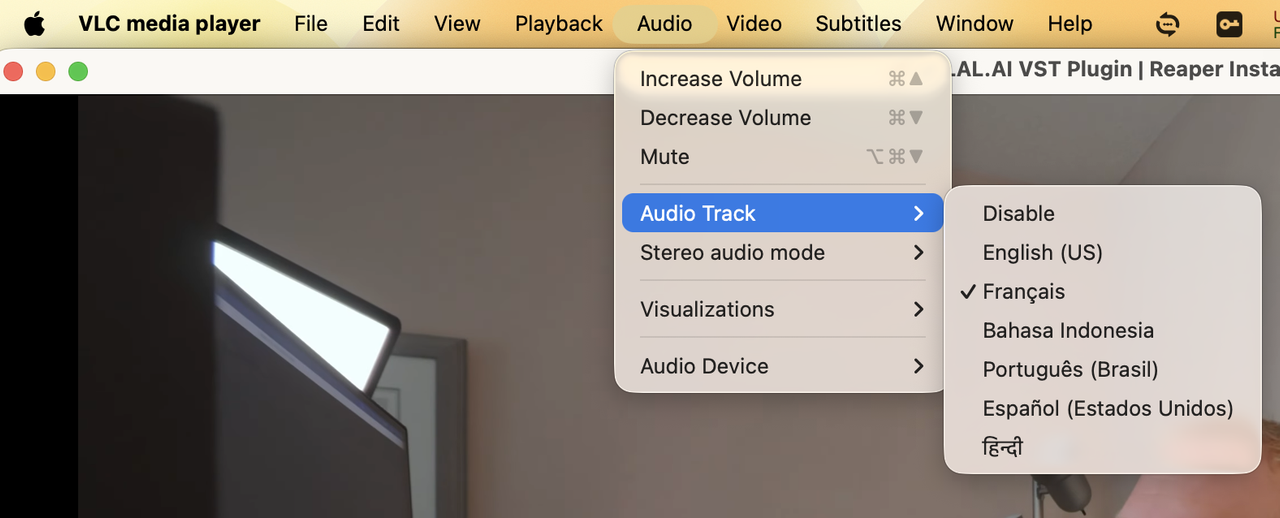
Note that auto-dubbed tracks are machine-generated, so quality varies by language pair and by how clean the original audio was; a heavily accented or noisy source clip tends to produce a rougher dub. For the full walkthrough with screenshots, see our earlier post on downloading YouTube auto-dubbed audio tracks.
Method 2: How to Download Creator-Uploaded Multi-Language Audio Tracks
This is the one people most often confuse with auto-dubbing, and the confusion is understandable, since both show up in the same "Audio tracks" menu. The difference is authorship: multi-language audio (MLA) tracks are recorded or commissioned by the creator, not generated on the fly by YouTube. The feature started as a small 2023 pilot with channels like MrBeast, Mark Rober, and Jamie Oliver, and YouTube opened it to millions more creators in September 2025. The pilot data YouTube shared at the time was striking: channels using MLA saw upward of 25% of their watch time come from viewers in a non-primary language, and Jamie Oliver's channel reportedly tripled its views after adding dubbed tracks.
Because these tracks are just alternate audio streams attached to the same video, downloading them uses the same interface as auto-dubs, with one extra option worth knowing about: Original.
- Open 4K Video Downloader Plus and paste the video link.
- In Smart Mode or Manual Download window, in the Audio tracks selector, pick Original if you specifically want the creator's native-language recording rather than any dub.
- Alternatively or additionally, pick the specific dubbed language you're after by name.
- Choose quality, format, and output folder, then hit Download. As such, you’ll be able to download a video with its original audio as well as creator-uploaded dubs.


Pro-plan users can request Default and Original together in one pass, which is handy when you're not sure in advance which languages a given upload actually has. For a deeper look at how the app decides which language counts as "Default" (system language, YouTube interface language, or your playback history, depending on your login state), see Download YouTube Videos with the Right Language Settings.
Method 3: How to Download YouTube Subtitles in Multiple Languages
Subtitles are the lightest and most universally available way to get a video in another language, since they don't depend on a creator recording anything and don't require YouTube to generate synthetic speech. 4K Video Downloader Plus recognizes three subtitle types, and knowing which one you're looking at explains most "why isn't my language showing up" problems:
- Author-uploaded: written by the creator, generally the most accurate.
- Auto-generated: YouTube's speech-to-text transcription, labeled "Language – transcribed."
- Auto-translated: a machine translation of an existing subtitle track, labeled "Language – auto-translated," available only for widely spoken languages and only when nothing higher-quality exists.
To embed subtitles directly into the video file (so playback doesn't depend on a separate file):
- Open 4K Video Downloader Plus, then go to Tools > Preferences > Advanced and enable Embed subtitles if possible.
- Turn Smart Mode off if it's on.
- Paste the link of a video that has CC available.
- In the download window, open Subtitles and select one or more languages.
- Click Download, then play the file in VLC or Media Player Classic and switch tracks from the Subtitle menu.
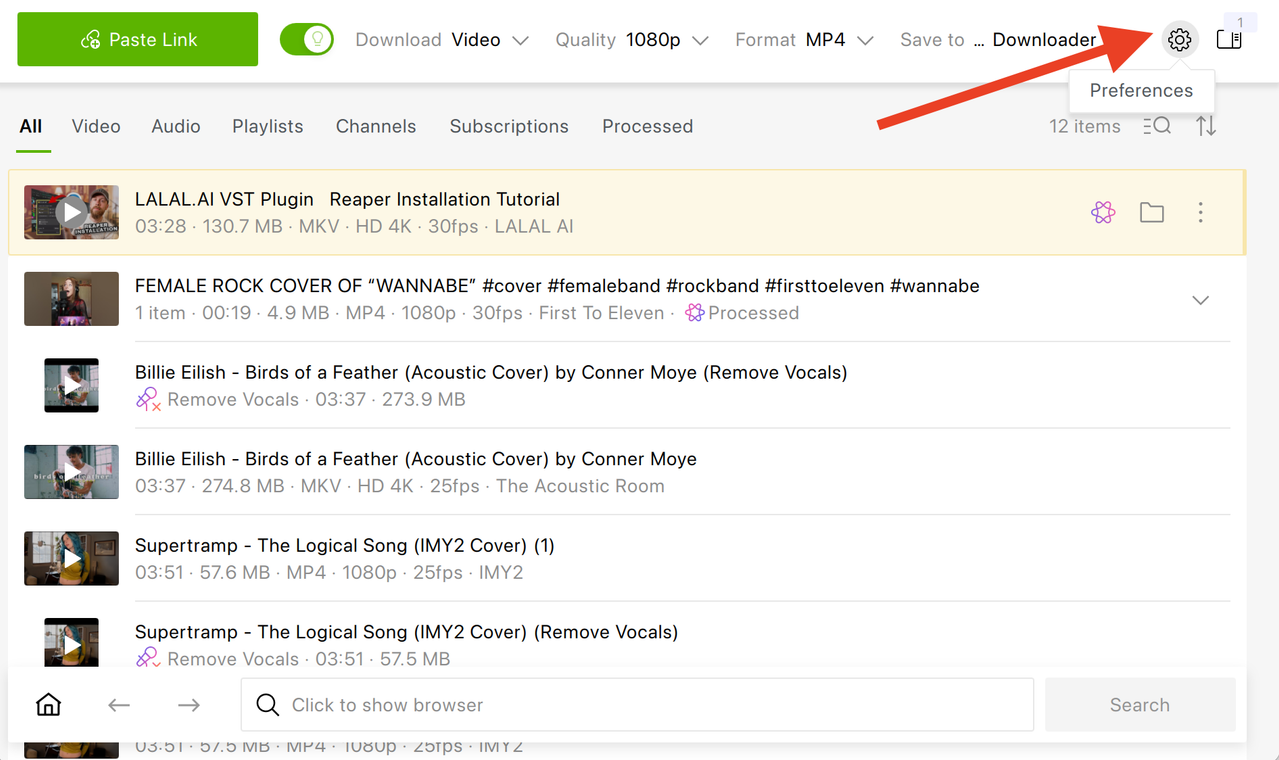
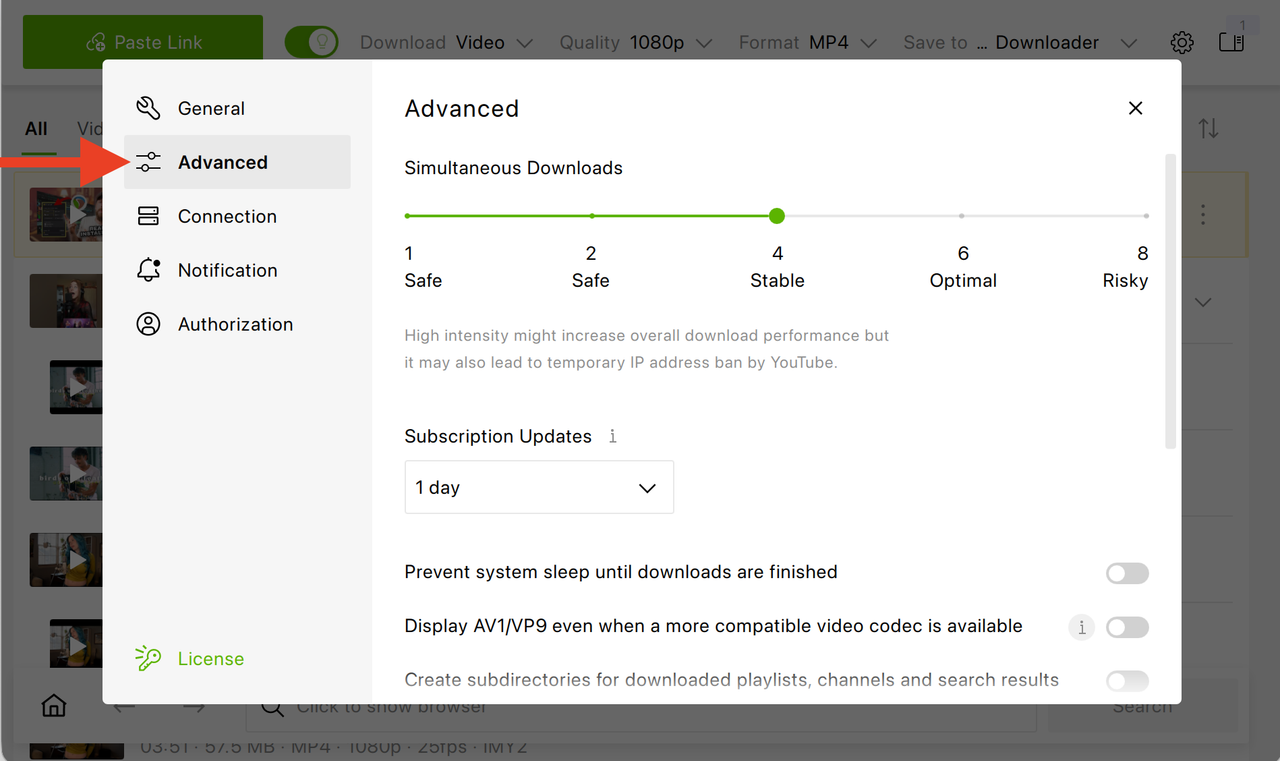


To save subtitles as a separate .srt file instead, disable the "Embed subtitles" preference, choose your language in the download window, and download as usual. The .srt lands next to your video file, ready to load manually in VLC.
How to Get the Right Language Selected by Default
If you regularly download content in a language other than your system default, the manual per-video selection above gets tedious fast. 4K Video Downloader Plus added a Default setting for exactly this: it automatically matches the video's title, subtitles, and audio track to either your system language, your YouTube interface language in the in-app browser, or, for logged-in Premium users, your playback history. Getting this set up correctly once saves picking a language every single time you paste a link; full instructions, split by license type and login status, are in the language settings post linked above.
Method 4: The Command-Line Route (yt-dlp)
yt-dlp remains the tool most technically inclined users reach for. It can pull specific audio-language tracks and subtitle sets, but YouTube's audio streams for multi-track videos are identified by internal format codes rather than friendly labels, so the commands are less forgiving than clicking a dropdown. A basic command run against a dubbed video, without specifying a language, will often grab whichever track YouTube's servers happen to serve first, not necessarily the original.
A working pattern for merging the best video quality with every high-quality audio language into one file looks like this:
yt-dlp --audio-multistreams -f "bv*+mergeall[vcodec=none]" --sub-langs "all" --embed-subs --merge-output-format mkv "VIDEO_URL"To grab one specific language track instead of all of them, filter by language code, for example -f "bestvideo+bestaudio[language=es]" for Spanish. This requires FFmpeg installed alongside yt-dlp to merge the streams, and because YouTube periodically changes how it exposes format IDs, commands that worked a few months ago sometimes need adjusting. For most people who just want a specific language without troubleshooting format strings, a GUI tool that exposes languages by name rather than by ID remains the faster path.
GUI vs. Command Line: Which Fits Your Situation
| 4K Video Downloader Plus | yt-dlp | |
|---|---|---|
| Selecting a language | Pick by name from a dropdown | Requires knowing the language code and format ID |
| Downloading multiple languages at once | "All Tracks" option built in | Possible, but needs a specific mergeall command |
| Subtitle handling | Embed or save as .srt via a toggle | Requires flags (--embed-subs, --sub-langs) |
| Batch downloads (playlists / channels) | Native support with language settings applied per item | Scriptable, but not template-driven |
| Best for | Anyone who wants a reliable, repeatable, ad-free workflow without memorizing syntax | Users comfortable debugging command-line output when YouTube changes its format IDs |
Frequently Asked Questions
Can I download a YouTube video with more than one audio language in the same file?
Yes. In 4K Video Downloader Plus, selecting All Tracks in the Audio tracks menu saves every available language into one file, and you switch between them during playback the same way you'd switch subtitles.
What's the difference between an auto-dubbed track and a multi-language audio track?
Auto-dubbing is generated automatically by YouTube using AI-based translation and text-to-speech. Multi-language audio is recorded by the creator, or a hired dubbing service, and uploaded manually. Auto-dubbed videos carry a visible "Auto-dubbed" label; creator-uploaded tracks don't.
Why can't I find subtitles in my language for a specific video?
Either the creator never added captions in that language, or YouTube's auto-translate feature, which only covers popular languages and only activates when no higher-quality subtitle track exists, doesn't support it for that video. If a language is missing entirely on YouTube, no downloader can generate it.
Can I get subtitles burned directly into the video instead of a separate file?
Yes. Enable Embed subtitles if possible under Tools > Preferences > Advanced before downloading, and disable Smart Mode. Without this setting, subtitles download as a separate .srt file alongside the video.
Is yt-dlp better than a downloader app for multilingual videos?
It depends on your comfort with the command line. yt-dlp can technically pull any language track, but YouTube identifies audio streams by internal format codes rather than language names, so getting the exact track you want often requires trial and error. A GUI that lists languages by name is faster for anyone who isn't already scripting downloads regularly.
Why does the video title or subtitle language sometimes not match the audio I selected?
This usually comes down to how "Default" language matching works: title and subtitle language can follow your system language, your YouTube interface language, or your playback history, depending on login state, while the audio track is chosen separately. Setting a consistent Default reduces mismatches; see our full breakdown of default language behavior linked above.
Which media player should I use to watch a downloaded video with multiple audio or subtitle tracks?
VLC Media Player or Media Player Classic. Both handle multi-track files reliably and let you switch audio and subtitle languages from a menu; many default OS players don't expose that option.
Published Sept. 9, 2026
 SHARE ON TWITTER


Thanks for feedback
Your comments will appear here shortly. Please spread the word about us in social networks.