




Set a video to “1080p” and it can still look soft, with fast motion smearing into blocks and shadows breaking apart into visible squares. Resolution alone doesn’t explain that. Four separate settings decide what actually lands on your screen: resolution, bitrate, codec, and frame rate. YouTube stores most uploads as several combinations of all four at once, then switches between them in real time depending on your device and connection, which is exactly why the same video can look razor-sharp on one screen and noticeably softer on another a moment later.
This guide breaks each of those variables down on its own terms, walks through YouTube's own published quality specs for 2026, explains what a Premium subscription actually changes about 1080p, and shows how to lock in a specific resolution, frame rate, and codec when saving a video for offline use with 4K Video Downloader Plus.
What Actually Determines YouTube Video Quality
Four separate settings combine to produce what you see on screen, and none of them alone tells the full story.
Resolution is the pixel grid: 1280×720, 1920×1080, 3840×2160, and so on. It sets the ceiling for how much detail a frame could contain, but a high-resolution frame compressed too aggressively can still look worse than a smaller frame encoded generously.
Bitrate is the amount of data spent per second of video, usually measured in megabits per second (Mbps). This is the variable most viewers never think about, yet it does more to determine perceived sharpness than resolution does. A 1080p clip encoded at 4 Mbps will show blocky artifacts in fast motion that a well-encoded 1080p clip at 12 Mbps never will.
Codec is the compression algorithm: the method used to discard redundant information without a viewer noticing. YouTube recommends H.264 on upload but re-encodes everything into several codecs for delivery, each with a different efficiency-to-compatibility trade-off.
Frame rate is how many complete images play per second. It governs motion smoothness rather than sharpness, and it only shows up as an option if the creator uploaded the footage at that rate in the first place; YouTube never invents extra frames that weren’t there originally.
A fifth factor, color depth and HDR metadata, increasingly matters too: HDR uploads carry a wider range of brightness and color, and YouTube now processes HDR at 1080p, 1440p, and 4K.
YouTube Resolutions From 240p to 8K
YouTube accepts and serves resolutions across a wide range, from barely-there mobile streams to full 8K masters. Here’s the complete ladder, with the pixel dimensions YouTube uses internally for each tier.
| Label | Dimensions (16:9) | Typical use case |
|---|---|---|
| 8K | 7680×4320 | Cinematic and archival masters; very few viewers stream it directly |
| 4K (2160p) | 3840×2160 | Documentaries, travel, gaming, professional content |
| 1440p (2K) | 2560×1440 | A common sweet spot for gaming and tech channels |
| 1080p | 1920×1080 | The de facto standard for most channels and viewers |
| 720p | 1280×720 | Older uploads, slower connections |
| 480p | 854×480 | Mobile data-saving mode |
| 360p | 640×360 | Legacy / very poor connections |
| 240p | 426×240 | The floor, used only under extreme bandwidth constraints |
There’s also a shift worth noting for 2026: YouTube has been narrowing the odd resolutions between 4K and 8K out of routine playback, so if you’re mastering original content, 1080p, 1440p, or straight to 4K remains the safer bet over in-between formats like 5K, and resolutions like 5K or 6K are automatically downscaled to 4K during processing.
Bitrate: The Number That Decides How Much Detail Survives
Resolution sets the frame size; bitrate decides how much of what’s inside that frame actually gets through compression intact. This is where YouTube’s own published guidance becomes quite useful, because it reveals just how wide the acceptable range is at every resolution.
According to YouTube’s official recommended upload encoding settings, here are the standard-dynamic-range video bitrates the platform recommends by resolution and frame rate:
| Resolution | Standard frame rate (24–30 fps) | High frame rate (48–60 fps) |
|---|---|---|
| 8K | 80–160 Mbps | 120–240 Mbps |
| 4K (2160p) | 35–45 Mbps | 53–68 Mbps |
| 1440p (2K) | 16 Mbps | 24 Mbps |
| 1080p | 8 Mbps | 12 Mbps |
| 720p | 5 Mbps | 7.5 Mbps |
| 480p | 2.5 Mbps | 4 Mbps |
| 360p | 1 Mbps | 1.5 Mbps |
HDR uploads sit noticeably higher across the board: a 4K HDR upload at standard frame rate calls for 44–56 Mbps, versus 35–45 Mbps for the SDR equivalent, because HDR simply carries more color and brightness information per pixel.
The practical takeaway: two videos labeled “1080p” can differ enormously in quality depending on whether the uploader encoded near the 8 Mbps floor or well above it. This is also why YouTube recommends uploading in the highest bitrate and resolution your source material supports, even if most viewers will watch at 1080p or below: the platform derives every lower-quality version from that master, so a stronger source produces cleaner results all the way down the ladder.
Codecs: What Creators Upload vs. What Viewers Actually Receive
This is the part of the pipeline that trips up even experienced creators, because the codec you upload in and the codec that reaches a viewer’s screen are rarely the same thing.
On upload, YouTube’s own documentation still recommends H.264 (also called AVC) inside an MP4 container as the safest choice: it’s the fastest to process and the most universally compatible with editing software. H.265 (HEVC) is an accepted alternative for 4K and 8K creators who want smaller files without sacrificing source quality, and hardware AV1 encoding is now mature enough to be a viable option for creators chasing the smallest possible master files.
On delivery, the picture changes completely. YouTube re-encodes every upload into multiple output codecs and hands each viewer whichever one their device supports most efficiently:
- H.264 remains the universal fallback, decodable by essentially every device made in the last decade.
- VP9, Google’s own open, royalty-free codec, is what YouTube uses for the bulk of desktop and higher-resolution streaming; it delivers meaningfully smaller files than H.264 at equivalent visual quality, which is part of why 4K playback on YouTube is often served in VP9 rather than H.264.
- AV1 is the newest layer, which offers further efficiency gains over VP9, and hardware decoding support for it is now standard in devices manufactured in the past several years.
In short: you don’t choose the delivery codec as a viewer, and you don’t need to upload in VP9 or AV1 as a creator; YouTube’s encoder handles that conversion automatically. What you can control, both as an uploader and as someone downloading content for offline use, is which of these variants you request. For a closer look at how codec choice affects a downloaded file specifically, see our guide on downloading an MP4 H.264 video.
Frame Rate: Smoothness Is a Separate Axis From Sharpness
Frame rate depends on the source even more strictly than resolution. YouTube’s encoder accepts and preserves whatever frame rate the original file was recorded and uploaded in, most commonly 24, 25, 30, 48, 50, or 60 frames per second, but it never manufactures additional frames that weren’t captured. If a creator uploaded at 30 fps, no 60 fps option will ever appear for that video, regardless of resolution or bitrate.
Higher frame rates matter most for content with fast, continuous motion: sports, gameplay, action footage, where 60 fps renders panning and quick movement far more fluidly than 30 fps. The trade-off is data: 60 fps footage typically requires roughly 1.5–2× the bitrate of the same content at 30 fps to maintain equivalent quality, simply because there are twice as many frames to describe every second. Our dedicated post on downloading 60 fps video from YouTube without losing quality covers this in more depth, including why a 60 fps option sometimes doesn’t appear at all.
YouTube Premium 1080p vs. YouTube 1080p: Same Resolution, Different Bitrate
One quality tier deserves its own explanation, because it’s genuinely confusing at a glance: 1080p Premium, sometimes labeled “Enhanced Bitrate” in the quality menu. It doesn’t add pixels; the resolution stays exactly 1920×1080. It simply streams that resolution at a higher bitrate than standard 1080p, which noticeably reduces compression artifacts in detailed, high-motion footage like sports or gaming. The feature originally launched on iOS and has since rolled out to Android, web, and connected TVs, and it’s currently reserved for Premium subscribers, though non-subscribers can typically see the option greyed out in the menu.
It’s a useful reminder that “1080p” was never a single fixed quality level to begin with: it’s a resolution that can be delivered across a meaningful range of underlying bitrates.
Why Did YouTube Do This?
Streaming high-quality video consumes massive amounts of bandwidth, which is incredibly expensive for Google to host. Standard 1080p is heavily compressed to save data and ensure videos load quickly for viewers with slower internet connections. As such, 1080p Premium is an incentive for power users who want maximum clarity on 1080p displays without being forced to step up to 4K streams (which also demand much higher bandwidth).
Why Your Stream Sometimes Looks Worse Than the Resolution Suggests
If you’ve set a video to 1080p and it still looks compressed, the cause is usually adaptive bitrate streaming, not a broken setting. YouTube’s player continuously monitors your connection and switches between quality variants in real time to avoid buffering, which means a momentary dip in your network can drop playback to a lower-bitrate version of the same resolution, or down a resolution tier entirely, without necessarily changing what the on-screen label says.
Bandwidth is a constraint less often than it used to be: global median fixed-broadband download speeds crossed roughly 100 Mbps in 2026, and mobile median speeds have pushed past 90 Mbps worldwide, according to Ookla-based tracking cited in recent industry reports. That’s comfortably enough headroom for 4K streaming on a stable connection. But medians hide enormous variance: congested Wi-Fi, mobile networks in motion, or simply a shared household connection during peak hours can all trigger the same adaptive step-down, which is exactly why a “high-quality” upload doesn’t guarantee a high-quality viewing experience for every viewer, every time.
This is also precisely the gap that motivates downloading a video outright rather than relying on live playback: a downloaded file plays back at a fixed, chosen quality, immune to network fluctuation.
How to Download YouTube Video and Audio at the Exact Quality You Want
Once you understand that resolution, bitrate, codec, and frame rate are four separate dials rather than one bundled “quality” setting, the natural next step is choosing all four deliberately when you save a video for offline use, which is exactly what 4K Video Downloader Plus is built to let you do.
Unlike browser-based downloaders that hand you a single fixed output, 4K Video Downloader Plus exposes each of these parameters before the download starts:
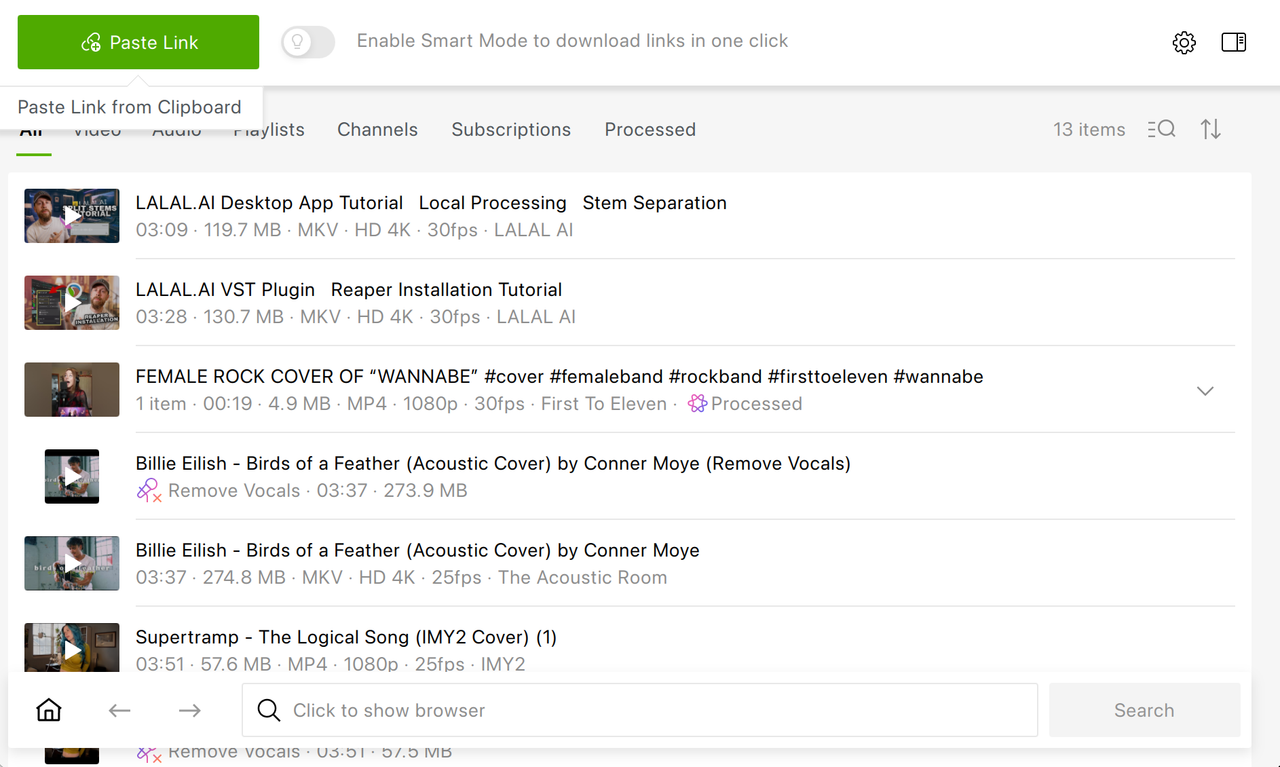
- Paste the video link. Copy the URL from YouTube and paste it into the app via the clipboard, or find the video via the built-in browser.
- Turn Smart Mode on and choose resolution. Pick anything the source video was uploaded in, from 144p up through 4K UHD and 8K UHD where available.
- Select frame rate. If the creator uploaded in 60 fps, you can specifically request that frame rate rather than settling for whatever the app defaults to, which is useful for gaming and sports footage where smoothness matters.
- Pick the codec and container. Choose between H.264, H.265, or AV01 depending on what your playback device or editing software handles best, and select MP4 or MKV as the container.
- (Optional): Set it once with Smart Mode. If you download regularly, Smart Mode lets you lock in your preferred quality, frame rate, codec, and output folder so every future paste-and-download follows the same rule automatically, without repeating the selection each time.
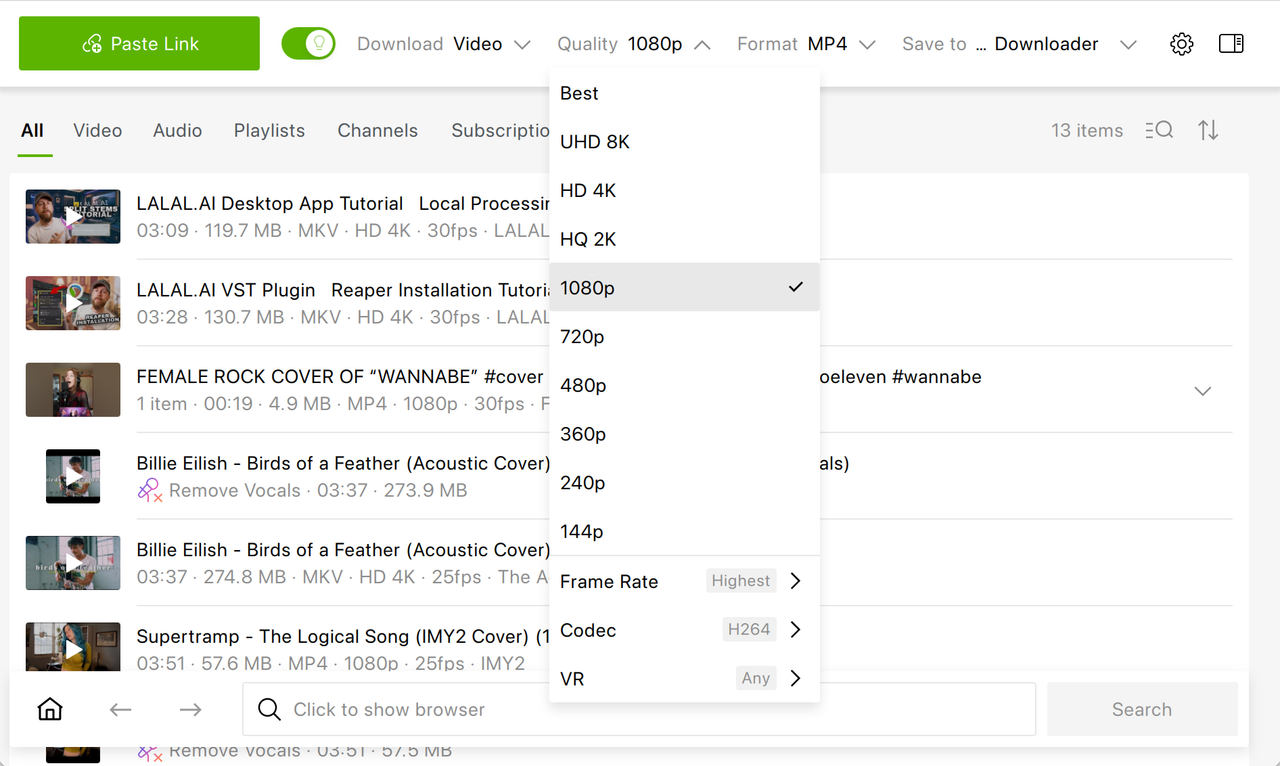
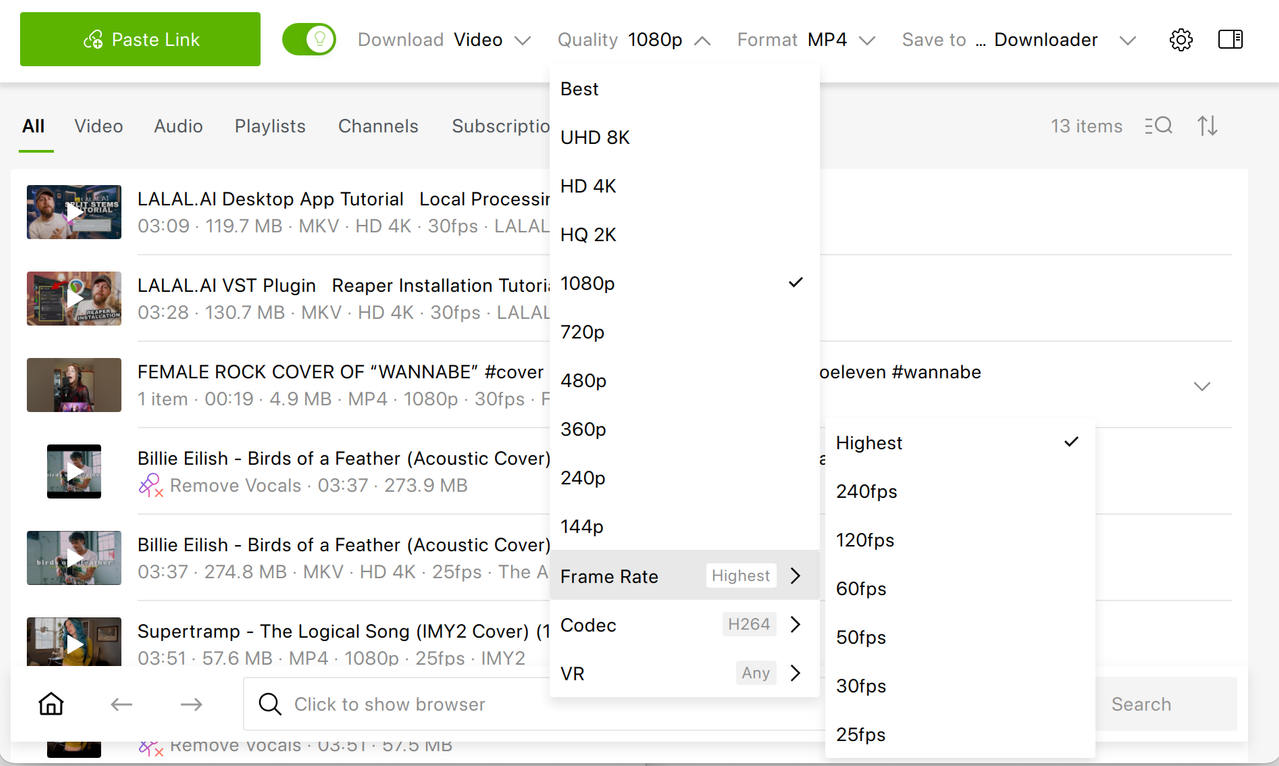
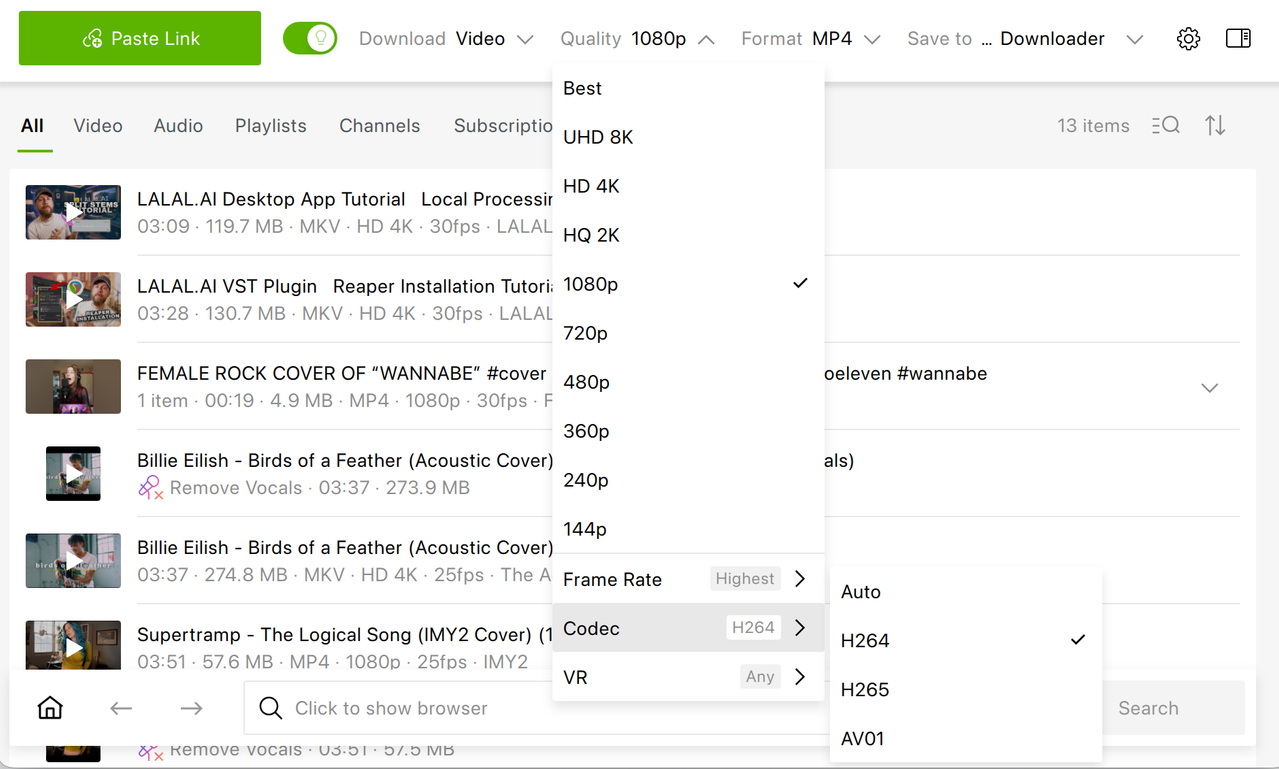
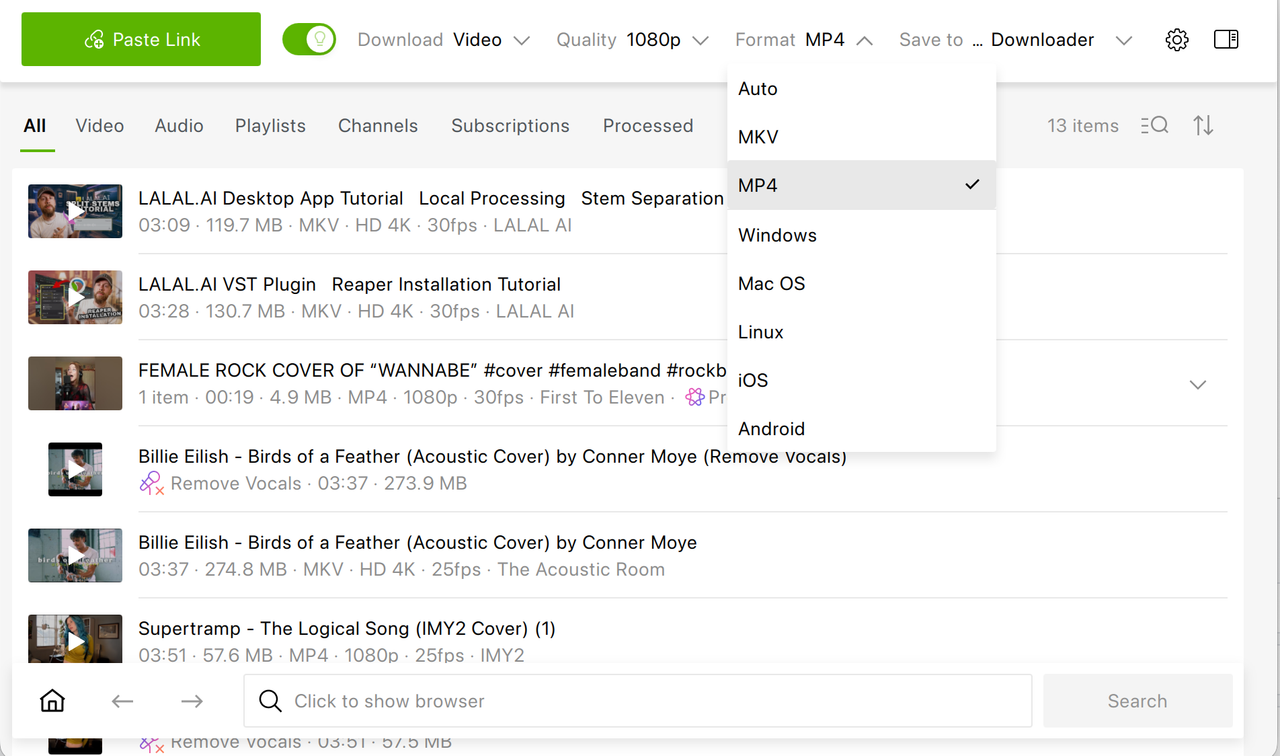
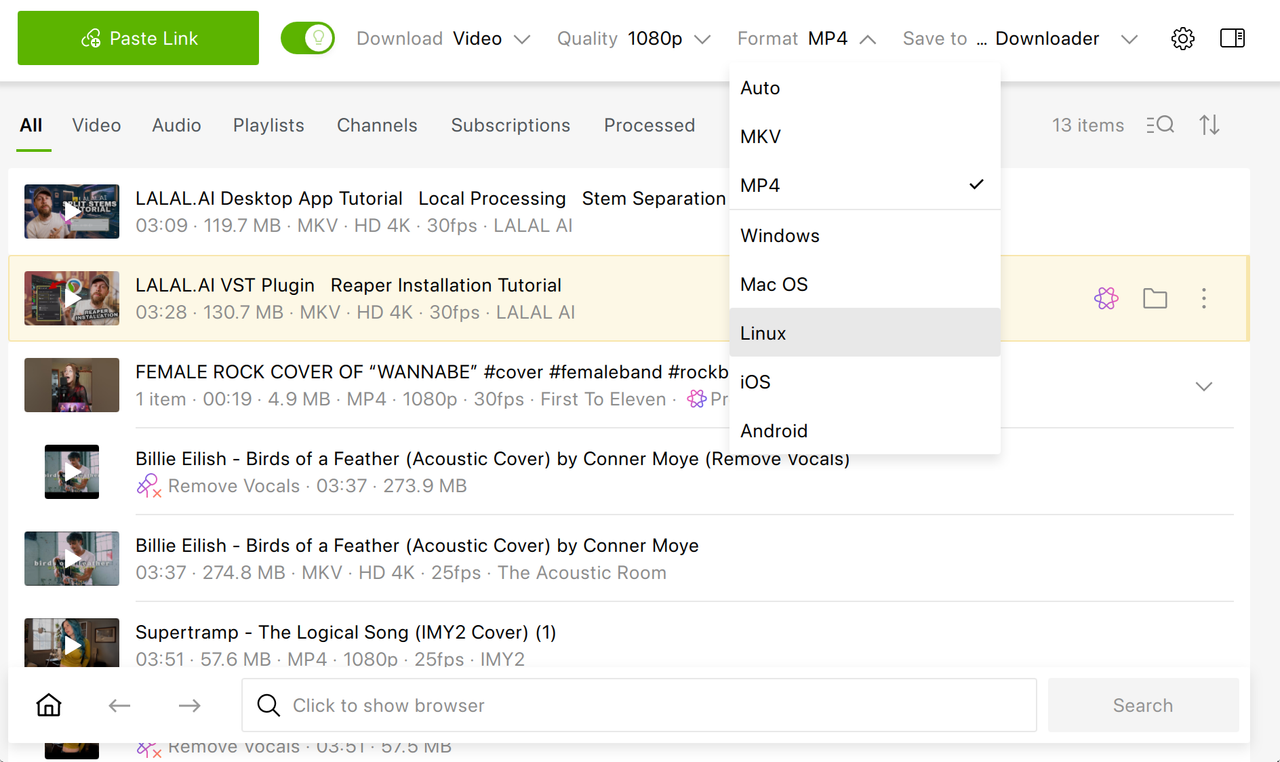
Besides, 4K Video Downloader Plus allows you to choose the operating system on which the downloaded video will be eventually played, not just the format. This is useful if you, say, are going to play the video on a device and don’t know which format is better for the playback. In this case, you just head over to the Format tab and select the OS instead of the container.
When downloading a video with 4K Video Downloader Plus, bitrate itself isn’t a separate setting: the app saves the stream YouTube provides for the resolution, frame rate, and codec you pick, so choosing the highest available resolution and codec is the most direct way to get the most data per second. For audio-only needs, podcasts, music, lecture recordings, 4K Video Downloader Plus or the companion app 4K YouTube to MP3 applies the same logic: you choose the format and bitrate rather than accepting whatever default a simpler tool assumes on your behalf. If you’re unsure which container or bitrate fits your use case, our post on which video format to choose in 4K Video Downloader Plus walks through the trade-offs between MP4, MKV, WebM, and AVI. And if a download comes out lower quality than expected, this troubleshooting guide covers the most common causes.
The broader point carries over from everything above: a video’s available quality and its delivered quality are two different things, shaped by network conditions, adaptive streaming, and device support at the moment you happen to watch it. Downloading with explicit control over resolution, frame rate, and codec removes that variability entirely: what you select is what you keep.
Frequently Asked Questions
What is the best resolution to upload to YouTube in 2026?
1080p is still the practical minimum for professional-looking content, but uploading in 4K, even if most viewers will watch at 1080p, gives YouTube’s encoder a higher-quality source to derive every lower resolution from, which improves the whole quality ladder, not just the top tier.
Why does my YouTube video look blurry even at 1080p?
Usually because of bitrate, not resolution. Two videos can both be labeled 1080p while one was encoded near YouTube’s 8 Mbps recommended floor and the other well above it; adaptive streaming can also silently drop your playback bitrate during a network dip without changing the resolution label.
What's the difference between YouTube’s standard 1080p and 1080p Premium?
Both are 1920×1080. 1080p Premium streams that same resolution at a higher bitrate, reducing compression artifacts in detailed or fast-moving footage, and is currently available to YouTube Premium subscribers.
Does YouTube support 60 fps video?
Yes, but only if the original footage was uploaded at 60 fps. YouTube preserves whatever frame rate a creator uploads and never generates additional frames for content that was recorded at a lower rate.
Which codec does YouTube actually use to stream video to viewers?
Creators typically upload in H.264, but YouTube re-encodes every video into multiple delivery codecs, including H.264, VP9, and increasingly AV1, and automatically serves whichever one a viewer's device and browser handle most efficiently.
Can I choose the resolution, frame rate, and codec when downloading a YouTube video?
Yes, with a tool built for it. 4K Video Downloader Plus lets you select resolution, frame rate, codec, and container format before each download, and Smart Mode can apply your preferred combination automatically going forward.
Published Sept. 15, 2026
 SHARE ON TWITTER


Thanks for feedback
Your comments will appear here shortly. Please spread the word about us in social networks.