



DownSub is one of the best-known ways to grab subtitles from a YouTube link. Simply paste a URL, pick a language, save an SRT, VTT, or TXT file.
The gap shows up when the subtitle file is only half of what you need. Many people pair a subtitle site with a separate video downloader, then match the two files by hand. That works for one video. But it gets tedious for a full channel or a playlist you want to watch offline in two languages.
Let's take a look at how DownSub compares with 4K Video Downloader Plus for exactly those cases: video in combination with subtitles; especially, when it comes to batch downloads, as in playlists and channels.
TL;DR: If you only need a subtitle file, DownSub is the simpler tool. If you need the video and its subtitles, 4K Video Downloader Plus saves both in one step, either as a separate SRT file or embedded in the video. With a paid license, it also downloads subtitles for entire YouTube playlists and channels in multiple languages at once. It doesn’t save subtitles without the video.
What DownSub Is and What It Does Well
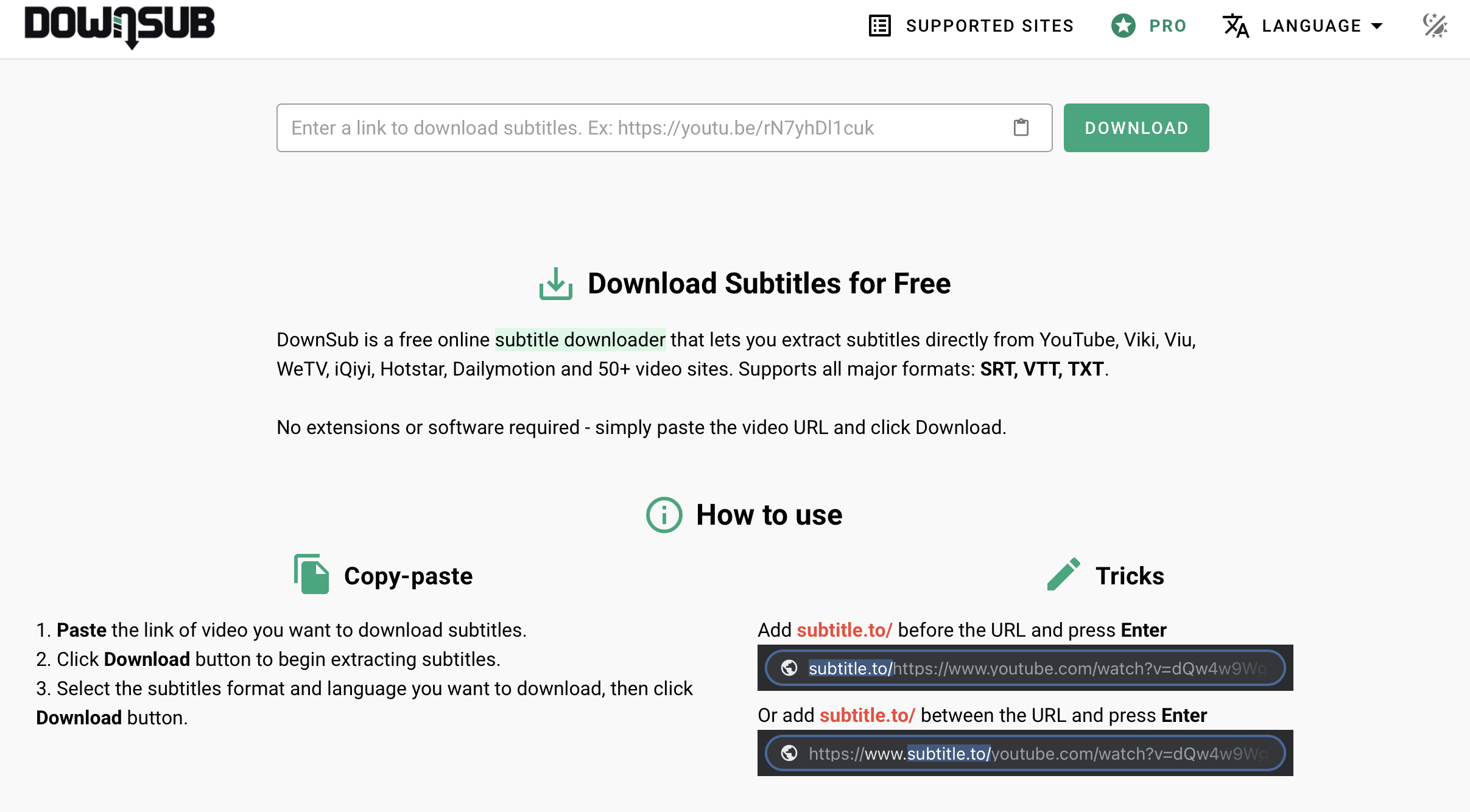
DownSub is a browser-based subtitle downloader. You paste a video link on downsub.com, choose a language and format, and download the file. Nothing needs to be installed.
Its strengths are reach and flexibility:
50+ supported sites. Besides YouTube, DownSub lists Viki, Viu, WeTV, iQIYI, Hotstar, Dailymotion, Vimeo, Bilibili, and many regional streaming platforms.
Several text formats. Subtitles can be saved as SRT, VTT, or TXT, and the web app also offers a raw export.
Subtitle-only downloads. You get the text file without downloading any video.
A Chrome extension. It adds a download button directly on supported video pages.
Single subtitle downloads are free and need no account. In October 2026, DownSub also sells a Pro plan for $5 per month and a one-time Lifetime plan for $99. Paid plans add AI translation, AI summaries, subtitle generation for videos without captions, API access, and batch tools. AI features run on credits.
Where DownSub Falls Short
DownSub is built around the subtitle file, so two kinds of tasks fall outside it.
It doesn’t download the video; you get text only. To watch offline, edit, or archive, you still need a second tool for the video itself. Then you match file names so your player picks up the right subtitle track. Embedding subtitles into the video is a third step, usually in another app.
Batch work sits behind the paywall. Downloading several subtitle languages at once and processing whole playlists are Pro features. Besides, DownSub doesn’t advertise channel-wide downloads or automatic downloads of new uploads.
None of this makes DownSub a bad tool. It means the workflow changes once your goal is a library of videos with subtitles rather than a single text file.
DownSub vs. 4K Video Downloader Plus: Which Tool Is Better for Downloading Subtitles from YouTube?
The two tools overlap on YouTube subtitles but are built for different jobs. DownSub delivers text files; 4K Video Downloader Plus delivers videos with their subtitles.
| Feature | DownSub | 4K Video Downloader Plus |
|---|---|---|
| Type | Website + Chrome extension | Desktop app (Windows, macOS, Linux) + Android |
| Subtitles without the video | Yes | No |
| Video and subtitles in one step | No | Yes |
| Subtitles embedded in the video file | No | Yes |
| Subtitles as a separate file | SRT, VTT, TXT | SRT, saved next to the video |
| Author-uploaded and auto-generated YouTube subtitles | Yes | Yes |
| YouTube auto-translated subtitles | Yes | Yes |
| Several languages at once | Yes, Pro plan | Yes, paid license, 80+ languages |
| Whole playlists | Yes, Pro plan | Yes, paid license |
| Whole channels | No | Yes, paid license |
| Saved subtitle preferences for every download | No | Yes (Smart Mode) |
| Auto-download new videos from a channel or playlist | No | Yes, paid license |
| AI translation and summaries | Pro plan, credits | No |
| Subtitles for videos with no captions | Pro plan (AI generation) | No |
| Sites with subtitle support | YouTube and 50+ sites | YouTube, bilibili.com, bilibili.tv |
| Pricing model | Free; Pro $5/month; Lifetime $99 | Free Starter plan with limited features; Lite, Personal, or Pro plans |
When 4K Video Downloader Plus Is the Better Fit
Choose it when the subtitles need to travel with the video. These are the most common cases.
Offline viewing. Save a video with its subtitles embedded and watch it without a connection in a player like VLC. There’s no separate file to keep track of. This works on the free Starter plan for single videos, using the video’s default subtitle language.
Online courses and lecture series. Paste a playlist link once and get every lecture with its subtitles, in one download queue.
Channel archives. Download a full YouTube channel with subtitles, then subscribe to it so new uploads arrive on their own. Smart Mode keeps your subtitle language choices for future downloads.
Language learning. Pick several subtitle languages for one video, for example the original and your native language. The app can also save multi-language audio tracks, so you can switch both what you hear and what you read.
Editing and repurposing. You get the source video and a matching SRT file in one folder. The SRT is ready to import into most video editors for trimming, re-timing, or translation.
How to Download a YouTube Video with Subtitles
The whole process takes a few clicks.
First decide whether you want subtitles inside the video file or as a separate SRT next to it.
Launch 4K Video Downloader Plus.
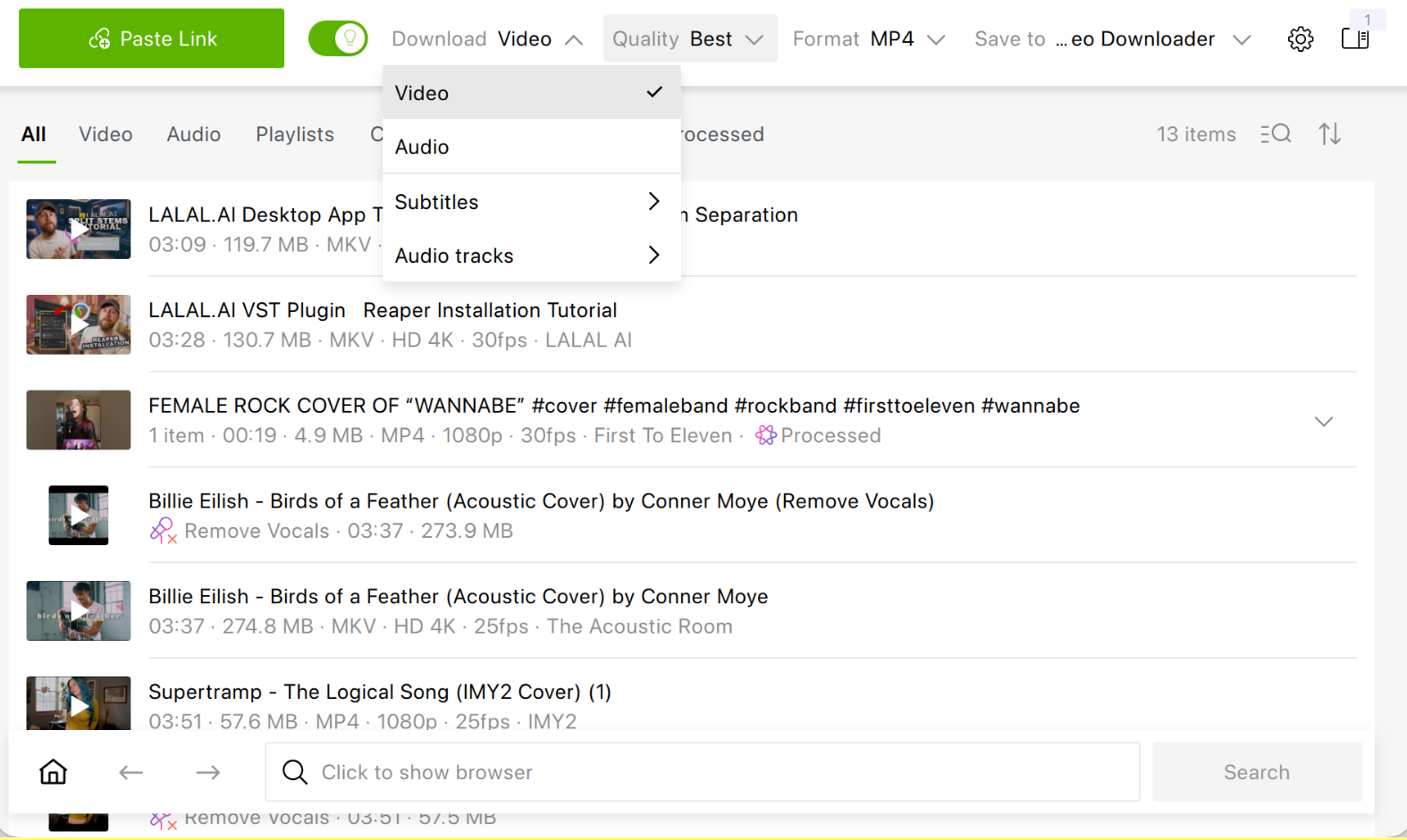
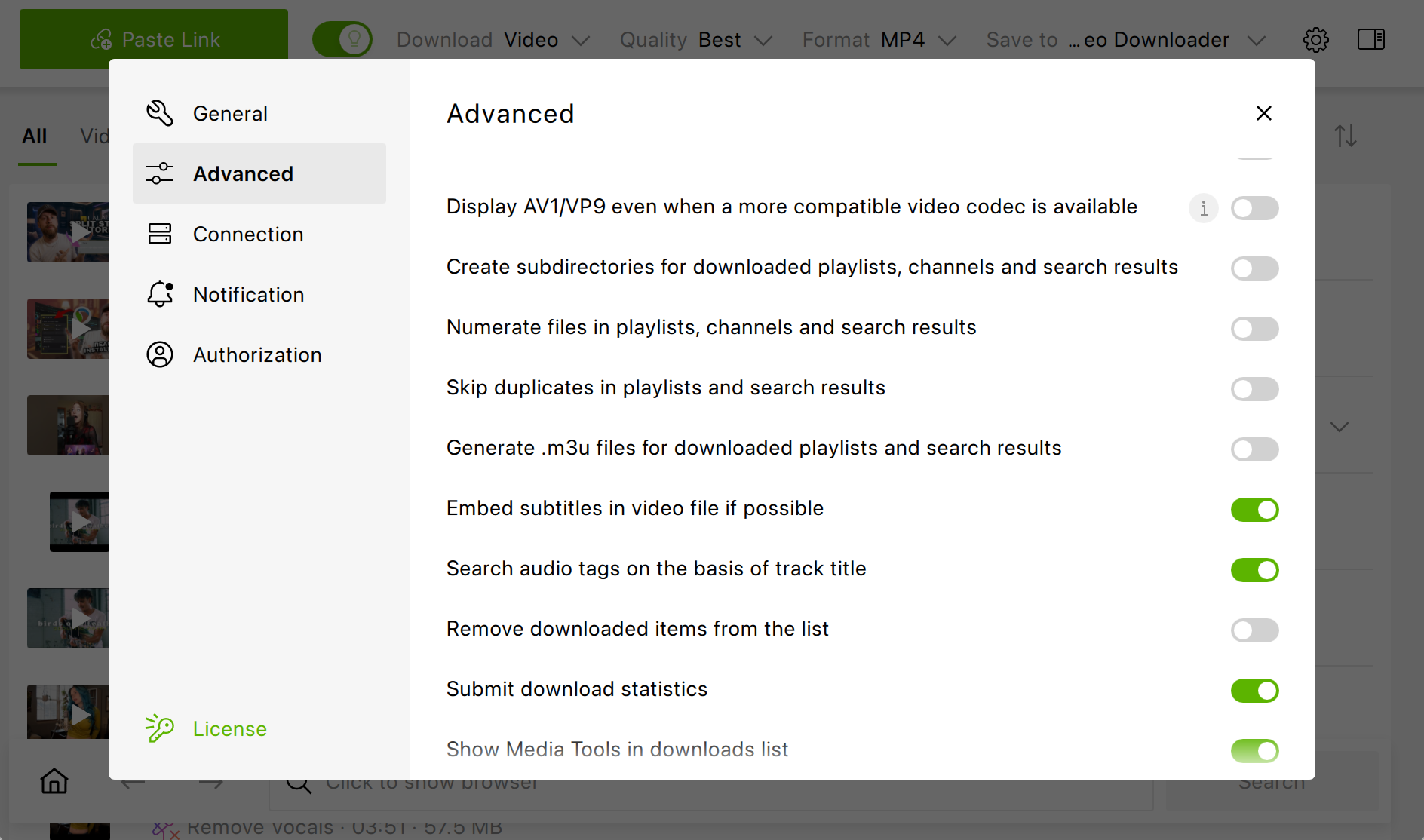
Go to Tools > Preferences > Advanced. Turn on Embed subtitles if possible to build subtitles into the video. Leave it off to get a separate .srt file.
Make sure Smart Mode is off, so you can pick subtitle languages for this video.
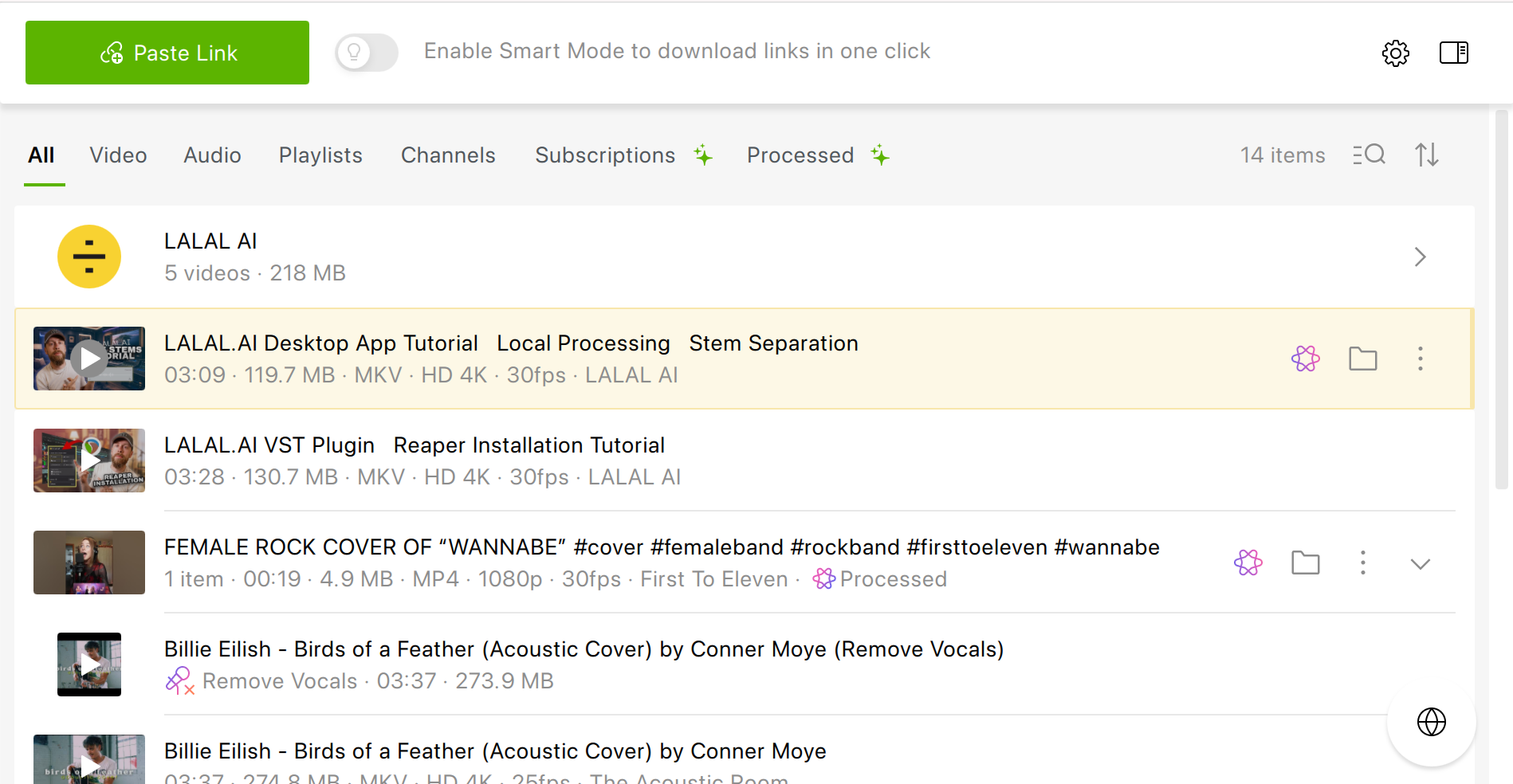
Copy the link to a YouTube video that has subtitles (CC) and click Paste Link in the app.
Head over to the Subtitles section and select one or more languages.
Choose the format, quality, and output folder, then click Download.
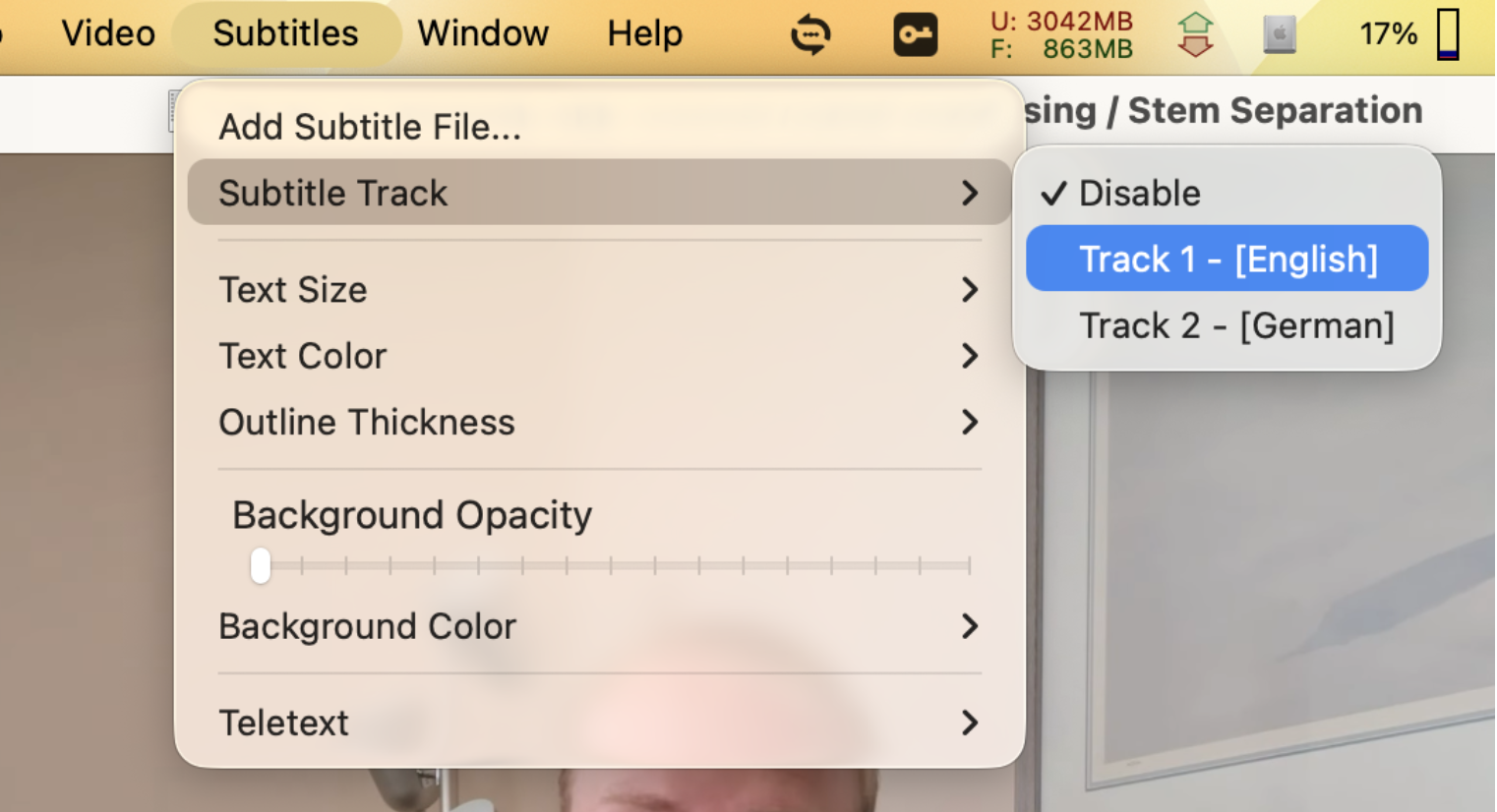
Open the video in VLC or Media Player Classic and turn on subtitles from the Subtitles menu.
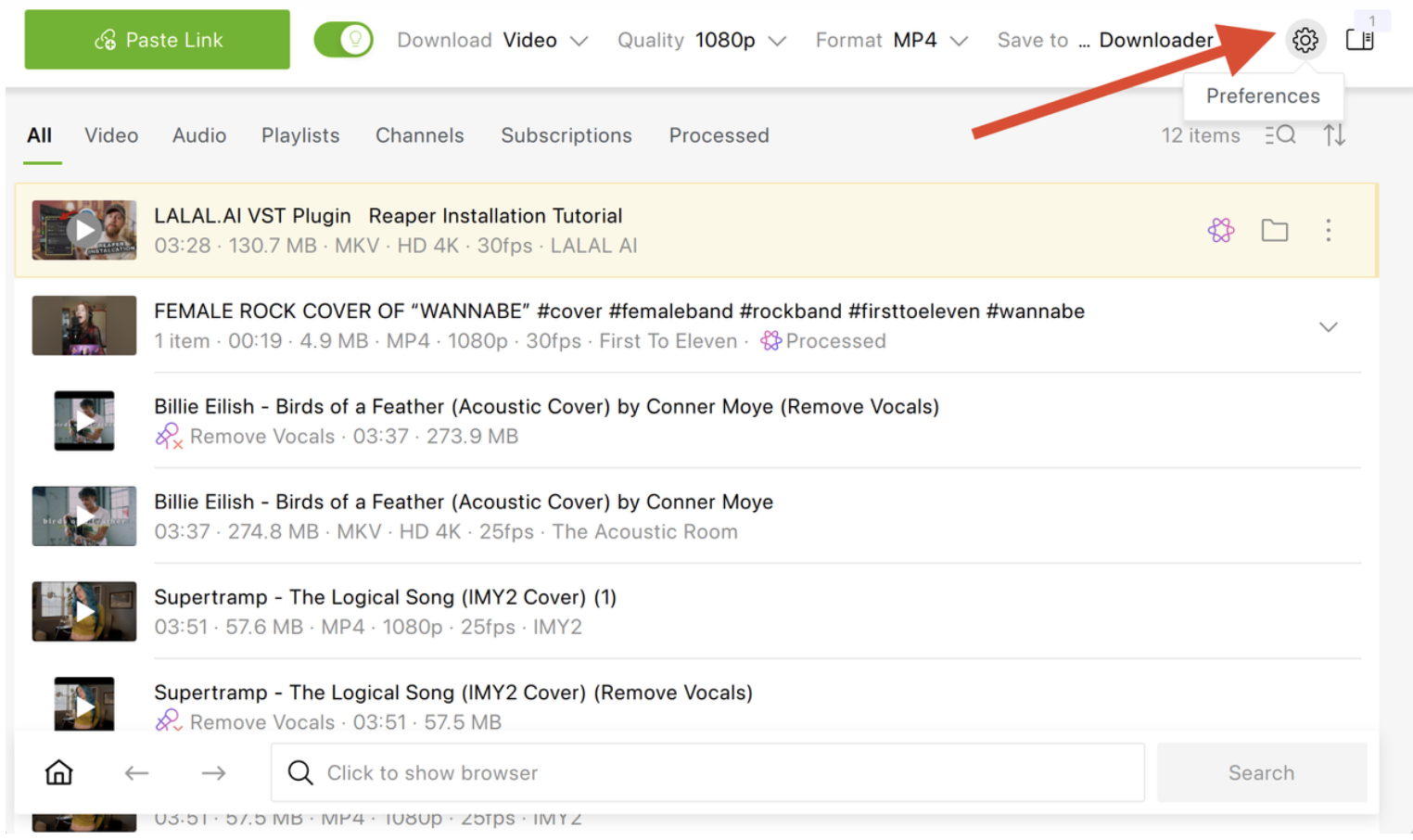
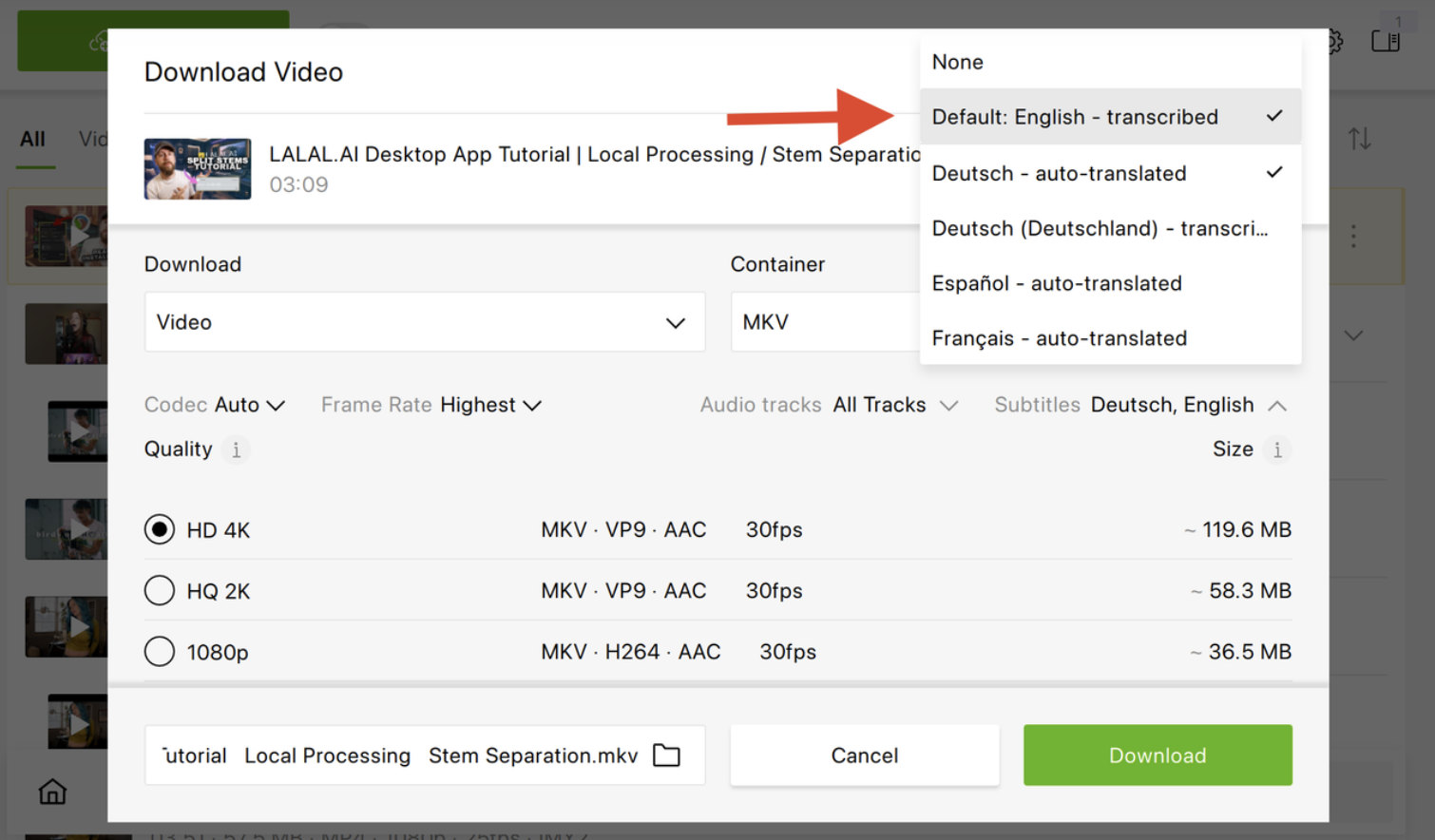
The language list shows every subtitle type YouTube offers for that video:
Author-uploaded subtitles appear under the language name and are usually the most accurate.
Auto-generated subtitles are marked “transcribed”, for example “English – transcribed”.
Auto-translated subtitles are marked “auto-translated”. They come from YouTube’s translation service, cover popular languages only, and appear only when no better subtitles exist for that language.
If a video has no subtitles on YouTube, the app can’t create them. See How to Fix Subtitle Issues for other cases.
Embedded or separate? Embedded subtitles keep everything in one file, so the subtitles can’t get separated from the video. A separate SRT is better for editing, translating, or uploading the subtitles elsewhere.
How to Download Subtitles for a Whole Playlist or Channel
This is where 4K Video Downloader Plus differs most from a subtitle website. One link gets you every video in a playlist or channel, each with the subtitle languages you chose.
Click the bulb icon on the toolbar to turn on Smart Mode.
In the Smart Mode settings, choose the format, quality, output folder, and subtitle languages. These settings apply to every download that follows.
Copy the link to a YouTube playlist or channel and click Paste Link.
The app downloads each video with its subtitles, embedded or as separate SRT files, depending on your Embed subtitles if possible setting.
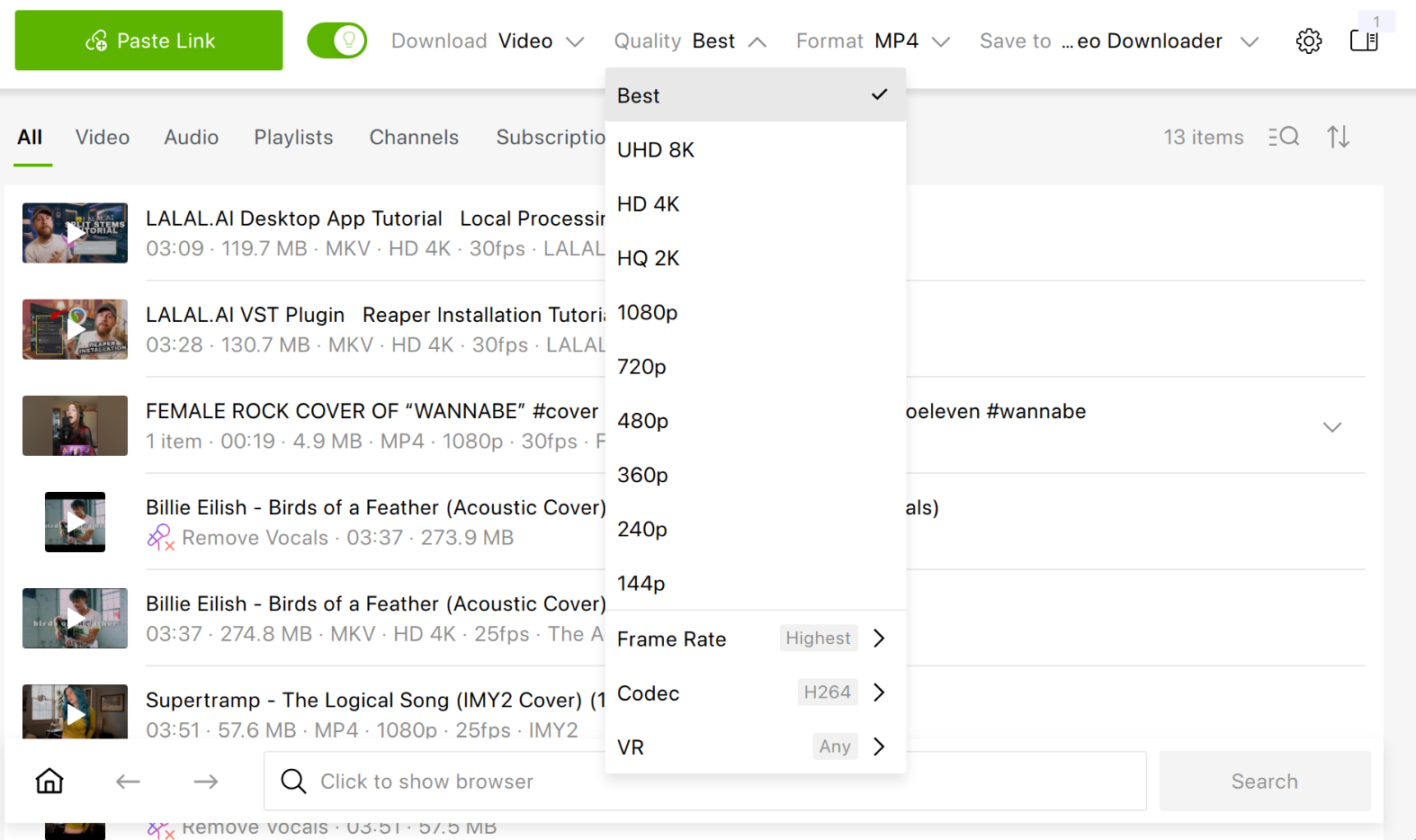
To keep a playlist or channel up to date, subscribe to it in the app. New videos download automatically as soon as they’re uploaded to YouTube.
When DownSub Is Still the Better Choice
DownSub remains the right tool in several situations:
You only need the text. For a transcript to quote, search, or paste into notes, downloading the video adds nothing.
You need VTT or TXT. 4K Video Downloader Plus saves subtitles in SRT only.
The video is on a platform like Viki, WeTV, or iQIYI. DownSub covers 50+ sites. 4K Video Downloader Plus downloads subtitles from YouTube and Bilibili.
The video has no captions. DownSub Pro can generate subtitles with AI. 4K Video Downloader Plus only saves subtitles that already exist.
You want AI translation or summaries. These are DownSub Pro features with no equivalent in 4K Video Downloader Plus.
You can’t install software. DownSub runs in the browser.
Tip: The two tools also work well side by side: DownSub for a quick subtitle file, 4K Video Downloader Plus when the video and its subtitles need to stay together.
Frequently Asked Questions
Is 4K Video Downloader Plus a good DownSub alternative?
Yes, if you need the video along with its subtitles. It saves both in one step and handles playlists and channels with a paid license. If you need subtitle files only, DownSub is simpler.
Can 4K Video Downloader Plus download subtitles without the video?
No. Subtitles are always downloaded together with a video, as an embedded track or as a separate SRT file next to it.
Can I download subtitles for an entire YouTube playlist or channel in 4K Video Downloader Plus?
Yes. Paste the playlist or channel link and every video downloads with the subtitle languages you selected.
Can I embed subtitles into the downloaded video?
Yes. Turn on Embed subtitles if possible in Tools > Preferences > Advanced before downloading. Use VLC or Media Player Classic to switch subtitle tracks.
Does 4K Video Downloader Plus download auto-generated YouTube subtitles?
Yes. Auto-generated subtitles are marked “transcribed” in the language list. Auto-translated subtitles are also available for popular languages.
What subtitle format does 4K Video Downloader Plus use?
SRT, which works in most media players and video editors.
Is 4K Video Downloader Plus free?
The Starter plan is free forever with limited features. It downloads subtitles for single videos in the video’s default language. Playlists, channels, and multiple subtitle languages come with one of the paid licenses.
Is DownSub free?
Single subtitle downloads on downsub.com are free. Batch tools, AI translation, and AI subtitle generation require DownSub Pro ($5 per month) or Lifetime ($99), as of October 2026.
Published Oct. 26, 2026
 SHARE ON TWITTER


Thanks for feedback
Your comments will appear here shortly. Please spread the word about us in social networks.