



If you’re looking for anime, tech reviews, gaming walkthroughs, and university lectures you won’t find on YouTube, Bilibili is the first place you should stop by. Saving a video from it is easy enough but getting the subtitles to come along for the ride is where many tools trip up: some grab the video and quietly drop the captions, while others hand you a subtitle file and leave the video to you.
We’ll guide you through the methods that actually work, from one-click desktop apps to command-line power tools. Each one is tested against the same question: can it save a Bilibili video with its subtitles, and how much effort does that take?
TL;DR: The easiest way to download Bilibili videos with subtitles is 4K Video Downloader Plus. Paste a bilibili.com or bilibili.tv link and pick the subtitle languages. The app saves the video with subtitles either embedded or as a separate SRT file, and Smart Mode can apply those settings to every download automatically. If you prefer free command-line tools, yt-dlp and BBDown handle Bilibili subtitles well once you give them your login cookies. On Android, Seal puts yt-dlp in your pocket, while iPhone users are limited to offline downloads inside the official Bilibili app.
Bilibili’s New Auto-Translation: What It Means for Subtitle Downloads
If you open bilibili.com/en these days, a pop-up titled Auto-Translation Now Active will most likely greet you. It shows up in a regular browser and in the in-app browser of 4K Video Downloader Plus alike. According to the notice, Bilibili now uses AI to translate key Chinese content into your system language, including video titles, comments, danmu (the bullet comments that fly across the screen), and other on-page text. You can switch the feature off or choose another language under Avatar > Language after you log in. Bilibili also points out that the translations are AI-generated and meant for reference only.
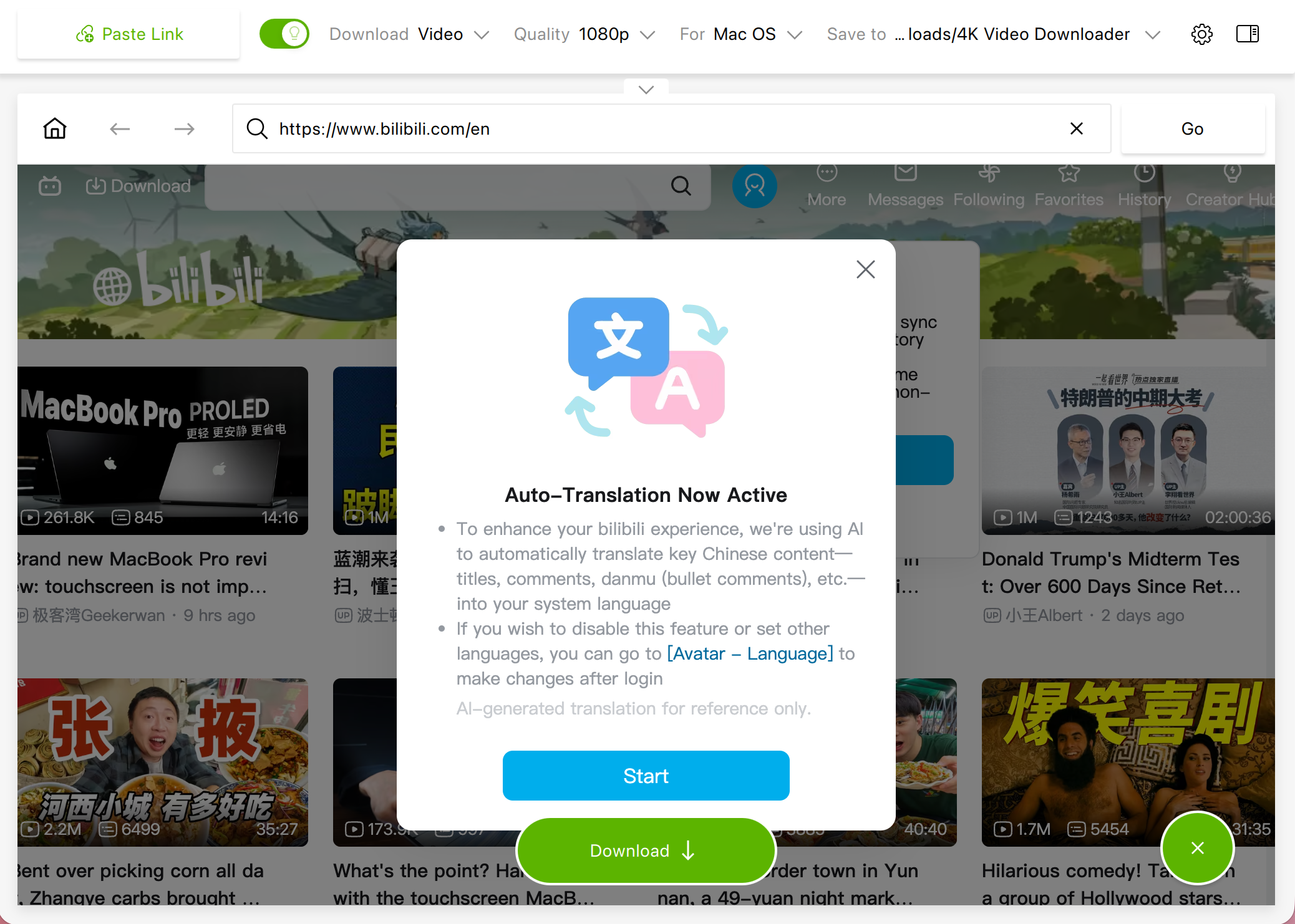
The pop-up is the latest step in Bilibili’s push beyond China. In August 2026, the company relaunched its international app without the ID verification that used to keep many overseas users out. It also announced an English-language website, which is now live at bilibili.com/en.
For downloading, the key distinction is this. The auto-translation, as Bilibili describes it, works on page content like titles and comments. Downloaders, on the other hand, save the subtitle tracks a video actually carries: captions the uploader added or AI subtitles Bilibili generated for that video. Some bilibili.com videos already include AI tracks in both Chinese and English, and licensed shows on bilibili.tv often come with subtitles in several languages. If a video has no subtitle track at all, none of the tools below can conjure one out of thin air.
Still, the English interface is good news. Finding the right video on Bilibili used to mean squinting at Chinese titles through a browser translator. Now you can browse in your own language and hit Download with a much clearer idea of what you’re getting.
Bilibili Subtitle Downloaders Compared
Here’s how the methods in this guide stack up before we dive into each one.
| Method | Type | Video and subtitles together | Best for | Price |
|---|---|---|---|---|
| 4K Video Downloader Plus | Desktop app | Yes, embedded or as SRT | Most users who want a few clicks and no commands | Free Starter plan with limited features; paid plans |
| yt-dlp | Command-line tool | Yes | Tech-savvy users and automation | Free, open source |
| BBDown | Command-line tool | Yes | Bilibili-only power users | Free, open source |
| DownKyi | Desktop app | Yes | Batch downloads if you can navigate a Chinese interface | Free, open source |
| DownSub | Website and Chrome extension | No, subtitle files only | Quick transcripts without the video | Free for single downloads; paid plans |
| Seal | Android app | Yes | Downloading on an Android phone | Free, open source |
| Official Bilibili app | Mobile app | Only inside the app | Offline viewing on the go, including iPhone | Free app |
1. 4K Video Downloader Plus: The Easiest Option for Desktop
4K Video Downloader Plus is a desktop app for Windows, macOS, and Ubuntu. It downloads subtitles from bilibili.com and bilibili.tv along with the video, so you never have to match files by hand afterward.
What makes it stand out for Bilibili:
Two ways to work. Manual Download mode lets you hand-pick subtitle languages for each video. Smart Mode remembers your preferences and downloads every new link with them in one click.
Embedded or separate subtitles. Build the subtitles right into the video file, or save them as an SRT file next to it.
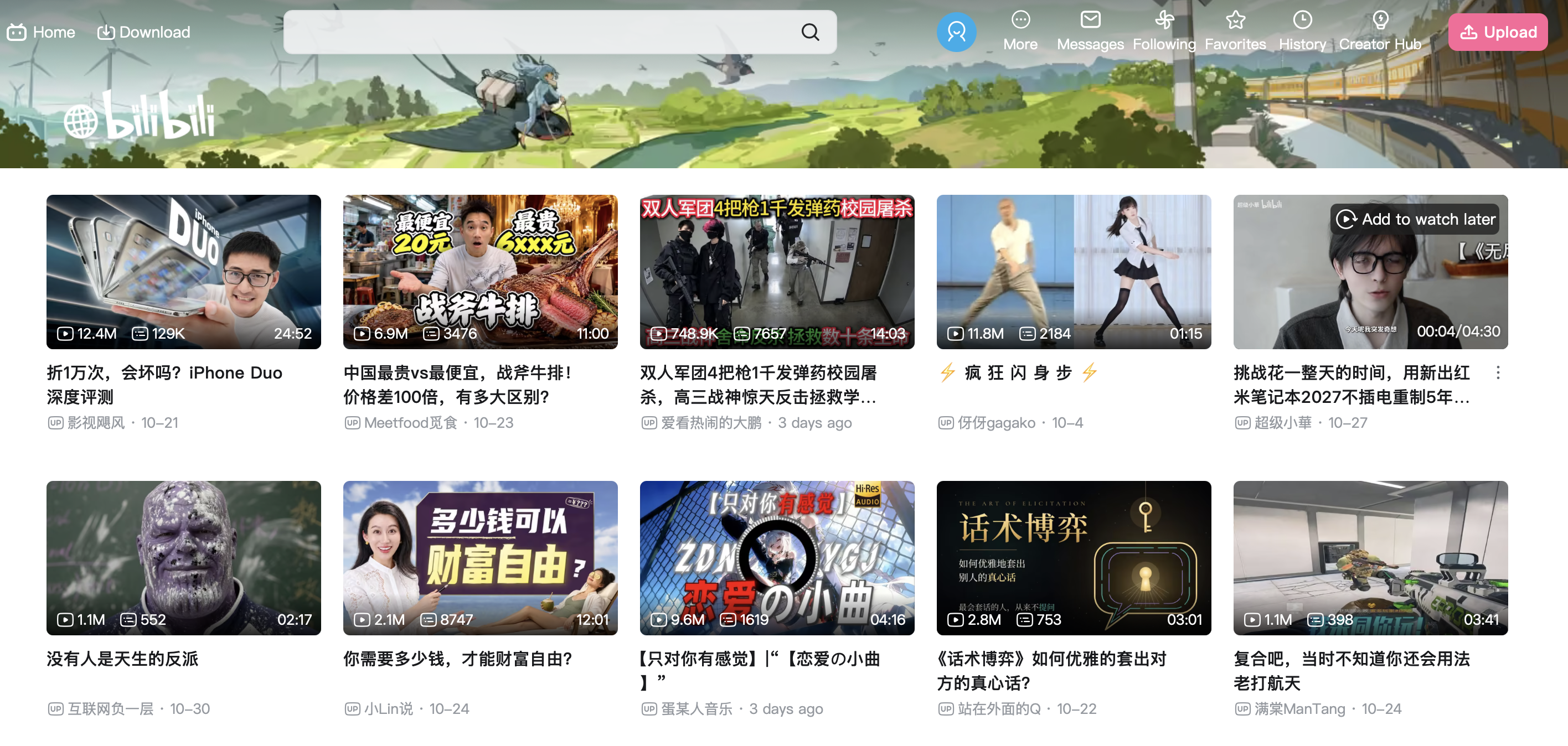
A built-in browser. Open Bilibili inside the app and sign in. Then click Download under any video, including on the new English version of the site.
Private and HD content. Once you’re logged in, the app can save HD videos and private Bilibili videos you have access to.
How to Download a Bilibili Video with Subtitles in Manual Mode
Manual mode is the way to go when you want to see which subtitle languages a video offers and choose them yourself.
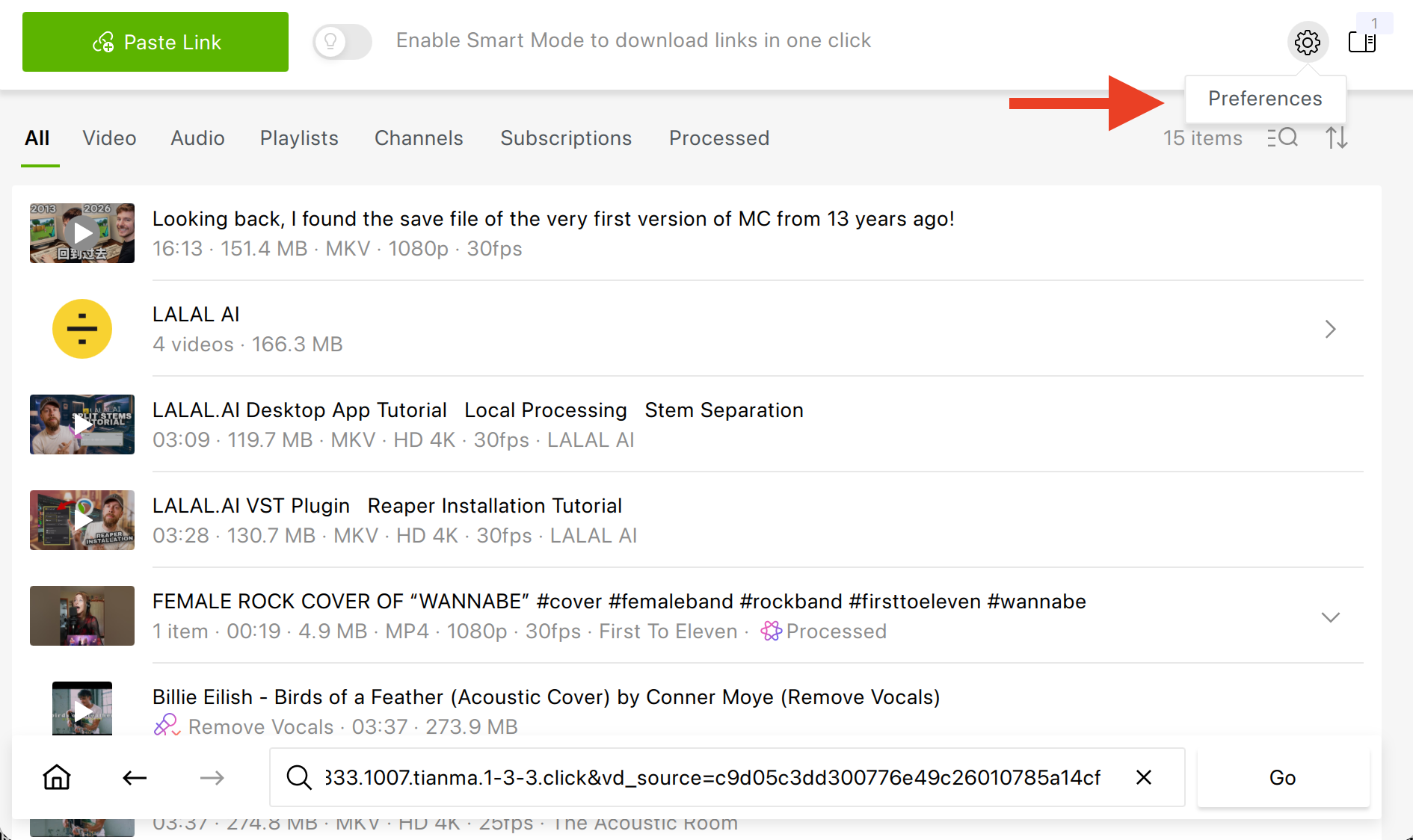
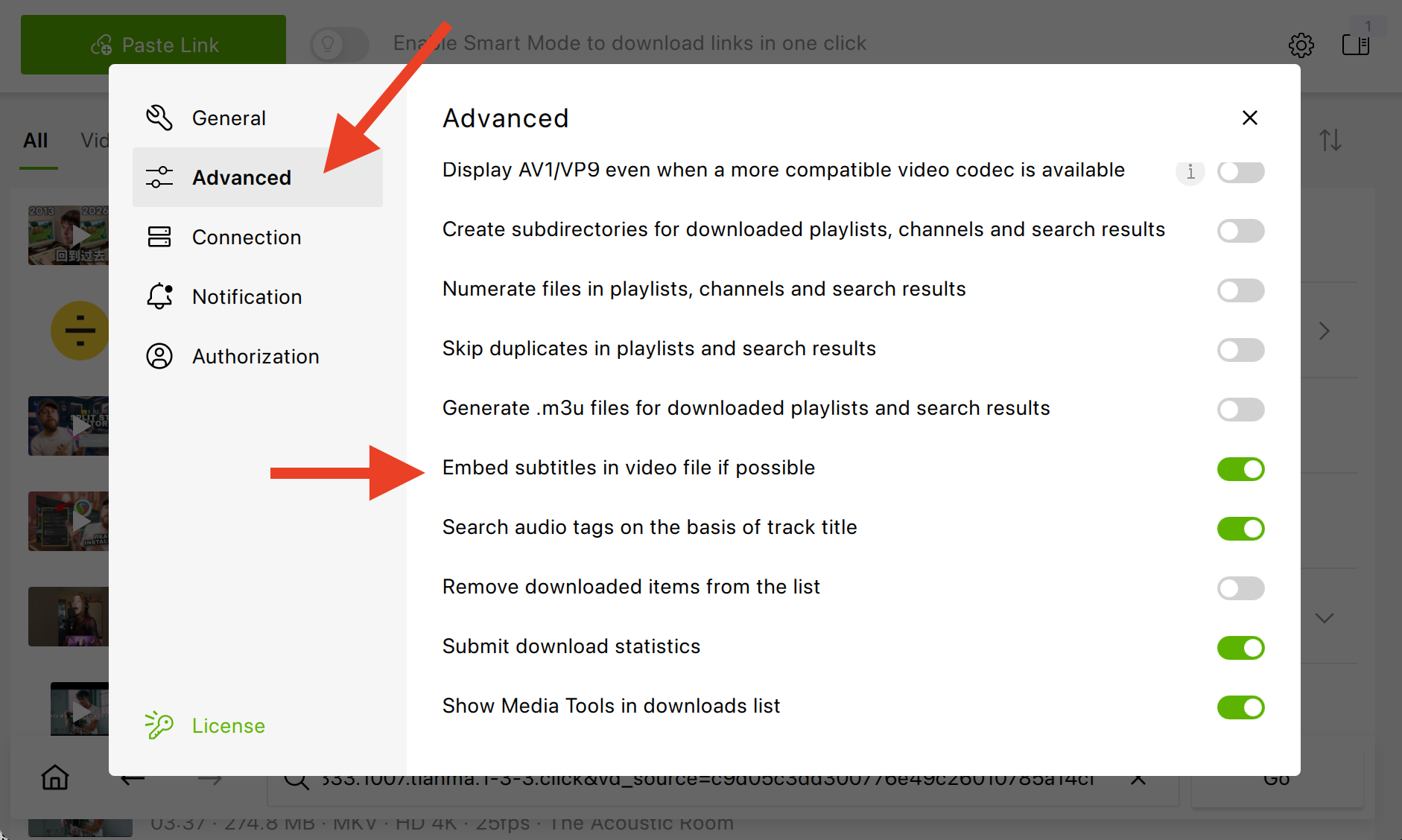
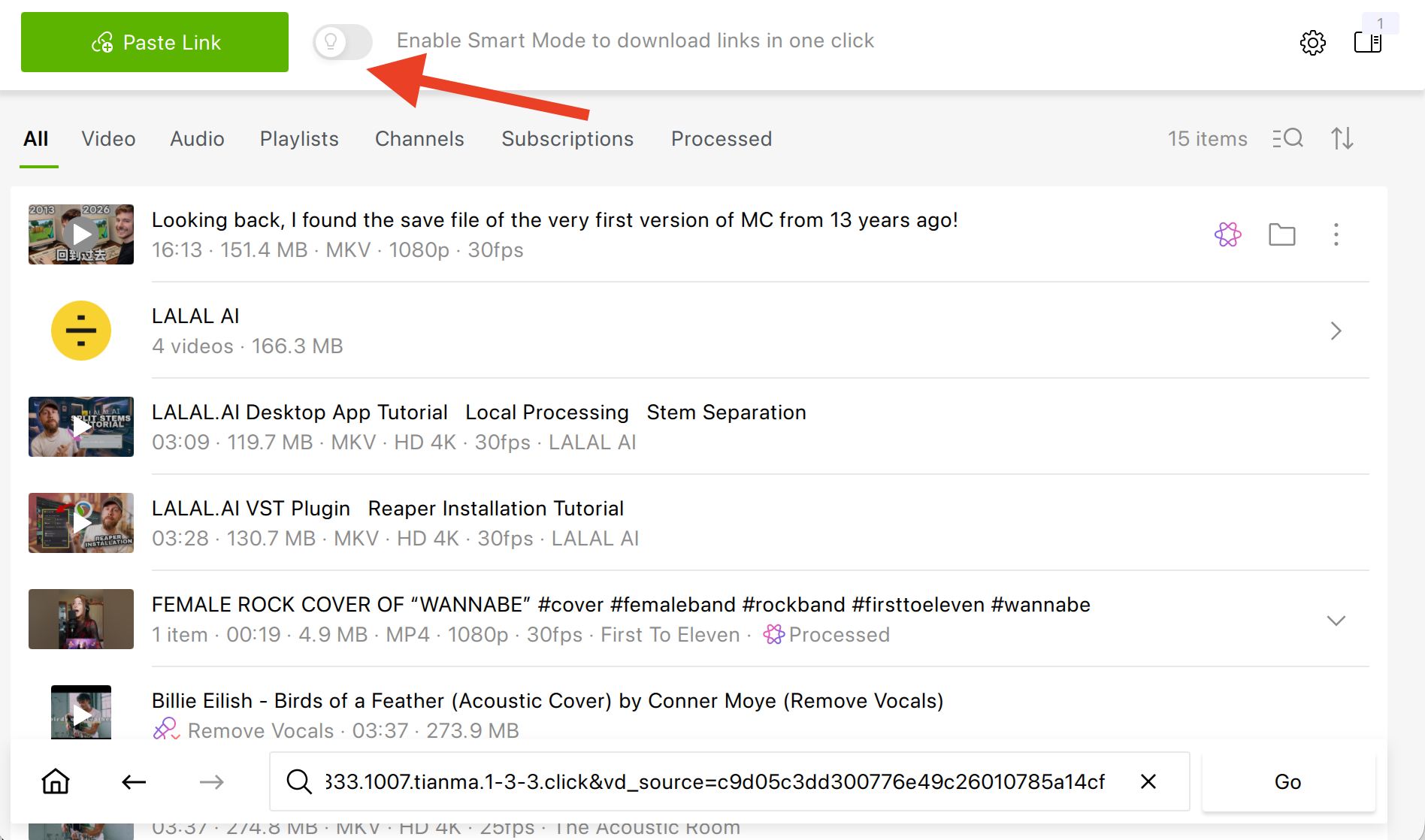
Go to Tools > Preferences > Advanced. Turn on Embed subtitles if possible to build subtitles into the video, or leave it off to get a separate .srt file.
Make sure Smart Mode is off. The bulb icon on the toolbar should be gray.
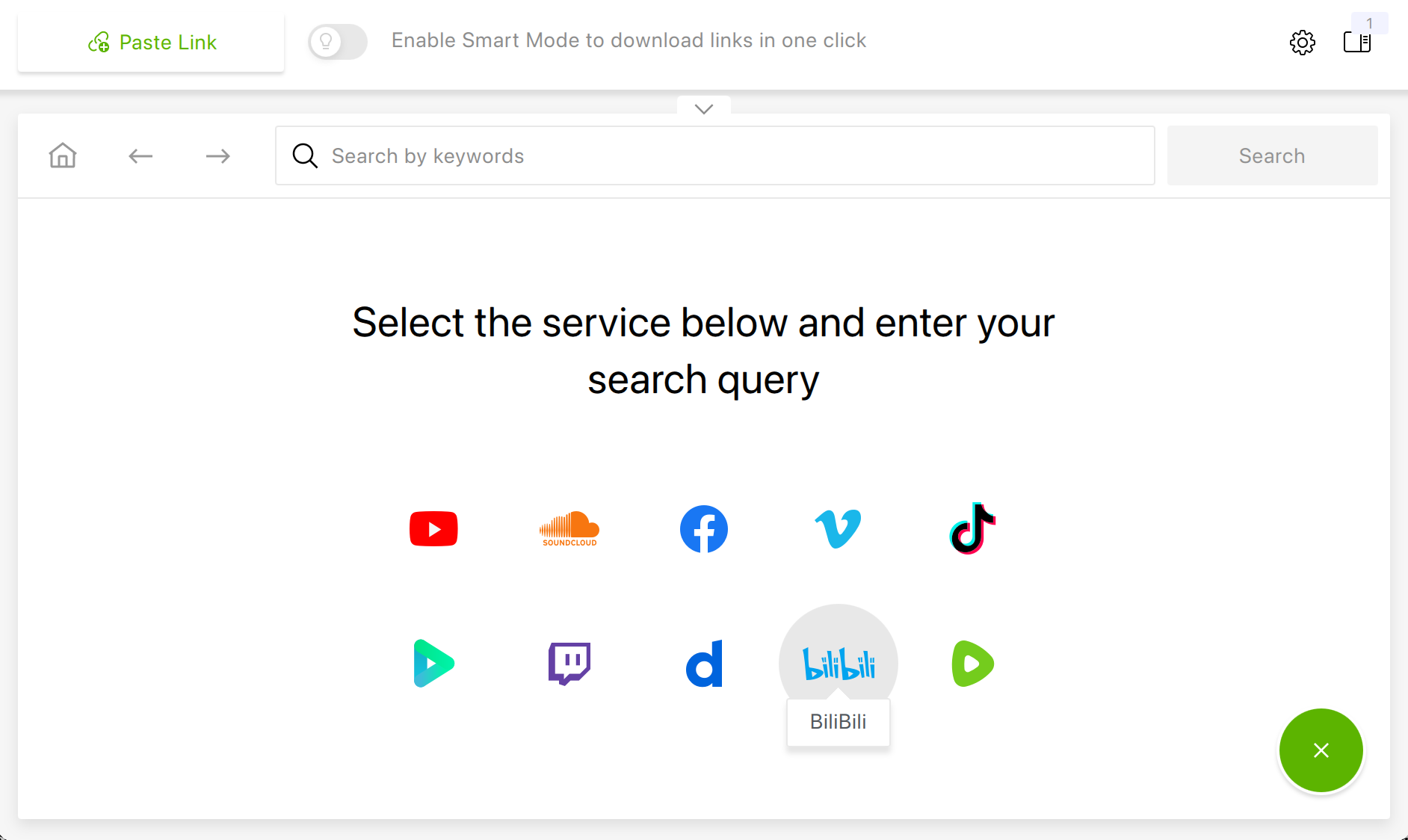
Find the Bilibili icon in the in-app browser and log in to your account inside the app. Bilibili will offer a few ways to sign in.
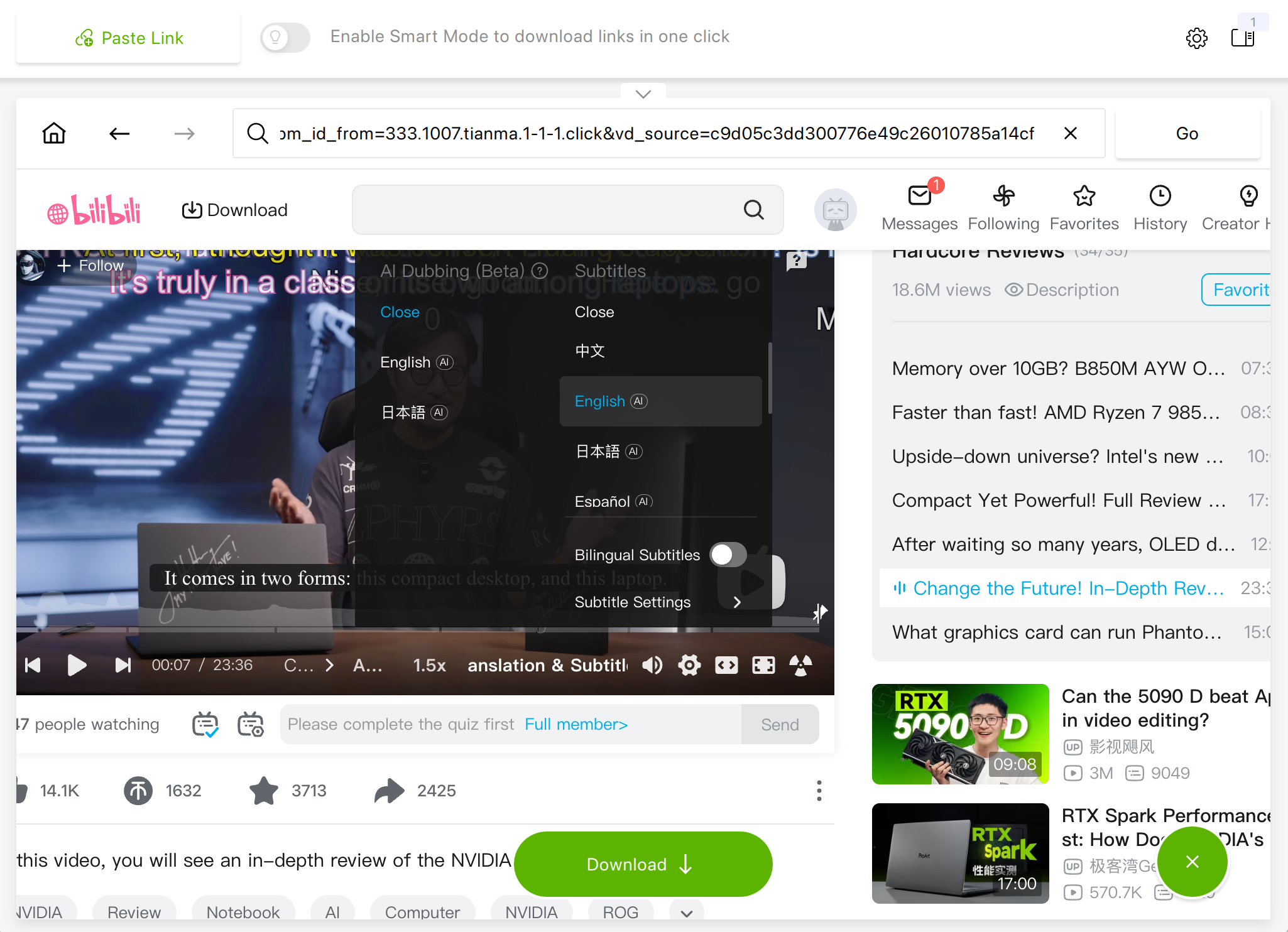
Open the video in the in-app browser and click Download. Make sure the video has subtitles at all by clicking on Subtitles in the playback area. Note that this checkup is only available after login.
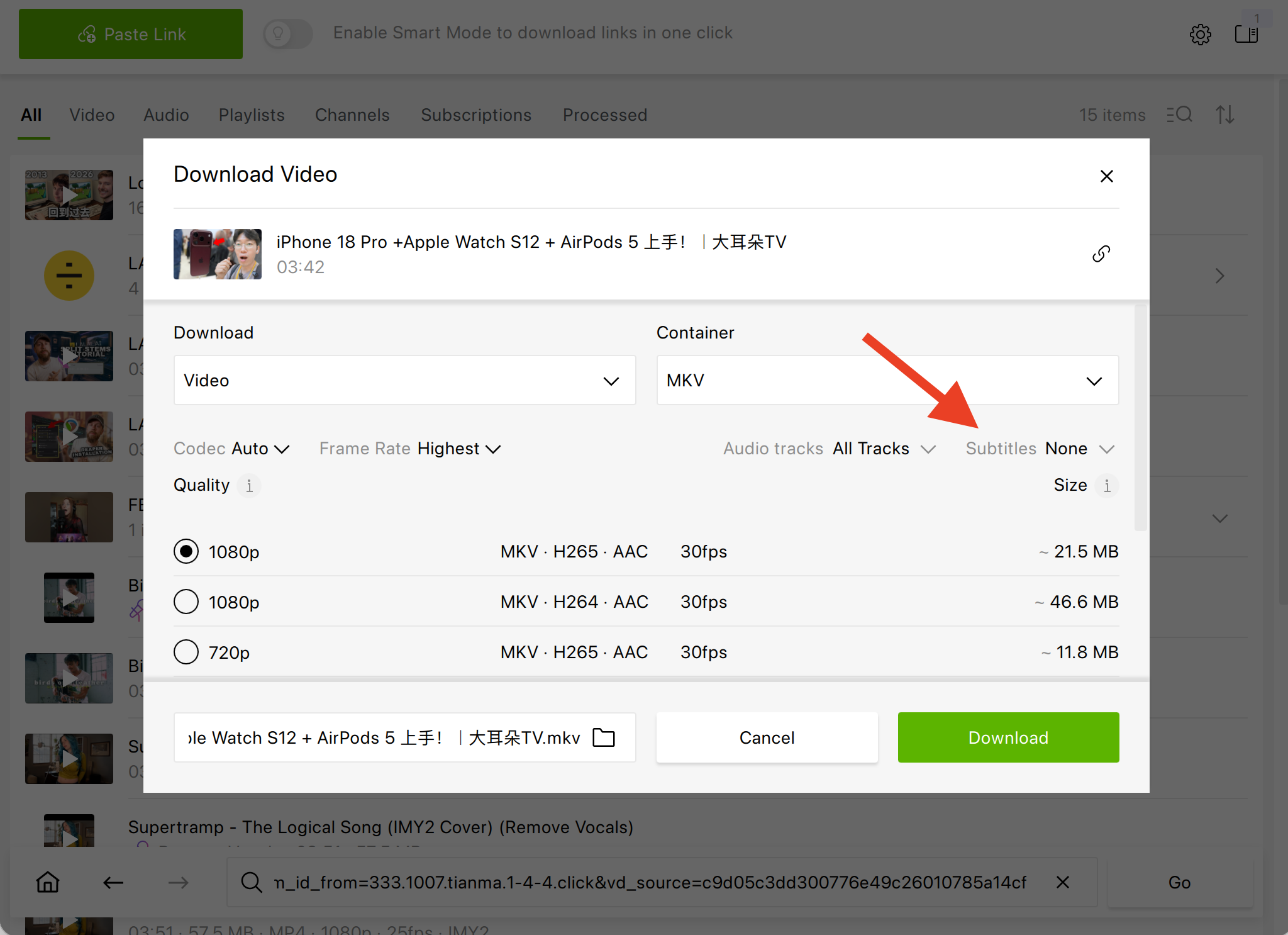
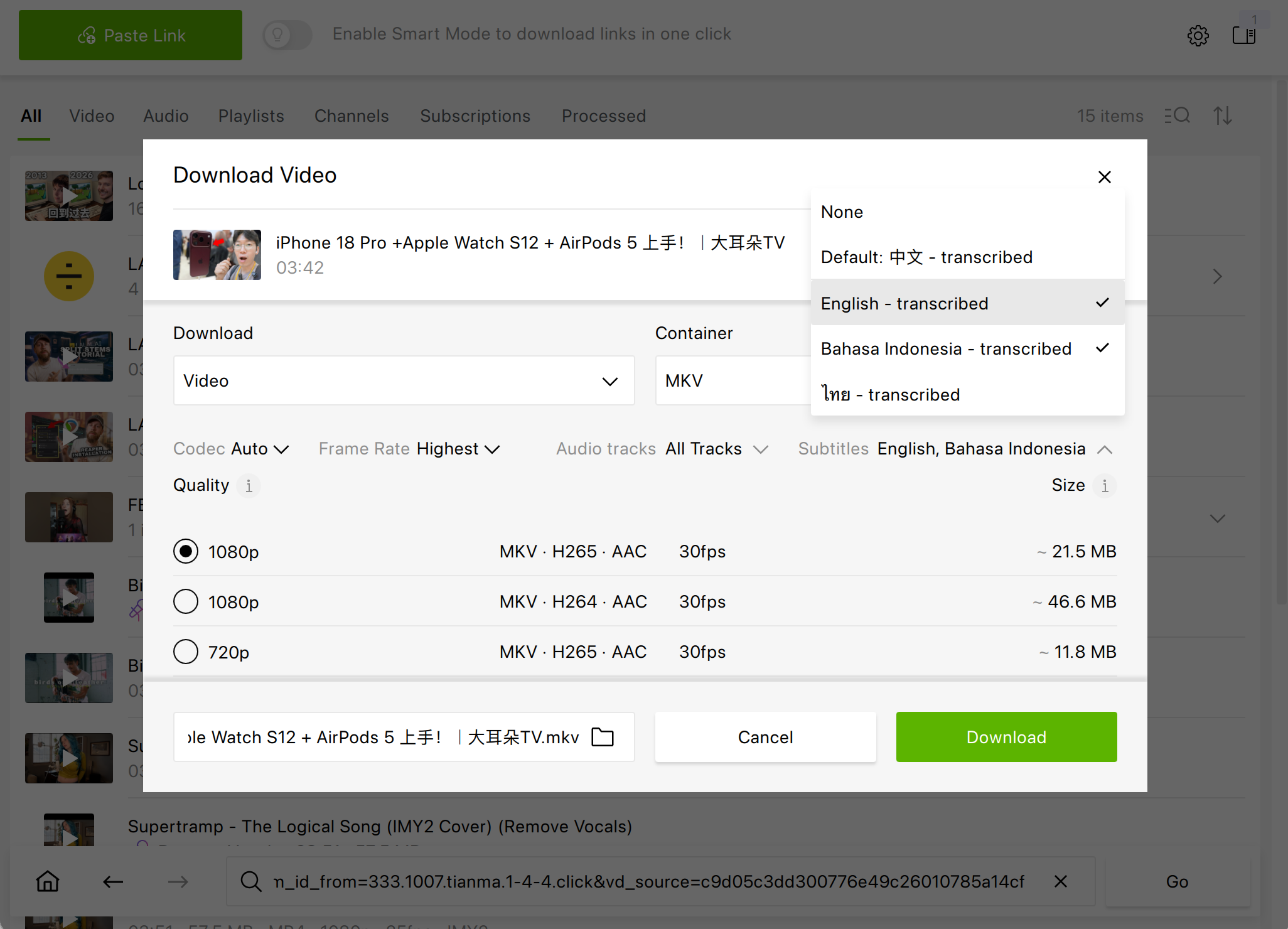
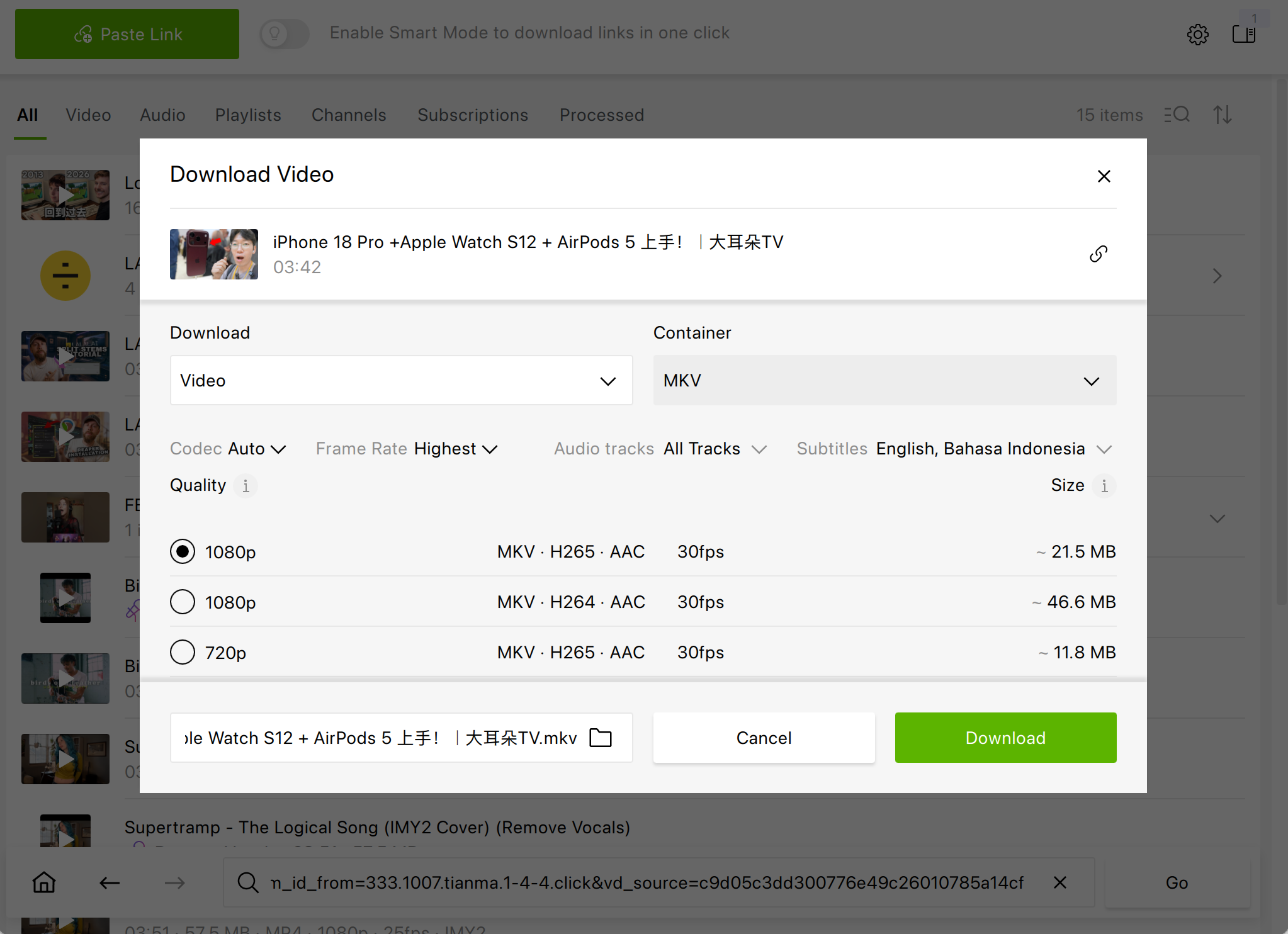
In the Subtitles section, select one or more of the available languages.
Choose the format and quality. Then set the output folder and click Download.
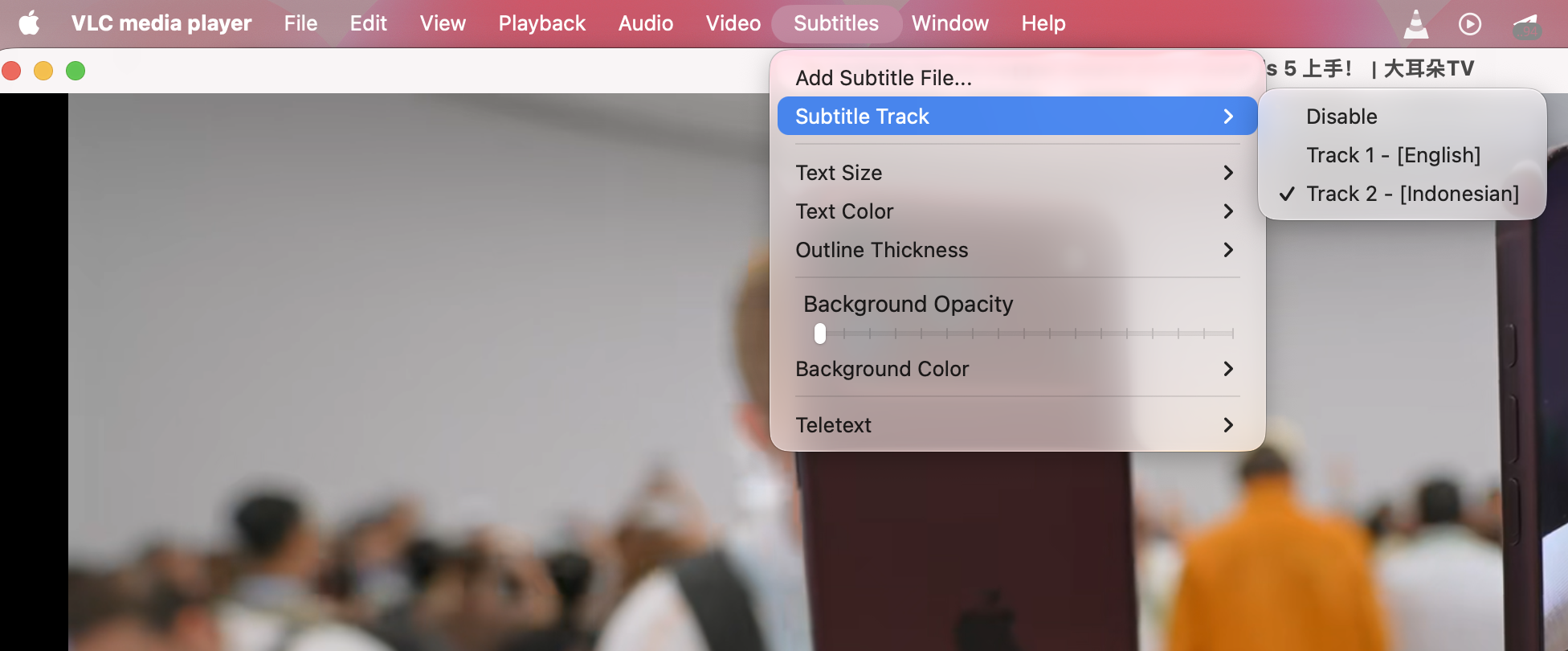
Open the video in VLC or Media Player Classic and turn on subtitles from the Subtitles menu.
How to Download Bilibili Videos with Subtitles Using Smart Mode
If you save Bilibili videos regularly, picking subtitle languages every time gets old fast. Smart Mode lets you set your preferences once and forget about them.
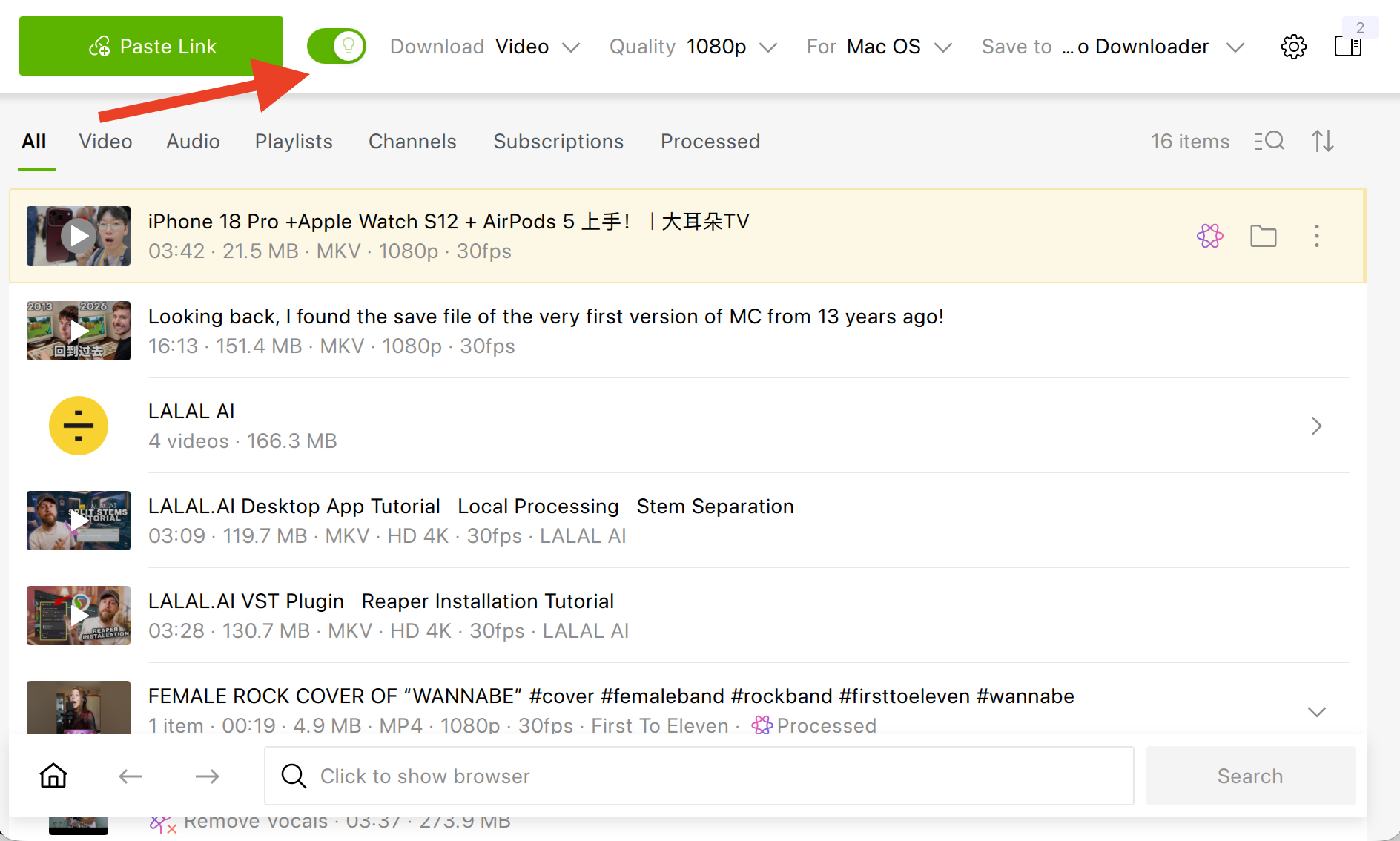
Click the bulb icon on the toolbar to turn on Smart Mode.
In the Smart Mode settings, choose the format, quality, output folder, and subtitle languages. These settings apply to every download that follows. The drawback of saving a Bilibili video with subtitles through Smart Mode is that you should know beforehand if the video you intend to download indeed has subtitles in the language you’ve selected. If you, say, select English in Smart Mode but the video doesn’t have subtitles in the English language, the subtitle track will only be saved in Default. Note that without the login to Bilibili, you won’t be able to check which subtitles the video has.
Copy a Bilibili link and click Paste Link, or click Download under a video in the in-app browser.
The video starts downloading right away, with your subtitle settings applied.
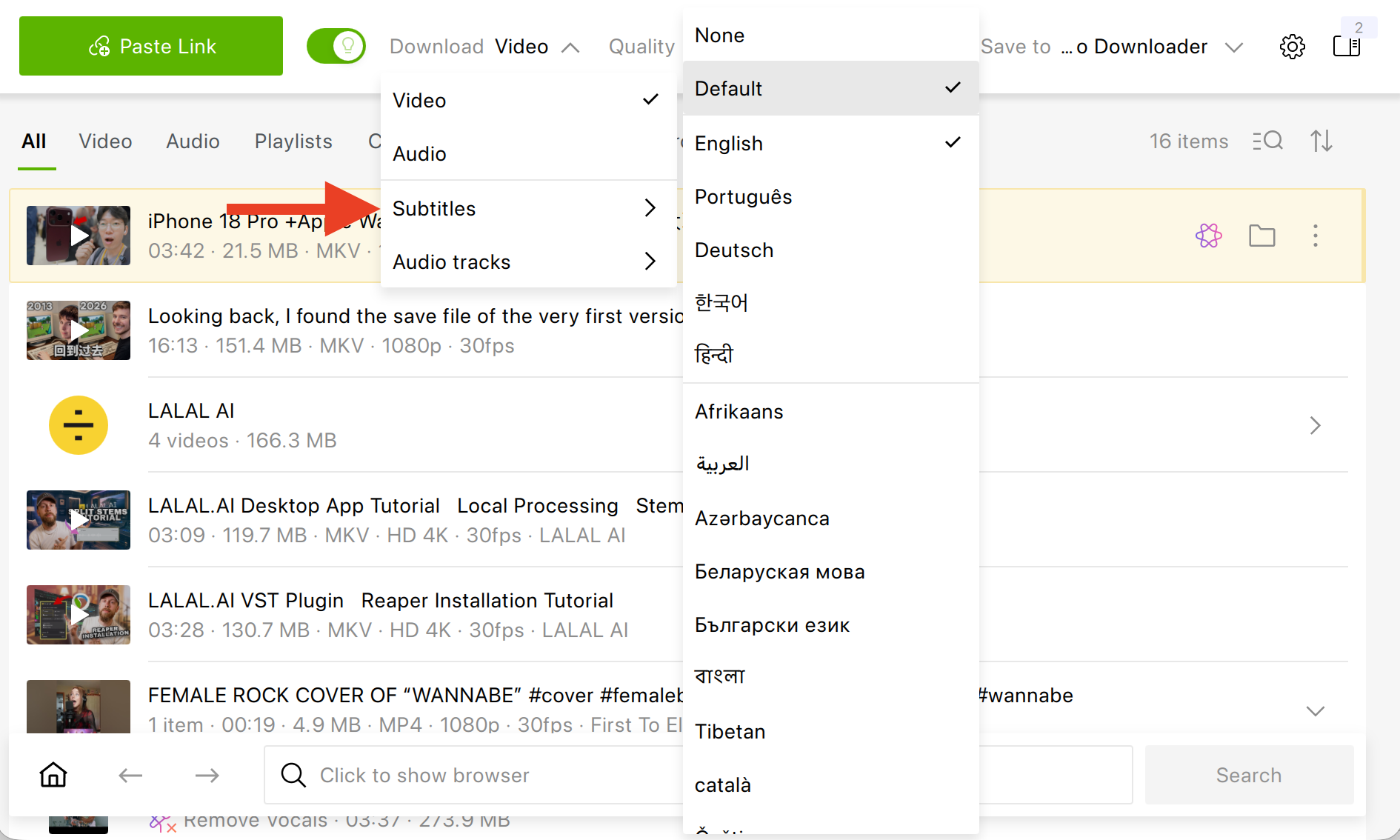
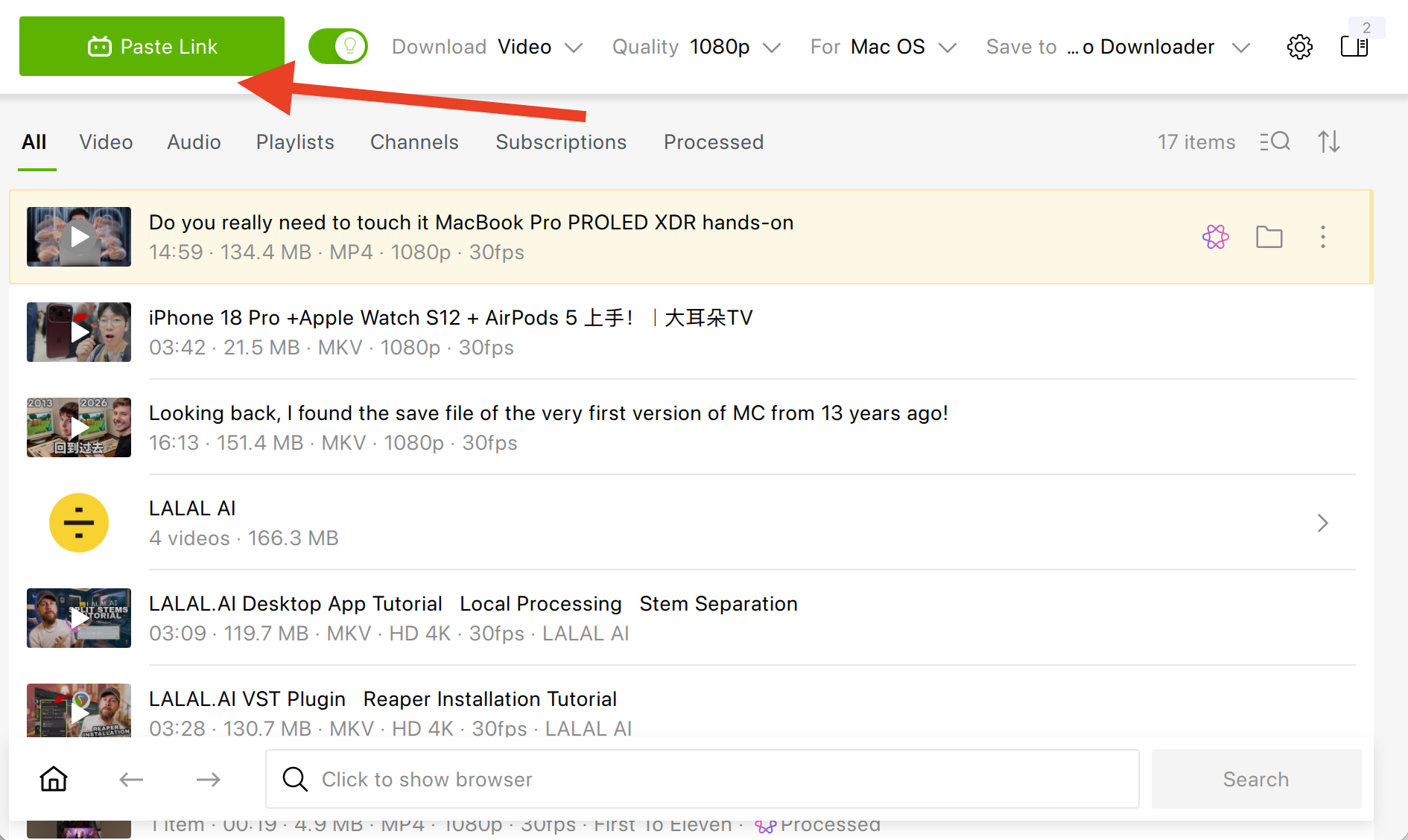
Whether the subtitles end up embedded or as an SRT file depends on the Embed subtitles if possible setting, just like in manual mode.
Embedded or separate? Embedded subtitles keep everything in one file, so they can’t get lost when you move the video to another device. A separate SRT is the better pick if you plan to edit or translate the subtitles.
If the subtitle list comes up empty, the video most likely has no subtitle track on Bilibili. For other cases, see How to Fix Subtitle Issues.
2. yt-dlp: Free and Endlessly Scriptable
yt-dlp is the open-source command-line downloader that powers a good chunk of the video-saving world. It handles both bilibili.com and bilibili.tv and converts Bilibili’s subtitles to SRT. Builds are available for any desktop OS, and if you’re comfortable in a terminal, it’s hard to beat on flexibility.
The catch with Bilibili is authentication. Without your login cookies, subtitle requests often fail or return nothing, and Bilibili may reject the request with an HTTP 412 error. The easiest fix is to let yt-dlp read cookies from a browser where you’re signed in to Bilibili:
yt-dlp --cookies-from-browser firefox --list-subs https://www.bilibili.com/video/BV1qt4y1X7TWThis lists every subtitle track the video offers. Bilibili’s AI subtitles show up with codes like ai-zh and ai-en. To download the video with all real subtitle tracks embedded, excluding danmu, run:
yt-dlp --cookies-from-browser firefox --write-subs --sub-langs all,-danmaku --embed-subs https://www.bilibili.com/video/BV1qt4y1X7TWA few things worth knowing:
Unlike YouTube, yt-dlp lists Bilibili’s AI subtitles together with regular ones, so
--sub-langs allpicks up the AI tracks too.Danmu appear as a separate track called
danmaku. Leave the exclusion out if you actually want them.If you use Chrome, quit it completely before yt-dlp reads its cookies. Otherwise the cookie database may be locked.
Embedding subtitles requires FFmpeg on your system.
For a deeper look at how yt-dlp compares with a graphical app, see yt-dlp vs. 4K Video Downloader Plus.
3. BBDown: A Bilibili Specialist for the Command Line
Where yt-dlp is a jack of all trades, BBDown is built for Bilibili and nothing else. This free, open-source tool has a loyal following among Chinese users and ready-made builds for every major desktop OS. It knows Bilibili’s quirks inside out, from multi-part uploads to bangumi episodes, and can fetch formats up to 8K with Dolby Vision.
BBDown downloads regular subtitles by default, so there’s nothing to switch on. Log in once by scanning a QR code with the Bilibili mobile app:
BBDown loginThen pass it a video link or BV ID:
BBDown https://www.bilibili.com/video/BV1qt4y1X7TWHandy options for subtitle work:
--sub-onlysaves subtitles without the video.--skip-ai falseincludes AI-generated subtitles, which BBDown skips by default.-ddalso saves danmu as an XML file.-p ALLdownloads every part of a multi-part video or every episode of a series.
Like yt-dlp, BBDown relies on FFmpeg to merge video and audio, and its documentation is mostly in Chinese.
4. DownKyi: A Free GUI with a Chinese Interface
DownKyi (哔哩下载姬) is a long-standing open-source app with a graphical interface, made specifically for Bilibili. It handles batch downloads well and lets you log in with a QR code. Quality goes up to 8K, including HDR and Dolby Vision, and alongside the video it can save subtitles and danmu.
The original DownKyi was a Windows app. A cross-platform fork, DownKyiCore, brings it to macOS and Linux and was still receiving updates in 2026. The main hurdle for international users is the interface, which is in Chinese, so expect a bit of trial and error or a translation app at your side.
5. DownSub: Subtitle Files without the Video
Sometimes you don’t need the video at all, just the words. DownSub is a browser-based subtitle downloader that lists Bilibili among its 50+ supported sites. Paste a link on downsub.com and choose a language. The subtitles can be saved as SRT, VTT, TXT, or a raw export. A Chrome extension adds a download button right on supported video pages.
Single downloads are free and don’t require an account. Keep in mind that you only get text: to watch offline, you’ll need a separate tool for the video and some file renaming so your player picks up the right subtitles. We’ve covered this trade-off in detail in our DownSub alternative guide.
6. Seal: Bilibili Subtitles on Android
Seal is a free, open-source Android app that wraps yt-dlp in a clean Material You interface. It isn’t on Google Play, so you only can get it from GitHub or F-Droid. Before downloading, enable Download subtitles in the additional settings, and Seal can embed them into the video file.
Since Seal runs yt-dlp under the hood, the same rule applies: Bilibili subtitles are far more reliable when the downloader has access to your logged-in session.
7. The Official Bilibili App: Offline Viewing on iPhone and Android
Bilibili’s own mobile apps let you download videos for offline viewing, and licensed shows on bilibili.tv come with multilingual subtitles. On iPhone and iPad, where third-party downloaders are few and far between, this is the most practical route.
The trade-off is control. Offline downloads in the app are typically encrypted and play only inside Bilibili’s player, so you can’t move them to another device or open them in VLC. Download availability also depends on the content and your region.
If you need a regular video file with subtitles on an iPhone, download it on a computer with 4K Video Downloader Plus and then transfer it to your phone.
Which Method Should You Choose?
The right tool depends on your device and on how much you enjoy typing commands.
| Your device | Easiest pick | Free GUI alternative | Command-line options |
|---|---|---|---|
| Windows 11 | 4K Video Downloader Plus | DownKyi | yt-dlp, BBDown |
| macOS (12+) | 4K Video Downloader Plus | DownKyiCore | yt-dlp, BBDown |
| Linux (Ubuntu 22.04 64-bit or newer, GNOME only) | 4K Video Downloader Plus (Ubuntu) | DownKyiCore | yt-dlp, BBDown |
| Android | Seal | Official Bilibili app | Not applicable |
| iPhone and iPad | Official Bilibili app | Desktop download, then transfer | Not applicable |
| Subtitles only, no video | DownSub | Not applicable | BBDown with --sub-only |
Tips for Getting Bilibili Subtitles Right
Check before you download. Look at the subtitle list in your downloader first. If it’s empty, the video simply has no subtitle track, and switching tools won’t change that.
Stay logged in. Most “missing subtitles” problems on Bilibili come down to an expired or missing login. Sign in again if subtitles suddenly stop showing up.
Know your subtitle types. Uploader captions are usually the most accurate. AI subtitles are handy but can stumble over slang and proper names, especially in fast speech.
Don’t confuse danmu with subtitles. Danmu are viewer comments pinned to timestamps, not a transcript of what’s being said.
Use a subtitle-friendly player. VLC and Media Player Classic handle embedded tracks and SRT files reliably. See how to play a video with subtitles for details.
Finally, download only content you have the right to save, such as your own uploads or videos for personal offline viewing where local law allows it. Respect the creators and Bilibili’s terms of service.
Frequently Asked Questions
What is the easiest way to download Bilibili videos with subtitles?
4K Video Downloader Plus is the simplest option for desktop users. Paste a bilibili.com or bilibili.tv link and select the subtitle languages. The app then saves the video with subtitles, either embedded or as a separate SRT file. With Smart Mode on, the same subtitle settings apply to every download.
Can I download Bilibili videos with English subtitles?
Yes, if the video has an English subtitle track. Many anime and shows on bilibili.tv come with multilingual subtitles, and some bilibili.com videos include AI-generated English subtitles. Check the subtitle list in your downloader before you start.
Does Bilibili have an English version?
Yes. As of November 2026, the English version of Bilibili is available at bilibili.com/en. You can sign in and watch videos there in an English interface. Bilibili also uses AI to translate key Chinese content, such as video titles, comments, and danmu, into your system language. You can turn the translation off or choose another language under Avatar > Language after you sign in. The auto-translation doesn’t add subtitle tracks to videos. To save a video with subtitles, check which subtitle languages it offers, then download it with 4K Video Downloader Plus. Its built-in browser works with the English version of the site too.
Do I need a Bilibili account to download subtitles?
Often, yes. Bilibili’s subtitle data usually loads for signed-in sessions. In 4K Video Downloader Plus, sign in through the in-app browser. Command-line tools such as yt-dlp and BBDown need your login cookies.
Does Bilibili’s auto-translation end up in downloaded subtitles?
Not necessarily. The auto-translation on bilibili.com/en targets page content like titles and comments. Downloaders save the subtitle tracks a video actually carries, either added by the uploader or generated by Bilibili’s AI.
Are danmu comments the same as subtitles?
No. Danmu are viewer comments that scroll across the video at specific timestamps. Subtitles transcribe or translate what is said in the video. Tools like BBDown and yt-dlp can save danmu as a separate file.
How do I download Bilibili videos with subtitles on iPhone?
The official Bilibili app lets you download videos for offline viewing, but the files stay inside the app. To get a regular video file with subtitles, download it on a computer with 4K Video Downloader Plus and transfer it to your iPhone.
What subtitle format do Bilibili downloaders save?
Bilibili stores subtitles in its own JSON format, and most downloaders convert them to SRT. 4K Video Downloader Plus saves SRT files or embeds the subtitles into the video. DownSub also offers VTT and TXT.
Published Nov. 6, 2026
 SHARE ON TWITTER


Thanks for feedback
Your comments will appear here shortly. Please spread the word about us in social networks.