Community

Get product updates

How to Download and Play a 3D Video

Oksana
by Oksana
on 24.09.2024

3D video playback works by showing each eye a slightly different image, creating the illusion of depth. Watching such videos often removes or distorts the 3D effect and reduces quality. To play a 3D video on PC in good quality, you need to download it with 4K Video Downloader Plus and open it in VLC media player or KMPlayer. It often requires a compatible device like a VR headset or a 3D TV.

95% of users prefer interactive 3D content over regular video, and 53 million Americans already own a VR or AR device, which indicates strong demand for immersive formats. Source: CGI.Backgrounds, 2025.

How to Download a 3D Video

  1. Download and install 4K Video Downloader on your device.

It's available for macOS (12 or newer), Windows 11, and Ubuntu (22.04 64-bit (GNOME only) or newer).

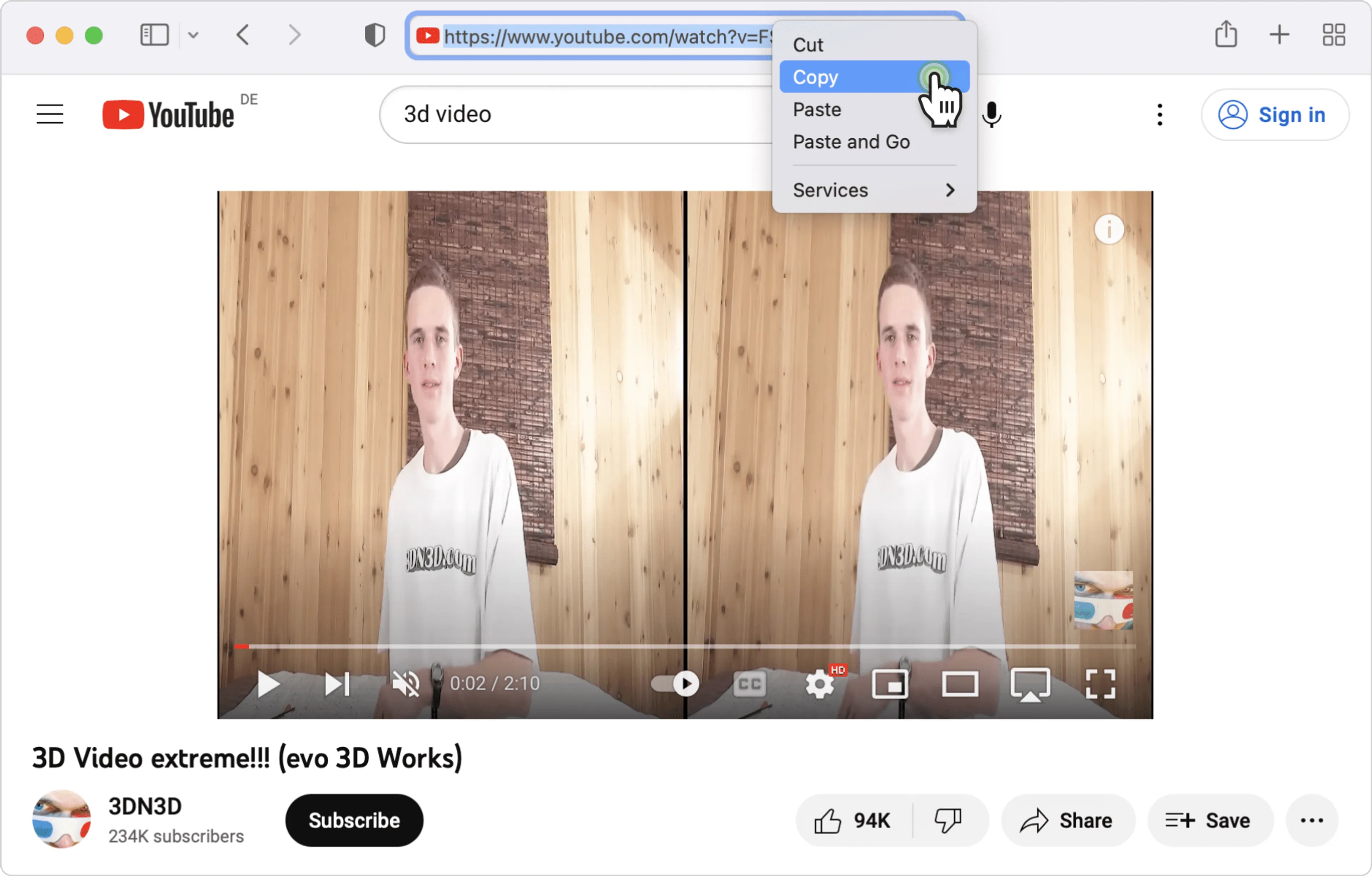
  1. Find 3D videos on YouTube.

Search YouTube for ‘3D SBS’ to find videos formatted for 3D playback. Open a video and check the title or description to confirm it’s labeled as SBS or 3D.

  1. Copy video URL from browser address bar.

Open the video and click the address bar at the top of your browser. To copy the URL on Windows and Ubuntu, press Ctrl + C (or right-click → Copy); on Mac, press Command (⌘) + C (or right-click → Copy).

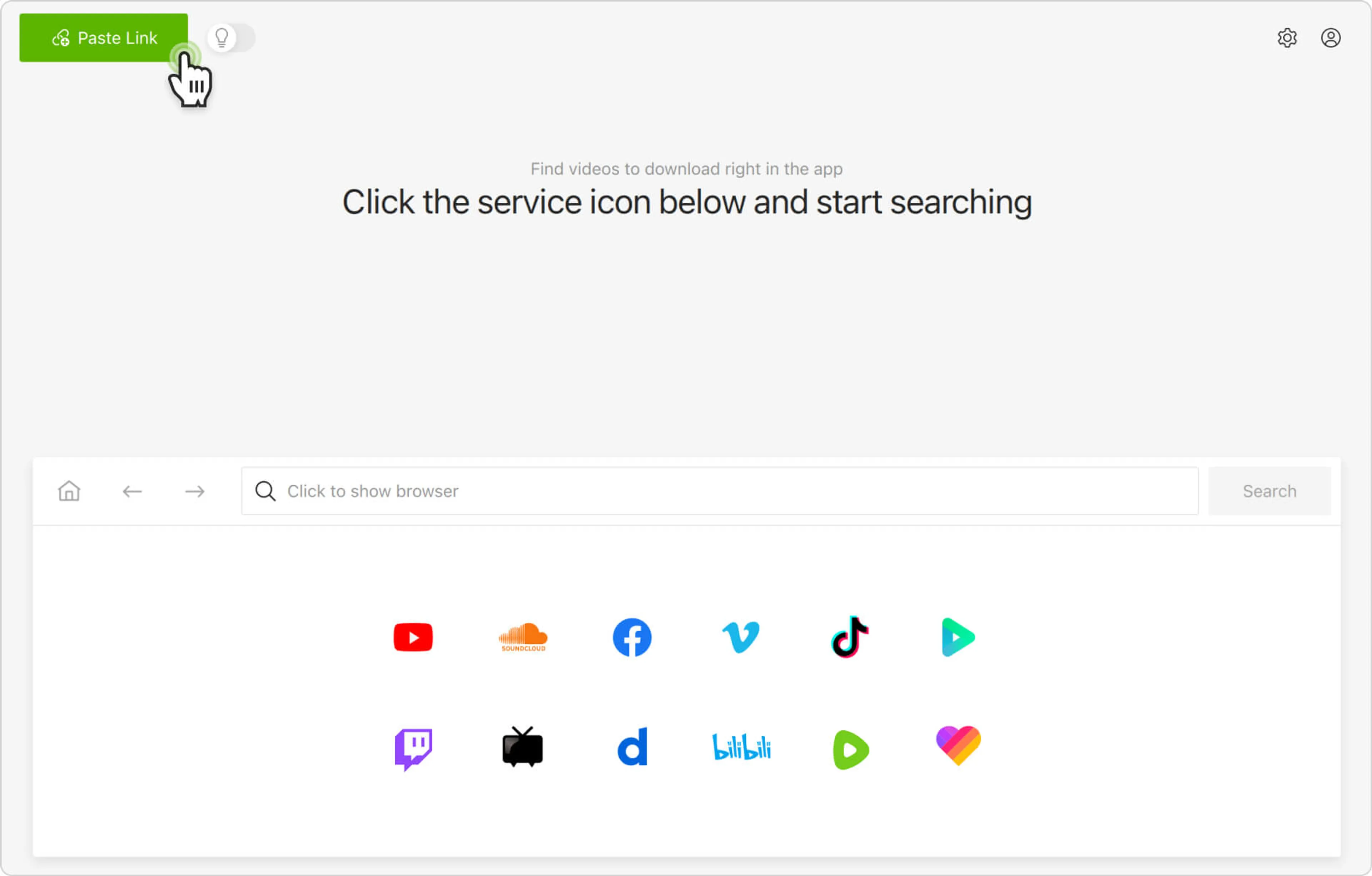
  1. Paste into 4K Video Downloader Plus.

Open 4K Video Downloader Plus and click the Paste Link button in the top left corner. The app will automatically process the copied URL and offer download options.

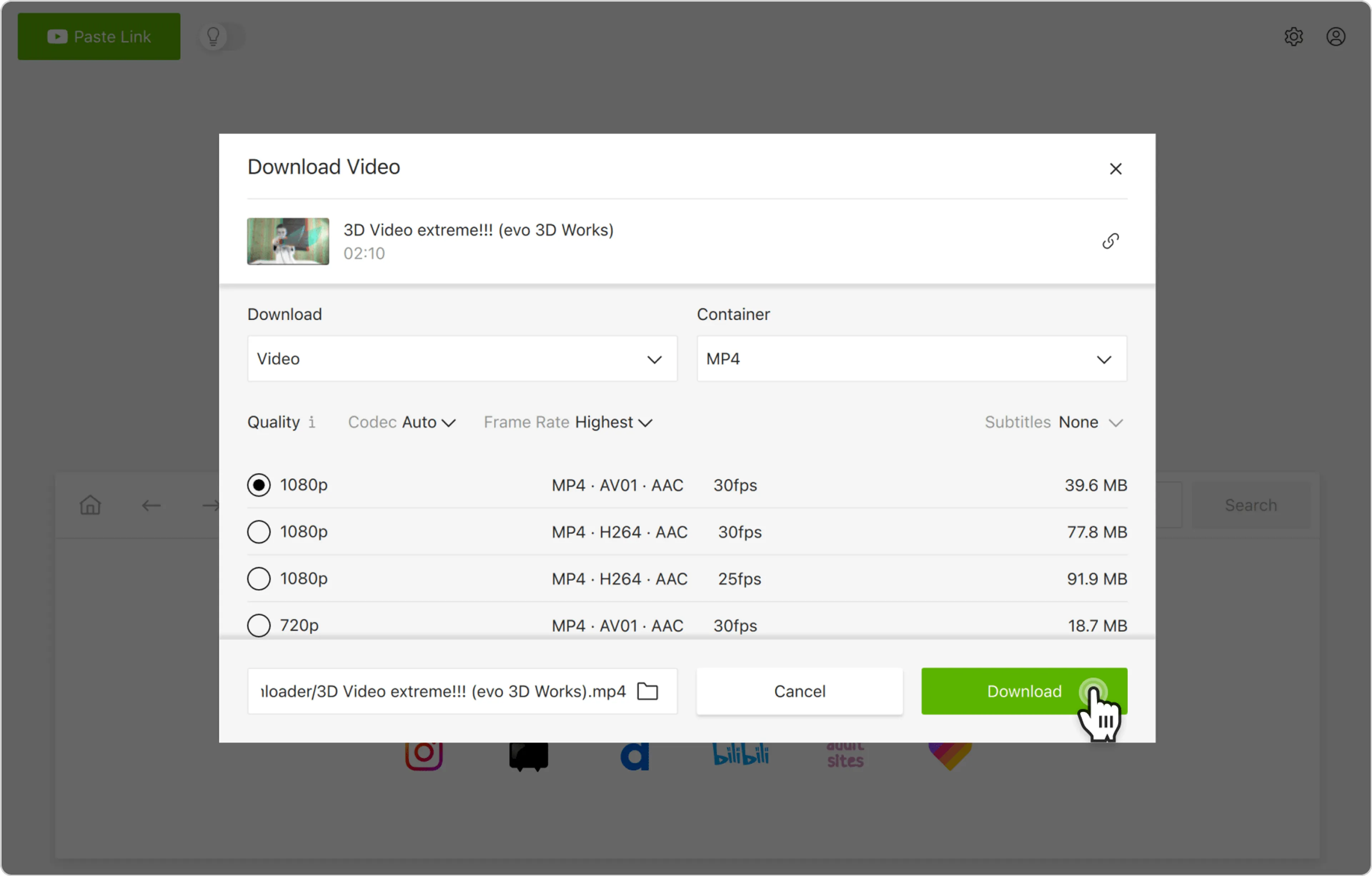
  1. Select the format, quality, and output folder.
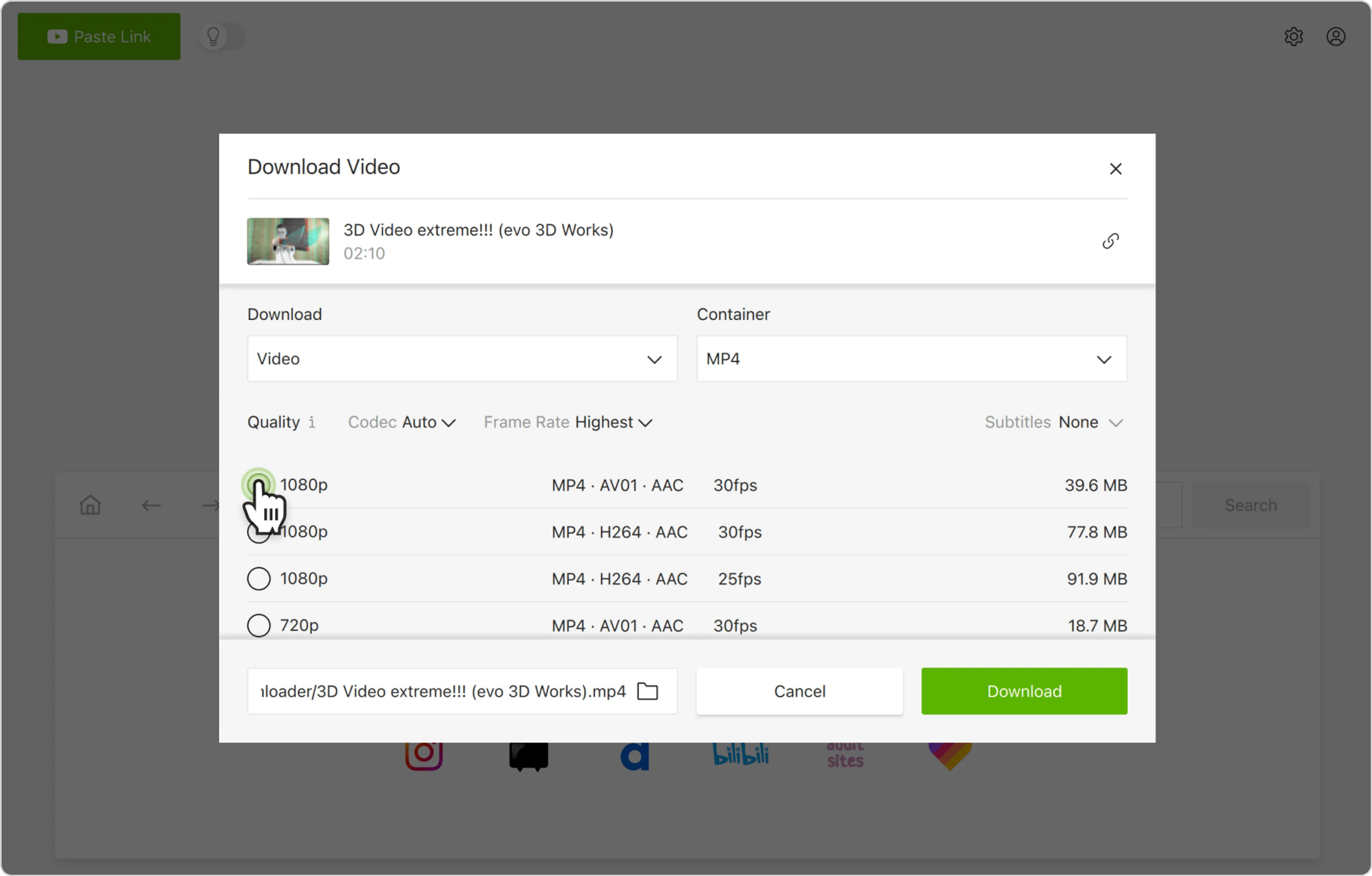
In the settings window, choose the download preferences. Select the format (e.g., MP4 for video, MKV for higher compatibility, or MP3/M4A for audio only) and the quality. Then choose the output folder on your device where the file will be saved.

  1. Click the Download button.

Click the Download button to start saving the video to your selected folder.

Alternatively, you can find and download 3D YouTube videos through the in-app browser. This way, you can browse YouTube without leaving the application and download content on the spot.

How to Play 3D Videos in Windows, macOS & Ubuntu

3D video player setup is straightforward:

  1. Open VLC media player.
  2. Click Tools in the top menu bar.
  3. Select Effects and Filters to open the settings window where video adjustments are controlled.
  4. Click the Video Effects tab, which contains options for visual processing and enhancements.
  5. Go to the Advanced sub-tab and enable Anaglyph 3D by checking the box.
  6. Click Save to confirm and apply the setting so VLC processes all videos in this 3D mode.
  7. Play your 3D video.

Top alternative 3D video players to VLC Player include:

  • KMPlayer. Strong native support for SBS and TAB with built-in 3D viewing modes
  • PotPlayer. Highly configurable, widely used for SBS/TAB and VR-style playback
  • Stereoscopic Player. Dedicated professional 3D player supporting most stereoscopic formats

Best 3D Formats for PC Playback

FormatQualityVLC supportKMPlayer supportNVIDIA 3D Vision supportHardwareFile size (5 min 1080p)Best use
Side-by-Side (SBS)MediumOptional (VR / 3D display)~300–900 MBGeneral PC/ VR playback
Top-and-Bottom (TAB)MediumOptional~300–900 MBVR headsets, streaming
Anaglyph (Red-Cyan)Low⚠️ LimitedGlasses only~150–400 MBBasic playback, legacy
Frame-Packed (Blu-ray 3D / MVC)Very high⚠️ Limited⚠️ Limited3D display + glasses~2–5 GBBlu-ray 3D / home theater
VR180 / 360° 3DHigh⚠️ Limited⚠️ LimitedVR headset required~500 MB–2.5 GBImmersive VR content

Side-by-side (SBS) is the most practical 3D format for PC playback because it is widely supported in players like VLC media player and works across VR and standard setups.

Top-and-bottom (TAB) offers similar quality with slightly better VR optimization, making it common in headset-based viewing.

Anaglyph is the most universally compatible option since it works on any screen with red-cyan glasses, but it has the lowest visual quality.

Frame-packed 3D delivers the best image quality but is largely limited to legacy Blu-ray and specialized hardware setups.

VR180/360° 3D is the most immersive modern format, designed for VR headsets where users can look around a full 3D environment.

FAQ

Can you download 3D videos from YouTube?

Yes, you can download 3D videos from YouTube with 4K Video Downloader Plus in a compatible format for offline PC or Mac playback. The tool supports versatile resolutions up to 8K, video to audio conversion in MP3 M4A, and OGG, as well as 360° video downloads.

What 3D formats work for PC playback?

Common PC-compatible 3D formats include Side-by-Side (SBS), Top-and-Bottom (TAB), and anaglyph videos. 4K Video Downloader Plus saves the video in these formats, compatible with VLC and KMPlayer media players.

Do you need special hardware for 3D video?

Yes. The hardware depends on the format: red-cyan anaglyph videos can be viewed on a standard screen using colored glasses in VLC media player, while NVIDIA 3D Vision requires SBS video plus active shutter glasses and a compatible display.

Why is my 3D video playing in 2D in VLC?

In VLC, 3D files are played as regular videos by default because the player doesn’t automatically merge stereoscopic streams (SBS/TAB). You have to manually enable a 3D mode (e.g., anaglyph filter) or use a compatible 3D setup.

What 3D glasses work with SBS MP4 files?

SBS MP4 files work depending on the display method, not the file itself. For anaglyph playback in VLC, you’ll need red-cyan glasses; for SBS on a 3D TV or VR headset, you’ll need active shutter glasses or the headset’s built-in display system.

Is there any way to watch 3D movies at home?

You can watch 3D movies at home using SBS/TAB files with a VR headset, a 3D-capable TV with shutter glasses, or a PC setup with software that supports stereoscopic playback like VLC or KMPlayer. To download a 3D video for playback at home, use 4K Video Downloader Plus.

What is the best format for 3D video?

Side-by-Side (SBS) is the most practical format because it’s widely compatible with players, VR headsets, and download tools. Top-and-Bottom (TAB) is also common for VR, while frame-packed offers the best quality but requires legacy 3D hardware.

What is the best free 3D player for 8K SBS videos?

PotPlayer is the strongest free option for high-resolution SBS playback as it supports hardware acceleration and large 4K–8K files efficiently. KMPlayer is another viable alternative with built-in 3D mode support. VLC is more limited for high-end stereoscopic workflows.

Summary

To download and play a 3D video, use 4K Video Downloader Plus. Copy a 3D video link from supported platforms like YouTube and paste it into the downloader.

4K Video Downloader Plus supports major available formats such as Side-by-Side (SBS), Top-and-Bottom (TAB), and standard anaglyph-compatible outputs; quality options also range from HD up to 4K or higher if provided by the source.

After downloading, open the file in VLC or KMPlayer and select the correct 3D viewing mode or device for playback.

Depending on the format, you may need additional hardware such as a VR headset, 3D TV, or anaglyph glasses to experience the depth effect. Install 4K Video Downloader Plus for free to start watching 3D videos on your PC or Mac.