Warum sollte man sich in den 4K Download Apps bei YouTube anmelden?
Die Anmeldung bei YouTube in 4K Video Downloader Plus und 4K YouTube to MP3 ist optional, ermöglicht jedoch das Herunterladen von Inhalten sowie Qualitätsoptionen, die nur angemeldeten Nutzern zur Verfügung stehen.
Ist die Anmeldung sicher?
Die Anmeldung ist sicher, da die 4K Download Apps weder Ihr Passwort erhalten noch speichern. Die gesamte Authentifizierung wird vollständig von Google übernommen, sodass kein Risiko besteht, dass Ihre Daten offengelegt werden. Keine Ihrer Anmeldeinformationen werden an unsere Server gesendet. Wenn Sie in der App auf Anmelden klicken, öffnet sich das Google-Autorisierungsfenster, und der gesamte Anmeldeprozess findet dort sicher statt.
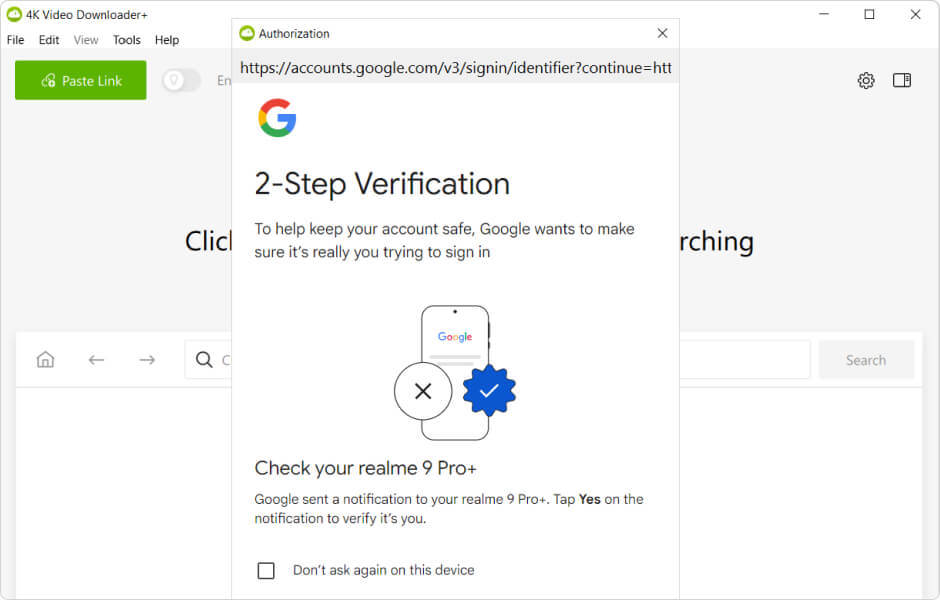
Je nach den Sicherheitseinstellungen Ihres Google-Kontos kann Google eine CAPTCHA oder zusätzliche Verifizierung anfordern, etwa eine Zwei-Faktor-Authentifizierung. Nach der Eingabe Ihres Passworts kann Google außerdem eine Sicherheitsbenachrichtigung über einen Anmeldeversuch von einem unbekannten Gerät senden, das manchmal als “Apple iPad” angezeigt wird. Dies ist zu erwarten und entspricht der Art und Weise, wie Google 4K Video Downloader Plus während der Autorisierung erkennt. Möglicherweise sehen Sie “Apple iPad” auch in Ihrem Geräteverlauf im Sicherheitsbereich Ihres Google-Kontos.
Warum sollte man sich in den 4K Download Apps anmelden?
Es gibt mehrere Gründe, warum es für Sie vorteilhaft sein kann, sich in Ihrem YouTube-Konto innerhalb von 4K Video Downloader Plus und 4K YouTube to MP3 anzumelden.
-
Herunterladen von Inhalten, die eine Anmeldung erfordern
Wenn Sie sich anmelden, können Sie Inhalte herunterladen, die YouTube auf angemeldete Nutzer beschränkt, darunter altersbeschränkte Videos, Ihre Später ansehen-Playlist, Ihre Videos, die ich mag-Playlist sowie private Videos oder Playlists, auf die Sie Zugriff haben.
-
YouTube-Premium-Inhalte herunterladen
Durch die Anmeldung können Sie kostenpflichtige Inhalte herunterladen, auf die Sie bereits Zugriff haben. Wenn Sie beispielsweise YouTube Premium abonniert haben, können Sie Videos aus YouTube Premium (sofern für Ihr Konto verfügbar) herunterladen. Wenn Sie Mitglied eines Kanals sind, können Sie außerdem Videos nur für Mitglieder herunterladen, solange Sie mit demselben YouTube-Konto angemeldet sind, das die Mitgliedschaft besitzt.
-
Die beste Audioqualität erhalten, die YouTube bietet
Wenn Sie ein aktives YouTube-Premium-Abonnement haben, kann die Anmeldung in Ihrem YouTube-Konto innerhalb von 4K Video Downloader Plus oder 4K YouTube to MP3 den Zugriff auf den derzeit höchstmöglichen Audio-Stream von YouTube Music freischalten (bis zu 256 kbps AAC).
Hinweis: Dies erhöht nicht die Bitrate des Audios von regulären YouTube-Videos, da YouTube unabhängig von Premium für die Standard-Videowiedergabe eine niedrigere Audioqualität (typischerweise 128 kbps AAC) liefert und unsere Apps nur das herunterladen können, was YouTube zur Verfügung stellt.
-
Mehr Videos mit weniger Unterbrechungen herunterladen
Wenn Sie autorisiert sind, ähneln Ihre Downloads eher der normalen YouTube-Nutzung, sodass Sie häufig größere Stapel von Videos reibungsloser und mit weniger Unterbrechungen herunterladen können als im anonymen Modus. Dies ist auch dann relevant, wenn Sie nur öffentliche Videos herunterladen, da viele wiederholte Anfragen ohne Autorisierung eher zusätzliche Prüfungen und vorübergehende Einschränkungen während des Parsens oder Downloads auslösen können.
Wichtig: Wenn Sie sehr große Datenmengen herunterladen, empfehlen wir außerdem die Verwendung eines separaten Google-Kontos, das speziell für Downloads vorgesehen ist, und die Autorisierung unserer Apps mit diesem Konto. Dadurch wird das Massendownloading von der alltäglichen Nutzung Ihres Hauptkontos getrennt, und es wird das Risiko reduziert, dass Ihr Kontoverlauf, Ihre Empfehlungen und Sicherheitsbenachrichtigungen durch downloadbezogene Aktivitäten überladen werden.
So melden Sie sich in den 4K Download Apps bei YouTube an
Der Anmeldeprozess funktioniert in 4K Video Downloader Plus und 4K YouTube to MP3 auf die gleiche Weise, sodass Sie die folgenden Schritte unabhängig davon befolgen können, welche App Sie verwenden.
-
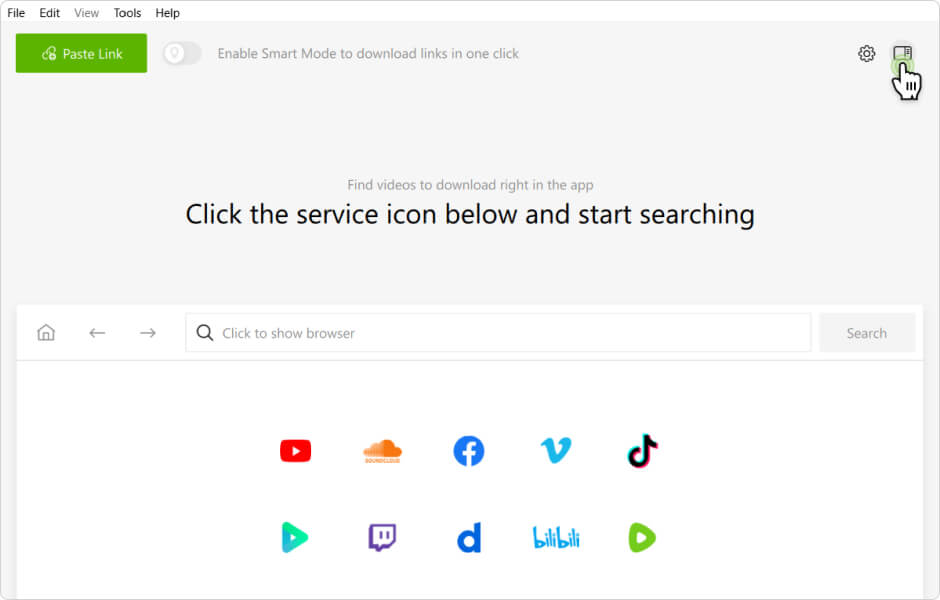
Öffnen Sie die Systemsteuerung. Klicken Sie auf das Systemsteuerung-Symbol in der oberen rechten Ecke des Anwendungsfensters.
-
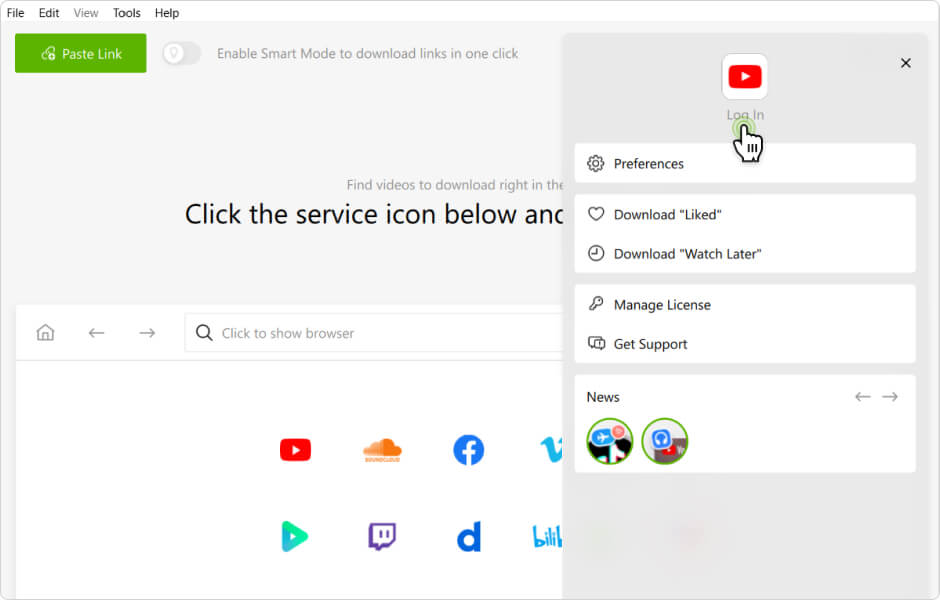
Klicken Sie auf Anmelden. Suchen Sie im Fenster Systemsteuerung die Schaltfläche Anmelden und klicken Sie darauf.
-
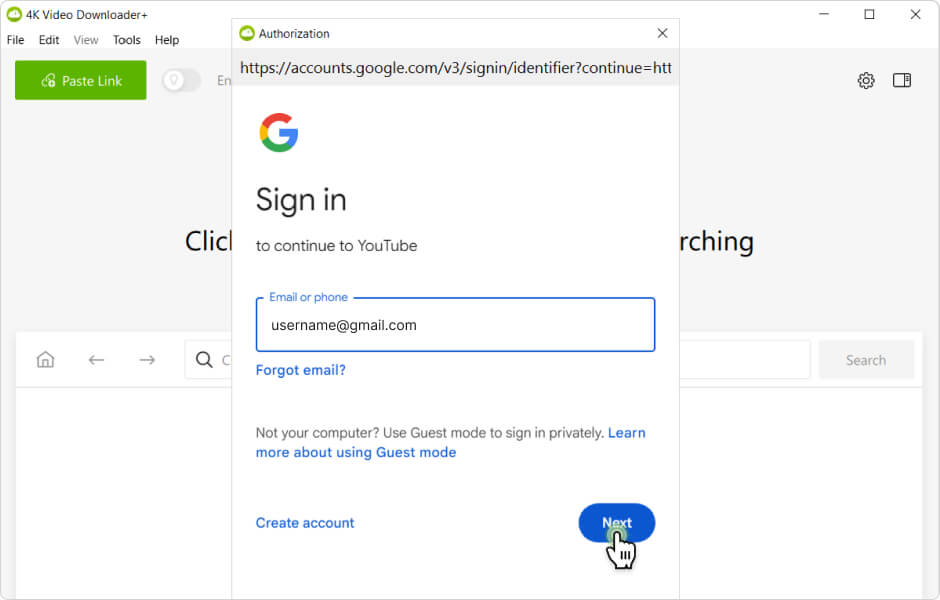
Mit Google anmelden. Geben Sie im geöffneten Google-Anmeldefenster die E-Mail-Adresse oder Telefonnummer ein, die mit Ihrem YouTube-Konto verknüpft ist, und klicken Sie auf Weiter.
-
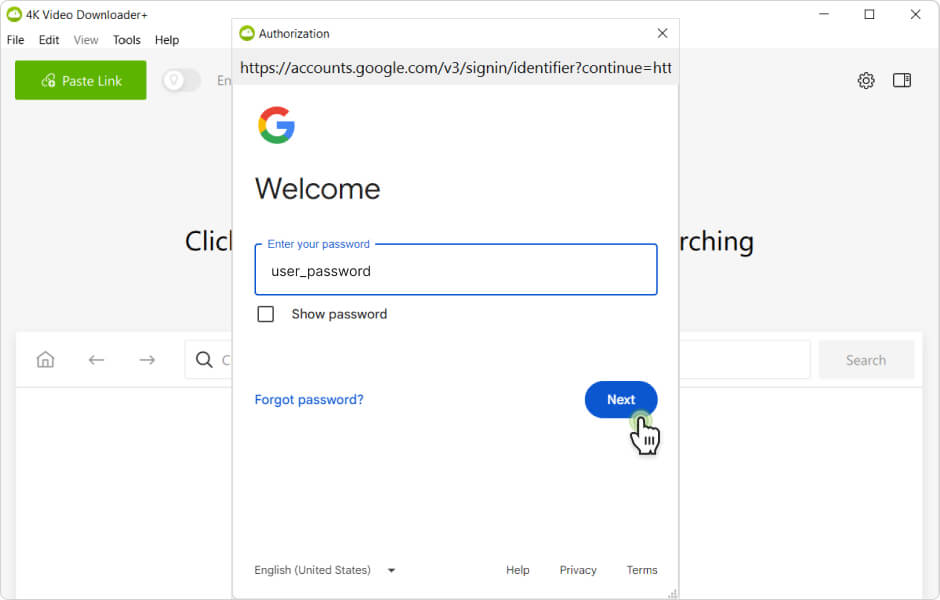
Geben Sie Ihr Passwort ein. Geben Sie Ihr Google-Konto-Passwort ein und klicken Sie auf Weiter, um fortzufahren.
-
Schließen Sie zusätzliche Verifizierungen ab. Falls erforderlich, lösen Sie ein CAPTCHA oder bestätigen Sie Ihre Identität mit der Zwei-Faktor-Authentifizierung oder einer anderen Verifizierungsmethode.
-
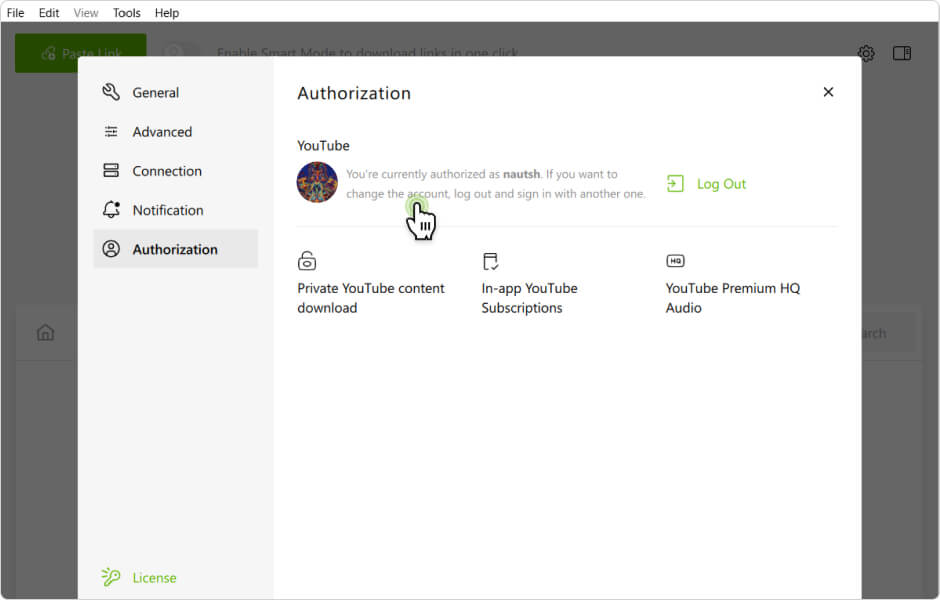
Stellen Sie sicher, dass Sie angemeldet sind. Nach einer erfolgreichen Anmeldung überprüfen Sie, ob die App anzeigt, dass Sie mit Ihrem YouTube-Konto autorisiert sind. Dies können Sie entweder über die Systemsteuerung oder über Werkzeuge > Einstellungen > Autorisierung tun.