
How to Download a 720p or 1080p YouTube Video
YouTube hosts a wide variety of videos, including tutorials, music performances, documentaries, and general entertainment. Videos in 720p have a resolution of 1280 by 720 pixels, which is suitable for smaller screens or when bandwidth is limited. Videos in 1080p have a higher resolution of 1920 by 1080 pixels, providing greater detail, especially noticeable on larger displays.
4K Video Downloader Plus is a cross-platform tool for Windows, Mac, and Linux that allows you to download YouTube videos in multiple resolutions, including 720p and 1080p. It supports various formats and provides options for subtitles, playlists, and channels. Follow the steps below to download YouTube videos in your preferred resolution.
How to Download a YouTube Video in 720p or 1080p on Desktop
1. Install the desktop app. Download 4K Video Downloader Plus and install it on your computer. It’s available for Windows, macOS, and Linux.
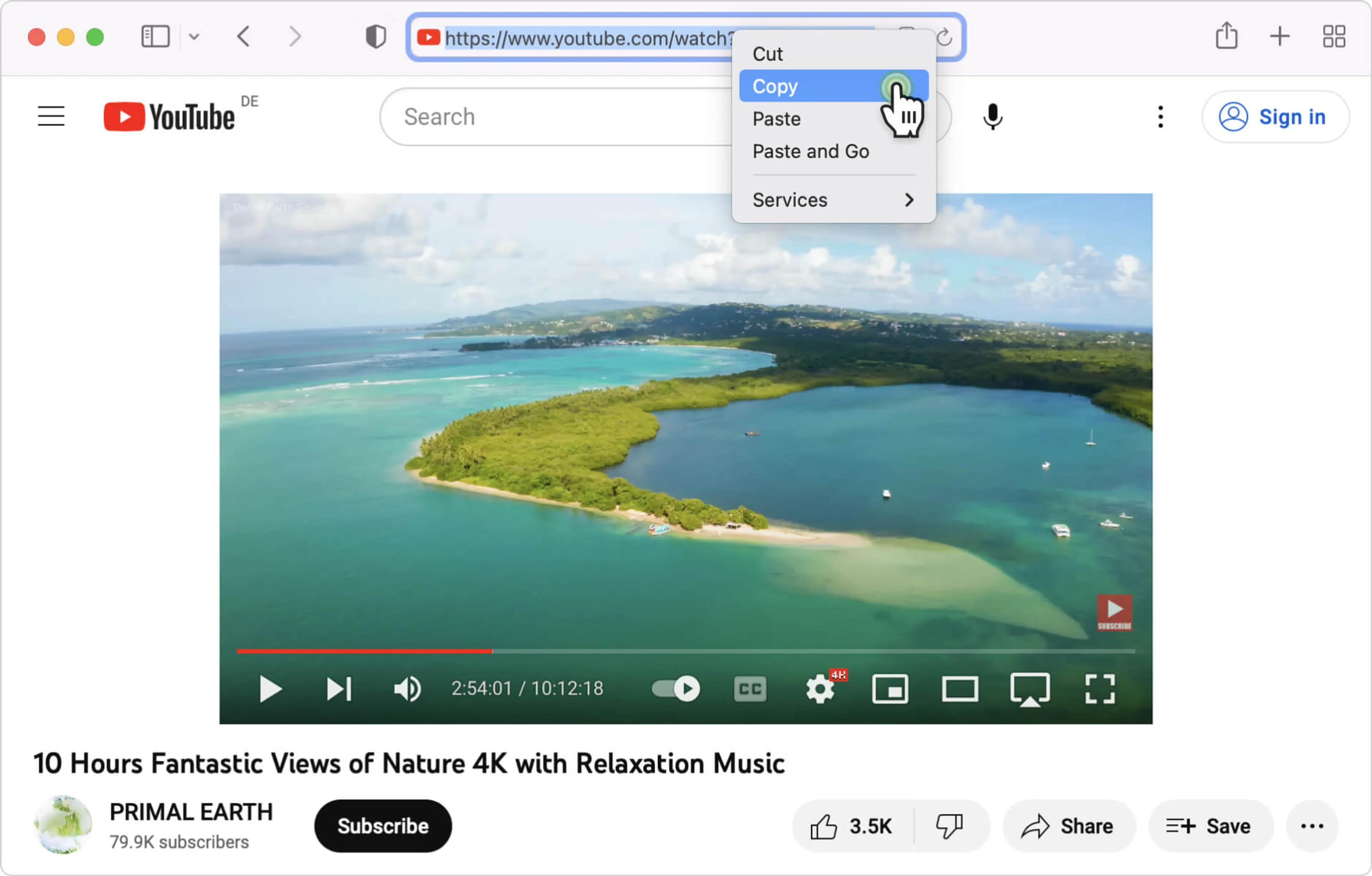
2. Copy the video link. Open the desired YouTube video in your browser and copy the URL from the address bar.
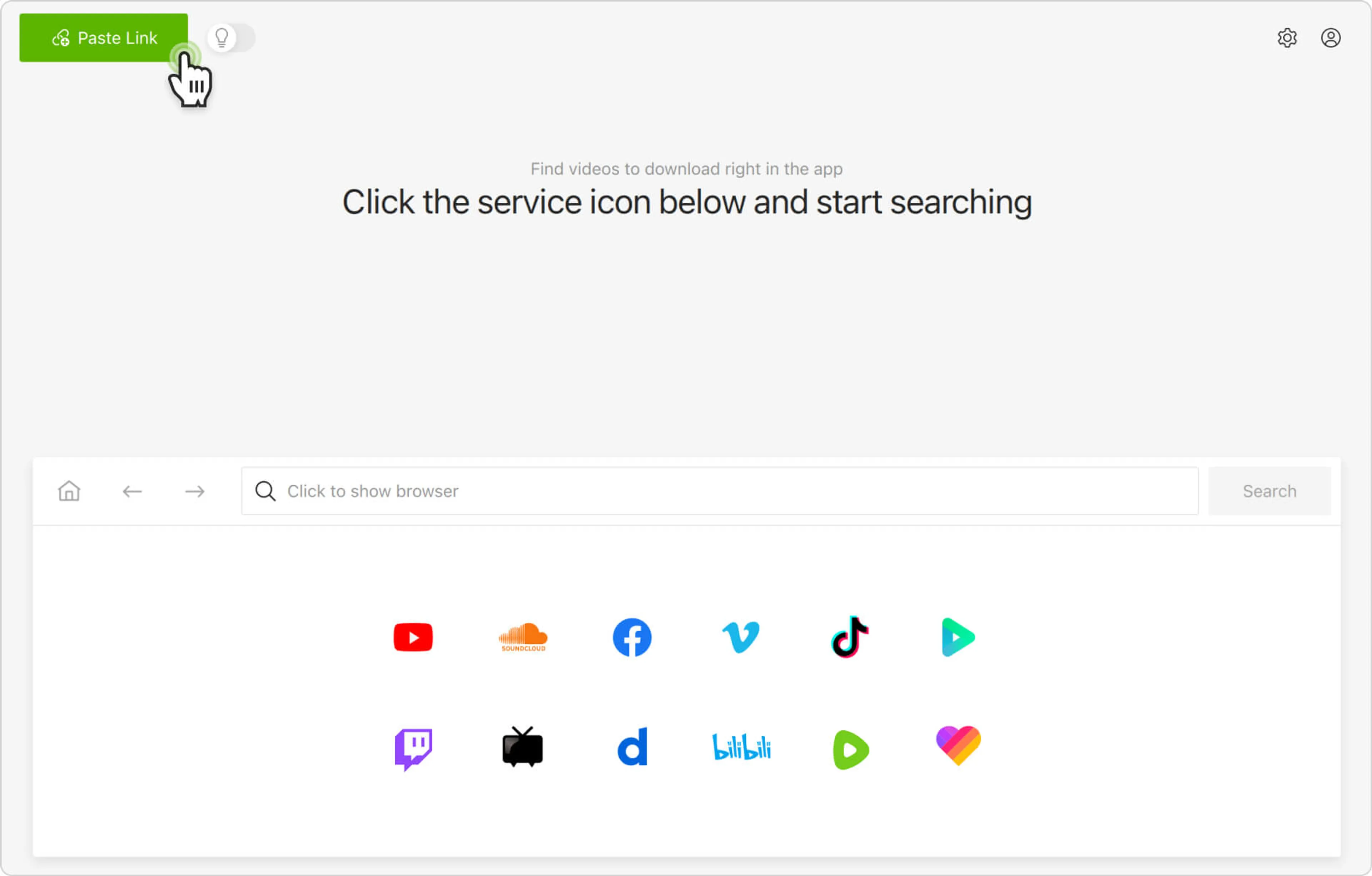
3. Paste the link into the desktop app. Launch 4K Video Downloader Plus and click the Paste Link button.
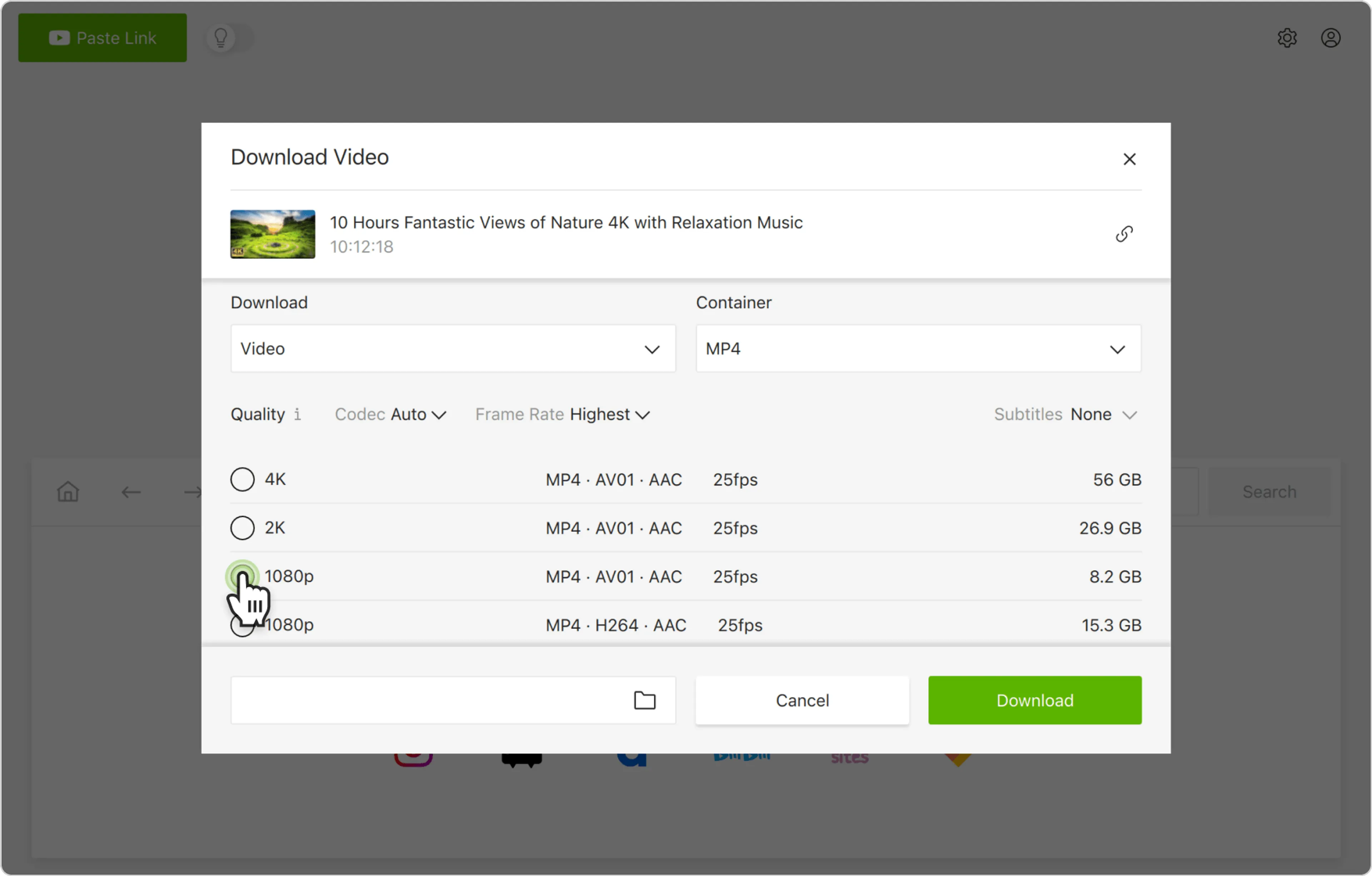
4. Select download parameters. Choose the video format, pick the 720p or 1080p resolution, and set the output folder.
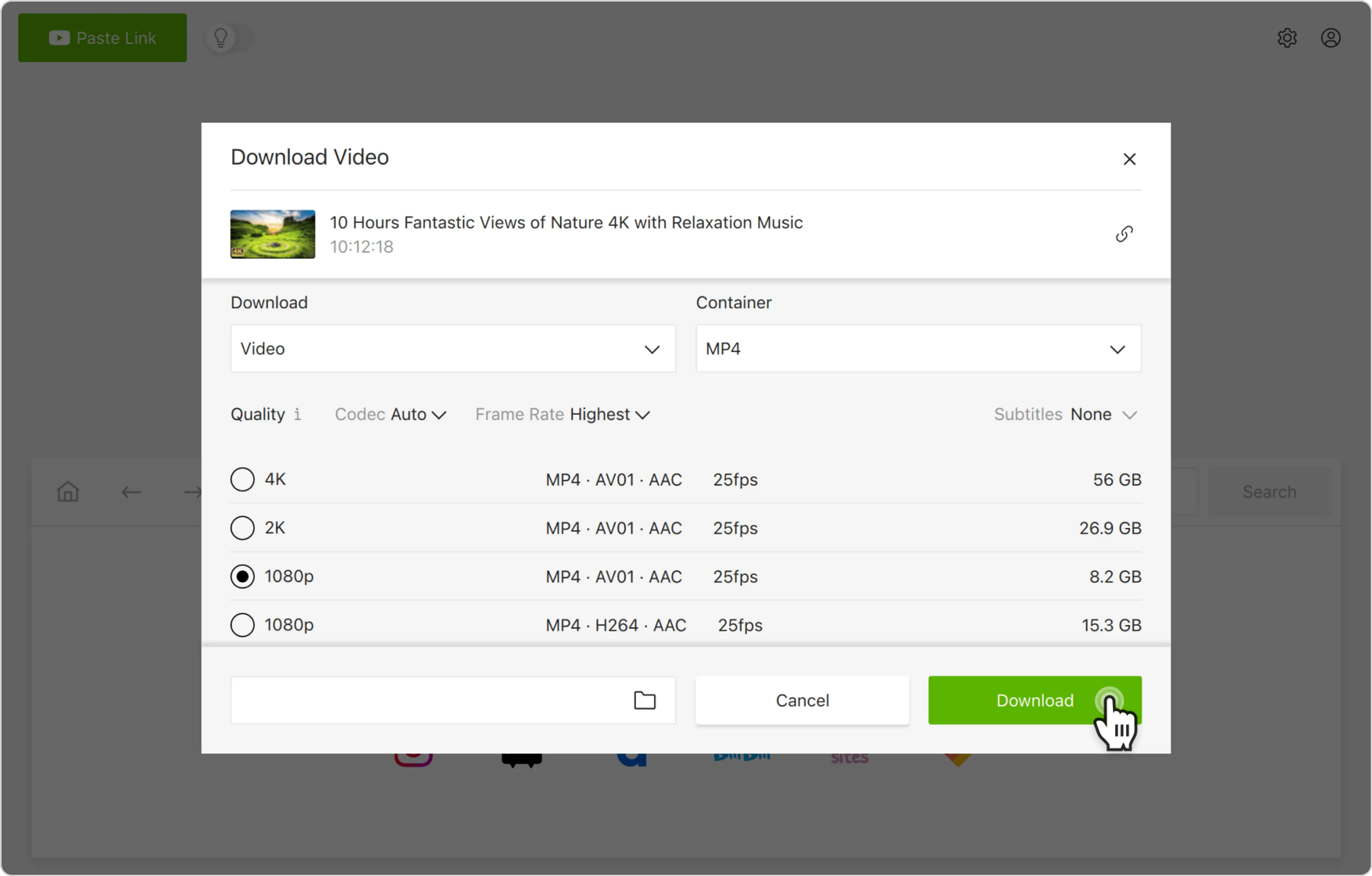
5. Start the download. Click the Download button and wait for the process to complete. The video will be saved to the specified folder.
Alternatively, you can find and download HD YouTube videos through the in-app browser. This way, you can browse YouTube without leaving the application and download content on the spot.