
How to Download a YouTube Playlist in MP3, M4A, and OGG
YouTube hosts a wide variety of audio content, ranging from copyright-free music by independent artists to user-generated playlists organized by genre, mood, and tempo. Many users turn to YouTube to discover new tracks and build diverse audio collections.
4K YouTube to MP3 offers a way to download full YouTube playlists in popular audio formats such as MP3, M4A, and OGG. You can select the audio quality and designate a folder for saving files, making it easier to organize your downloads. Follow the steps below to download YouTube playlists in MP3 and other audio formats for offline playback on any supported device.
1. Download and install the app. Get 4K YouTube to MP3. install it on your Windows, Mac, or Linux computer.
2. Open the app. Launch 4K YouTube to MP3 to start converting playlists to audio.
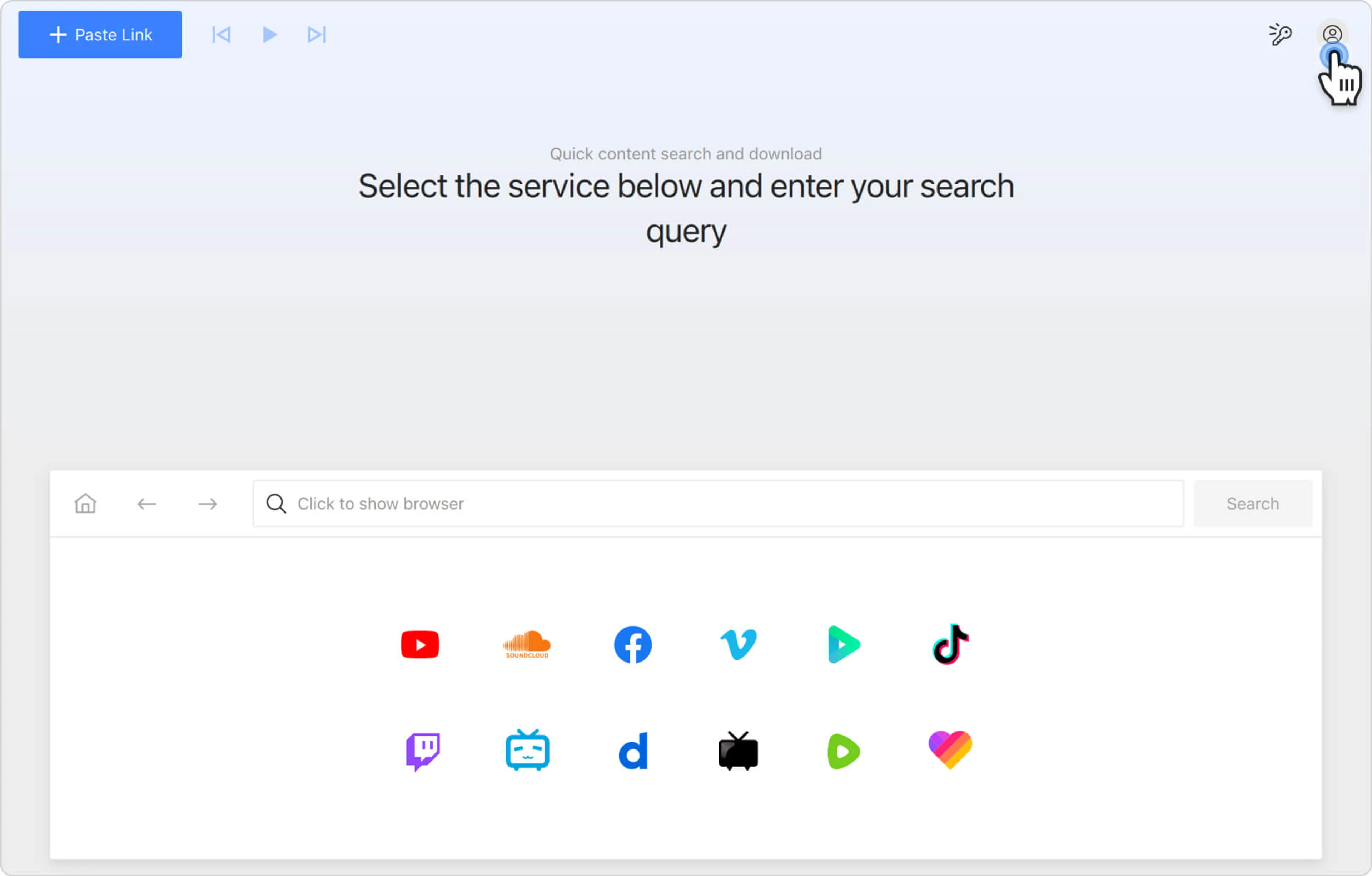
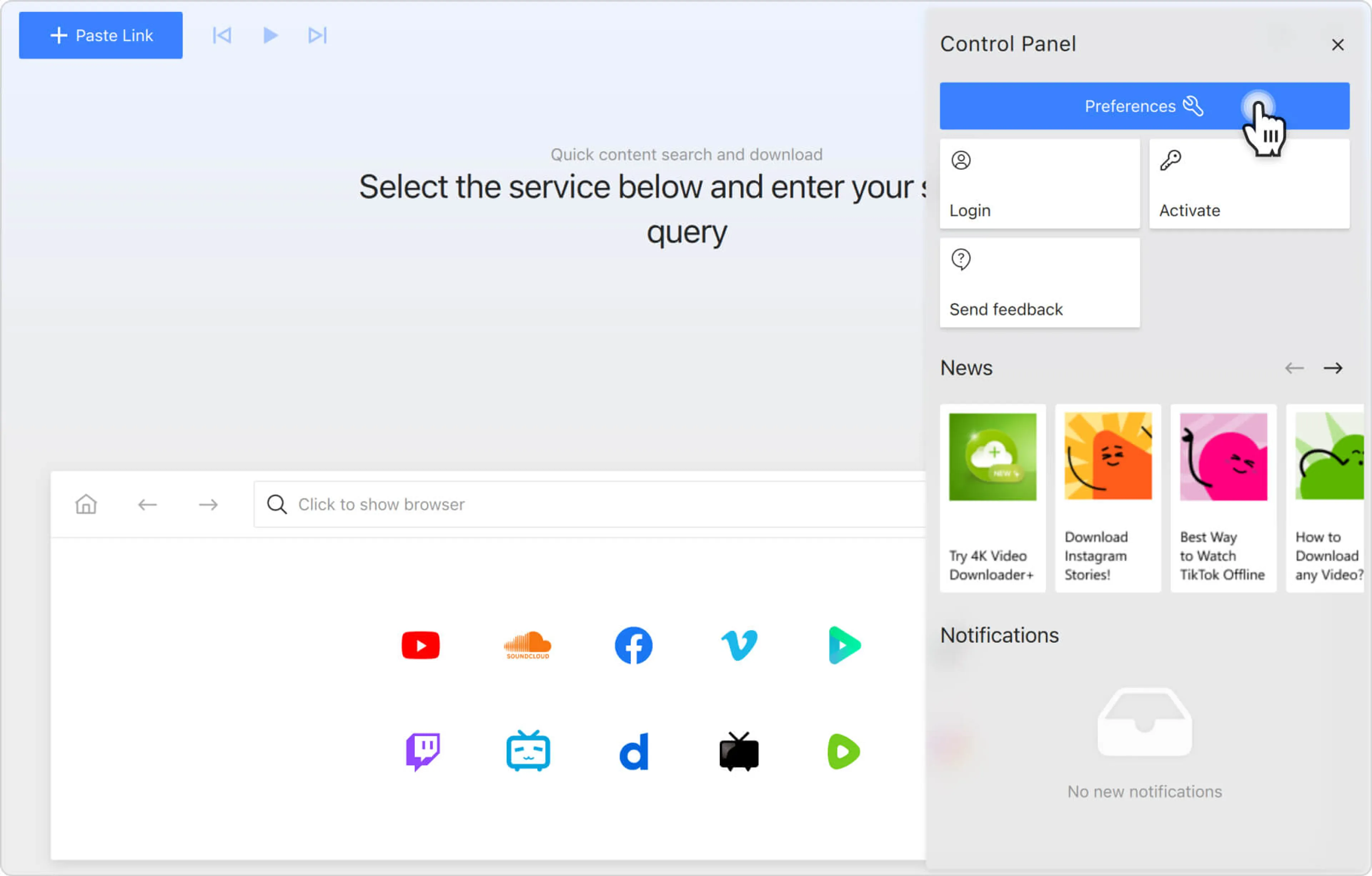
3. Set your preferences. Click Tools > Preferences in the menu bar.
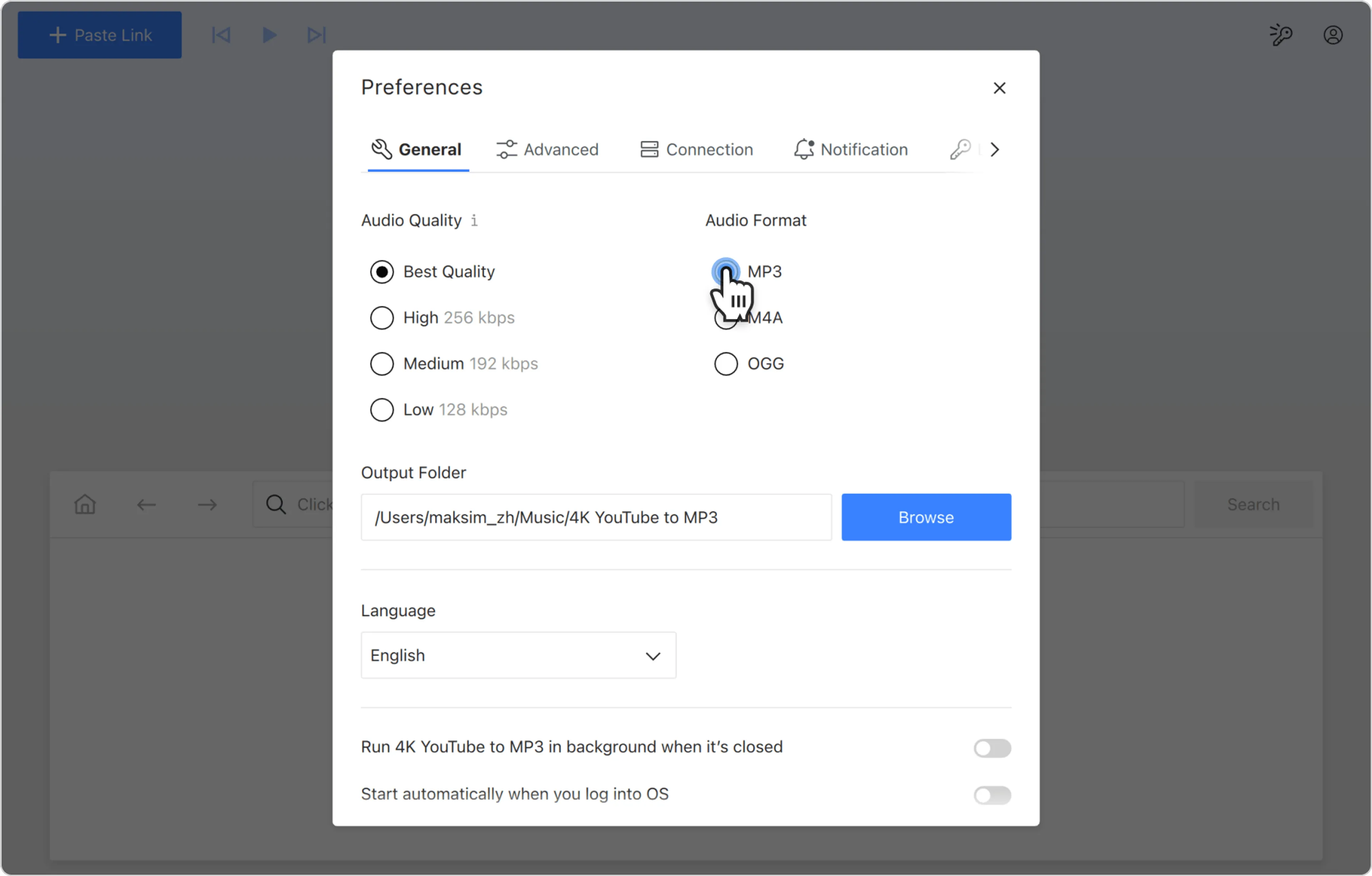
Select your preferred audio quality, file format (MP3, M4A, or OGG), and destination folder where the files will be saved.
4. Copy the YouTube playlist link. Find the playlist you want to download in your browser and copy its URL from the address bar.
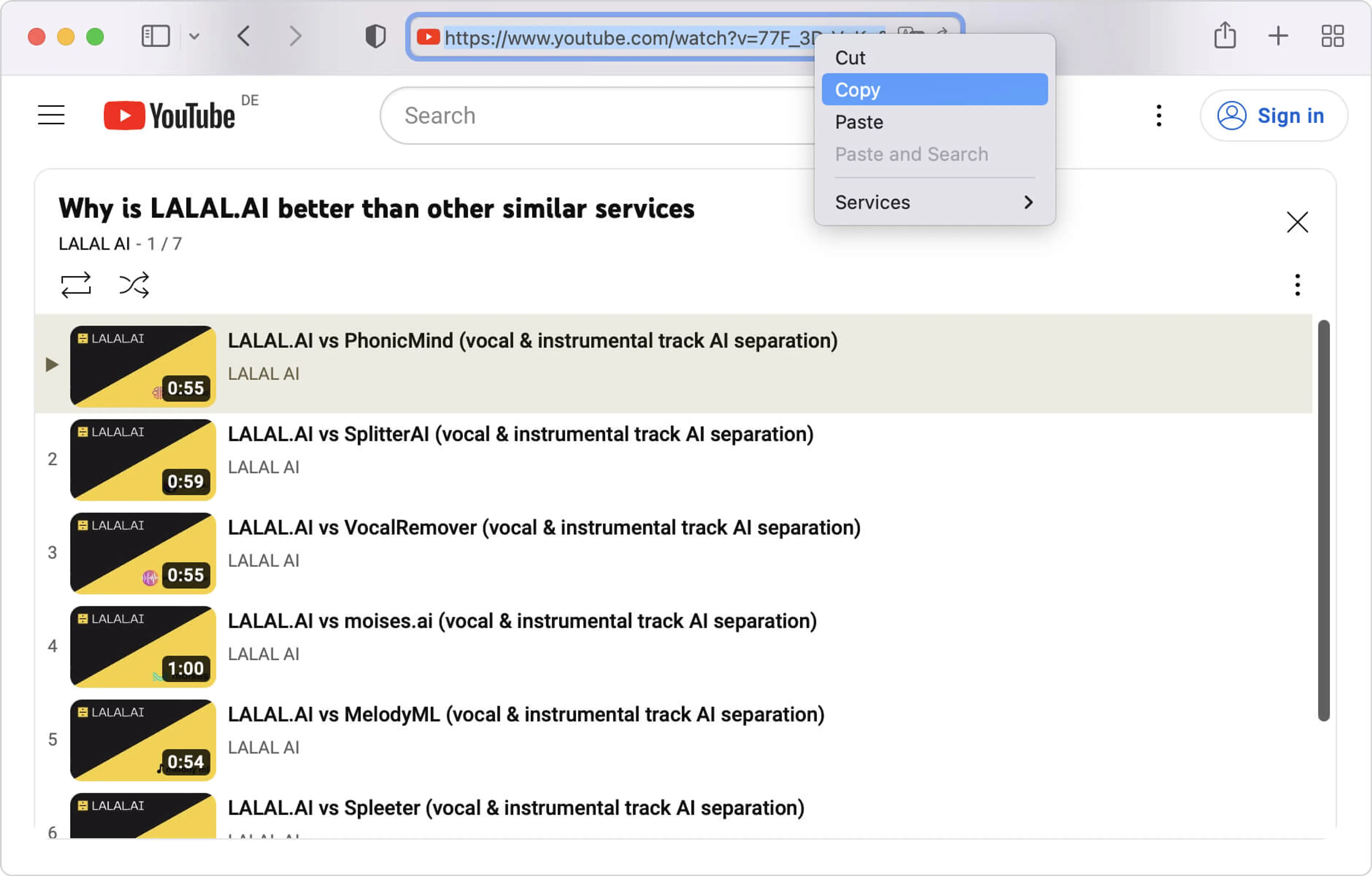
5. Paste the link into the app. Click the Paste Link button in 4K YouTube to MP3. The app will parse the playlist URL and start downloading the audio.
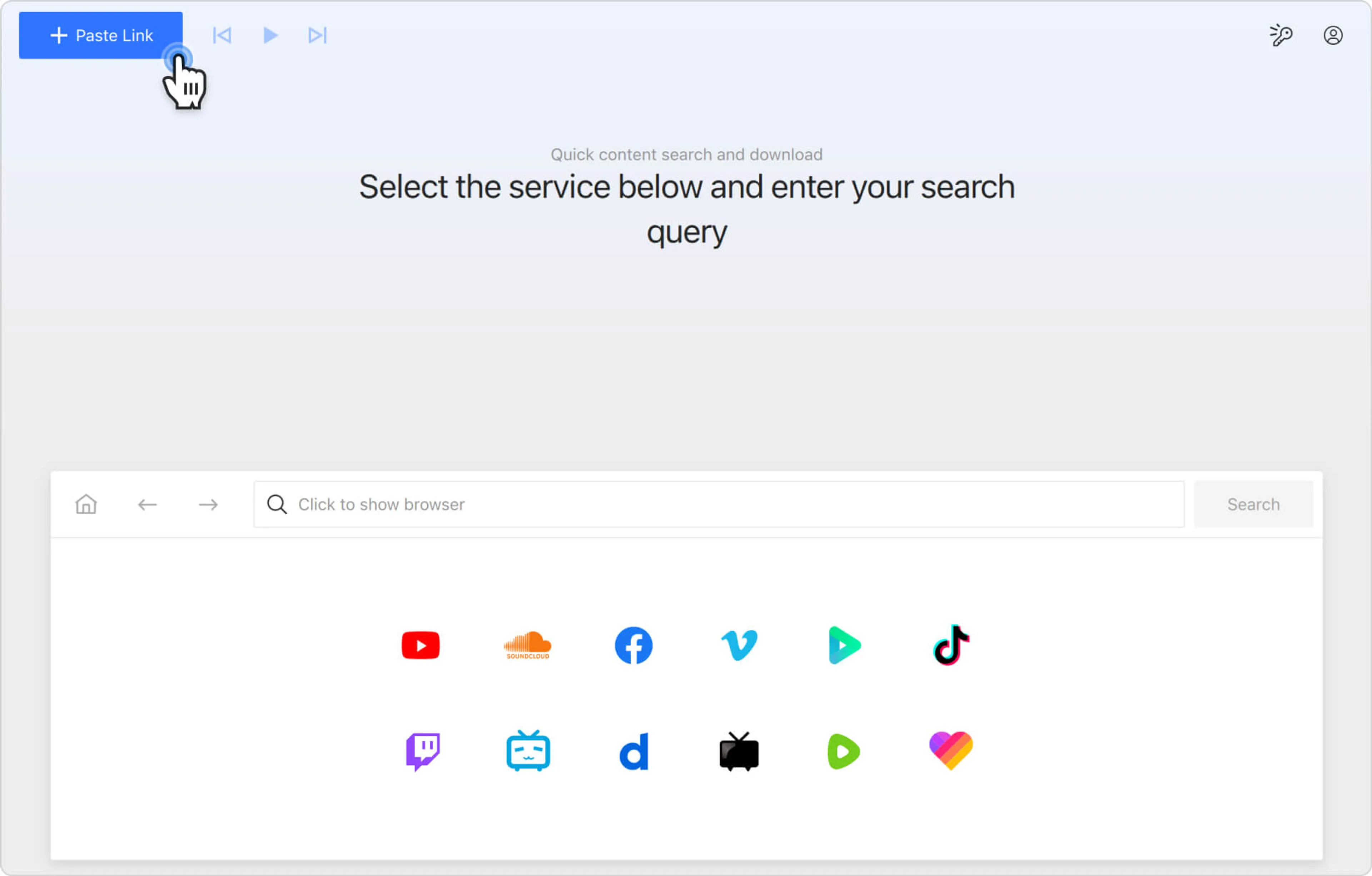
Wait until the download is finished and enjoy listening to the YouTube playlist whenever you want.
Alternatively, you can find and convert YouTube playlists to MP3, M4A, or OGG through the in-app browser. This way, you can browse YouTube without leaving the application and download content on the spot.
How to Download a YouTube Playlist in MP3 or M4A on Android
While 4K YouTube to MP3 is only available on desktop, you can download YouTube playlists in audio formats on Android using the app from the same developer, 4K Video Downloader for Android.
1. Install the Android app. Download and install 4K Video Downloader for Android from the official product page.
2. Configure audio settings. Open the app, tap the settings icon, select Audio format, choose MP3 or M4A, and set the destination folder.
3. Get the playlist link. Launch the YouTube app or open YouTube in your mobile browser, then find the playlist you want to convert to audio. Copy the video URL.
4. Paste the link into the app. In 4K Video Downloader for Android, tap the Paste Link button. The playlist will start downloading to your device.
That’s it! Now, you know how to download YouTube videos in MP3, M4A, and OGG formats on your desktop and mobile devices.