
How to Download a YouTube Channel
YouTube channels often contain hundreds or thousands of videos covering diverse topics from creators around the world. Downloading an entire channel manually can be time-consuming and cumbersome. 4K Video Downloader Plus simplifies this process by allowing you to download full YouTube channels with just a few clicks, preserving original video quality.
The app supports Windows, macOS, and Linux, offering users flexible options to select video formats, quality settings, subtitle languages, and more. It also supports downloading age-restricted and private YouTube videos you have access to. Follow the steps below to download any YouTube channel in one go.
1. Download and install the app. Get 4K Video Downloader Plus and install it on your Windows, macOS, or Linux computer.
2. Launch the app. Double-click the 4K Video Downloader Plus icon to open the app.

3. Copy the channel link. Go to YouTube, find the channel you want to download, and copy its URL from the browser’s address bar.
4. Select the channel download option. From the download options menu, select Download the Channel.
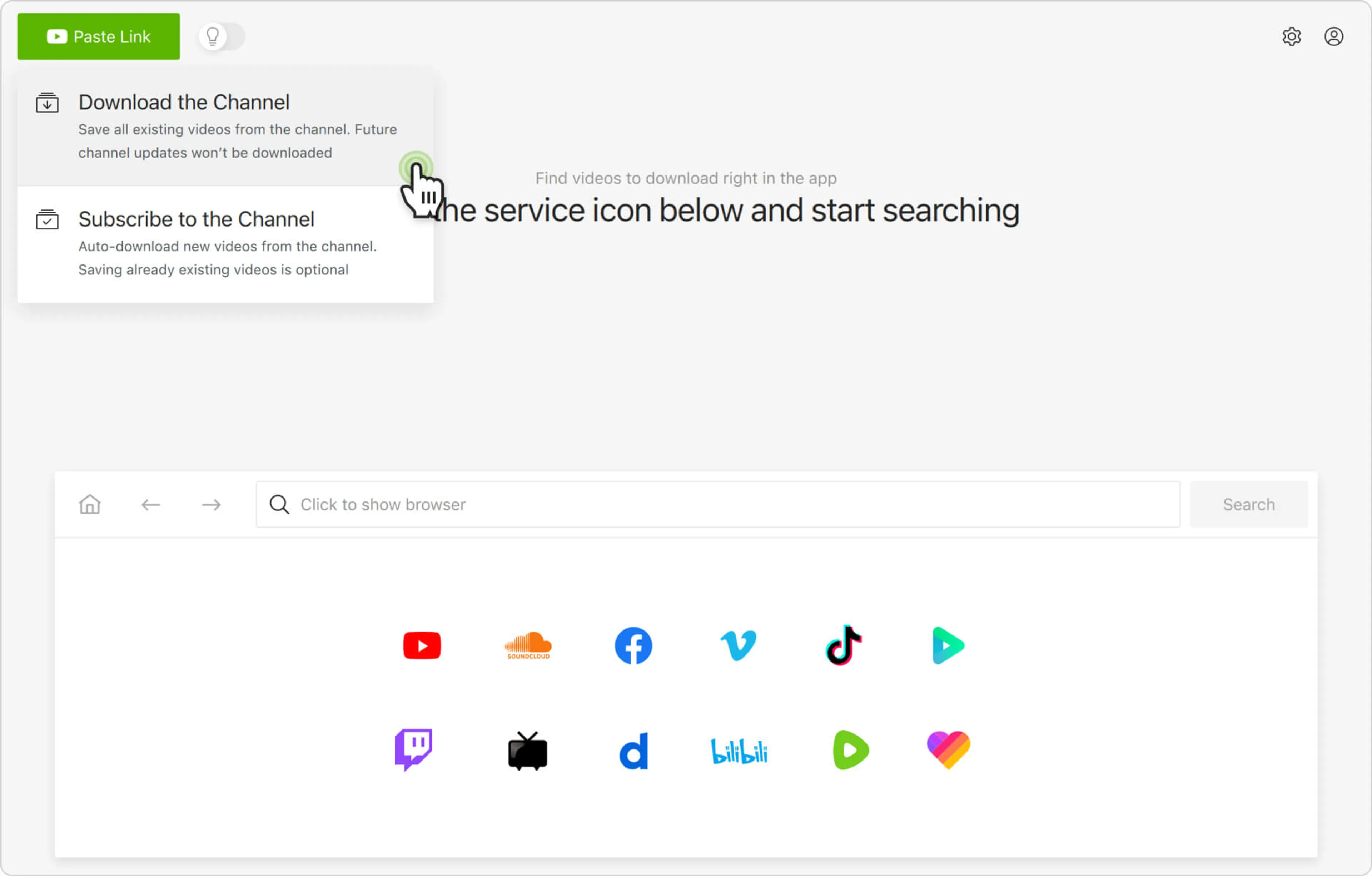
5. Select download parameters. Choose the video format, quality, and destination folder on your computer.
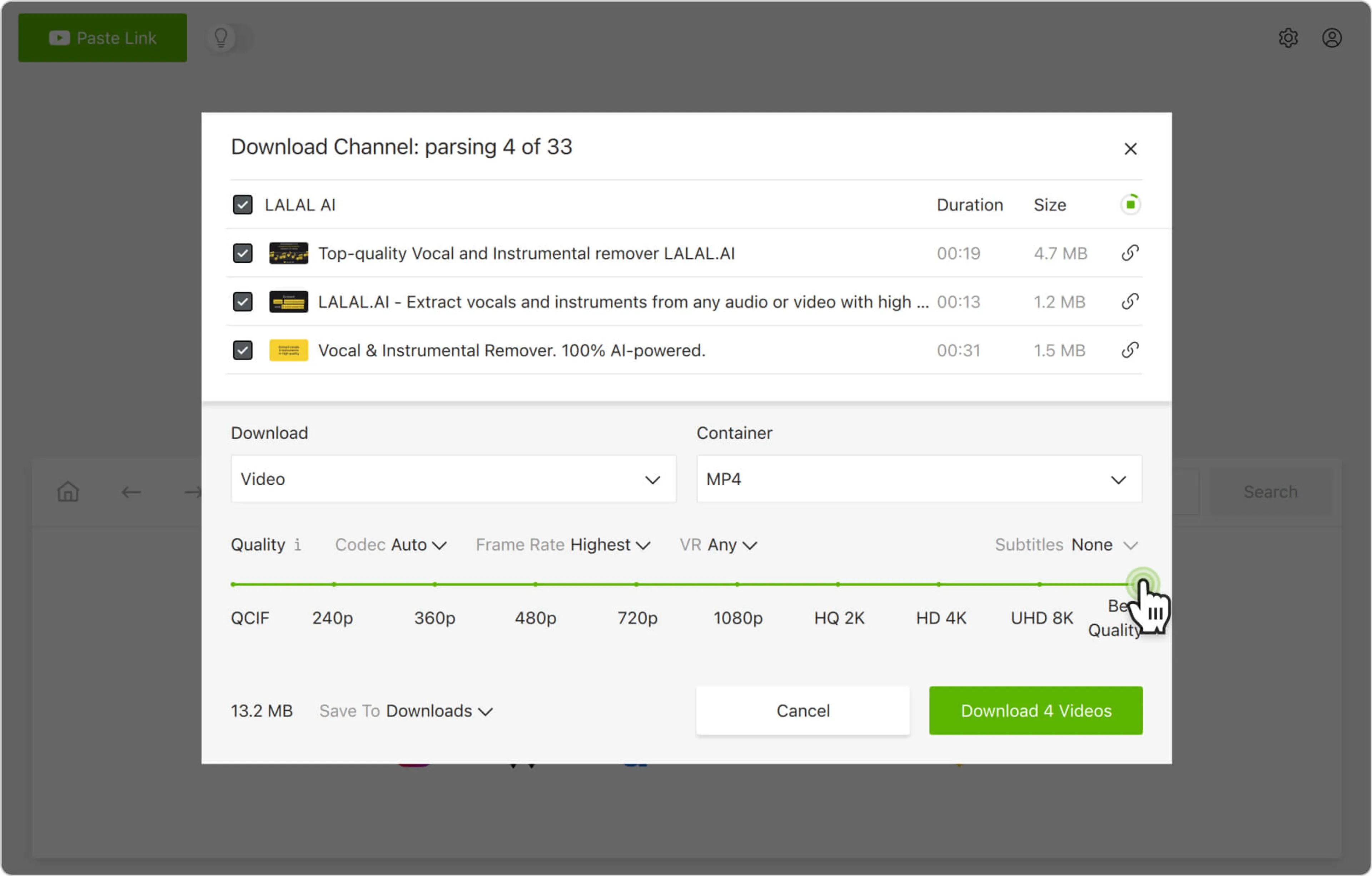
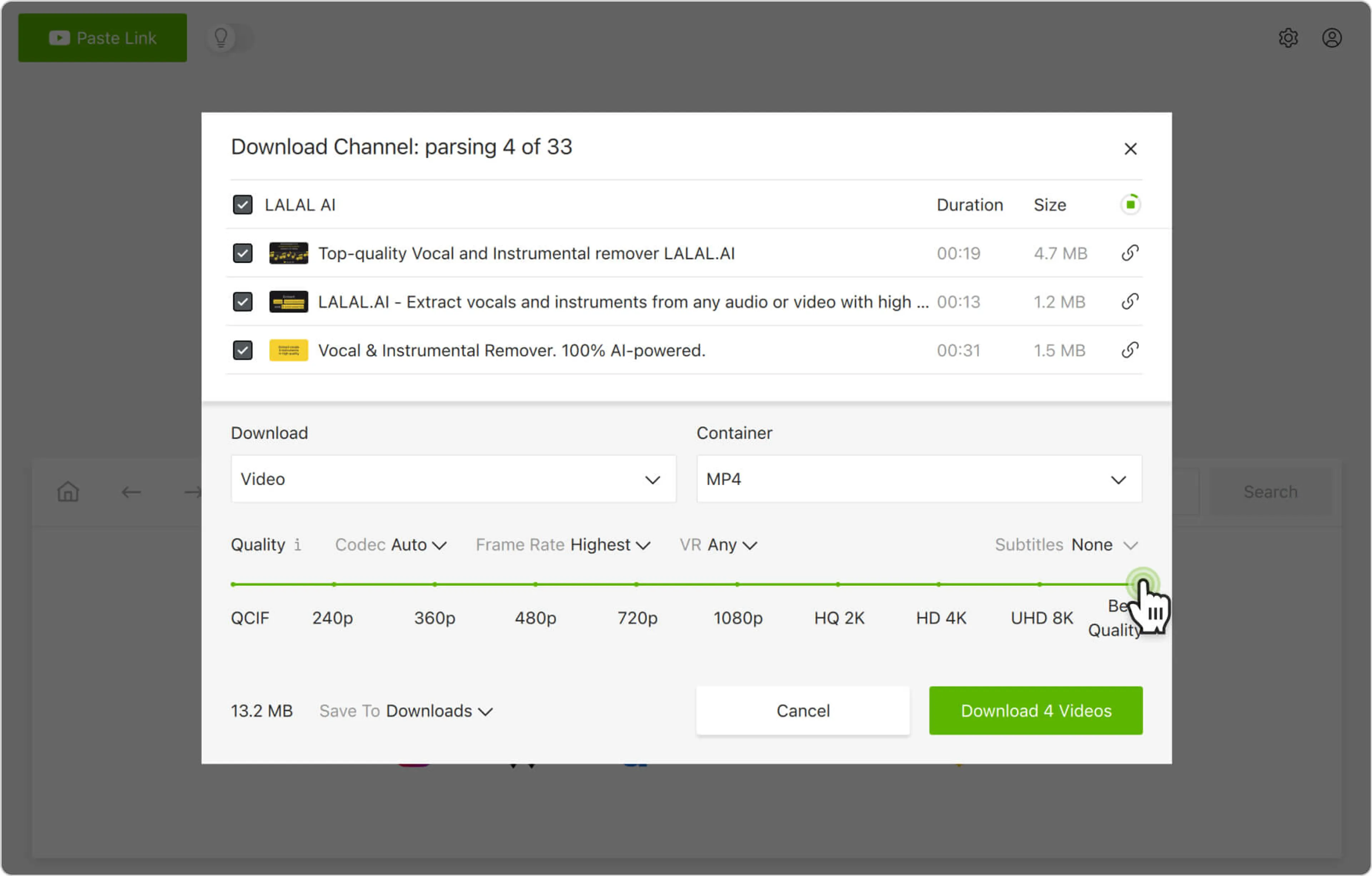
6. Start the download. Click the Download button and wait for the process to complete. The videos from the channel will be saved to the specified folder.
Alternatively, you can find and download YouTube channels through the in-app browser. This way, you can browse YouTube without leaving the application and download content on the spot.