
Many YouTube channels feature great audio content wrapped in video format, like sleep ambient sounds, study language lessons, podcasts, or guided meditations. People often prefer grabbing just the MP3 for offline playback on their phone, computer, or music player. Instead of downloading bulky videos only for the sound, 4K YouTube to MP3 pulls the audio straight into high-quality MP3s. If you want to extract MP3 files from an entire YouTube channel at once, follow the simple steps below.
1. Install the app. Download 4K YouTube to MP3 and install it on your computer. It’s available for Windows, macOS, and Linux.
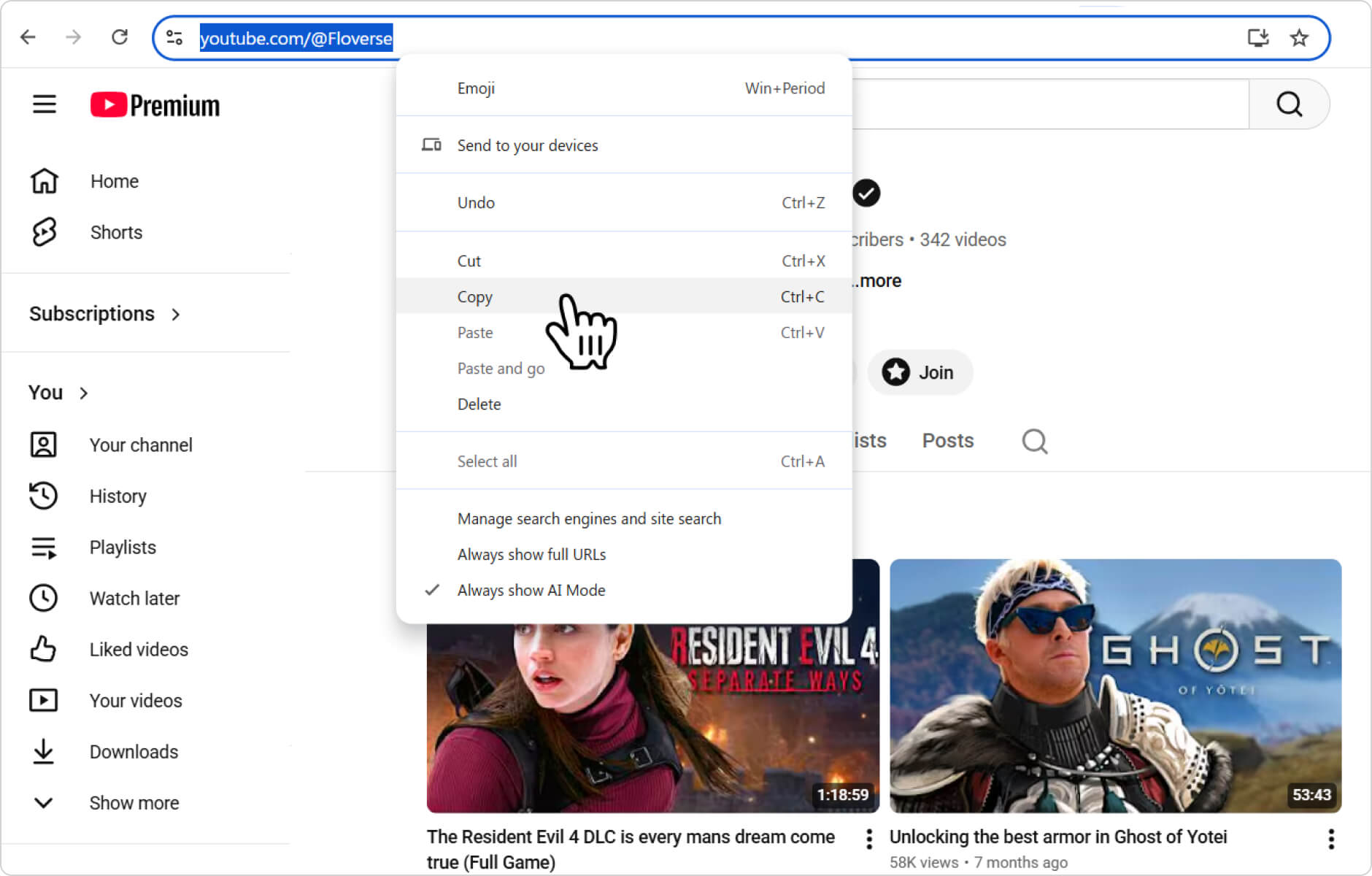
2. Get the channel URL. Copy the link to the YouTube channel you want to download in the MP3 format.
3. Add the URL. Launch 4K YouTube to MP3, then click the Paste Link button. The download will start automatically after the link is parsed.
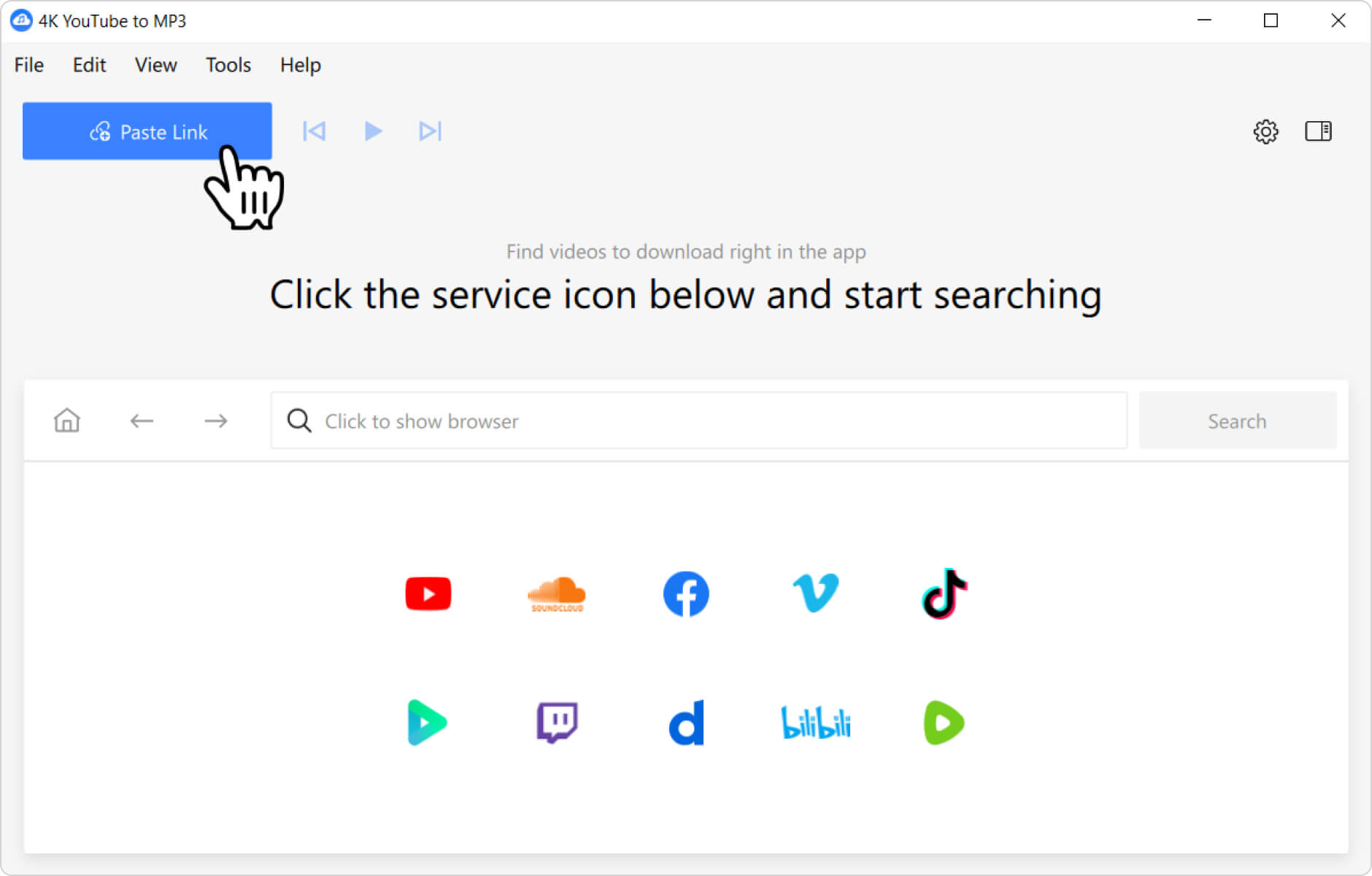
Wait a few minutes before all channel videos download. The speed depends on the YouTube channel size and your internet bandwidth.
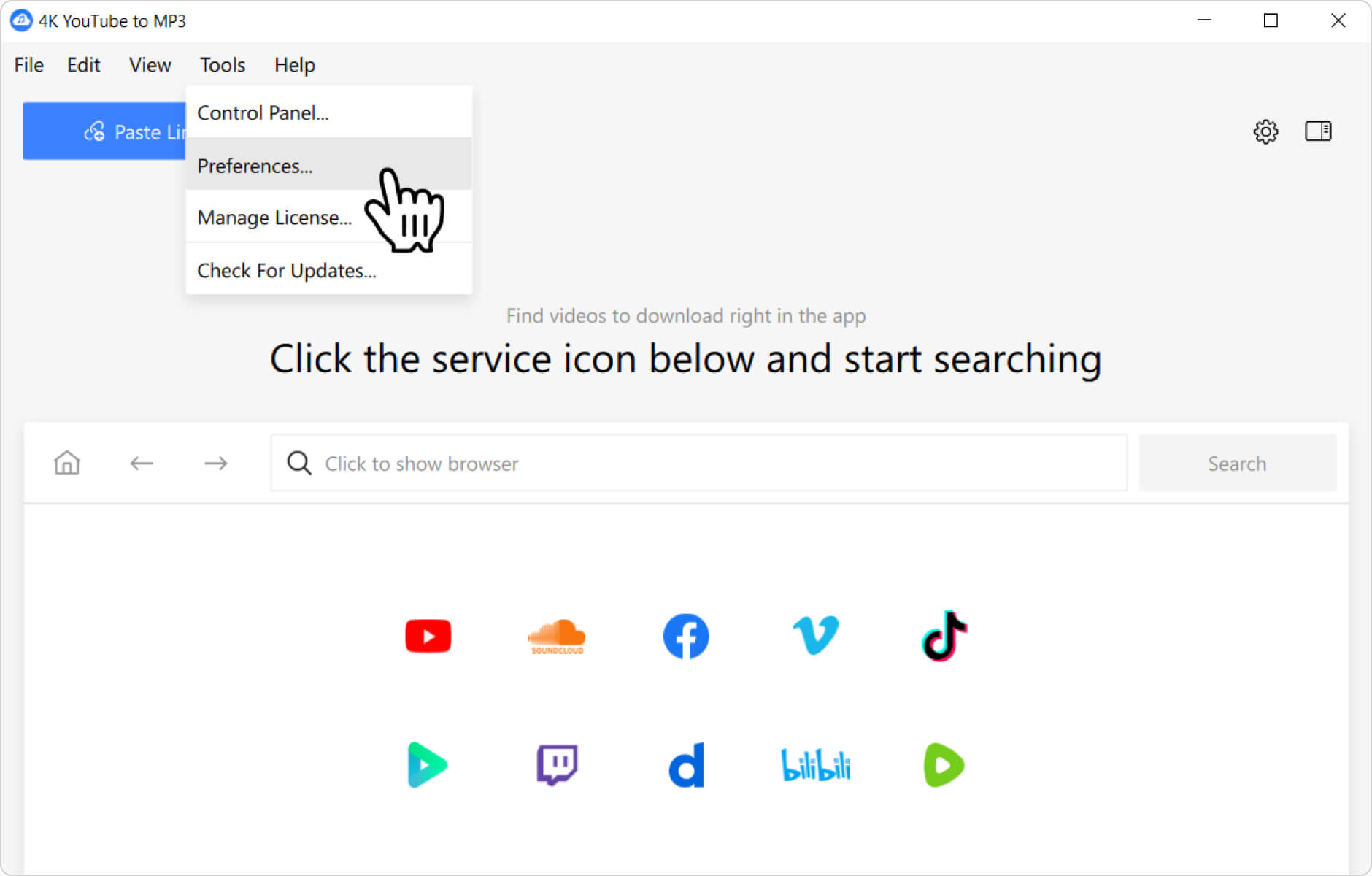
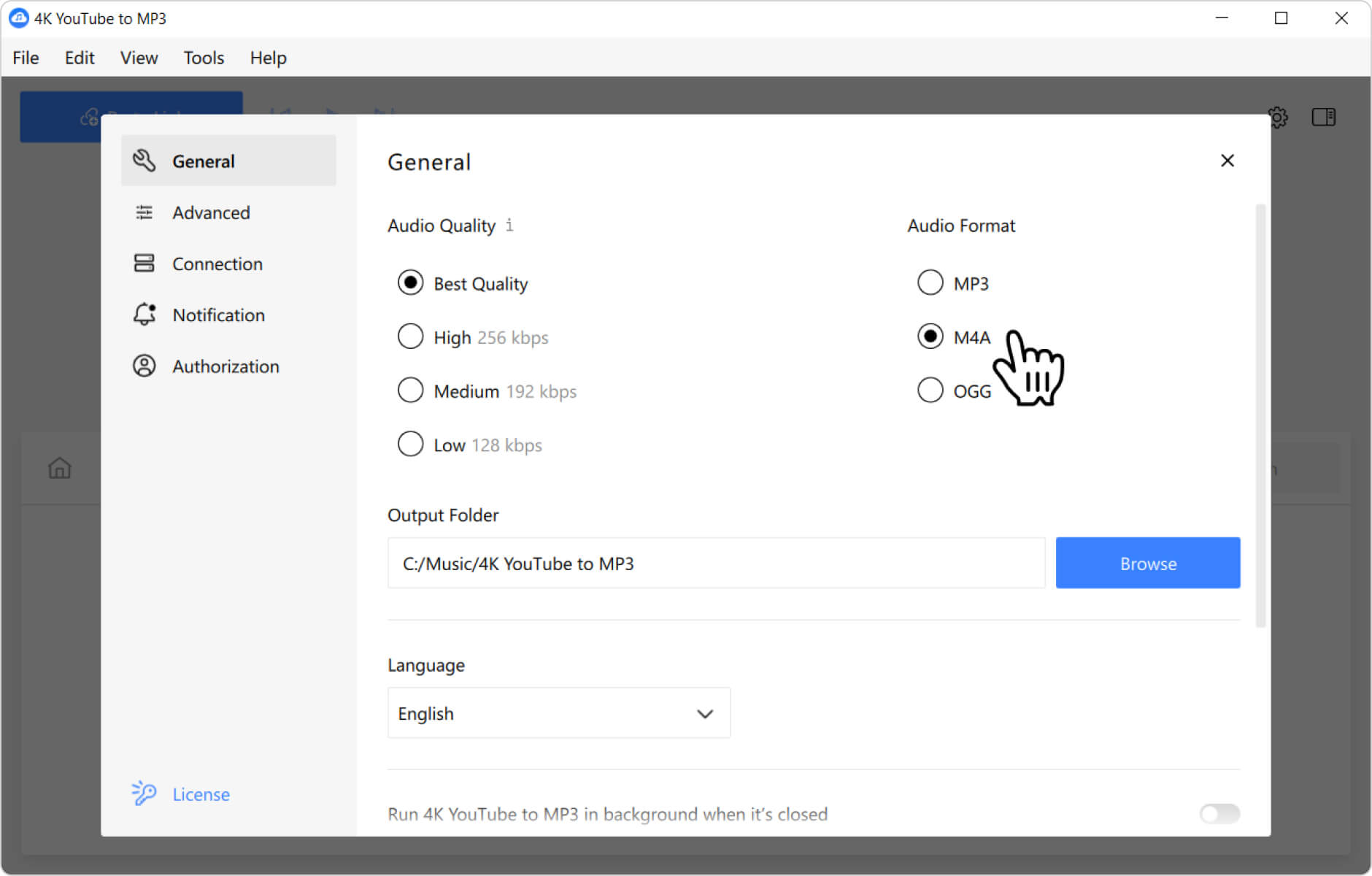
Tip: If you want to download a YouTube channel in M4A or OGG instead of MP3, you can change the preferred format in settings. Before you paste the link into the app, click Tools > Preferences at the menu bar.
In the opened settings window, select either M4A or OGG depending on your preference.
Once the YouTube channel is downloaded, you can listen to the audio on your computer or transfer the files to your phone, tablet, or portable music player for offline playback.