
How to Download a Private YouTube Video
Most YouTube downloaders can only save publicly available videos. Downloading private content, however, requires secure account access and software designed for this purpose. 4K Video Downloader Plus offers a convenient way to save your private or unlisted YouTube videos, as well as any other private content you have access to, including full playlists.
Advanced features like secure Google authentication and flexible format selection make it easy to store private videos on Windows, Mac, or Linux for offline viewing. Follow the steps below to download private YouTube videos and keep your media collection accessible anywhere.
1. Download and install the app. Get 4K Video Downloader Plus and install it on your Windows, macOS, or Linux computer.
2. Launch the app. Double-click the 4K Video Downloader Plus icon to open the app.
3. Open the settings. In the app’s menu bar at the top, click Tools and select Preferences.
In the pop-up window, select the Authorization tab, as shown below.

4. Log in to your YouTube account. Click the Log In button and enter your YouTube account credentials. The app uses secure Google authentication, ensuring your account data remains safe.

5. Copy the video link. Go to YouTube, find the private or unlisted video you want to download, and copy its URL from the browser’s address bar.
6. Paste the link into the app. Click the Paste Link button in 4K Video Downloader Plus to import the URL.

7. Select download parameters. Choose the video format, quality, and destination folder on your computer.
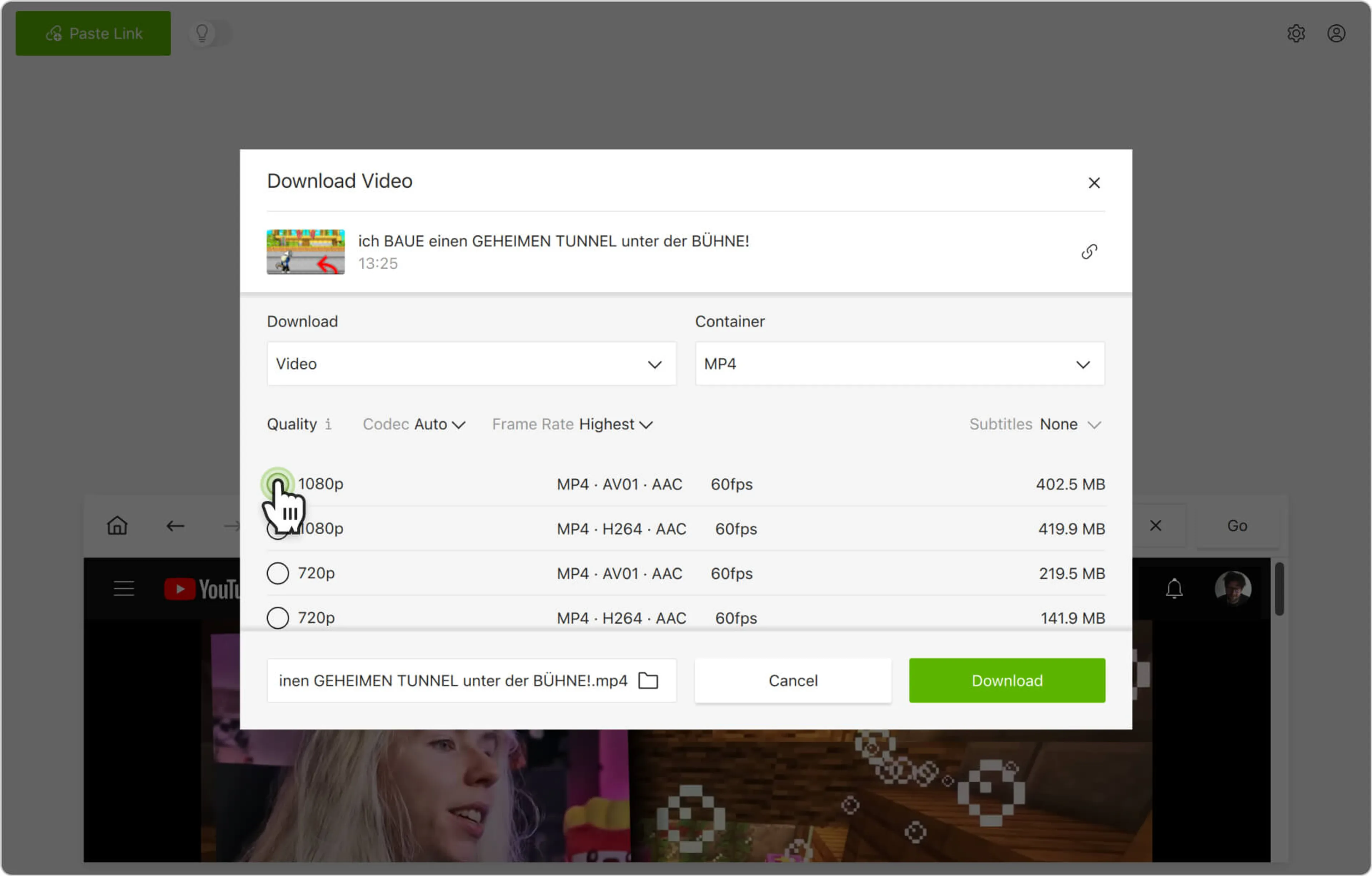
8. Start the download. Click the Download button and wait for the process to complete. The video will be saved to the specified folder.

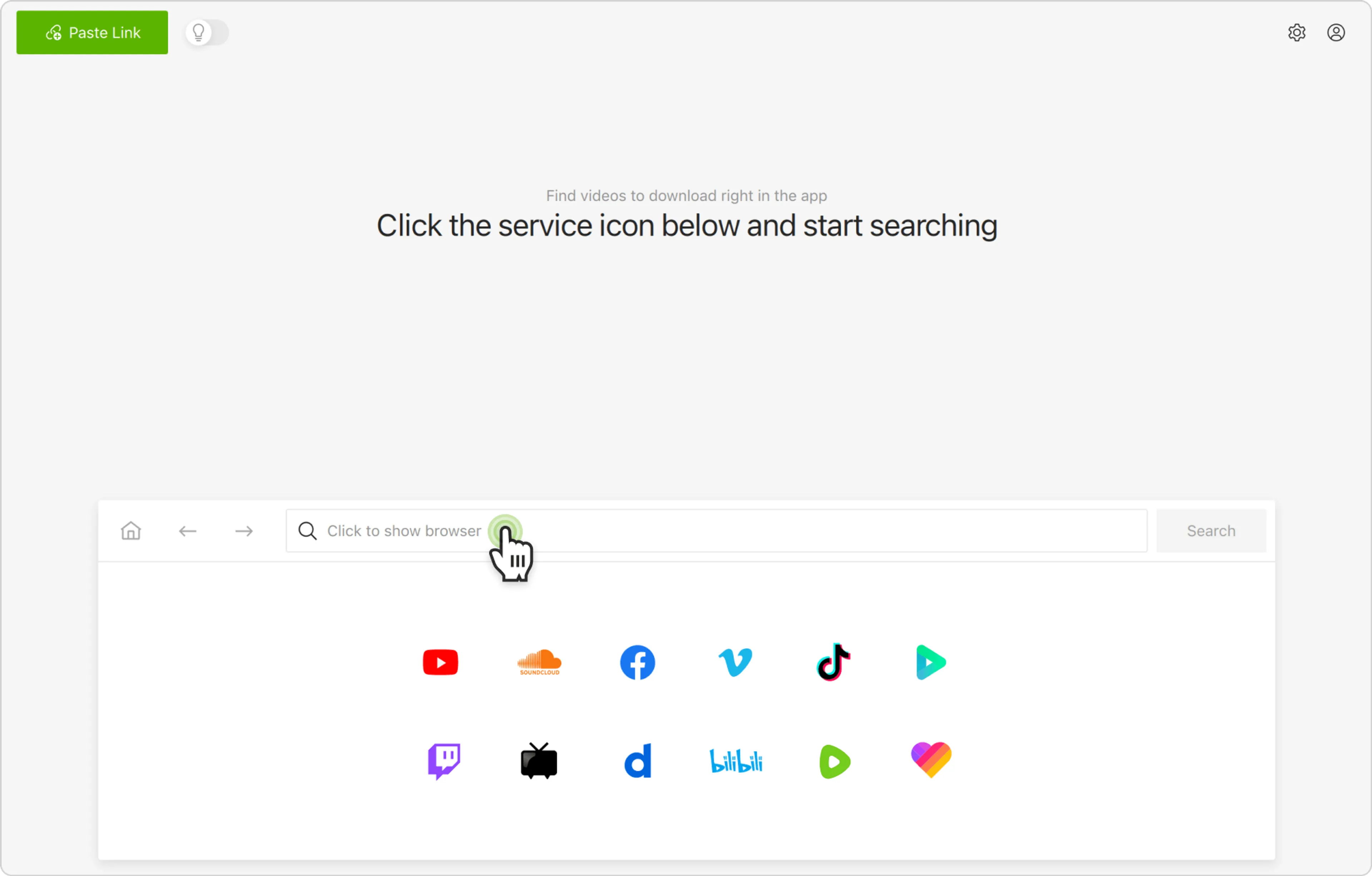
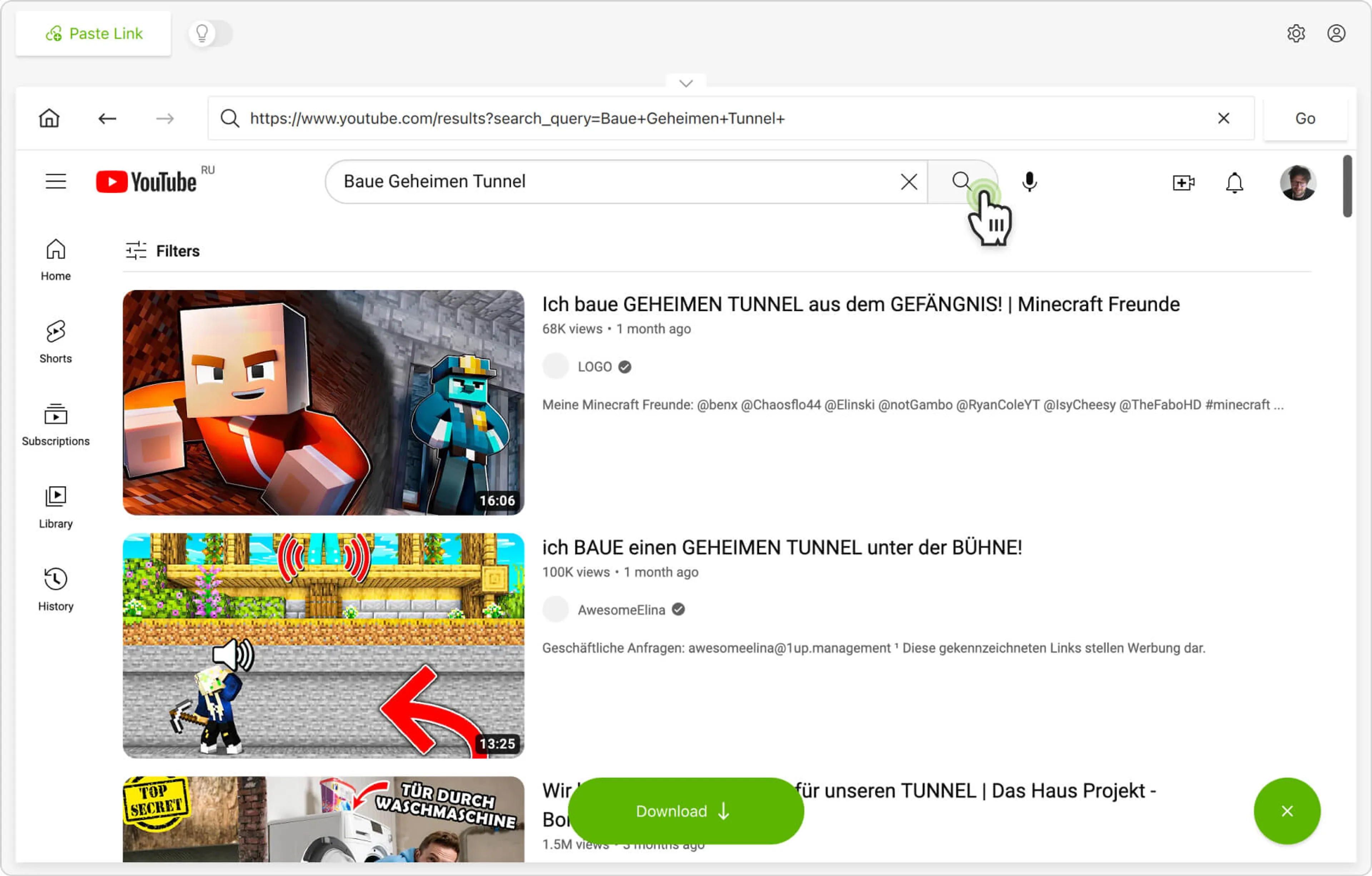
Alternatively, you can download a private YouTube video through the in-app browser. This way, you can browse YouTube without leaving the application and download content on the spot.