


How Do I Change the Output Folder in 4K Download Apps?
If you want your downloads to be saved in a specific location, each 4K Download app lets you set or update the output folder quickly and easily. Below you’ll find step-by-step instructions for every 4K Download product.
4K Video Downloader Plus
-
With Smart Mode enabled:
-
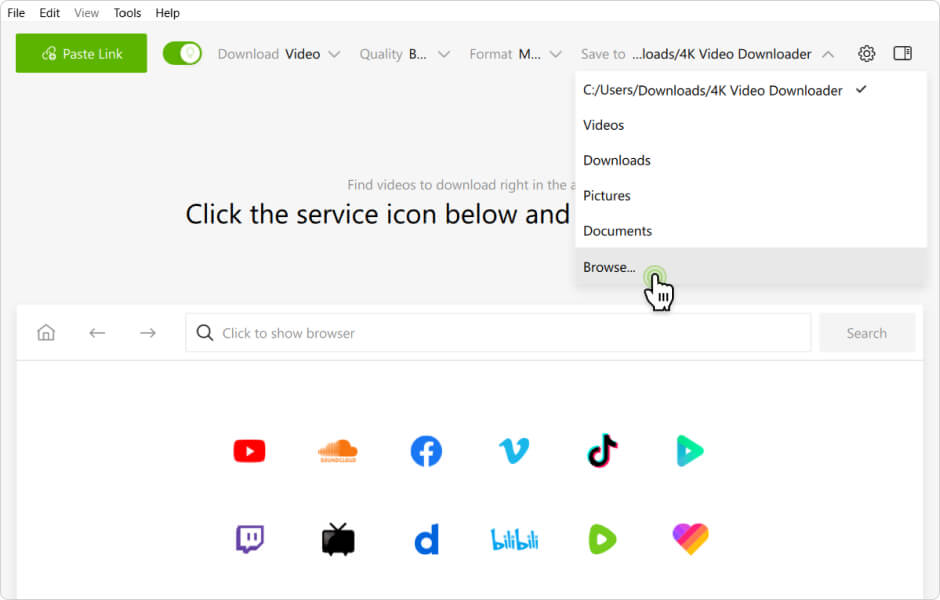
Open the Smart Mode settings (can be found on the toolbar).
-
Find the Save To field. There, you will also see the path of the current output folder.
-
Click Browse to select your new preferred folder.
-
-
With Smart Mode disabled:
Each time you paste a video link, the download window appears. In this window, click the folder path to choose a different location.
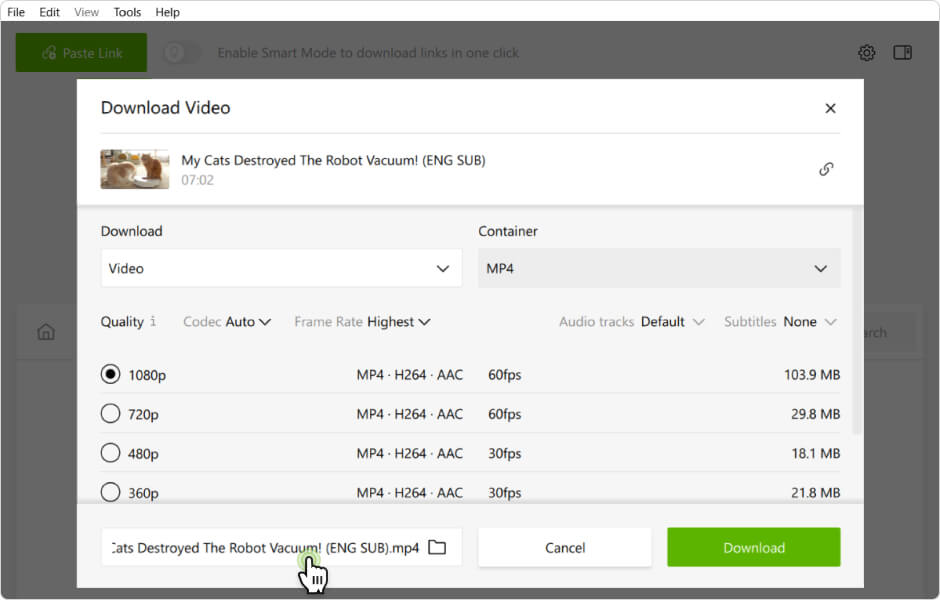
The current and all subsequent downloads will be saved to this folder until you choose another directory.
4K YouTube to MP3
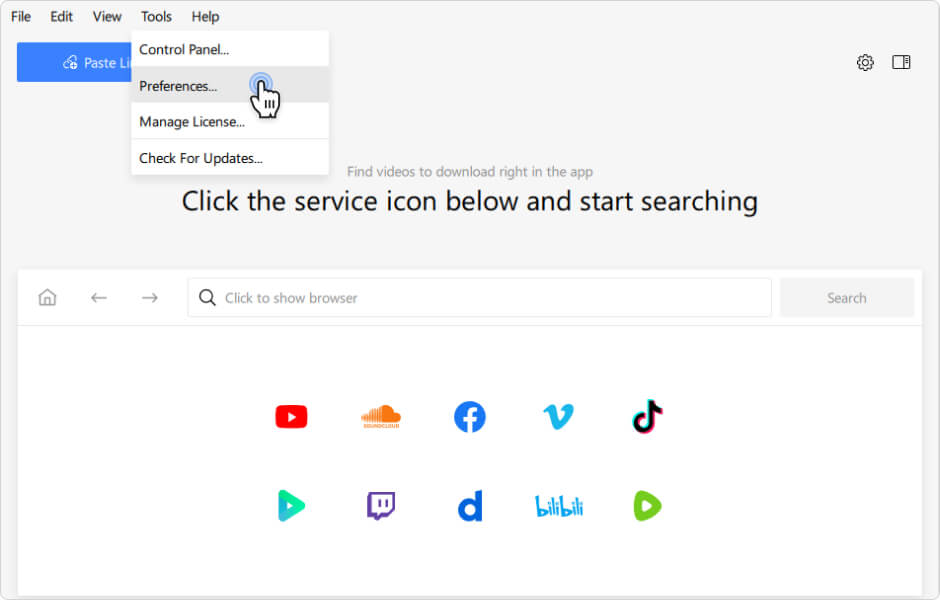
- In the menu bar, click Tools > Preferences.
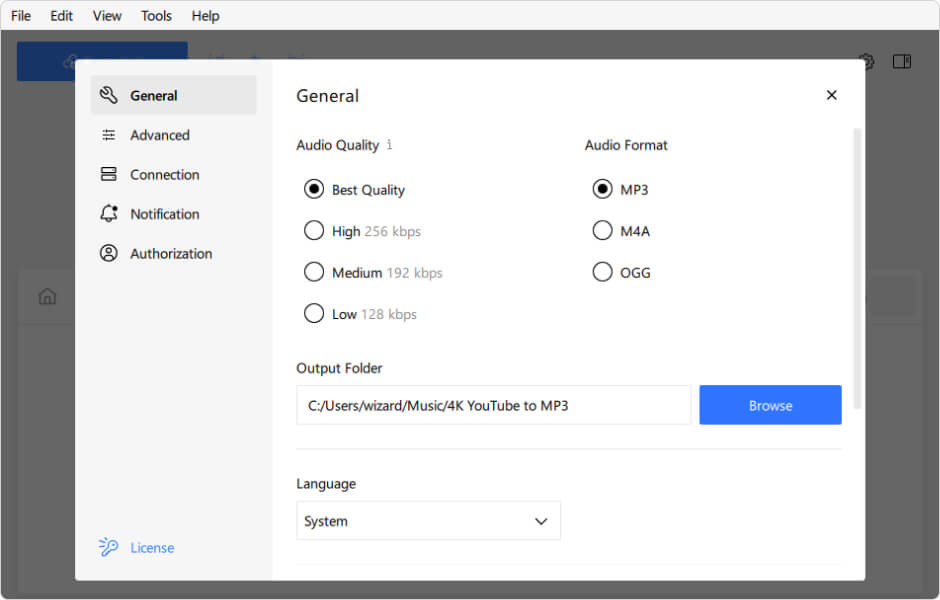
- Find the Output Folder section.
- Click Browse and select where you want your audio files to be saved.
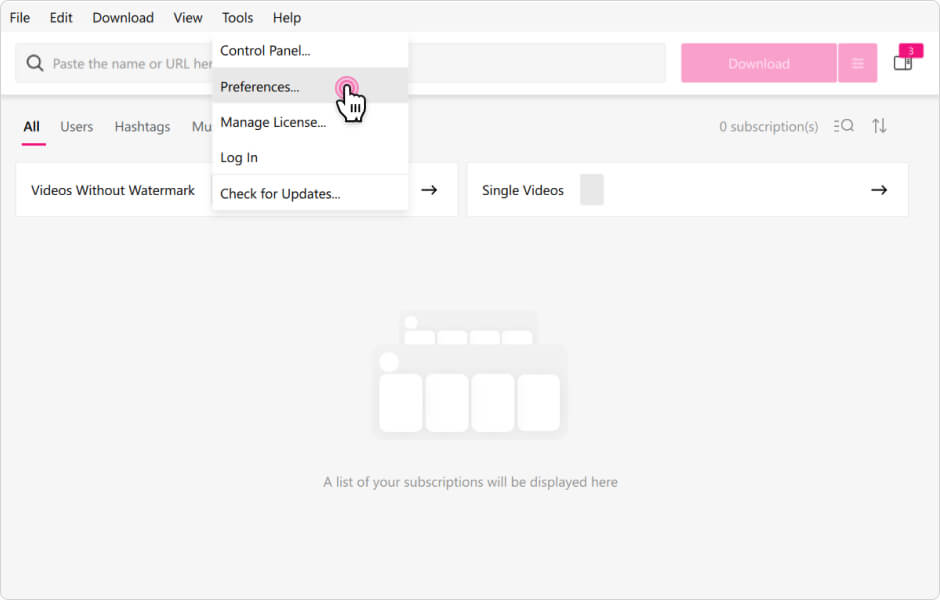
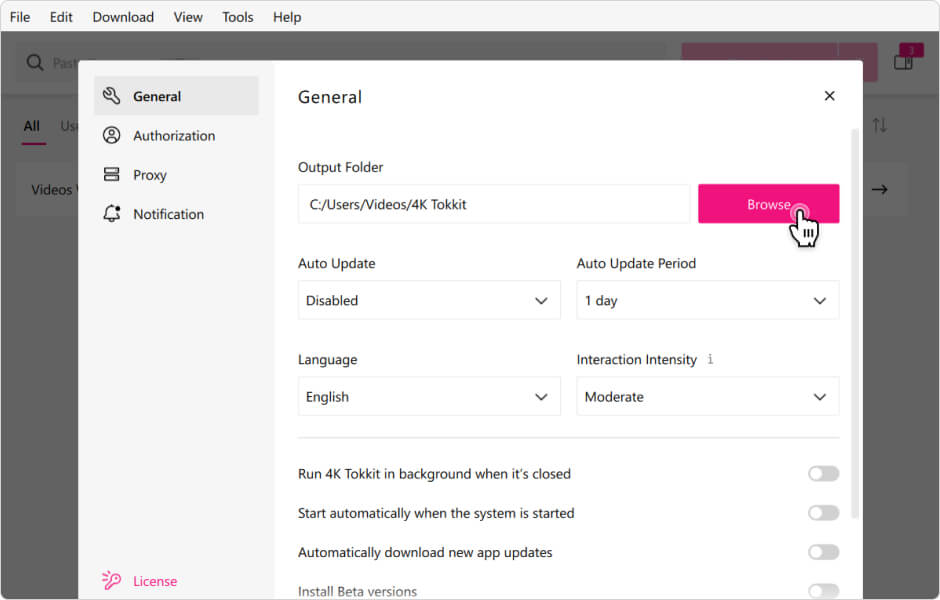
4K Tokkit
- In the menu bar, click Tools > Preferences.
- Find the Output Folder section.
- Click Browse to pick your desired save location.
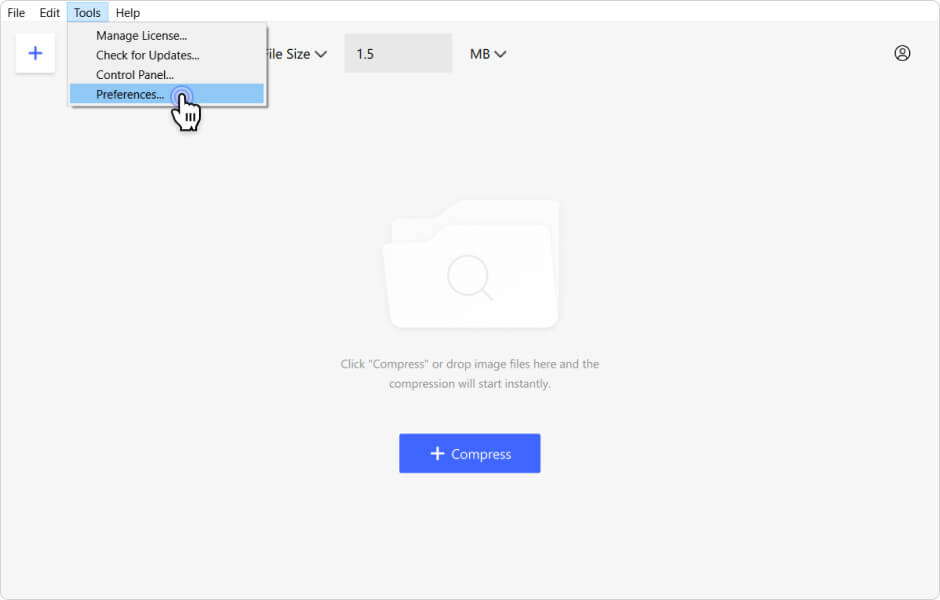
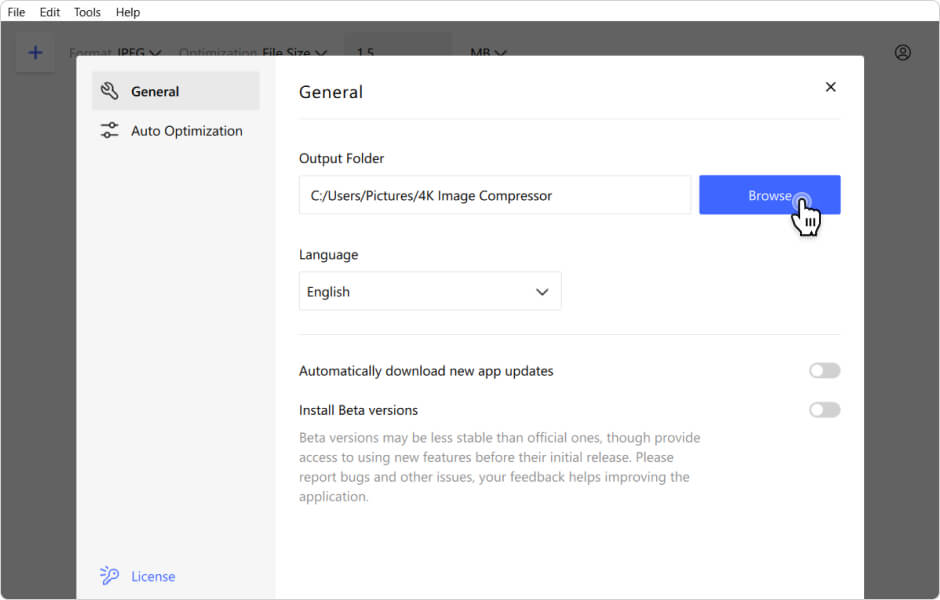
4K Image Compressor
- In the menu bar, click Tools > Preferences.
- In the General section, locate Output Folder.
- Click Browse to choose where the result images will be saved.
Important: Make sure the selected folder has enough free space and you have permission to save files there.


