


How Do I Download Videos in the Highest Resolution with Smart Mode?
If you’ve set 4K Video Downloader Plus to download the best possible resolution but ended up with a 1080p file instead of the 4K or 2K you expected, your Smart Mode settings are the likely cause. Adjusting a couple of them usually solves it.
How Smart Mode Chooses a File’s Resolution
Video platforms don’t store every resolution using the same codec or container. A single upload often exists as several separate files behind the scenes, each at a different resolution, encoded with a different codec, and sometimes compatible with only certain formats.
Smart Mode lets you pre-set several of these variables at once: Quality, Frame Rate, Codec, VR, and Format. When you paste a link, 4K Video Downloader Plus analyzes every version of that video available on the source platform and keeps only the ones that match all of your saved settings, then picks the best of what’s left.
This detail matters, since “Best” is calculated after filtering, not before. If Quality is set to Best but Codec is pinned to a specific value like H264, the app only chooses the best quality among H264 files, not the best quality overall. If the highest resolutions on that platform happen to be encoded in a different codec, they’re filtered out before “Best” is ever applied.
A Typical Example
Higher resolutions are frequently limited to newer codecs, while older, more universally compatible codecs are reserved for 1080p and below. On YouTube, for example, 4K and 8K files are typically encoded in VP9 or AV1 only, 2K (1440p) usually follows the same pattern, and 1080p and below are often available in H.264 as well as VP9 or AV1.
If Smart Mode Quality is set to Best but Codec is locked to H264, you’ll consistently be capped at 1080p for videos like this, even though 2K or 4K versions exist on the platform. The same logic applies to Frame Rate, VR, and Format: any one of them set to a specific fixed value can rule out an otherwise-available higher-resolution file.
How to Get the Highest Available Resolution in Smart Mode
In order to make sure Smart Mode selects the best resolution a platform actually offers, leave every setting on Auto, Best, Highest, or Any, unless you have a specific reason to lock it down.
-
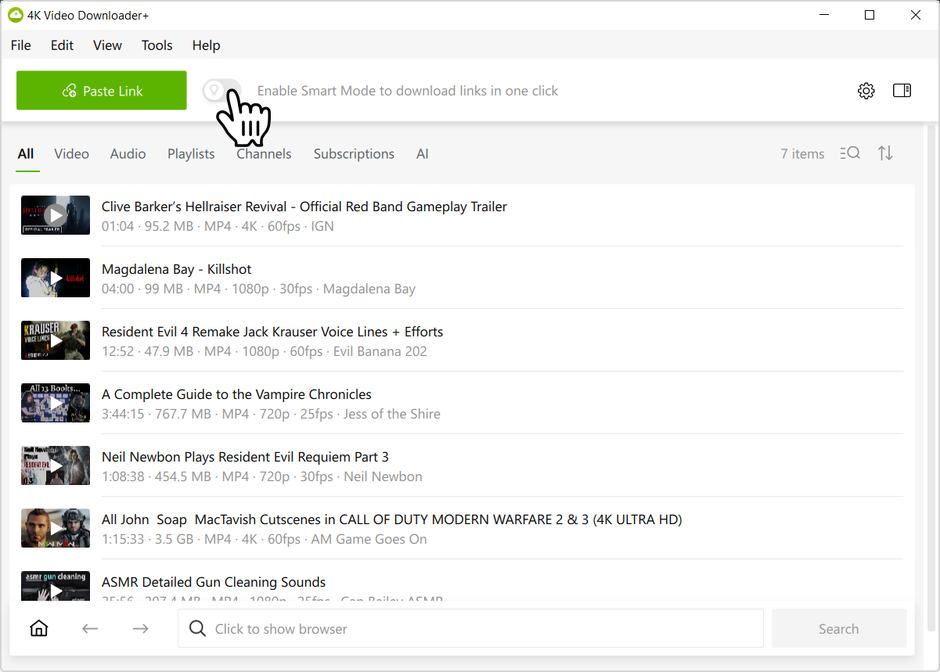
Make sure Smart Mode is turned on (toggle the bulb icon in the toolbar).
-
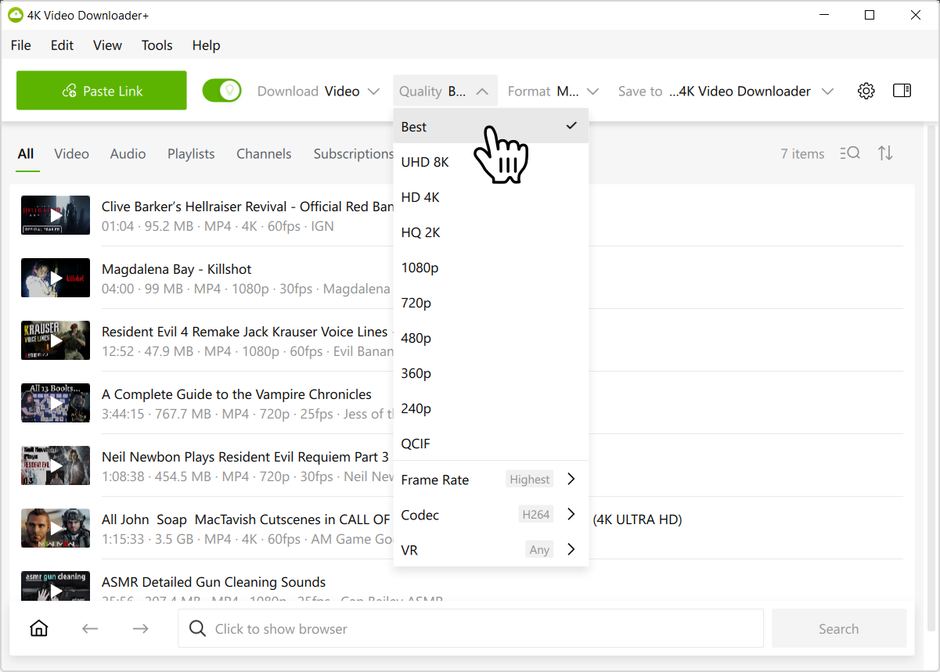
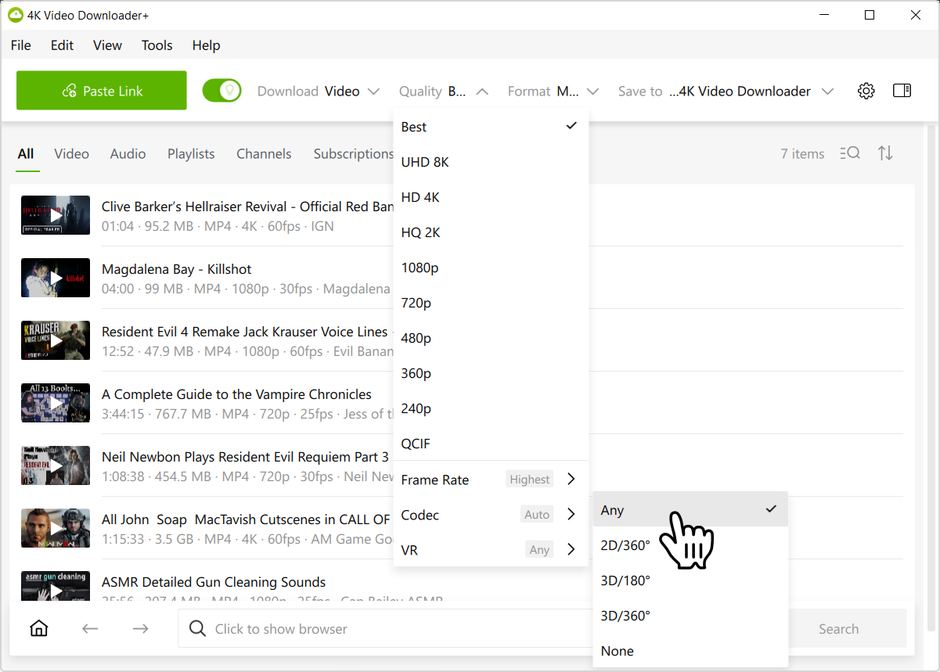
Open the Quality dropdown and set it to Best.
-
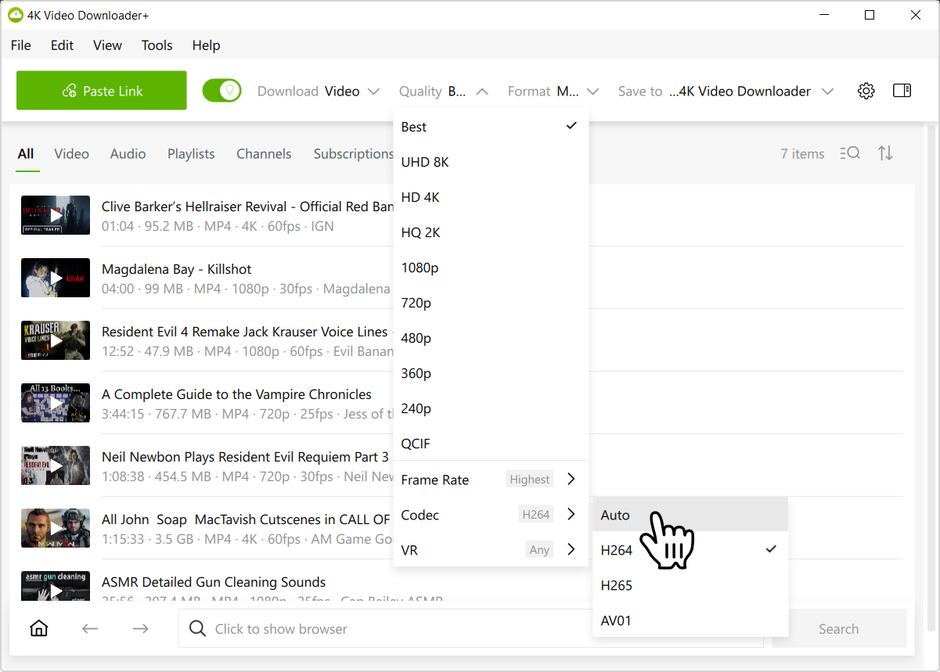
Inside the same dropdown, expand Codec and set it to Auto instead of a specific codec like H.264.
-
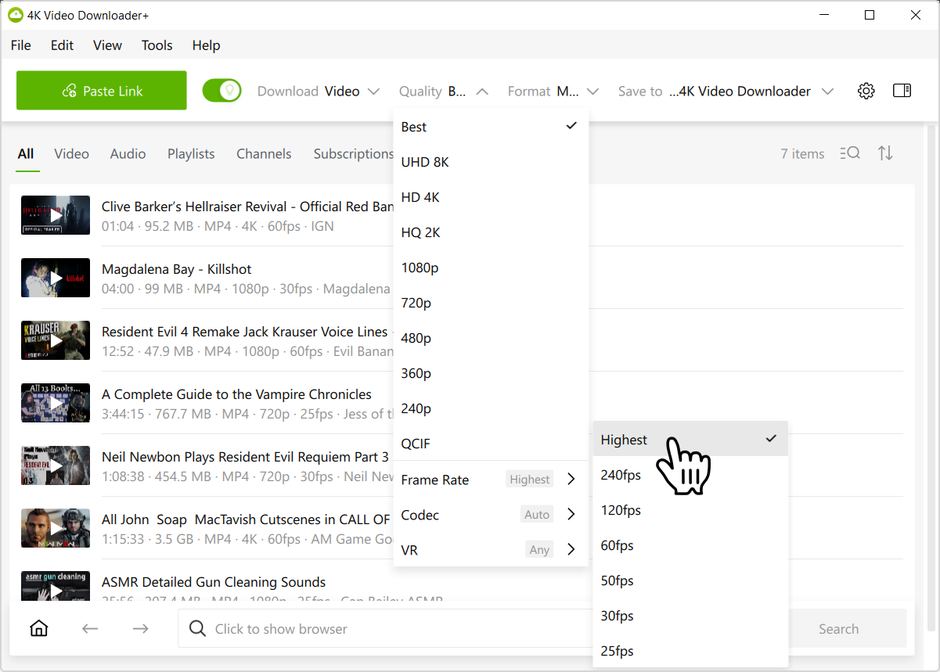
Check Frame Rate and leave it on Highest unless you deliberately want to cap it.
-
If you’re not downloading VR content, leave VR set to Any.
-
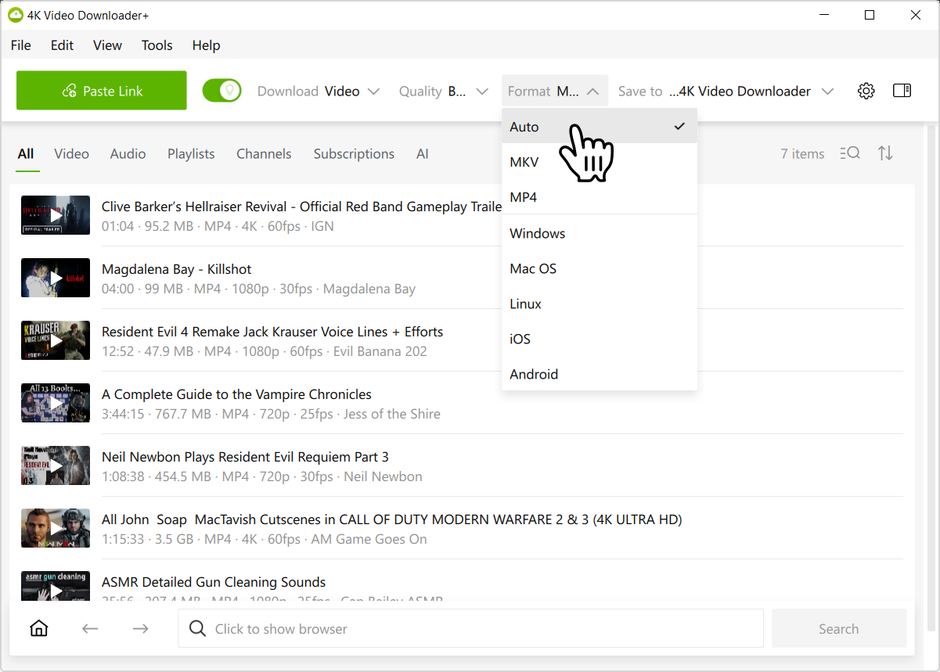
Open the separate Format dropdown and set it to Auto rather than pinning a container like MP4 or MKV, or a specific operating system. Just like with Codec, setting Format to Auto resets the underlying OS filter and removes restrictions on containers and codecs, so with Quality set to Best, you’ll get the maximum resolution that exists for that video.
Choosing your operating system instead (e.g., Mac OS) guarantees the video will play back in a standard player on that platform, but it’s still an explicit filter, and it can lower the maximum resolution available. If maximum resolution matters more than guaranteed native playback, stick with Auto.
-
Paste your link as usual. Smart Mode will remember these settings for future downloads.
Should I Ever Use a Fixed Setting?
There are cases where a fixed setting is the right choice. If your TV or media player genuinely can’t handle VP9 or AV1, keeping Codec set to H264 makes sense. If you only ever watch downloaded videos on your phone, picking Android or iOS under Format is reasonable too.
Fixed settings aren’t wrong on their own. Each one you lock in acts as a filter, and stacking several of them at once is what usually causes a lower-than-expected resolution. Keep the settings that genuinely matter to you, and set the rest to Auto, Best, Highest, or Any so they don’t rule out quality you’d otherwise get.
What If I Still Don’t See the Resolution I Expect Even with Everything on Auto?
Check whether the original video was actually uploaded in that resolution; not every video exists in 2K, 4K, or 8K to begin with. It’s also worth confirming you’re logged in through the app if the platform ties higher-quality access to an account, and that you’re running the latest version of 4K Video Downloader Plus.
Why Do Source Platforms Split Videos Up Like This?
Different codecs compress video differently, and newer codecs like VP9 or AV1 are often used for higher resolutions because they save on file size and bandwidth. Platforms like YouTube usually reserve these newer codecs for 2K, 4K, and 8K uploads while keeping older, more universally compatible codecs like H.264 available mainly at 1080p and below.


